FM-1 firmware · 1.0.5.2-midi23
WaveLoop FM-1
A four-track synth and drum sequencer with twelve setlist songs, quiet-time saving and direct MiniLab 3 control. The author calls this release WaveLoop Kit. It suits a small standalone setup built around the FM-1 and a MiniLab 3. All behavior below was read in this release’s source.
- What it is
- A four-track sequencer with synths, drums, twelve songs in a setlist and MiniLab 3 controls
- Best for
- Playing a set from an FM-1 and MiniLab 3; owners willing to follow the map’s song-saving cautions
- Install
- GitHub release or hub
- Scan
- Scanned, nothing harmful found · Oct 30 What we checked
What each control does on WaveLoop FM-1
TapSwipe across the panel, then tap any control to see what it does on WaveLoop FM-1.
Start here
Read before saving: leave project D for recovery, avoid confirming an overwrite of an occupied extended SETLIST song, and keep computer backups; this release can save or erase shared storage without asking. The full-backup file omits hand-set SLICE markers.
The modes
A page-button tap usually acts when released, and a quick layer takes priority over the page beneath it; its locked form uses the same key and knob jobs as holding the button. The engine-specific HOME and EDIT rows below describe conditional controls on those screens, rather than extra pages to navigate. The MENU rows describe the selected setting.
| Mode or page | Get there | What it offers |
|---|---|---|
| HOME | Press and release HOME. | Four sound controls for the selected track above the output waveform. |
| ENV | Press ENV to open its last page, then press it again to cycle through its pages. | Attack, decay, sustain and release for the selected track. |
| ENV DEST | Press ENV to open its last page, then press it again to cycle through its pages. | Envelope amounts for filter, pitch and shape. |
| LFO | Press LFO to open its last page, then press it again to cycle through its pages. | LFO rate, shape, starting phase and fade time. |
| LFO DEST | Press LFO to open its last page, then press it again to cycle through its pages. | LFO amounts for pitch, filter, shape and volume. |
| MOD | Press LFO to open its last page, then press it again to cycle through its pages. | Four modulation routes, with the selected route's source, destination and amount. |
| FX | Press FX to open its last page, then press it again to cycle through its pages. | Distortion and the chorus, delay and reverb sends; on DRUM these edits affect the selected drum lane. |
| SLICER | Press FX to open its last page, then press it again to cycle through its pages. | Rhythmic gating or stuttering, with a pattern, rate and depth. |
| DLY | Press FX to open its last page, then press it again to cycle through its pages. | Shared delay timing, feedback, tone and mix. |
| REVERB | Press FX to open its last page, then press it again to cycle through its pages. | Shared reverb model, size and damping. |
| CHORUS | Press FX to open its last page, then press it again to cycle through its pages. | Shared chorus rate and depth. |
| SCL | Press SEL to open its last page, then press it again to cycle through its pages. | The selected track's root, scale, keyboard mapping and transposition. |
| CHORD | Press SEL to open its last page, then press it again to cycle through its pages. | One-key chord type and voicing. |
| EDIT 1 | Press EDIT to open its last page, then press it again to cycle through its pages. | The selected engine's first four sound controls. |
| EDIT 2 | Press EDIT to open its last page, then press it again to cycle through its pages. | The selected engine's last four sound controls. |
| SLICES | Press EDIT to open its last page, then press it again to cycle through its pages. This page appears for SLICE tracks. | User-sample slice markers and the actions to split or join slices. |
| VOICE | Press EDIT to open its last page, then press it again to cycle through its pages. | Voice mode, glide time, glide behavior and note priority. |
| VOICE 2 | Press EDIT to open its last page, then press it again to cycle through its pages. | Voice allocation, unison detuning, pan and mute; DRUM pan affects the focused lane. |
| GLOBAL | Press GLO for MIXER, then press GLO again. | Shared tempo, swing, clock input and tuning. |
| SYSTEM | Press GLO for MIXER, then twice more for SYSTEM. | USB connection state, an unused sync field, MIDI routing and CPU usage. |
| PRESETS | Tap SAVE from another group for USER, then keep tapping through PROJECT, TOOLS, PRESETS and USER. | Factory sounds, their engine, favourite status and the ALL or FAV list. |
| USER | Tap SAVE from another group for USER, then keep tapping through PROJECT, TOOLS, PRESETS and USER. | User sound slot, load, erase and save actions. |
| PROJECT | Tap SAVE from another group for USER, then keep tapping through PROJECT, TOOLS, PRESETS and USER. | The original A–D project slots with load and save actions, with D shared by session recovery. |
| TOOLS | Tap SAVE from another group for USER, then keep tapping through PROJECT, TOOLS, PRESETS and USER. | Actions for the selected track's pattern and sound, the selected song row and the song. |
| ARP | Press ARP to open its last page, then press it again to cycle through its pages. | Arpeggiator mode, timing, octave range and gate. |
| ARP 2 | Press ARP to open its last page, then press it again to cycle through its pages. | Arpeggiator swing, probability, hold and note ordering. |
| STEP roll | Press SEQ to open its last page, then press it again to cycle through its pages. Select a melodic track. | Note cursor, pitch, note/tie/rest and accent/slide flags above the piano roll. |
| STEP grid | Press SEQ to open its last page, then press it again to cycle through its pages. Select a DRUM track. | Step cursor, selected drum lane, its hit and its accent above the drum grid. |
| PATTERN | Press SEQ to open its last page, then press it again to cycle through its pages. | Selected track's pattern length, division, swing and gate. |
| PHRASES | Press SEQ to open its last page, then press it again to cycle through its pages. | Factory phrases and patterns saved with user sounds, with a load action. |
| MIXER | Press GLO from another family; more GLO presses cycle GLOBAL, SYSTEM and MIXER. | Level, pan, reverb send and mute for the selected whole track. |
| SONG | Hold SEQ for about 0.7 seconds, or cycle the SEQ pages to SONG. | Song rows select a project slot and repeat count. |
| CHANCE | Press SEQ to open its last page, then press it again to cycle through its pages. | The cursor step's probability and ratchet count. |
| AUTOMATION | Press SEQ to open its last page, then press it again to cycle through its pages. | Automation playback, an event count and the clear action. |
| SETLIST | Press SEQ to open its last page, then press it again to cycle through its pages. | Twelve saved-song choices, their order and project load/save actions. |
| DRUM MIX | Press EDIT to open its last page, then press it again to cycle through its pages. This page appears only for DRUM tracks. | Level, pan, chorus and reverb send for the focused drum lane. |
| HOME ANALOG | Select the ANALOG engine and press HOME. | ANALOG main sound controls. |
| OSC ANALOG | Select the ANALOG engine and press EDIT until OSC appears. | ANALOG first sound page. |
| FLT ANALOG | Select the ANALOG engine and press EDIT until FLT appears. | ANALOG second sound page. |
| HOME PHASE | Select the PHASE engine and press HOME. | PHASE main sound controls. |
| PHS PHASE | Select the PHASE engine and press EDIT until PHS appears. | PHASE first sound page. |
| LINE PHASE | Select the PHASE engine and press EDIT until LINE appears. | PHASE second sound page. |
| HOME LOFI | Select the LOFI engine and press HOME. | LOFI main sound controls. |
| CHIP LOFI | Select the LOFI engine and press EDIT until CHIP appears. | LOFI first sound page. |
| MOTN LOFI | Select the LOFI engine and press EDIT until MOTN appears. | LOFI second sound page. |
| HOME SAMPLE | Select the SAMPLE engine and press HOME. | SAMPLE main sound controls. |
| SET SAMPLE | Select the SAMPLE engine and press EDIT until SET appears. | SAMPLE first sound page. |
| TONE SAMPLE | Select the SAMPLE engine and press EDIT until TONE appears. | SAMPLE second sound page. |
| HOME VOICE | Select the VOICE engine and press HOME. | VOICE main sound controls. |
| VOWL VOICE | Select the VOICE engine and press EDIT until VOWL appears. | VOICE first sound page. |
| TONE VOICE | Select the VOICE engine and press EDIT until TONE appears. | VOICE second sound page. |
| HOME TRIO | Select the TRIO engine and press HOME. | TRIO main sound controls. |
| OSC TRIO | Select the TRIO engine and press EDIT until OSC appears. | TRIO first sound page. |
| TONE TRIO | Select the TRIO engine and press EDIT until TONE appears. | TRIO second sound page. |
| HOME WHEEL | Select the WHEEL engine and press HOME. | WHEEL main sound controls. |
| BARS WHEEL | Select the WHEEL engine and press EDIT until BARS appears. | WHEEL first sound page. |
| TONE WHEEL | Select the WHEEL engine and press EDIT until TONE appears. | WHEEL second sound page. |
| HOME GRAIN | Select the GRAIN engine and press HOME. | GRAIN main sound controls. |
| GRAN GRAIN | Select the GRAIN engine and press EDIT until GRAN appears. | GRAIN first sound page. |
| SPRY GRAIN | Select the GRAIN engine and press EDIT until SPRY appears. | GRAIN second sound page. |
| HOME PHYS | Select the PHYS engine and press HOME. | PHYS main sound controls. |
| BODY PHYS | Select the PHYS engine and press EDIT until BODY appears. | PHYS first sound page. |
| EXCT PHYS | Select the PHYS engine and press EDIT until EXCT appears. | PHYS second sound page. |
| HOME DRUM | Select the DRUM engine and press HOME. | DRUM main sound controls. |
| KIT DRUM | Select the DRUM engine and press EDIT until KIT appears. | DRUM first sound page. |
| HIT DRUM | Select the DRUM engine and press EDIT until HIT appears. | DRUM second sound page. |
| HOME NOISE | Select the NOISE engine and press HOME. | NOISE main sound controls. |
| SRC NOISE | Select the NOISE engine and press EDIT until SRC appears. | NOISE first sound page. |
| MOVE NOISE | Select the NOISE engine and press EDIT until MOVE appears. | NOISE second sound page. |
| HOME FM6 | Select the FM6 engine and press HOME. | FM6 main sound controls. |
| OPS FM6 | Select the FM6 engine and press EDIT until OPS appears. | FM6 first sound page. |
| PATCH FM6 | Select the FM6 engine and press EDIT until PATCH appears. | FM6 second sound page. |
| HOME SLICE | Select the SLICE engine and press HOME. | SLICE main sound controls. |
| SLCE SLICE | Select the SLICE engine and press EDIT until SLCE appears. | SLICE first sound page. |
| PLAY SLICE | Select the SLICE engine and press EDIT until PLAY appears. | SLICE second sound page. |
| MENU | Hold HOME to open the menu. | DISPLAY, CONTROL, AUDIO and SYSTEM settings tabs. |
| ABOUT | In MENU, choose SYSTEM > ABOUT and press OCT+. | Credits and a source link, scrolled with PRESETS. |
| MENU COLOR | Hold HOME, choose DISPLAY with ALGORITHM and COLOR with PRESETS. | Palette colors preview immediately. HOME queues changed settings to save when stopped without a question. |
| MENU STYLE | Hold HOME, choose DISPLAY with ALGORITHM and STYLE with PRESETS. | The chosen layout appears immediately. HOME queues changed settings to save when stopped without a question. |
| MENU LARGE | Hold HOME, choose DISPLAY with ALGORITHM and LARGE with PRESETS. | Value pages grow taller cards; lists keep their layout with bigger labels. HOME queues changed settings to save when stopped without a question. |
| MENU ANIM | Hold HOME, choose DISPLAY with ALGORITHM and ANIM with PRESETS. | OFF makes value and roll changes appear immediately. HOME queues changed settings to save when stopped without a question. |
| MENU LEDS | Hold HOME, choose DISPLAY with ALGORITHM and LEDS with PRESETS. | INV swaps the light and dark states of active and idle controls. HOME queues changed settings to save when stopped without a question. |
| MENU HOLD | Hold HOME, choose CONTROL with ALGORITHM and HOLD with PRESETS. | The hold threshold applies to the quick-layer buttons. HOME queues changed settings to save when stopped without a question. |
| MENU KNOB ACCEL | Hold HOME, choose CONTROL with ALGORITHM and KNOB ACCEL with PRESETS. | Wide numeric values can move two to four steps per click when ON. HOME queues changed settings to save when stopped without a question. |
| MENU FX LATCH | Hold HOME, choose CONTROL with ALGORITHM and FX LATCH with PRESETS. | ON leaves selected FX effects and macros active after release. HOME queues changed settings to save when stopped without a question. |
| MENU BPM LOCK | Hold HOME, choose CONTROL with ALGORITHM and BPM LOCK with PRESETS. | Tempo remains adjustable with GLO held or from GLOBAL. HOME queues changed settings to save when stopped without a question. |
| MENU SPEAKER EQ | Hold HOME, choose AUDIO with ALGORITHM and SPEAKER EQ with PRESETS. | This equalizer affects headphones and USB audio as well as the speaker. HOME queues changed settings to save when stopped without a question. |
| MENU USB LEVEL | Hold HOME, choose AUDIO with ALGORITHM and USB LEVEL with PRESETS. | FIXED sends full USB audio level while MASTER still controls the speaker and headphones. HOME queues changed settings to save when stopped without a question. |
| MENU USB SERIAL | Hold HOME, choose SYSTEM with ALGORITHM and USB SERIAL with PRESETS. | Changing this reconnects the USB device when the menu closes; USB MIDI and audio reconnect too. HOME queues changed settings to save when stopped without a question. |
| HARDWARE CALIBRATION | Choose MENU > SYSTEM > CALIBRATION and press OCT+. | Teach each button and encoder; a piano key or 30 seconds without input restores the previous mapping. |
| FX layer | Hold or double-tap FX. | White keys hold performance effects, the first four black keys mute tracks and KNOB 1–4 are macros. |
| GLO layer | Hold or double-tap GLO. | Track mutes, temporary solos, unmute all, tap tempo and four track levels. |
| SEL layer | Hold or double-tap SEL. | Keys choose a root and knobs choose root, scale, chord and voicing. |
| EDIT layer | Hold or double-tap EDIT. | White keys select an engine or ask to initialize its sound; knobs browse engines and sounds or mark favourites. |
| NAME | Choose SAVE or EDIT rename on USER, PROJECT or SETLIST. | Keys and two knobs edit a twelve-character name; OCT+ writes while stopped and OCT- cancels. |
| Confirmation | Choose an action that asks. | OCT+ accepts and OCT- cancels, with save confirmations opening NAME before the write. |
| Power-on | Switch on. | Restores recovery and saved view; a recovery without a saved song destination also selects the first unreadable setlist song, normally song 1, for a quiet-time write without asking even when nothing is edited. |
| Hardware calibration | Hold both OCT buttons at power-on, or use MENU > SYSTEM > CALIBRATION. | Teaches buttons and encoder directions; a piano key or 30-second pause cancels and restores the old mapping, with a save request after the power-on route returns or after MENU closes. |
| Update countdown / UBOOT | Hold OCT- and OCT+ for five seconds. | Shows a countdown after two seconds, then stops audio and enters update mode; releasing early cancels. |
| Crash / failed start | Appears after a processor fault or repeated failed starts. | A crash shows diagnostic values and restarts after four seconds; two failed starts enter UBOOT. |
Play and choose sounds
| Do this | What happens |
|---|---|
| FX | Opens the remembered FX page, then cycles FX, SLICER, DLY, REVERB and CHORUS on release. |
| Hold FX | Opens the FX layer while held for effects and macros; its first opening also requests saving the seen flag with settings when stopped, without a question. |
| Double-tap FX | Keeps the FX layer open without holding; press FX again to close; its first opening also requests saving the seen flag with settings when stopped, without a question. |
| Release FX, SEL, EDIT, GLO | Closes its quick layer after a hold unless a layer key remains down or the layer was locked open. |
| SEL | Opens the remembered scale page, then alternates SCL and CHORD on release. |
| Hold SEL | Opens the SEL layer while held for root, scale, chord and voicing; its first opening also requests saving the seen flag with settings when stopped, without a question. |
| Double-tap SEL | Keeps the SEL layer open without holding; press SEL again to close; its first opening also requests saving the seen flag with settings when stopped, without a question. |
| ENV | Opens the remembered envelope page, then alternates ENV and ENV DEST on release. |
| LFO | Opens the remembered LFO page, then cycles LFO, LFO DEST and MOD on release. |
| Hold LFO | Has no hold shortcut; releasing it opens or advances its page. |
| EDIT | Opens the remembered engine page, then cycles its visible EDIT, SLICES, DRUM MIX and VOICE pages on release. |
| Hold EDIT | Opens the EDIT layer while held for engine selection and sound browsing; its first opening also requests saving the seen flag with settings when stopped, without a question. |
| Double-tap EDIT | Keeps the EDIT layer open without holding; press EDIT again to close; its first opening also requests saving the seen flag with settings when stopped, without a question. |
| GLO | On release, opens MIXER from another group, then GLOBAL, SYSTEM and MIXER on successive taps. |
| Hold GLO | Opens the GLO layer while held for mutes, solos, levels and tap tempo; its first opening also requests saving the seen flag with settings when stopped, without a question. |
| Double-tap GLO | Keeps the GLO layer open without holding; press GLO again to close; its first opening also requests saving the seen flag with settings when stopped, without a question. |
| ARP | Opens the remembered arpeggiator page, then alternates ARP and ARP 2 on release. |
| SEQ | On release, opens the remembered sequencer page and advances through its pages on further taps. |
| Long-press SEQ | After about 0.7 seconds, opens SONG directly without changing recording arming. |
| HOME | Returns to HOME on release. |
| Long-press HOME | Held about 0.7 s: opens the MENU (or closes it). |
| SAVE | On release, opens USER with SAVE selected; repeated taps then visit PROJECT, TOOLS, PRESETS and USER. |
| Long-press SAVE | After about 0.7 seconds, swaps the last sound or pattern load with its undo copy; another hold redoes it, but ordinary knob edits and flash replacements have no undo. |
| PLAY / STOP | Starts or stops all four tracks immediately on press. |
| REC | Arms or disarms this track’s recording on release and starts playback when arming while stopped. |
| OCT- | Shifts the keys down an octave (to -3). |
| OCT-: press together with OCT+ | Both together: octave back to 0. |
| OCT-: press together with OCT+ | Held together for 5 s: enters update (boot) mode for installing firmware; a countdown shows from 2 s, letting go cancels. |
| OCT+ | Shifts the keys up an octave (to +3). |
| OCT+: press together with OCT- | Both together: octave back to 0. |
| OCT+: press together with OCT- | Held together for 5 s: enters update (boot) mode for installing firmware; a countdown shows from 2 s, letting go cancels. |
| Turn ALGORITHM | Selects track 1–4 when no quick layer, menu, dialog or name screen owns the controls. |
| Turn PRESETS | Browses sounds across the engines and used user presets on HOME, PRESETS and sound pages, keeping the steps and a sound undo copy. |
| Turn SELECT | Sets tempo from 40 to 240 BPM unless BPM LOCK is on; holding GLO allows tempo changes despite the lock. |
| Turn MASTER | Sets speaker and headphone volume, and USB audio volume unless USB LEVEL is FIXED. |
| Any note key | Plays the selected track’s note or chord at velocity 100 and sends it on that track’s MIDI channel; playing a drum also selects its editing lane. |
| Release Any note key | Releases the notes started by this key on their original track, unless another held key still owns the same notes. |
Sound and status readouts
| Do this | What happens |
|---|---|
| Screen | A MIDI parameter change briefly shows its track, parameter and value for 1.2 seconds, while menus, naming and confirmation screens take priority. |
| Screen | A thin line at the screen’s bottom shows the selected sound’s position among the engine’s factory and saved user sounds. |
| Screen | After five seconds of quiet audio and unchanged state while stopped with notes released, replaces the active saved song, changed order and recovery without asking; loading, saving or tagged restoration sets that song destination, and a readable ordinary D blocks all these writes and queued loads. |
| Screen | AUTOSAVE SLOT4 USED means a readable ordinary project D has stopped automatic song, order and recovery writes and queued song loads. |
| Screen | AUTOSAVED means the recovery copy was written; the active-song and order stages precede it, while unchanged recovery produces no success message. |
| Screen | AUTOSAVE ERROR means writing recovery failed and it will retry after another five-second wait, so recent changes are not protected by that failed write. |
| Screen | SETLIST SAVE ERROR means the changed song order was not stored and will be retried after another quiet wait. |
| Screen | WAIT FOR SILENCE means a stopped-transport song load is queued until the quiet and unchanged-state checks pass and the previous song has saved. |
| Screen | SESSION RESTORED means recovery music and its saved view were loaded with playback stopped; without a saved song destination it can also pick the first unreadable song for a later automatic write. |
| Screen | AUTOSAVE FORMAT ERROR means the current session could not be packed, so that automatic save was refused. |
| Screen | MIDI IN -> Tn identifies a track receiving notes while another track is displayed, when no other message has priority. |
| Screen | SAVED confirms a song was written to flash, including an automatic active-song write after the quiet wait, but does not confirm that setlist order or recovery has saved, and can appear alone when recovery is unchanged. |
| Screen | SAVE ERROR means a song or user-sound save or rename failed, or hand-set slice markers failed to save after leaving SLICES while stopped, so those changes are not confirmed stored; a failed automatic song save also defers order and recovery writes until a later quiet retry. |
Enter and edit a sequence
On melodic STEP, notes enter or replace the cursor step while stopped or during unarmed playback; REC arms live recording and can start playback, while song-chain playback prevents cursor entry. On the drum grid, the sixteen white keys are the displayed page’s steps, the first eight black keys choose lanes, C#5 is ACC, D#5 goes back a page and F#5 goes forward.
STEP roll
Press SEQ to open its last page, then press it again to cycle through its pages. Select a melodic track. Note cursor, pitch, note/tie/rest and accent/slide flags above the piano roll.
| Do this | What happens |
|---|---|
| EDIT | On release, clears the cursor step and advances immediately without a question or undo; quiet-time saving can later keep the cleared sequence. |
| Long-press REC | After about 0.7 seconds, asks to clear this track’s steps and automation if any exist; OCT+ clears them in memory with one load undo, and quiet-time saving can later keep the change. |
| Turn PRESETS | Moves the step cursor or list selection; on SONG selects a chain row and on SETLIST selects an entry. |
| Turn KNOB 1 | Moves the step cursor. |
| Turn KNOB 2 | Transposes all notes on the step or adds the last note to an empty step. |
| Turn KNOB 3 | Chooses NOTE, TIE or REST for the cursor step. |
| Turn KNOB 4 | Chooses accent, slide, both or neither for the cursor step. |
| Any note key | On STEP, enters or replaces the cursor note or chord while stopped or during unarmed playback, without needing REC armed; armed playback records live instead, and later automatic saving can keep the change. |
| Release Any note key | Releasing the last note-entry key advances the cursor while stopped or during unarmed playback, but not during armed live recording or song-chain playback. |
| Screen | Note cursor, pitch, note/tie/rest and accent/slide flags above the piano roll. |
STEP grid
Press SEQ to open its last page, then press it again to cycle through its pages. Select a DRUM track. Step cursor, selected drum lane, its hit and its accent above the drum grid.
| Do this | What happens |
|---|---|
| Long-press REC | After about 0.7 seconds, asks to clear this track’s steps and automation if any exist; OCT+ clears them in memory with one load undo, and quiet-time saving can later keep the change. |
| Turn PRESETS | Moves the step cursor or list selection; on SONG selects a chain row and on SETLIST selects an entry. |
| Turn KNOB 1 | Moves the step cursor. |
| Turn KNOB 2 | Chooses the drum lane to edit. |
| Turn KNOB 3 | Adds the lane's hit clockwise or removes it counterclockwise. |
| Turn KNOB 4 | Adds the lane's accent clockwise or removes it counterclockwise. |
| F3 | Toggles the selected drum lane at step 1 of the displayed 16-step page and selects that step; holding C#5 toggles its accent instead, and later quiet-time saving can keep the change. |
| Hold C#5, then press F3 | Toggles the selected lane’s accent at step 1 of this page, adding a hit if needed. |
| F#3 | Selects drum lane 1 (KICK) and plays it and focuses that lane for sound editing and DRUM MIX. |
| G3 | Toggles the selected drum lane at step 2 of the displayed 16-step page and selects that step; holding C#5 toggles its accent instead, and later quiet-time saving can keep the change. |
| Hold C#5, then press G3 | Toggles the selected lane’s accent at step 2 of this page, adding a hit if needed. |
| G#3 | Selects drum lane 2 (SNARE) and plays it and focuses that lane for sound editing and DRUM MIX. |
| A3 | Toggles the selected drum lane at step 3 of the displayed 16-step page and selects that step; holding C#5 toggles its accent instead, and later quiet-time saving can keep the change. |
| Hold C#5, then press A3 | Toggles the selected lane’s accent at step 3 of this page, adding a hit if needed. |
| A#3 | Selects drum lane 3 (CLAP) and plays it and focuses that lane for sound editing and DRUM MIX. |
| B3 | Toggles the selected drum lane at step 4 of the displayed 16-step page and selects that step; holding C#5 toggles its accent instead, and later quiet-time saving can keep the change. |
| Hold C#5, then press B3 | Toggles the selected lane’s accent at step 4 of this page, adding a hit if needed. |
| C4 | Toggles the selected drum lane at step 5 of the displayed 16-step page and selects that step; holding C#5 toggles its accent instead, and later quiet-time saving can keep the change. |
| Hold C#5, then press C4 | Toggles the selected lane’s accent at step 5 of this page, adding a hit if needed. |
| C#4 | Selects drum lane 4 (C.HAT) and plays it and focuses that lane for sound editing and DRUM MIX. |
| D4 | Toggles the selected drum lane at step 6 of the displayed 16-step page and selects that step; holding C#5 toggles its accent instead, and later quiet-time saving can keep the change. |
| Hold C#5, then press D4 | Toggles the selected lane’s accent at step 6 of this page, adding a hit if needed. |
| D#4 | Selects drum lane 5 (O.HAT) and plays it and focuses that lane for sound editing and DRUM MIX. |
| E4 | Toggles the selected drum lane at step 7 of the displayed 16-step page and selects that step; holding C#5 toggles its accent instead, and later quiet-time saving can keep the change. |
| Hold C#5, then press E4 | Toggles the selected lane’s accent at step 7 of this page, adding a hit if needed. |
| F4 | Toggles the selected drum lane at step 8 of the displayed 16-step page and selects that step; holding C#5 toggles its accent instead, and later quiet-time saving can keep the change. |
| Hold C#5, then press F4 | Toggles the selected lane’s accent at step 8 of this page, adding a hit if needed. |
| F#4 | Selects drum lane 6 (TOM) and plays it and focuses that lane for sound editing and DRUM MIX. |
| G4 | Toggles the selected drum lane at step 9 of the displayed 16-step page and selects that step; holding C#5 toggles its accent instead, and later quiet-time saving can keep the change. |
| Hold C#5, then press G4 | Toggles the selected lane’s accent at step 9 of this page, adding a hit if needed. |
| G#4 | Selects drum lane 7 (RIM) and plays it and focuses that lane for sound editing and DRUM MIX. |
| A4 | Toggles the selected drum lane at step 10 of the displayed 16-step page and selects that step; holding C#5 toggles its accent instead, and later quiet-time saving can keep the change. |
| Hold C#5, then press A4 | Toggles the selected lane’s accent at step 10 of this page, adding a hit if needed. |
| A#4 | Selects drum lane 8 (BELL) and plays it and focuses that lane for sound editing and DRUM MIX. |
| B4 | Toggles the selected drum lane at step 11 of the displayed 16-step page and selects that step; holding C#5 toggles its accent instead, and later quiet-time saving can keep the change. |
| Hold C#5, then press B4 | Toggles the selected lane’s accent at step 11 of this page, adding a hit if needed. |
| C5 | Toggles the selected drum lane at step 12 of the displayed 16-step page and selects that step; holding C#5 toggles its accent instead, and later quiet-time saving can keep the change. |
| Hold C#5, then press C5 | Toggles the selected lane’s accent at step 12 of this page, adding a hit if needed. |
| Hold C#5 | ACC: while held, the white step keys set or clear accents instead of hits. |
| D5 | Toggles the selected drum lane at step 13 of the displayed 16-step page and selects that step; holding C#5 toggles its accent instead, and later quiet-time saving can keep the change. |
| Hold C#5, then press D5 | Toggles the selected lane’s accent at step 13 of this page, adding a hit if needed. |
| D#5 | Previous page of 16 steps. |
| E5 | Toggles the selected drum lane at step 14 of the displayed 16-step page and selects that step; holding C#5 toggles its accent instead, and later quiet-time saving can keep the change. |
| Hold C#5, then press E5 | Toggles the selected lane’s accent at step 14 of this page, adding a hit if needed. |
| F5 | Toggles the selected drum lane at step 15 of the displayed 16-step page and selects that step; holding C#5 toggles its accent instead, and later quiet-time saving can keep the change. |
| Hold C#5, then press F5 | Toggles the selected lane’s accent at step 15 of this page, adding a hit if needed. |
| F#5 | Next page of 16 steps. |
| G5 | Toggles the selected drum lane at step 16 of the displayed 16-step page and selects that step; holding C#5 toggles its accent instead, and later quiet-time saving can keep the change. |
| Hold C#5, then press G5 | Toggles the selected lane’s accent at step 16 of this page, adding a hit if needed. |
| Screen | Step cursor, selected drum lane, its hit and its accent above the drum grid. |
PATTERN
Press SEQ to open its last page, then press it again to cycle through its pages. Selected track's pattern length, division, swing and gate.
| Do this | What happens |
|---|---|
| Long-press REC | After about 0.7 seconds, asks to clear this track’s steps and automation if any exist; OCT+ clears them in memory with one load undo, and quiet-time saving can later keep the change. |
| Turn PRESETS | Moves the step cursor or list selection; on SONG selects a chain row and on SETLIST selects an entry. |
| Turn KNOB 1 | Sets length. |
| Turn KNOB 2 | Sets division. |
| Turn KNOB 3 | Sets swing. |
| Turn KNOB 4 | Sets gate. |
| Screen | Selected track's pattern length, division, swing and gate. |
CHANCE
Press SEQ to open its last page, then press it again to cycle through its pages. The cursor step's probability and ratchet count.
| Do this | What happens |
|---|---|
| Long-press REC | After about 0.7 seconds, asks to clear this track’s steps and automation if any exist; OCT+ clears them in memory with one load undo, and quiet-time saving can later keep the change. |
| Turn PRESETS | Moves the step cursor or list selection; on SONG selects a chain row and on SETLIST selects an entry. |
| Turn KNOB 1 | Moves the step cursor. |
| Turn KNOB 2 | Sets the whole step's chance from 0 to 100 percent. |
| Turn KNOB 3 | Sets one to four repeats for the whole step. |
| Turn KNOB 4 | Nothing on this page. |
| Screen | The cursor step's probability and ratchet count. |
AUTOMATION
Press SEQ to open its last page, then press it again to cycle through its pages. Automation playback, an event count and the clear action.
| Do this | What happens |
|---|---|
| Release OCT- | Drops the selected action, or returns HOME if none is selected; PHRASES returns HOME directly. |
| Release OCT+ | Asks to clear this track’s recorded parameter movements; OCT+ clears them in memory with one load undo and quiet-time saving can keep the result. |
| Turn PRESETS | Moves the step cursor or list selection; on SONG selects a chain row and on SETLIST selects an entry. |
| Turn KNOB 1 | Turns recorded automation playback on or off. |
| Turn KNOB 2, KNOB 3 | Nothing on this page. |
| Turn KNOB 4 | Selects clearing this track's recorded automation for OCT+ confirmation. |
| Screen | Automation playback, an event count and the clear action. |
| Screen | All tracks share room for 64 recorded parameter events, and AUTOMATION FULL means a new event was refused or an undo could not fit. |
Coming from another firmware
Pick the firmware on your FM-1 now to see what installing WaveLoop FM-1 does to its data.
1 · Before you switch, back up on Stock V15
- Back up first. Keep the DX7 .syx banks you loaded so you can send them again (a bank arrives over MIDI SysEx and you pick A-D). Another route: installing Baud Girl’s FM-1+VA keeps your saved stock presets, and its Device Manager can then save all 128 presets as a .syx file. FM-1+VA is closed source; install it at your own risk. It is unknown whether stock's 16 patterns come through or can then be backed up. Write down patterns you care about. To come back, you need M-VAVE's own V15 file from its download page; the installers check it byte for byte. Stock V15’s automatic pattern saves and SAVE writes may also replace ChoralRoot’s legacy sounds 1–32, VA patches, FM6 patches 1–32, CZ patches 1–32 and FM TONE patches, kept for returning to ChoralRoot 0.21 or older. Stock V15’s write locations are uncertain. Stock V15 has no backup of its own; it sends notes over MIDI, never voice data.
2 · What happens to your Stock V15 data
Possibly at risk
- stock settings (and possibly patterns)
What Les checked
WaveLoop FM-1 1.0.5.2-midi23Scanned October 30, 2026
What we checked for
- The file is exactly the one its author published
- It's the same file we saw when this release first came out
- It opens cleanly as an FM-1 firmware, nothing damaged
- It doesn't show up on your computer as a keyboard, mouse or other input device
- It doesn't show up as a USB drive or network adapter
- Its text mentions no computer command tools, like PowerShell, Terminal or a download command
What we found
- MIDI and audio, as expected
- A serial port, which many FM-1 firmwares keep for debugging. It can't type into your computer.
Not checked yet
- Its update loader, the part that writes the firmware onto your FM-1. A person hasn't reviewed it yet.
- What it does while it's running. We read the file; we don't run it.
- Whether the file was built from its published source code.
StatusScanned, nothing harmful found
Les has mapped its controls for 1.0.5.2-midi23.
Les scans every firmware here whose file is public, and shows what it checked and what it found. A scan lowers the risk; it can't rule it out. This firmware is made by its author, not by Les or M-VAVE. Back up first, and install at your own risk. How Les scans firmware
Everything else on WaveLoop FM-1
Choose a sound and play chords
PRESETS
Tap SAVE from another group for USER, then keep tapping through PROJECT, TOOLS, PRESETS and USER. Factory sounds, their engine, favourite status and the ALL or FAV list.
| Do this | What happens |
|---|---|
| Turn KNOB 1 | Loads the next or previous sound for audition in memory. |
| Turn KNOB 2 | Chooses another engine. |
| Turn KNOB 3 | Marks or unmarks the sound as a favourite and queues the preference to save when stopped without a question. |
| Turn KNOB 4 | Selects ALL or favourites and queues the changed preference to save when stopped without a question. |
| Screen | Factory sounds, their engine, favourite status and the ALL or FAV list. |
| Screen | The DRUM bank includes 808, CR78 and eight YB choices named STANDARD, ELECTRO, POWER, BRUSH, ORCH, SYNTH, LATIN and LOFI. |
| Screen | Expanded synth banks reach 32 sounds, while VOICE browsing offers 26 after six retired bass positions become hidden aliases with their old stored numbers retained. |
SCL
Press SEL to open its last page, then press it again to cycle through its pages. The selected track's root, scale, keyboard mapping and transposition.
| Do this | What happens |
|---|---|
| Turn KNOB 1 | Sets root. |
| Turn KNOB 2 | Sets scale. |
| Turn KNOB 3 | Chooses OFF, SNAP, WHITE or SEQ scale mapping. |
| Turn KNOB 4 | Sets transpose. |
| Any white key | With WHITE key mode, plays a scale note with C4 as the root and successive white keys following the scale on every page. |
| Any black key | With WHITE key mode, stays silent; SNAP and SEQ round its pitch down into the scale. |
| Screen | The selected track's root, scale, keyboard mapping and transposition. |
CHORD
Press SEL to open its last page, then press it again to cycle through its pages. One-key chord type and voicing.
| Do this | What happens |
|---|---|
| Turn KNOB 1 | Sets chord. |
| Turn KNOB 2 | Sets voicing. |
| Turn KNOB 3, KNOB 4 | Nothing on this page. |
| Screen | One-key chord type and voicing. |
ARP
Press ARP to open its last page, then press it again to cycle through its pages. Arpeggiator mode, timing, octave range and gate.
| Do this | What happens |
|---|---|
| Turn KNOB 1 | Sets arp mode. |
| Turn KNOB 2 | Sets arp rate. |
| Turn KNOB 3 | Sets arp octaves. |
| Turn KNOB 4 | Sets arp gate. |
| Screen | Arpeggiator mode, timing, octave range and gate. |
ARP 2
Press ARP to open its last page, then press it again to cycle through its pages. Arpeggiator swing, probability, hold and note ordering.
| Do this | What happens |
|---|---|
| Turn KNOB 1 | Sets swing. |
| Turn KNOB 2 | Sets probability. |
| Turn KNOB 3 | Sets latch. |
| Turn KNOB 4 | Sets note order. |
| Screen | Arpeggiator swing, probability, hold and note ordering. |
HOME
Press and release HOME. Four sound controls for the selected track above the output waveform.
| Do this | What happens |
|---|---|
| Turn KNOB 1 | Edits the engine's main value 1; the engine-specific HOME entries name it. |
| Turn KNOB 2 | Edits the engine's main value 2; the engine-specific HOME entries name it. |
| Turn KNOB 3 | Edits the engine's main value 3; the engine-specific HOME entries name it. |
| Turn KNOB 4 | Edits the engine's main value 4; the engine-specific HOME entries name it. |
| Screen | Four sound controls for the selected track above the output waveform. |
HOME ANALOG
Select the ANALOG engine and press HOME. ANALOG main sound controls.
| Do this | What happens |
|---|---|
| Turn KNOB 1 | Sets cutoff for the selected sound. |
| Turn KNOB 2 | Sets resonance for the selected sound. |
| Turn KNOB 3 | Sets attack for the selected sound. |
| Turn KNOB 4 | Sets release for the selected sound. |
| Screen | ANALOG main sound controls; the four cards name cutoff, resonance, attack, release. |
HOME PHASE
Select the PHASE engine and press HOME. PHASE main sound controls.
| Do this | What happens |
|---|---|
| Turn KNOB 1 | Sets phase shape for the selected sound. |
| Turn KNOB 2 | Sets env depth for the selected sound. |
| Turn KNOB 3 | Sets detune for the selected sound. |
| Turn KNOB 4 | Sets release for the selected sound. |
| Screen | PHASE main sound controls; the four cards name phase shape, env depth, detune, release. |
HOME LOFI
Select the LOFI engine and press HOME. LOFI main sound controls.
| Do this | What happens |
|---|---|
| Turn KNOB 1 | Sets wave for the selected sound. |
| Turn KNOB 2 | Sets pulse duty, or chooses a waveform table when WAVE is WRAM. |
| Turn KNOB 3 | Sets bit crushing, or the stepped envelope when CHIP is STEP. |
| Turn KNOB 4 | Sets release for the selected sound. |
| Screen | LOFI main sound controls; the four cards name wave, duty, crush, release. |
HOME SAMPLE
Select the SAMPLE engine and press HOME. SAMPLE main sound controls.
| Do this | What happens |
|---|---|
| Turn KNOB 1 | Sets sample set for the selected sound. |
| Turn KNOB 2 | Sets cutoff for the selected sound. |
| Turn KNOB 3 | Sets attack for the selected sound. |
| Turn KNOB 4 | Sets release for the selected sound. |
| Screen | SAMPLE main sound controls; the four cards name sample set, cutoff, attack, release. |
HOME VOICE
Select the VOICE engine and press HOME. VOICE main sound controls.
| Do this | What happens |
|---|---|
| Turn KNOB 1 | Sets vowel for the selected sound. |
| Turn KNOB 2 | Sets buzz for the selected sound. |
| Turn KNOB 3 | Sets breath for the selected sound. |
| Turn KNOB 4 | Sets talk for the selected sound. |
| Screen | VOICE main sound controls; the four cards name vowel, buzz, breath, talk. |
HOME TRIO
Select the TRIO engine and press HOME. TRIO main sound controls.
| Do this | What happens |
|---|---|
| Turn KNOB 1 | Sets cutoff for the selected sound. |
| Turn KNOB 2 | Sets resonance for the selected sound. |
| Turn KNOB 3 | Sets pulse width for the selected sound. |
| Turn KNOB 4 | Sets interval 2 for the selected sound. |
| Screen | TRIO main sound controls; the four cards name cutoff, resonance, pulse width, interval 2. |
HOME WHEEL
Select the WHEEL engine and press HOME. WHEEL main sound controls.
| Do this | What happens |
|---|---|
| Turn KNOB 1 | Sets register for the selected sound. |
| Turn KNOB 2 | Sets percussion for the selected sound. |
| Turn KNOB 3 | Sets drive for the selected sound. |
| Turn KNOB 4 | Sets rotor for the selected sound. |
| Screen | WHEEL main sound controls; the four cards name register, percussion, drive, rotor. |
HOME GRAIN
Select the GRAIN engine and press HOME. GRAIN main sound controls.
| Do this | What happens |
|---|---|
| Turn KNOB 1 | Sets position for the selected sound. |
| Turn KNOB 2 | Sets grain size for the selected sound. |
| Turn KNOB 3 | Sets density for the selected sound. |
| Turn KNOB 4 | Sets spread for the selected sound. |
| Screen | GRAIN main sound controls; the four cards name position, grain size, density, spread. |
HOME PHYS
Select the PHYS engine and press HOME. PHYS main sound controls.
| Do this | What happens |
|---|---|
| Turn KNOB 1 | Sets model structure, membrane harmonics on MEMB or sympathetic-string tuning on SYMP. |
| Turn KNOB 2 | Sets brightness for the selected sound. |
| Turn KNOB 3 | Sets damp for the selected sound. |
| Turn KNOB 4 | Sets strike position, or sympathetic-string level on SYMP. |
| Screen | PHYS main sound controls; the four cards name structure, brightness, damp, position. |
HOME DRUM
Select the DRUM engine and press HOME. DRUM main sound controls.
| Do this | What happens |
|---|---|
| Turn KNOB 1 | Sets tune for the selected drum lane. |
| Turn KNOB 2 | Sets tone for the selected drum lane. |
| Turn KNOB 3 | Sets decay for the selected drum lane. |
| Turn KNOB 4 | Sets snap for the selected drum lane. |
| Screen | DRUM main sound controls; the four cards name tune, tone, decay, snap. |
HOME NOISE
Select the NOISE engine and press HOME. NOISE main sound controls.
| Do this | What happens |
|---|---|
| Turn KNOB 1 | Sets frequency for the selected sound. |
| Turn KNOB 2 | Sets resonance for the selected sound. |
| Turn KNOB 3 | Sets colour for the selected sound. |
| Turn KNOB 4 | Sets release for the selected sound. |
| Screen | NOISE main sound controls; the four cards name frequency, resonance, colour, release. |
HOME FM6
Select the FM6 engine and press HOME. FM6 main sound controls.
| Do this | What happens |
|---|---|
| Turn KNOB 1 | Sets mod level for the selected sound. |
| Turn KNOB 2 | Sets mod ratio for the selected sound. |
| Turn KNOB 3 | Sets mod envelope for the selected sound. |
| Turn KNOB 4 | Sets patch slot for the selected sound. |
| Screen | FM6 main sound controls; the four cards name mod level, mod ratio, mod envelope, patch slot. |
HOME SLICE
Select the SLICE engine and press HOME. SLICE main sound controls.
| Do this | What happens |
|---|---|
| Turn KNOB 1 | Sets source for the selected sound. |
| Turn KNOB 2 | Sets division for the selected sound. |
| Turn KNOB 3 | Sets pitch for the selected sound. |
| Turn KNOB 4 | Sets decay for the selected sound. |
| Screen | SLICE main sound controls; the four cards name source, division, pitch, decay. |
Shape the sound
ENV
Press ENV to open its last page, then press it again to cycle through its pages. Attack, decay, sustain and release for the selected track.
| Do this | What happens |
|---|---|
| Turn KNOB 1 | Sets attack. |
| Turn KNOB 2 | Sets decay. |
| Turn KNOB 3 | Sets sustain. |
| Turn KNOB 4 | Sets release. |
| Screen | Attack, decay, sustain and release for the selected track. |
ENV DEST
Press ENV to open its last page, then press it again to cycle through its pages. Envelope amounts for filter, pitch and shape.
| Do this | What happens |
|---|---|
| Turn KNOB 1 | Sets env>filter. |
| Turn KNOB 2 | Sets env>pitch. |
| Turn KNOB 3 | Sets env>shape. |
| Turn KNOB 4 | Nothing on this page. |
| Screen | Envelope amounts for filter, pitch and shape. |
LFO
Press LFO to open its last page, then press it again to cycle through its pages. LFO rate, shape, starting phase and fade time.
| Do this | What happens |
|---|---|
| Turn KNOB 1 | Sets rate. |
| Turn KNOB 2 | Sets wave. |
| Turn KNOB 3 | Sets phase. |
| Turn KNOB 4 | Sets fade. |
| Screen | LFO rate, shape, starting phase and fade time. |
LFO DEST
Press LFO to open its last page, then press it again to cycle through its pages. LFO amounts for pitch, filter, shape and volume.
| Do this | What happens |
|---|---|
| Turn KNOB 1 | Sets lfo>pitch. |
| Turn KNOB 2 | Sets lfo>filter. |
| Turn KNOB 3 | Sets lfo>shape. |
| Turn KNOB 4 | Sets lfo>amp. |
| Screen | LFO amounts for pitch, filter, shape and volume. |
MOD
Press LFO to open its last page, then press it again to cycle through its pages. Four modulation routes, with the selected route's source, destination and amount.
| Do this | What happens |
|---|---|
| Turn KNOB 1 | Chooses which of four modulation routes the other knobs edit. |
| Turn KNOB 2 | Sets source. |
| Turn KNOB 3 | Sets destination. |
| Turn KNOB 4 | Sets amount. |
| Screen | Four modulation routes, with the selected route's source, destination and amount. |
EDIT 1
Press EDIT to open its last page, then press it again to cycle through its pages. The selected engine's first four sound controls.
| Do this | What happens |
|---|---|
| Turn KNOB 1 | Sets engine value 1; the engine-specific EDIT entries name it. |
| Turn KNOB 2 | Sets engine value 2; the engine-specific EDIT entries name it. |
| Turn KNOB 3 | Sets engine value 3; the engine-specific EDIT entries name it. |
| Turn KNOB 4 | Sets engine value 4; the engine-specific EDIT entries name it. |
| Screen | The selected engine's first four sound controls. |
EDIT 2
Press EDIT to open its last page, then press it again to cycle through its pages. The selected engine's last four sound controls.
| Do this | What happens |
|---|---|
| Turn KNOB 1 | Sets engine value 5; the engine-specific EDIT entries name it. |
| Turn KNOB 2 | Sets engine value 6; the engine-specific EDIT entries name it. |
| Turn KNOB 3 | Sets engine value 7; the engine-specific EDIT entries name it. |
| Turn KNOB 4 | Sets engine value 8; the engine-specific EDIT entries name it. |
| Screen | The selected engine's last four sound controls. |
VOICE
Press EDIT to open its last page, then press it again to cycle through its pages. Voice mode, glide time, glide behavior and note priority.
| Do this | What happens |
|---|---|
| Turn KNOB 1 | Sets poly/mono. |
| Turn KNOB 2 | Sets glide. |
| Turn KNOB 3 | Sets glide mode. |
| Turn KNOB 4 | Sets priority. |
| Screen | Voice mode, glide time, glide behavior and note priority. |
VOICE 2
Press EDIT to open its last page, then press it again to cycle through its pages. Voice allocation, unison detuning, pan and mute; DRUM pan affects the focused lane.
| Do this | What happens |
|---|---|
| Turn KNOB 1 | Sets allocation. |
| Turn KNOB 2 | Sets detune. |
| Turn KNOB 3 | Sets pan. |
| Turn KNOB 4 | Sets mute. |
| Screen | Voice allocation, unison detuning, pan and mute; DRUM pan affects the focused lane. |
DRUM MIX
Press EDIT to open its last page, then press it again to cycle through its pages. This page appears only for DRUM tracks. Level, pan, chorus and reverb send for the focused drum lane.
| Do this | What happens |
|---|---|
| Turn KNOB 1 | Sets the focused drum lane's level, capped at its unity level. |
| Turn KNOB 2 | Sets the focused drum lane's pan. |
| Turn KNOB 3 | Sets the focused drum lane's chorus send. |
| Turn KNOB 4 | Sets the focused drum lane's reverb send. |
| Screen | Level, pan, chorus and reverb send for the focused drum lane. |
OSC ANALOG
Select the ANALOG engine and press EDIT until OSC appears. ANALOG first sound page.
| Do this | What happens |
|---|---|
| Turn KNOB 1 | Sets wave for the selected sound. |
| Turn KNOB 2 | Sets detune for the selected sound. |
| Turn KNOB 3 | Sets osc mix for the selected sound. |
| Turn KNOB 4 | Sets noise for the selected sound. |
| Screen | ANALOG first sound page; the four cards name wave, detune, osc mix, noise. |
FLT ANALOG
Select the ANALOG engine and press EDIT until FLT appears. ANALOG second sound page.
| Do this | What happens |
|---|---|
| Turn KNOB 1 | Sets cutoff for the selected sound. |
| Turn KNOB 2 | Sets resonance for the selected sound. |
| Turn KNOB 3 | Sets drive for the selected sound. |
| Turn KNOB 4 | Sets key track for the selected sound. |
| Screen | ANALOG second sound page; the four cards name cutoff, resonance, drive, key track. |
PHS PHASE
Select the PHASE engine and press EDIT until PHS appears. PHASE first sound page.
| Do this | What happens |
|---|---|
| Turn KNOB 1 | Sets wave for the selected sound. |
| Turn KNOB 2 | Sets wave 2 for the selected sound. |
| Turn KNOB 3 | Sets phase shape for the selected sound. |
| Turn KNOB 4 | Sets env depth for the selected sound. |
| Screen | PHASE first sound page; the four cards name wave, wave 2, phase shape, env depth. |
LINE PHASE
Select the PHASE engine and press EDIT until LINE appears. PHASE second sound page.
| Do this | What happens |
|---|---|
| Turn KNOB 1 | Sets detune for the selected sound. |
| Turn KNOB 2 | Sets line for the selected sound. |
| Turn KNOB 3 | Sets sub for the selected sound. |
| Turn KNOB 4 | Nothing on this page. |
| Screen | PHASE second sound page; the four cards name detune, line, sub. |
CHIP LOFI
Select the LOFI engine and press EDIT until CHIP appears. LOFI first sound page.
| Do this | What happens |
|---|---|
| Turn KNOB 1 | Sets chip for the selected sound. |
| Turn KNOB 2 | Sets wave for the selected sound. |
| Turn KNOB 3 | Sets pulse duty, or chooses a waveform table when WAVE is WRAM. |
| Turn KNOB 4 | Sets bit crushing, or the stepped envelope when CHIP is STEP. |
| Screen | LOFI first sound page; the four cards name chip, wave, duty, crush. |
MOTN LOFI
Select the LOFI engine and press EDIT until MOTN appears. LOFI second sound page.
| Do this | What happens |
|---|---|
| Turn KNOB 1 | Sets sweep for the selected sound. |
| Turn KNOB 2 | Sets vibrato for the selected sound. |
| Turn KNOB 3 | Sets arp for the selected sound. |
| Turn KNOB 4 | Sets tone for the selected sound. |
| Screen | LOFI second sound page; the four cards name sweep, vibrato, arp, tone. |
SET SAMPLE
Select the SAMPLE engine and press EDIT until SET appears. SAMPLE first sound page.
| Do this | What happens |
|---|---|
| Turn KNOB 1 | Sets sample set for the selected sound. |
| Turn KNOB 2 | Sets tune for the selected sound. |
| Turn KNOB 3 | Sets bit depth for the selected sound. |
| Turn KNOB 4 | Sets loop for the selected sound. |
| Screen | SAMPLE first sound page; the four cards name sample set, tune, bit depth, loop. |
TONE SAMPLE
Select the SAMPLE engine and press EDIT until TONE appears. SAMPLE second sound page.
| Do this | What happens |
|---|---|
| Turn KNOB 1 | Sets cutoff for the selected sound. |
| Turn KNOB 2, KNOB 4 | Nothing on this page. |
| Turn KNOB 3 | Sets drive for the selected sound. |
| Screen | SAMPLE second sound page; the four cards name cutoff, drive. |
VOWL VOICE
Select the VOICE engine and press EDIT until VOWL appears. VOICE first sound page.
| Do this | What happens |
|---|---|
| Turn KNOB 1 | Sets vowel for the selected sound. |
| Turn KNOB 2 | Sets vowel 2 for the selected sound. |
| Turn KNOB 3 | Sets talk for the selected sound. |
| Turn KNOB 4 | Sets shift for the selected sound. |
| Screen | VOICE first sound page; the four cards name vowel, vowel 2, talk, shift. |
TONE VOICE
Select the VOICE engine and press EDIT until TONE appears. VOICE second sound page.
| Do this | What happens |
|---|---|
| Turn KNOB 1 | Sets buzz for the selected sound. |
| Turn KNOB 2 | Sets breath for the selected sound. |
| Turn KNOB 3 | Sets resonance for the selected sound. |
| Turn KNOB 4 | Sets random for the selected sound. |
| Screen | VOICE second sound page; the four cards name buzz, breath, resonance, random. |
OSC TRIO
Select the TRIO engine and press EDIT until OSC appears. TRIO first sound page.
| Do this | What happens |
|---|---|
| Turn KNOB 1 | Sets wave for the selected sound. |
| Turn KNOB 2 | Sets interval 2 for the selected sound. |
| Turn KNOB 3 | Sets interval 3 for the selected sound. |
| Turn KNOB 4 | Sets detune for the selected sound. |
| Screen | TRIO first sound page; the four cards name wave, interval 2, interval 3, detune. |
TONE TRIO
Select the TRIO engine and press EDIT until TONE appears. TRIO second sound page.
| Do this | What happens |
|---|---|
| Turn KNOB 1 | Sets mode for the selected sound. |
| Turn KNOB 2 | Sets cutoff for the selected sound. |
| Turn KNOB 3 | Sets resonance for the selected sound. |
| Turn KNOB 4 | Sets pulse width for the selected sound. |
| Screen | TRIO second sound page; the four cards name mode, cutoff, resonance, pulse width. |
BARS WHEEL
Select the WHEEL engine and press EDIT until BARS appears. WHEEL first sound page.
| Do this | What happens |
|---|---|
| Turn KNOB 1 | Sets register for the selected sound. |
| Turn KNOB 2 | Sets sub for the selected sound. |
| Turn KNOB 3 | Sets body for the selected sound. |
| Turn KNOB 4 | Sets top for the selected sound. |
| Screen | WHEEL first sound page; the four cards name register, sub, body, top. |
TONE WHEEL
Select the WHEEL engine and press EDIT until TONE appears. WHEEL second sound page.
| Do this | What happens |
|---|---|
| Turn KNOB 1 | Sets percussion for the selected sound. |
| Turn KNOB 2 | Sets key click for the selected sound. |
| Turn KNOB 3 | Sets drive for the selected sound. |
| Turn KNOB 4 | Sets rotor for the selected sound. |
| Screen | WHEEL second sound page; the four cards name percussion, key click, drive, rotor. |
GRAN GRAIN
Select the GRAIN engine and press EDIT until GRAN appears. GRAIN first sound page.
| Do this | What happens |
|---|---|
| Turn KNOB 1 | Sets source for the selected sound. |
| Turn KNOB 2 | Sets position for the selected sound. |
| Turn KNOB 3 | Sets grain size for the selected sound. |
| Turn KNOB 4 | Sets density for the selected sound. |
| Screen | GRAIN first sound page; the four cards name source, position, grain size, density. |
SPRY GRAIN
Select the GRAIN engine and press EDIT until SPRY appears. GRAIN second sound page.
| Do this | What happens |
|---|---|
| Turn KNOB 1 | Sets pitch for the selected sound. |
| Turn KNOB 2 | Sets spread for the selected sound. |
| Turn KNOB 3 | Sets random for the selected sound. |
| Turn KNOB 4 | Sets tone for the selected sound. |
| Screen | GRAIN second sound page; the four cards name pitch, spread, random, tone. |
BODY PHYS
Select the PHYS engine and press EDIT until BODY appears. PHYS first sound page.
| Do this | What happens |
|---|---|
| Turn KNOB 1 | Sets model for the selected sound. |
| Turn KNOB 2 | Sets model structure, membrane harmonics on MEMB or sympathetic-string tuning on SYMP. |
| Turn KNOB 3 | Sets brightness for the selected sound. |
| Turn KNOB 4 | Sets damp for the selected sound. |
| Screen | PHYS first sound page; the four cards name model, structure, brightness, damp. |
EXCT PHYS
Select the PHYS engine and press EDIT until EXCT appears. PHYS second sound page.
| Do this | What happens |
|---|---|
| Turn KNOB 1 | Sets strike position, or sympathetic-string level on SYMP. |
| Turn KNOB 2 | Sets accent for the selected sound. |
| Turn KNOB 3 | Sets bowed excitation, membrane pitch bend on MEMB or bridge buzz on SYMP. |
| Turn KNOB 4 | Sets exciter for the selected sound. |
| Screen | PHYS second sound page; the four cards name position, accent, bow, exciter. |
KIT DRUM
Select the DRUM engine and press EDIT until KIT appears. DRUM first sound page.
| Do this | What happens |
|---|---|
| Turn KNOB 1 | Chooses the whole track's drum kit. |
| Turn KNOB 2 | Sets tune for the selected drum lane. |
| Turn KNOB 3 | Sets tone for the selected drum lane. |
| Turn KNOB 4 | Sets decay for the selected drum lane. |
| Screen | DRUM first sound page; the four cards name kit, tune, tone, decay. |
HIT DRUM
Select the DRUM engine and press EDIT until HIT appears. DRUM second sound page.
| Do this | What happens |
|---|---|
| Turn KNOB 1 | Sets snap for the selected drum lane. |
| Turn KNOB 2 | Sets accent for the selected drum lane. |
| Turn KNOB 3 | Sets kick type for the selected drum lane. |
| Turn KNOB 4 | Sets drive for the selected drum lane. |
| Screen | DRUM second sound page; the four cards name snap, accent, kick type, drive. |
SRC NOISE
Select the NOISE engine and press EDIT until SRC appears. NOISE first sound page.
| Do this | What happens |
|---|---|
| Turn KNOB 1 | Sets mode for the selected sound. |
| Turn KNOB 2 | Sets colour for the selected sound. |
| Turn KNOB 3 | Sets frequency for the selected sound. |
| Turn KNOB 4 | Sets resonance for the selected sound. |
| Screen | NOISE first sound page; the four cards name mode, colour, frequency, resonance. |
MOVE NOISE
Select the NOISE engine and press EDIT until MOVE appears. NOISE second sound page.
| Do this | What happens |
|---|---|
| Turn KNOB 1 | Sets key track for the selected sound. |
| Turn KNOB 2 | Sets particle density, or register length on LFSR and META. |
| Turn KNOB 3 | Sets drift for the selected sound. |
| Turn KNOB 4 | Sets bit crushing, or register clock offset on LFSR and META. |
| Screen | NOISE second sound page; the four cards name key track, density, drift, crush. |
OPS FM6
Select the FM6 engine and press EDIT until OPS appears. FM6 first sound page.
| Do this | What happens |
|---|---|
| Turn KNOB 1 | Sets algorithm for the selected sound. |
| Turn KNOB 2 | Sets feedback for the selected sound. |
| Turn KNOB 3 | Sets mod level for the selected sound. |
| Turn KNOB 4 | Sets mod ratio for the selected sound. |
| Screen | FM6 first sound page; the four cards name algorithm, feedback, mod level, mod ratio. |
PATCH FM6
Select the FM6 engine and press EDIT until PATCH appears. FM6 second sound page.
| Do this | What happens |
|---|---|
| Turn KNOB 1 | Sets mod envelope for the selected sound. |
| Turn KNOB 2 | Sets velocity mod for the selected sound. |
| Turn KNOB 3 | Sets detune for the selected sound. |
| Turn KNOB 4 | Sets patch slot for the selected sound. |
| Screen | FM6 second sound page; the four cards name mod envelope, velocity mod, detune, patch slot. |
SLCE SLICE
Select the SLICE engine and press EDIT until SLCE appears. SLICE first sound page.
| Do this | What happens |
|---|---|
| Turn KNOB 1 | Sets source for the selected sound. |
| Turn KNOB 2 | Sets division for the selected sound. |
| Turn KNOB 3 | Sets start slice for the selected sound. |
| Turn KNOB 4 | Sets pitch for the selected sound. |
| Screen | SLICE first sound page; the four cards name source, division, start slice, pitch. |
PLAY SLICE
Select the SLICE engine and press EDIT until PLAY appears. SLICE second sound page.
| Do this | What happens |
|---|---|
| Turn KNOB 1 | Sets play mode for the selected sound. |
| Turn KNOB 2 | Sets reverse for the selected sound. |
| Turn KNOB 3 | Sets decay for the selected sound. |
| Turn KNOB 4 | Sets tone for the selected sound. |
| Screen | SLICE second sound page; the four cards name play mode, reverse, decay, tone. |
Mix and use effects
MIXER
Press GLO from another family; more GLO presses cycle GLOBAL, SYSTEM and MIXER. Level, pan, reverb send and mute for the selected whole track.
| Do this | What happens |
|---|---|
| Turn KNOB 1 | Sets level. |
| Turn KNOB 2 | Sets pan. |
| Turn KNOB 3 | Sets reverb send. |
| Turn KNOB 4 | Sets mute. |
| Screen | Level, pan, reverb send and mute for the selected whole track. |
FX
Press FX to open its last page, then press it again to cycle through its pages. Distortion and the chorus, delay and reverb sends; on DRUM these edits affect the selected drum lane.
| Do this | What happens |
|---|---|
| Turn KNOB 1 | Sets distortion. |
| Turn KNOB 2 | Sets chorus send. |
| Turn KNOB 3 | Sets delay send. |
| Turn KNOB 4 | Sets reverb send. |
| Screen | Distortion and the chorus, delay and reverb sends; on DRUM these edits affect the selected drum lane. |
SLICER
Press FX to open its last page, then press it again to cycle through its pages. Rhythmic gating or stuttering, with a pattern, rate and depth.
| Do this | What happens |
|---|---|
| Turn KNOB 1 | Sets slicer type. |
| Turn KNOB 2 | Sets pattern. |
| Turn KNOB 3 | Sets rate. |
| Turn KNOB 4 | Sets depth. |
| Screen | Rhythmic gating or stuttering, with a pattern, rate and depth. |
DLY
Press FX to open its last page, then press it again to cycle through its pages. Shared delay timing, feedback, tone and mix.
| Do this | What happens |
|---|---|
| Turn KNOB 1 | Sets time. |
| Turn KNOB 2 | Sets feedback. |
| Turn KNOB 3 | Sets colour. |
| Turn KNOB 4 | Sets mix. |
| Screen | Shared delay timing, feedback, tone and mix. |
REVERB
Press FX to open its last page, then press it again to cycle through its pages. Shared reverb model, size and damping.
| Do this | What happens |
|---|---|
| Turn KNOB 1 | Chooses ROOM or SPRING reverb. |
| Turn KNOB 2 | Sets size. |
| Turn KNOB 3 | Sets damp. |
| Turn KNOB 4 | Nothing on this page. |
| Screen | Shared reverb model, size and damping. |
CHORUS
Press FX to open its last page, then press it again to cycle through its pages. Shared chorus rate and depth.
| Do this | What happens |
|---|---|
| Turn KNOB 1 | Sets rate. |
| Turn KNOB 2 | Sets depth. |
| Turn KNOB 3, KNOB 4 | Nothing on this page. |
| Screen | Shared chorus rate and depth. |
GLOBAL
Press GLO for MIXER, then press GLO again. Shared tempo, swing, clock input and tuning.
| Do this | What happens |
|---|---|
| Turn KNOB 1 | Sets bpm. |
| Turn KNOB 2 | Sets swing. |
| Turn KNOB 3 | Sets clock src. |
| Turn KNOB 4 | Sets tune. |
| Screen | Shared tempo, swing, clock input and tuning. |
SYSTEM
Press GLO for MIXER, then twice more for SYSTEM. USB connection state, an unused sync field, MIDI routing and CPU usage.
| Do this | What happens |
|---|---|
| Turn KNOB 1 | Changes an unused stored field while the screen continues to show USB connection state. |
| Turn KNOB 2, KNOB 4 | Nothing on this page. |
| Turn KNOB 3 | Chooses channel-to-track routing or routes incoming notes to the selected track. |
| Screen | USB connection state, an unused sync field, MIDI routing and CPU usage. |
Play with quick layers
FX layer
Hold or double-tap FX. White keys hold performance effects, the first four black keys mute tracks and KNOB 1–4 are macros.
| Do this | What happens |
|---|---|
| HOME | While FX is physically held, HOME is ignored; with the FX layer locked open, HOME closes the layer and returns HOME on release. |
| SAVE | Ignored while a layer's button is held (no undo, no page). |
| Release OCT- | With FX LATCH on, releasing OCT- switches off every latched performance effect and resets all four effect macros. |
| Turn ALGORITHM, PRESETS | Does nothing while this quick layer owns the controls. |
| Hold FX, then turn KNOB 1 | Sweeps the master low-pass filter to the left and high-pass filter to the right. |
| Hold FX, then turn KNOB 2 | Raises the master bit-crushing effect. |
| Hold FX, then turn KNOB 3 | Sends the dry mix into delay and reverb. |
| Hold FX, then turn KNOB 4 | Sets the buffered effect’s level, or harmonizer feedback while an octave effect is held. |
| Hold FX, then press F3 | Holds the master repeat 1/8 effect; FX LATCH instead toggles it, and repeat or reverse begins at the next sixteenth during playback; this effect cannot run below about 81 BPM. |
| Release F3, G3, A3, B3, C4, D4, E4, F4, G4, A4 | Ends this performance effect unless FX LATCH is enabled. |
| Hold FX, then press F#3 | Mutes track 1 while held; with FX LATCH it toggles that temporary mute. |
| Release F#3, G#3, A#3, C#4 | Ends this temporary track mute unless FX LATCH is enabled. |
| Hold FX, then press G3 | Holds the master repeat 1/16 effect; FX LATCH instead toggles it, and repeat or reverse begins at the next sixteenth during playback. |
| Hold FX, then press G#3 | Mutes track 2 while held; with FX LATCH it toggles that temporary mute. |
| Hold FX, then press A3 | Holds the master repeat 1/32 effect; FX LATCH instead toggles it, and repeat or reverse begins at the next sixteenth during playback. |
| Hold FX, then press A#3 | Mutes track 3 while held; with FX LATCH it toggles that temporary mute. |
| Hold FX, then press B3 | Holds the master reverse effect; FX LATCH instead toggles it, and repeat or reverse begins at the next sixteenth during playback; this effect cannot run below about 81 BPM. |
| Hold FX, then press C4 | Holds the master low-pass filter effect; FX LATCH instead toggles it, and repeat or reverse begins at the next sixteenth during playback. |
| Hold FX, then press C#4 | Mutes track 4 while held; with FX LATCH it toggles that temporary mute. |
| Hold FX, then press D4 | Holds the master high-pass filter effect; FX LATCH instead toggles it, and repeat or reverse begins at the next sixteenth during playback. |
| Hold FX, then press D#4, F#4, G#4, A#4, B4, C5, C#5, D5, D#5, E5, F5, F#5, G5 | Does nothing here. |
| Hold FX, then press E4 | Holds the master tape stop effect; FX LATCH instead toggles it, and repeat or reverse begins at the next sixteenth during playback. |
| Hold FX, then press F4 | Holds the master freeze effect; FX LATCH instead toggles it, and repeat or reverse begins at the next sixteenth during playback. |
| Hold FX, then press G4 | Holds the master octave-up harmonizer effect; FX LATCH instead toggles it, and repeat or reverse begins at the next sixteenth during playback. |
| Hold FX, then press A4 | Holds the master octave-down harmonizer effect; FX LATCH instead toggles it, and repeat or reverse begins at the next sixteenth during playback. |
| Screen | White keys hold performance effects, the first four black keys mute tracks and KNOB 1–4 are macros. |
GLO layer
Hold or double-tap GLO. Track mutes, temporary solos, unmute all, tap tempo and four track levels.
| Do this | What happens |
|---|---|
| HOME | While this layer’s button is physically held, HOME is ignored; when the layer is locked open, HOME closes it and returns HOME on release. |
| PLAY / STOP | With the GLO layer open, starts if stopped or restarts from the beginning if playing on internal clock; external-clock playback refuses the restart. |
| Release OCT- | On release, restores the track levels, mutes and tempo captured when this GLO layer opened. |
| OCT+ | Does nothing here and does not shift the octave. |
| Turn ALGORITHM, PRESETS | Does nothing while this quick layer owns the controls. |
| Hold GLO, then turn SELECT | Sets the tempo while GLO is held, even when BPM LOCK is on. |
| Hold GLO, then turn KNOB 1 | Changes track 1’s level and records that movement when the track is recording. |
| Hold GLO, then turn KNOB 2 | Changes track 2’s level and records that movement when the track is recording. |
| Hold GLO, then turn KNOB 3 | Changes track 3’s level and records that movement when the track is recording. |
| Hold GLO, then turn KNOB 4 | Changes track 4’s level and records that movement when the track is recording. |
| Hold GLO, then press F3 | Solos track 1 while held. |
| Release F3 | Ends track 1’s temporary solo when its key is released. |
| Hold GLO, then press F#3 | Mutes or unmutes track 1 (stays). |
| Hold GLO, then press G3 | Solos track 2 while held. |
| Release G3 | Ends track 2’s temporary solo when its key is released. |
| Hold GLO, then press G#3 | Mutes or unmutes track 2 (stays). |
| Hold GLO, then press A3 | Solos track 3 while held. |
| Release A3 | Ends track 3’s temporary solo when its key is released. |
| Hold GLO, then press A#3 | Mutes or unmutes track 3 (stays). |
| Hold GLO, then press B3 | Solos track 4 while held. |
| Release B3 | Ends track 4’s temporary solo when its key is released. |
| Hold GLO, then press C4 | Unmutes all tracks. |
| Hold GLO, then press C#4 | Mutes or unmutes track 4 (stays). |
| Hold GLO, then press D4, D#4, E4, F#4, G4, G#4, A4, A#4, B4, C5, C#5, D5, D#5, E5, F5, F#5, G5 | Does nothing here. |
| Hold GLO, then press F4 | Taps the tempo on internal clock, taking effect from the third tap and restarting the tap group after two seconds without a tap. |
| Screen | Track mutes, temporary solos, unmute all, tap tempo and four track levels. |
SEL layer
Hold or double-tap SEL. Keys choose a root and knobs choose root, scale, chord and voicing.
| Do this | What happens |
|---|---|
| HOME | While this layer’s button is physically held, HOME is ignored; when the layer is locked open, HOME closes it and returns HOME on release. |
| Release OCT- | On release, restores the scale, root, transpose, key mode and chord choices captured when this SEL layer opened. |
| OCT+ | Does nothing here and does not shift the octave. |
| Turn ALGORITHM, PRESETS | Does nothing while this quick layer owns the controls. |
| Hold SEL, then turn KNOB 1 | Sets the root note. |
| Hold SEL, then turn KNOB 2 | Selects the scale. |
| Hold SEL, then turn KNOB 3 | Selects the one-finger chord type. |
| Hold SEL, then turn KNOB 4 | Selects the chord voicing. |
| Hold SEL, then press F3, F4, F5 | Sets the root to F. |
| Hold SEL, then press F#3, F#4, F#5 | Sets the root to F#. |
| Hold SEL, then press G3, G4, G5 | Sets the root to G. |
| Hold SEL, then press G#3, G#4 | Sets the root to G#. |
| Hold SEL, then press A3, A4 | Sets the root to A. |
| Hold SEL, then press A#3, A#4 | Sets the root to A#. |
| Hold SEL, then press B3, B4 | Sets the root to B. |
| Hold SEL, then press C4, C5 | Sets the root to C. |
| Hold SEL, then press C#4, C#5 | Sets the root to C#. |
| Hold SEL, then press D4, D5 | Sets the root to D. |
| Hold SEL, then press D#4, D#5 | Sets the root to D#. |
| Hold SEL, then press E4, E5 | Sets the root to E. |
| Screen | Keys choose a root and knobs choose root, scale, chord and voicing. |
EDIT layer
Hold or double-tap EDIT. White keys select an engine or ask to initialize its sound; knobs browse engines and sounds or mark favourites.
| Do this | What happens |
|---|---|
| HOME | While this layer’s button is physically held, HOME is ignored; when the layer is locked open, HOME closes it and returns HOME on release. |
| Release OCT- | On release, undoes sound browsing since this EDIT layer opened, if it loaded a sound. |
| OCT+ | Does nothing here and does not shift the octave. |
| Turn ALGORITHM, PRESETS | Does nothing while this quick layer owns the controls. |
| Hold EDIT, then turn KNOB 1 | Steps to another engine. |
| Hold EDIT, then turn KNOB 2 | Browses sounds in the selected engine. |
| Hold EDIT, then turn KNOB 3 | Marks or unmarks the sound as a favourite, requesting a settings save when stopped. |
| Hold EDIT, then turn KNOB 4 | Does nothing here. |
| Hold EDIT, then press F3 | Selects the ANALOG engine and its first sound when changing engines, keeping the steps and a sound undo copy. |
| Hold EDIT, then press F#3, G#3, A#3, C#4, D#4, F#4, G#4, A#4, C#5, D#5, F5, F#5, G5 | Does nothing here. |
| Hold EDIT, then press G3 | Selects the FM6 engine and its first sound when changing engines, keeping the steps and a sound undo copy. |
| Hold EDIT, then press A3 | Selects the PHASE engine and its first sound when changing engines, keeping the steps and a sound undo copy. |
| Hold EDIT, then press B3 | Selects the LOFI engine and its first sound when changing engines, keeping the steps and a sound undo copy. |
| Hold EDIT, then press C4 | Selects the SAMPLE engine and its first sound when changing engines, keeping the steps and a sound undo copy. |
| Hold EDIT, then press D4 | Selects the VOICE engine and its first sound when changing engines, keeping the steps and a sound undo copy. |
| Hold EDIT, then press E4 | Selects the TRIO engine and its first sound when changing engines, keeping the steps and a sound undo copy. |
| Hold EDIT, then press F4 | Selects the WHEEL engine and its first sound when changing engines, keeping the steps and a sound undo copy. |
| Hold EDIT, then press G4 | Selects the GRAIN engine and its first sound when changing engines, keeping the steps and a sound undo copy. |
| Hold EDIT, then press A4 | Selects the PHYS engine and its first sound when changing engines, keeping the steps and a sound undo copy. |
| Hold EDIT, then press B4 | Selects the NOISE engine and its first sound when changing engines, keeping the steps and a sound undo copy. |
| Hold EDIT, then press C5 | Selects the SLICE engine and its first sound when changing engines, keeping the steps and a sound undo copy. |
| Hold EDIT, then press D5 | Selects the DRUM engine and its first sound when changing engines, keeping the steps and a sound undo copy. |
| Hold EDIT, then press E5 | Asks to reset this track’s sound to its engine’s first preset while keeping the steps; OCT+ applies it in memory with sound undo and quiet-time saving can later keep it. |
| Screen | White keys select an engine or ask to initialize its sound; knobs browse engines and sounds or mark favourites. |
Save, load and arrange songs
Used extended SETLIST songs: confirming OVERWRITE redirects NAME to A, B, C or recovery D, which can replace different work. Initial saves into empty entries, renaming and automatic active-song saves keep the full destination. Check this fault before using that overwrite path.
Loading a song through PROJECT or SETLIST, saving a song, restoring a tagged backup, or the automatic recovery pick makes that song active, meaning it is the destination for automatic saves; after five seconds of quiet audio and unchanged state while stopped with notes released, changes to its music replace that saved song without a question or flash undo, alongside changed setlist order and recovery, so loading B to experiment can replace saved B; switching off does not save, and a readable ordinary project D blocks all these automatic saves and queued song loads.
Keep project D for recovery: an ordinary project saved there disables automatic saving until that conflict is removed; avoid confirming SAVE over a used extended SETLIST song because this release redirects the destination to A, B, C or recovery D, and flash replacements have no panel undo.
Connect the unit to the WaveLoop web editor and save its full-backup file to the computer; it reads current music, settings, calibration, favourites, all saved songs including recovery, setlist order, user sounds and companion patches, and both uploaded samples, but omits hand-set SLICE markers, built-in content, firmware and undo history.
Browser restore asks once and writes objects separately, with no complete rollback: explicitly empty items clear their destinations, absent items from an older archive remain untouched, and an older archive containing a third uploaded sample is rejected before writing; device restore commands themselves ask nothing, and an interrupted sample upload can destroy the previous sample before the replacement finishes.
The old Felucca fork-point projects can be imported, but current Felucca v1.6.1 projects cannot; shared settings and user sounds can still be read, with newer-only meanings unavailable, and only the first two uploaded samples are used; returning to older Felucca does not make it understand WaveLoop’s extra songs, order or drum additions, so keep a backup made by the version that created the work. WaveLoop’s song saves, renames, automatic writes after five seconds of unchanged music and silence while stopped and restores, user-sound saves, renames, erases, sends to the FM-1 and restores, and USR1 sample sends to the FM-1, erases, slice edits and restores can also replace ChoralRoot’s legacy sounds 1–32, VA patches, FM6 patches 1–32, CZ patches 1–32 and FM TONE patches, kept for returning to ChoralRoot 0.21 or older.
USER
Tap SAVE from another group for USER, then keep tapping through PROJECT, TOOLS, PRESETS and USER. User sound slot, load, erase and save actions.
| Do this | What happens |
|---|---|
| EDIT | On release, opens NAME to rename the selected saved sound or song while stopped; OCT+ writes it at once without a second question or flash undo. |
| Release OCT- | Drops the selected action, or returns HOME if none is selected; PHRASES returns HOME directly. |
| Release OCT+ | Performs LOAD with sound undo, asks before ERASE or replacing a used sound, or opens NAME for SAVE; OCT+ in NAME writes the sound and any copied pattern at once without flash undo. |
| Turn PRESETS | Moves the step cursor or list selection; on SONG selects a chain row and on SETLIST selects an entry. |
| Turn KNOB 1 | Chooses a user sound slot. |
| Turn KNOB 2 | Selects LOAD for OCT+ to replace the track's sound in memory. |
| Turn KNOB 3 | Selects ERASE for OCT+ to ask before erasing the chosen user sound while stopped. |
| Turn KNOB 4 | Selects SAVE for OCT+ to ask before an overwrite, open NAME and write the sound after NAME is accepted while stopped. |
| Screen | User sound slot, load, erase and save actions. |
| Screen | A user sound stores only the first sixteen steps with one note per melodic step or the drum hit grid, without recorded automation; use a song save for the complete sequence. |
PHRASES
Press SEQ to open its last page, then press it again to cycle through its pages. Factory phrases and patterns saved with user sounds, with a load action.
| Do this | What happens |
|---|---|
| Release OCT- | Drops the selected action, or returns HOME if none is selected; PHRASES returns HOME directly. |
| Release OCT+ | Loads the selected factory phrase or saved user pattern into this track, asking before replacing edited steps and keeping a pattern undo copy. |
| Turn PRESETS | Moves the step cursor or list selection; on SONG selects a chain row and on SETLIST selects an entry. |
| Turn KNOB 1 | Chooses a factory phrase or a pattern stored in a user sound. |
| Turn KNOB 2 | Nothing changes when this knob turns; OCT+ already loads the chosen phrase. |
| Turn KNOB 3, KNOB 4 | Nothing on this page. |
| Screen | Factory phrases and patterns saved with user sounds, with a load action. |
PROJECT
Tap SAVE from another group for USER, then keep tapping through PROJECT, TOOLS, PRESETS and USER. The original A–D project slots with load and save actions, with D shared by session recovery.
| Do this | What happens |
|---|---|
| EDIT | On release, opens NAME to rename the selected saved sound or song while stopped; OCT+ writes it at once without a second question or flash undo. |
| Release OCT- | Drops the selected action, or returns HOME if none is selected; PHRASES returns HOME directly. |
| Release OCT+ | Performs LOAD immediately without a question or undo and makes A–C the destination for later automatic saves, which replace that saved song after the quiet pause without asking; SAVE opens naming while stopped, asks before a used slot and writes on OCT+ in NAME. |
| Turn PRESETS | Moves the step cursor or list selection; on SONG selects a chain row and on SETLIST selects an entry. |
| Turn KNOB 1 | Chooses the project slot. |
| Turn KNOB 2 | Nothing on this page. |
| Turn KNOB 3 | Selects LOAD for OCT+ to replace the music without a panel question or undo and make A–C the automatic-save destination, so later edits can replace that saved song without asking. |
| Turn KNOB 4 | Selects SAVE for OCT+ to ask before an overwrite, open NAME and write the project after NAME is accepted while stopped. |
| Screen | The original A–D project slots with load and save actions, with D shared by session recovery. |
TOOLS
Tap SAVE from another group for USER, then keep tapping through PROJECT, TOOLS, PRESETS and USER. Actions for the selected track's pattern and sound, the selected song row and the song.
| Do this | What happens |
|---|---|
| Release OCT- | Drops the selected action, or returns HOME if none is selected; PHRASES returns HOME directly. |
| Release OCT+ | Asks before clearing the selected track’s sequence, initializing its sound, deleting the selected song row or clearing the chain; the change is in memory and later quiet-time saving can keep it. |
| Turn PRESETS | Does nothing here. |
| Turn KNOB 1 | Selects clearing this track’s steps and automation for OCT+ to ask, applying it in memory with one pattern undo and later quiet-time saving. |
| Turn KNOB 2 | Selects resetting this track’s sound to its first engine preset for OCT+ to ask, keeping the steps and one sound undo copy before later quiet-time saving. |
| Turn KNOB 3 | Selects deleting the current chain row for OCT+ to ask, with no row undo and later quiet-time saving of the resulting chain. |
| Turn KNOB 4 | Selects clearing the whole chain for OCT+ to ask, with no chain undo and later quiet-time saving of the cleared chain. |
| Screen | Actions for the selected track's pattern and sound, the selected song row and the song. |
SONG
Hold SEQ for about 0.7 seconds, or cycle the SEQ pages to SONG. Song rows select a project slot and repeat count.
| Do this | What happens |
|---|---|
| PLAY / STOP | Starts the chain from its first row, or stops it if already playing. |
| REC | Does not arm; tells you to go to SEQ to record. |
| Release OCT- | Drops the selected action, or returns HOME if none is selected; PHRASES returns HOME directly. |
| Release OCT+ | Starts the chain from its first row, or stops it if already playing. |
| Turn PRESETS | Moves the step cursor or list selection; on SONG selects a chain row and on SETLIST selects an entry. |
| Turn KNOB 1 | Chooses a song row, including the next unused row. |
| Turn KNOB 2 | Sets the row's project slot; turning at an unused row first creates it. |
| Turn KNOB 3 | Sets row repeats from 1 to 16 and creates the row if needed. |
| Turn KNOB 4 | Nothing on this page. |
| Screen | Song rows select a project slot and repeat count. |
SETLIST
Press SEQ to open its last page, then press it again to cycle through its pages. Twelve saved-song choices, their order and project load/save actions.
| Do this | What happens |
|---|---|
| EDIT | On release, opens NAME to rename the selected saved sound or song while stopped; OCT+ writes it at once without a second question or flash undo. |
| Release OCT- | Drops the selected action, or returns HOME if none is selected; PHRASES returns HOME directly. |
| Release OCT+ | While stopped, LOAD queues a song and later makes it the automatic-save destination, so edits replace that saved song without asking; SAVE opens NAME, but confirming an occupied extended destination redirects the write to A, B, C or recovery D. |
| Release OCT+ | LOAD is refused during playback; while stopped it waits for five seconds of quiet audio and unchanged state, saves the previous song and order, then loads without undo and makes the new song the destination for later automatic writes without asking, while a readable ordinary D blocks the queued load and restarting playback cancels it. |
| Turn PRESETS | Moves the step cursor or list selection; on SONG selects a chain row and on SETLIST selects an entry. |
| Turn KNOB 1 | Chooses a setlist position and queues saving the selection automatically during a quiet pause without a question. |
| Turn KNOB 2 | Moves the chosen song through the setlist while stopped and queues saving the new order automatically during a quiet pause without a question. |
| Turn KNOB 3 | Selects LOAD for OCT+ to request a song while stopped, saving the previous song before loading and making the new song the destination for later automatic writes without a question or flash undo. |
| Turn KNOB 4 | Selects SAVE for OCT+ to open NAME while stopped, but accepting an overwrite of an occupied extended song wrongly redirects writing to A, B, C or recovery D without flash undo. |
| Screen | Twelve saved-song choices, their order and project load/save actions. |
NAME
Choose SAVE or EDIT rename on USER, PROJECT or SETLIST. Keys and two knobs edit a twelve-character name; OCT+ writes while stopped and OCT- cancels.
| Do this | What happens |
|---|---|
| PLAY / STOP | Stops playback that began while naming, allowing the pending save, and cannot start playback here. |
| REC | Does nothing here. |
| Release OCT- | Cancels naming without writing anything. |
| Release OCT+ | While stopped, writes the named user sound or song, or its renamed copy, immediately without another question or flash undo. |
| Turn ALGORITHM, PRESETS, SELECT, KNOB 3, KNOB 4 | Does nothing here. |
| Turn KNOB 1 | Moves the text cursor. |
| Turn KNOB 2 | Changes the character at the cursor. |
| F3 | Types AB phone-style (tap again within 0.8 s for the next character); in 123 mode one digit or symbol. |
| F#3, F#4, F#5 | Moves the text cursor left. |
| Hold F#3, A#3, C#4, F#4, A#4, C#5, F#5 | After 0.45 seconds, repeats this cursor move or backspace every 0.09 seconds. |
| G3 | Types CD phone-style (tap again within 0.8 s for the next character); in 123 mode one digit or symbol. |
| G#3, G#4 | Types a space. |
| A3 | Types EF phone-style (tap again within 0.8 s for the next character); in 123 mode one digit or symbol. |
| A#3, A#4 | Moves the text cursor right. |
| B3 | Types GH phone-style (tap again within 0.8 s for the next character); in 123 mode one digit or symbol. |
| C4 | Types IJK phone-style (tap again within 0.8 s for the next character); in 123 mode one digit or symbol. |
| C#4, C#5 | Deletes the character before the cursor (held: repeats). |
| D4 | Types LM phone-style (tap again within 0.8 s for the next character); in 123 mode one digit or symbol. |
| D#4, D#5 | Switches letters and numbers. |
| E4 | Types NO phone-style (tap again within 0.8 s for the next character); in 123 mode one digit or symbol. |
| F4 | Types PQ phone-style (tap again within 0.8 s for the next character); in 123 mode one digit or symbol. |
| G4 | Types RS phone-style (tap again within 0.8 s for the next character); in 123 mode one digit or symbol. |
| A4 | Types TU phone-style (tap again within 0.8 s for the next character); in 123 mode one digit or symbol. |
| B4 | Types VW phone-style (tap again within 0.8 s for the next character); in 123 mode one digit or symbol. |
| C5 | Types XYZ phone-style (tap again within 0.8 s for the next character); in 123 mode one digit or symbol. |
| D5 | Types 123 phone-style (tap again within 0.8 s for the next character); in 123 mode one digit or symbol. |
| E5 | Types 456 phone-style (tap again within 0.8 s for the next character); in 123 mode one digit or symbol. |
| F5 | Types 789 phone-style (tap again within 0.8 s for the next character); in 123 mode one digit or symbol. |
| G5 | Types 0-. phone-style (tap again within 0.8 s for the next character); in 123 mode one digit or symbol. |
| Screen | Keys and two knobs edit a twelve-character name; OCT+ writes while stopped and OCT- cancels. |
Confirmation
Choose an action that asks. OCT+ accepts and OCT- cancels, with save confirmations opening NAME before the write.
| Do this | What happens |
|---|---|
| REC | Does nothing here. |
| Release OCT- | Cancels the question without applying its action. |
| Release OCT+ | Confirms the question; a save opens NAME before writing, and used extended SETLIST songs wrongly redirect that save to A, B, C or recovery D. |
| Turn ALGORITHM, PRESETS, SELECT | Does nothing here. |
| Screen | OCT+ accepts and OCT- cancels, with save confirmations opening NAME before the write. |
SLICES
Press EDIT to open its last page, then press it again to cycle through its pages. This page appears for SLICE tracks. User-sample slice markers and the actions to split or join slices.
| Do this | What happens |
|---|---|
| Release OCT- | Drops the selected action, or returns HOME if none is selected; PHRASES returns HOME directly. |
| Release OCT+ | Splits or joins the selected user-sample slice without asking or undo; its markers save after leaving SLICES once stopped, but samples too long to leave space for markers keep those edits only until power is lost. |
| Turn PRESETS | Does nothing here. |
| Turn KNOB 1 | Chooses a slice marker or the end marker. |
| Turn KNOB 2 | Moves the selected marker in memory, then saves its slice table after leaving this page while stopped without a question or undo, unless the sample leaves no room for it. |
| Turn KNOB 3 | Selects SPLIT for OCT+ to divide the selected user slice without a question. |
| Turn KNOB 4 | Selects JOIN for OCT+ to remove the selected slice boundary without a question. |
| Any note key | Plays its slice and selects that slice’s start marker for editing. |
| Screen | User-sample slice markers and the actions to split or join slices. |
| Screen | Hand-set markers save after leaving SLICES while stopped without asking or undo; a sample using their storage space reports TOO LONG TO SAVE and leaves them only in memory. |
Change settings and calibrate
MENU
Hold HOME to open the menu. DISPLAY, CONTROL, AUDIO and SYSTEM settings tabs.
| Do this | What happens |
|---|---|
| HOME | Closes the menu. |
| REC | Does nothing here. |
| Release OCT- | On release, steps to the previous menu value or returns from ABOUT to the tabs. |
| Release OCT+ | On release, advances the selected menu value or opens CALIBRATION or ABOUT; after MENU calibration completes or is cancelled, closing MENU requests the settings save. |
| Turn ALGORITHM | Moves between DISPLAY, CONTROL, AUDIO and SYSTEM tabs. |
| Turn PRESETS | Moves through the rows of the menu tab. |
| Turn KNOB 1, KNOB 2, KNOB 3, KNOB 4 | Changes the selected setting now; HOME requests a settings write when stopped, without a question or panel undo, and unchanged settings skip the write. |
| Screen | Shows the selected settings tab, its rows and the current value. |
ABOUT
In MENU, choose SYSTEM > ABOUT and press OCT+. Credits and a source link, scrolled with PRESETS.
| Do this | What happens |
|---|---|
| HOME | Closes the menu on release and requests a settings save when stopped, skipping unchanged data without a question. |
| Release OCT- | Returns to the menu tabs. |
| Release OCT+ | Does nothing here. |
| Turn ALGORITHM, SELECT | Does nothing here. |
| Turn PRESETS | Scrolls through ABOUT and its credits. |
| Turn KNOB 1, KNOB 2, KNOB 3, KNOB 4 | Nothing on this page. |
| Screen | Shows the WaveLoop version, credits, licences, source links and a QR link to the editor and guide. |
MENU COLOR
Hold HOME, choose DISPLAY with ALGORITHM and COLOR with PRESETS. Palette colors preview immediately. HOME queues changed settings to save when stopped without a question.
| Do this | What happens |
|---|---|
| Turn KNOB 1, KNOB 2, KNOB 3, KNOB 4 | Chooses the display palette, wrapping at the ends. |
| Screen | Palette colors preview immediately. |
MENU STYLE
Hold HOME, choose DISPLAY with ALGORITHM and STYLE with PRESETS. The chosen layout appears immediately. HOME queues changed settings to save when stopped without a question.
| Do this | What happens |
|---|---|
| Turn KNOB 1, KNOB 2, KNOB 3, KNOB 4 | Chooses filled FLAT cards or the LINE layout. |
| Screen | The chosen layout appears immediately. |
MENU LARGE
Hold HOME, choose DISPLAY with ALGORITHM and LARGE with PRESETS. Value pages grow taller cards; lists keep their layout with bigger labels. HOME queues changed settings to save when stopped without a question.
| Do this | What happens |
|---|---|
| Turn KNOB 1, KNOB 2, KNOB 3, KNOB 4 | Turns larger value cards and labels off or on. |
| Screen | Value pages grow taller cards; lists keep their layout with bigger labels. |
MENU ANIM
Hold HOME, choose DISPLAY with ALGORITHM and ANIM with PRESETS. OFF makes value and roll changes appear immediately. HOME queues changed settings to save when stopped without a question.
| Do this | What happens |
|---|---|
| Turn KNOB 1, KNOB 2, KNOB 3, KNOB 4 | Turns animated value changes off or on. |
| Screen | OFF makes value and roll changes appear immediately. |
MENU LEDS
Hold HOME, choose DISPLAY with ALGORITHM and LEDS with PRESETS. INV swaps the light and dark states of active and idle controls. HOME queues changed settings to save when stopped without a question.
| Do this | What happens |
|---|---|
| Turn KNOB 1, KNOB 2, KNOB 3, KNOB 4 | Chooses OFF, DIM LO, DIM HI or INV for idle lights. |
| Screen | INV swaps the light and dark states of active and idle controls. |
MENU HOLD
Hold HOME, choose CONTROL with ALGORITHM and HOLD with PRESETS. The hold threshold applies to the quick-layer buttons. HOME queues changed settings to save when stopped without a question.
| Do this | What happens |
|---|---|
| Turn KNOB 1, KNOB 2, KNOB 3, KNOB 4 | Sets the quick-layer hold time to 0.3, 0.4, 0.5 or 0.6 seconds. |
| Screen | The hold threshold applies to the quick-layer buttons. |
MENU KNOB ACCEL
Hold HOME, choose CONTROL with ALGORITHM and KNOB ACCEL with PRESETS. Wide numeric values can move two to four steps per click when ON. HOME queues changed settings to save when stopped without a question.
| Do this | What happens |
|---|---|
| Turn KNOB 1, KNOB 2, KNOB 3, KNOB 4 | Turns faster value changes during a fast knob turn off or on. |
| Screen | Wide numeric values can move two to four steps per click when ON. |
MENU FX LATCH
Hold HOME, choose CONTROL with ALGORITHM and FX LATCH with PRESETS. ON leaves selected FX effects and macros active after release. HOME queues changed settings to save when stopped without a question.
| Do this | What happens |
|---|---|
| Turn KNOB 1, KNOB 2, KNOB 3, KNOB 4 | Turns latched performance effects off or on. |
| Screen | ON leaves selected FX effects and macros active after release. |
MENU BPM LOCK
Hold HOME, choose CONTROL with ALGORITHM and BPM LOCK with PRESETS. Tempo remains adjustable with GLO held or from GLOBAL. HOME queues changed settings to save when stopped without a question.
| Do this | What happens |
|---|---|
| Turn KNOB 1, KNOB 2, KNOB 3, KNOB 4 | Locks ordinary SELECT turns from changing tempo when ON. |
| Screen | Tempo remains adjustable with GLO held or from GLOBAL. |
MENU SPEAKER EQ
Hold HOME, choose AUDIO with ALGORITHM and SPEAKER EQ with PRESETS. This equalizer affects headphones and USB audio as well as the speaker. HOME queues changed settings to save when stopped without a question.
| Do this | What happens |
|---|---|
| Turn KNOB 1, KNOB 2, KNOB 3, KNOB 4 | Chooses FLAT, LOWCUT or BASS+ tone shaping. |
| Screen | This equalizer affects headphones and USB audio as well as the speaker. |
MENU USB LEVEL
Hold HOME, choose AUDIO with ALGORITHM and USB LEVEL with PRESETS. FIXED sends full USB audio level while MASTER still controls the speaker and headphones. HOME queues changed settings to save when stopped without a question.
| Do this | What happens |
|---|---|
| Turn KNOB 1, KNOB 2, KNOB 3, KNOB 4 | Chooses MASTER-controlled or FIXED USB audio level. |
| Screen | FIXED sends full USB audio level while MASTER still controls the speaker and headphones. |
MENU USB SERIAL
Hold HOME, choose SYSTEM with ALGORITHM and USB SERIAL with PRESETS. Changing this reconnects the USB device when the menu closes; USB MIDI and audio reconnect too. HOME queues changed settings to save when stopped without a question.
| Do this | What happens |
|---|---|
| Turn KNOB 1, KNOB 2, KNOB 3, KNOB 4 | Turns the USB serial console off or on. |
| Screen | Changing this reconnects the USB device when the menu closes; USB MIDI and audio reconnect too. |
HARDWARE CALIBRATION
Choose MENU > SYSTEM > CALIBRATION and press OCT+. Teach each button and encoder; a piano key or 30 seconds without input restores the previous mapping.
| Do this | What happens |
|---|---|
| Turn KNOB 1, KNOB 2, KNOB 3, KNOB 4 | When prompted for this knob, turn it clockwise to teach its mapping. |
| Screen | Names the button to press or knob to turn; closing the menu later queues a changed mapping to save when stopped. |
Hardware calibration
Hold both OCT buttons at power-on, or use MENU > SYSTEM > CALIBRATION. Teaches buttons and encoder directions; a piano key or 30-second pause cancels and restores the old mapping, with a save request after the power-on route returns or after MENU closes.
| Do this | What happens |
|---|---|
| Any note key | Cancels teaching and restores the previous panel mapping; power-on calibration then requests a settings save without asking, while MENU calibration waits until the menu is closed. |
| Screen | Names the button or encoder to teach, with cancellation restoring the old mapping and a settings-save request after power-on calibration returns or when MENU itself closes after calibration. |
Power-on
Switch on. Restores recovery and saved view; a recovery without a saved song destination also selects the first unreadable setlist song, normally song 1, for a quiet-time write without asking even when nothing is edited.
| Do this | What happens |
|---|---|
| OCT-: switch on holding OCT+ | Starts panel calibration; completing or cancelling it requests a settings write without a question, while a piano key or 30 seconds without input cancels the teaching. |
| OCT+: switch on holding OCT- | Starts panel calibration; completing or cancelling it requests a settings write without a question, while a piano key or 30 seconds without input cancels the teaching. |
| Screen | Restores recovery and its view, then a recovery without a saved song destination selects the first unreadable setlist song, normally song 1, which is written after the quiet pause without asking even when nothing is edited. |
Update countdown / UBOOT
Hold OCT- and OCT+ for five seconds. Shows a countdown after two seconds, then stops audio and enters update mode; releasing early cancels.
| Do this | What happens |
|---|---|
| Screen | Shows a countdown after two seconds, then stops audio and enters update mode; releasing early cancels. |
Crash / failed start
Appears after a processor fault or repeated failed starts. A crash shows diagnostic values and restarts after four seconds; two failed starts enter UBOOT.
| Do this | What happens |
|---|---|
| Screen | A crash shows diagnostic values and restarts after four seconds; two failed starts enter UBOOT. |
Connect a controller, record USB audio and use the editor
These rows describe messages arriving through MIDI IN or USB and the external MiniLab controls; the FM-1’s seven encoders have no push switches. The controller guide’s CH1-4 setup prevents its channel-16 previous/next-song buttons from reaching the song handler in this release; use the panel SETLIST or read the routing limitation below.
| Do this | What happens |
|---|---|
| MIDI IN / MiniLab | Incoming notes play tracks 1–4 on channels 1–4 with ROUT CH1-4, or the displayed track on any channel with ROUT SEL. |
| MIDI IN / MiniLab | Playing a drum from MIDI selects its drum lane and displays its track unless a menu, name or confirmation screen is open. |
| Turn MIDI IN / MiniLab | The MiniLab main encoder wraps through factory sounds and saved user sounds for the addressed engine, replacing unsaved sound edits while keeping the sequence and mix. |
| Turn MIDI IN / MiniLab | Arturia Shift plus the MiniLab main encoder wraps through engines and loads the first factory sound for the addressed track. |
| MIDI IN / MiniLab | A MiniLab encoder click cycles the displayed track through 1–4 without changing its keyboard MIDI channel. |
| Turn MIDI IN / MiniLab | MiniLab top knob 1 sweeps the whole mix between low-pass and high-pass filtering, with the centre bypassing the filter. |
| Turn MIDI IN / MiniLab | MiniLab top knobs 2–4 change EDIT parameters 2–4 for the addressed synth track. |
| Turn MIDI IN / MiniLab | MiniLab bottom knobs 5–7 change HOME controls 1–3 for the addressed track. |
| Turn MIDI IN / MiniLab | MiniLab bottom knob 8 changes the addressed synth track’s LFO speed. |
| Turn MIDI IN / MiniLab | MiniLab faders 1–4 change whole-track volumes 1–4 with extra travel near the top and silence at the bottom, regardless of ROUT. |
| Turn MIDI IN / MiniLab | On DRUM, MiniLab top knobs 2–4 change the selected drum’s pan, reverb and delay, while bottom knobs 5–8 change its tuning, tone, decay and volume. |
| Turn MIDI IN / MiniLab | Additional MIDI controls change the selected drum’s snap, accent, kick variant, drive, distortion, chorus and sends, while kit selection and track volume stay shared. |
| Turn MIDI IN / MiniLab | The MiniLab mod strip adds vibrato up to half a semitone using the track’s LFO unless an active modulation-wheel assignment replaces it, and DRUM ignores it. |
| Turn MIDI IN / MiniLab | The MiniLab pitch strip bends the addressed synth track, while DRUM ignores pitch bend. |
| Hold MIDI IN / MiniLab | MIDI sustain holds released synth notes until the pedal rises, while drum hits ignore sustain. |
| Hold MIDI IN / MiniLab | Hold MiniLab A-bank pad 1 to use its second control layer. |
| Hold MIDI IN / MiniLab | MiniLab pads 2 and 3 repeat the mix at sixteenth and thirty-second rates, pad 4 reverses it, pad 5 slows it to a stop, pad 6 freezes it, and pads 7 and 8 add the upper or lower octave while held. |
| Release MIDI IN / MiniLab | Releasing a MiniLab effect pad ends its held effect even with FX LATCH enabled or after releasing Alt first. |
| Turn MIDI IN / MiniLab | With A-bank pad 1 held, MiniLab top knobs 1–3 change the synth track’s LFO rate, filter or FM6 brightness amount, and waveform. |
| Turn MIDI IN / MiniLab | With A-bank pad 1 held, MiniLab bottom knobs 5–8 change synth attack, decay, sustain and release, or FM6 algorithm, feedback, modulator ratio and envelope time. |
| Turn MIDI IN / MiniLab | With A-bank pad 1 held, MiniLab faders 1–4 set each track’s shared delay and reverb amounts together. |
| MIDI IN / MiniLab | With A-bank pad 1 held, MiniLab pad 8 taps the internal tempo from three or more presses, using up to four taps and resetting after a gap longer than two seconds. |
| MIDI IN / MiniLab | With A-bank pad 1 held, MiniLab top knob 4, pads 2–7 and DRUM’s parameter knobs have no assigned job. |
| MIDI IN / MiniLab | MiniLab B-bank pads 1–2 request the previous or next saved setlist song only with ROUT SEL, because this release ignores their channel-16 messages with ROUT CH1-4. |
| MIDI IN / MiniLab | MiniLab B-bank pad 5 stops the sequencer and song chain on any MIDI channel. |
| MIDI IN / MiniLab | MiniLab B-bank pad 6 starts playback on any MIDI channel, or the configured song chain when SONG is open. |
| MIDI IN / MiniLab | MiniLab B-bank pad 7 toggles recording for the track displayed when pressed and starts playback if stopped, except during menus, naming, confirmation or a song chain. |
| MIDI IN / MiniLab | MiniLab B-bank pad 8 taps internal tempo from three or more presses on any MIDI channel. |
| MIDI IN / MiniLab | Channel-16 All Sound Off, Reset All Controllers or All Notes Off clears held MiniLab pads and their Alt state. |
| Turn MIDI IN / MiniLab | On synth tracks, MIDI CC20–27 address all eight EDIT values and CC28–31 address the four HOME values, following the channel-to-track routing. |
| Turn MIDI IN / MiniLab | On synth tracks, MIDI CC10 changes pan for the track chosen by MIDI routing. |
| Turn MIDI IN / MiniLab | On synth tracks, MIDI CC70 changes sustain level for the track chosen by MIDI routing. |
| Turn MIDI IN / MiniLab | On synth tracks, MIDI CC72 changes release for the track chosen by MIDI routing. |
| Turn MIDI IN / MiniLab | On synth tracks, MIDI CC73 changes attack for the track chosen by MIDI routing. |
| Turn MIDI IN / MiniLab | On synth tracks, MIDI CC75 changes decay for the track chosen by MIDI routing. |
| Turn MIDI IN / MiniLab | On synth tracks, MIDI CC76 changes LFO speed for the track chosen by MIDI routing. |
| Turn MIDI IN / MiniLab | On synth tracks, MIDI CC90 changes distortion for the track chosen by MIDI routing. |
| Turn MIDI IN / MiniLab | On synth tracks, MIDI CC91 changes reverb send for the track chosen by MIDI routing. |
| Turn MIDI IN / MiniLab | On synth tracks, MIDI CC93 changes chorus send for the track chosen by MIDI routing. |
| Turn MIDI IN / MiniLab | On synth tracks, MIDI CC94 changes delay send for the track chosen by MIDI routing. |
| MIDI IN / MiniLab | With clock set to USB or TRS, timing follows MIDI Clock from that selected input, Start restarts at the beginning, Continue resumes the stored position and Stop ends playback. |
| USB-C / editor | USB accepts the same note and controller messages as MIDI IN and sends the panel keyboard as MIDI. |
| USB-C / editor | USB sends the master output to a computer as 44.1 kHz stereo audio, with its level following the USB LEVEL setting. |
| USB-C / editor | The WaveLoop editor reads the connected unit for a full-backup file containing current music, saved songs and recovery, setlist, user sounds, companion patches, settings and both samples, but excluding hand-set SLICE markers, built-in content, firmware and undo history. |
| USB-C / editor | Browser restore asks once, then writes saved objects separately with empty entries clearing destinations and absent entries unchanged, so interruption can leave a partial restore and panel undo cannot recover it. |
| USB-C / editor | Uploading to either user sample slot invalidates its old sample at the start without a device question or undo, so an interrupted upload can lose it before the new audio is complete. |
| USB-C / editor | The editor’s Save here asks in the browser, then immediately writes the current music to that selected song while stopped using its full destination, avoiding the panel overwrite fault and making it the destination for later automatic saves without flash undo. |
| USB-C / editor | The editor’s Load is refused during playback, otherwise queues the song until the previous song is saved and quiet-time checks pass, then makes the loaded song the destination for later automatic writes without a question or undo. |
| USB-C / editor | The editor’s arrows reorder its twelve songs while stopped and queue the changed order for quiet-time saving without asking. |
| USB-C / editor | The editor’s Rename asks for a name in the browser, then writes that stored song’s new name while stopped without a second device question or flash undo. |
What the lights mean
Button entries distinguish the orange PLAY lamp from its separate green lamp; key-light entries describe the keyboard as a group.
| Do this | What happens |
|---|---|
| FX, SEL, ENV, LFO, EDIT, GLO, HOME, SAVE, ARP, SEQ lit | Marks the family of the page on screen; inverse LED mode makes active buttons dark. |
| FX, SEL, ENV, LFO, EDIT, GLO, HOME, SAVE, ARP, SEQ dim | An idle button glows at DIM HI or DIM LO, stays dark at OFF, or lights fully at INV. |
| FX, SEL, EDIT, GLO breathing | Its layer's map is on screen. |
| FX lit | With MENU > FX LATCH: an effect or a macro is still on. |
| ARP flashing | An arpeggiator is playing on some track: flashes on the beat, longer on the bar's first beat (on the ARP page the flash is dark). |
| REC lit | A track is armed for recording. |
| PLAY / STOP dark | The orange PLAY light stays dark while playing; stopped, it follows the idle LED setting. |
| PLAY / STOP lit | The separate green PLAY light is steadily lit while the transport plays. |
| OCT- lit | Keys shifted below octave 0. On action pages and in dialogs: OCT- is back. |
| OCT+ lit | Keys shifted above octave 0. |
| OCT+ breathing | An action, save name, confirmation, menu item or next menu value is available. |
| Key lights lit | Lights mark held keys and notes sounding from MIDI or the track’s sequence, with the cursor step’s notes shown instead on stopped STEP. |
| Key lights dim | Idle note keys follow DIM HI or DIM LO; there is no separate scale-light option in this release. |
SLICES
| Do this | What happens |
|---|---|
| Key lights lit | Marks every key that plays the selected slice alongside held and playing notes. |
STEP grid
| Do this | What happens |
|---|---|
| Key lights lit | White lights mark hits or, with ACC held, accents for the current lane plus an inverted playback cursor; black lights identify the lane and held ACC, with paging keys lit for patterns longer than sixteen steps. |
MENU
| Do this | What happens |
|---|---|
| OCT- breathing | The selected menu value can step back. |
FX layer
| Do this | What happens |
|---|---|
| Key lights lit | Lights mark performance effects or temporary track mutes that are active, with effects too long for the current tempo left dark. |
| Key lights breathing | Lights breathe on available performance-effect keys that are not already active; an effect too long for the tempo stays dark. |
GLO layer
| Do this | What happens |
|---|---|
| OCT- lit | In GLO, SEL or EDIT layers, OCT- can put back that layer’s changes. |
| Key lights lit | The first four black lights mark tracks still sounding and the first four white lights mark held solos. |
| Key lights breathing | The four white solo keys and C4 unmute-all key breathe when available, and F4 tap breathes only with internal clock. |
SEL layer
| Do this | What happens |
|---|---|
| Key lights lit | Every key with the selected root’s note name lights steadily. |
| Key lights breathing | Other notes belonging to the selected scale breathe. |
EDIT layer
| Do this | What happens |
|---|---|
| Key lights lit | The white key assigned to the selected engine lights steadily. |
| Key lights breathing | Other selectable engine keys breathe, with INIT also breathing when a song chain is not busy. |
NAME
| Do this | What happens |
|---|---|
| Key lights lit | Every key that types or edits; the key being cycled blinks. |
Before you switch firmware
- Back up first. Connect the unit to the WaveLoop web editor and save its full-backup file to the computer; it reads current music, settings, calibration, favourites, all saved songs including recovery, setlist order, user sounds and companion patches, and both uploaded samples, but omits hand-set SLICE markers, built-in content, firmware and undo history.
Twelve saved songs, a separate session recovery copy, setlist order, 32 user sounds with companion patches, two uploaded samples, slice markers, settings, calibration and favourites can remain in flash; songs include four tracks, steps, automation, the chain and drum-lane edits, while recovery also remembers the view and performance macros.
- Back up with the firmware that made the work before WaveLoop’s first start. See the switching advice in this section for the affected saved work.
- A start that finds data at its update-area probes erases that whole update area without asking. See the switching advice in this section for the affected saved work. After installing, the loader also erases sectors holding valid pending-update records; saved music does not hold those records.
- The first quiet recovery save, and later ones, write project D; a readable ordinary old Felucca project D instead blocks automatic saving. See the switching advice in this section for the affected saved work.
- The first MENU close, first opening of an unseen quick layer, changed favourite, calibration save or editor settings send can replace shared settings without asking. See the switching advice in this section for the affected saved work.
- Saving or automatically updating extra songs and setlist order writes without a question about the other firmware’s work. See the switching advice in this section for the affected saved work.
- Saving, erasing, renaming or sending a user sound rewrites its whole bank. See the switching advice in this section for the affected saved work.
- Back up with the firmware that created the work before switching. See the switching advice in this section.
- A recovery with no active song, including the first recovery made on a clean start, makes the next start choose the first setlist song WaveLoop cannot read; after the quiet pause it writes that song without a question or flash undo, even with no edits, normally song 1 in the default order, and later changes keep replacing the same song’s alternating saved copies.
- Automatic song writes, including that next-start save, write without asking; the MAKU project mirrors they can replace are not restored as MAKU music, but they can still hold projects from the firmware you used before MAKU. See the switching advice in this section for the affected saved work.
- Saving an FM6 or DRUM user sound also writes its companion patches. See the switching advice in this section for the affected saved work.
- Uploading, recording, erasing or restoring user samples writes the selected sample space; uploads destroy the previous sample header at the beginning and can erase more work as the transfer proceeds, without a device question or undo. See the switching advice in this section for the affected saved work.
The old Felucca fork-point projects can be imported, but current Felucca v1.6.1 projects cannot; shared settings and user sounds can still be read, with newer-only meanings unavailable, and only the first two uploaded samples are used; returning to older Felucca does not make it understand WaveLoop’s extra songs, order or drum additions, so keep a backup made by the version that created the work. WaveLoop’s song saves, renames, automatic writes after five seconds of unchanged music and silence while stopped and restores, user-sound saves, renames, erases, sends to the FM-1 and restores, and USR1 sample sends to the FM-1, erases, slice edits and restores can also replace ChoralRoot’s legacy sounds 1–32, VA patches, FM6 patches 1–32, CZ patches 1–32 and FM TONE patches, kept for returning to ChoralRoot 0.21 or older.
- Back up in the firmware you are leaving first, with its own tool (above). Anything below marked at risk can be written over; whether an older saved copy survives depends on how often you saved, so do not count on it.
- What installing WaveLoop FM-1 does to the firmware you had before.
Show the detail
install with the bundled Felucca loader: Replaces and verifies changed program data while leaving the startup code alone. This can also replace Open’s projects, preferences and the beginning of its sample storage. This leaves the whole sample bank unreadable. The same program writes can also leave PIGEON’s whole sample bank unreadable (a successful firmware installation). successful loader finishes: After installation, removes only valid update records. Saved music does not meet that check (Erases only a 4 KiB sector whose last 256 bytes hold a valid update record: marker 0x5441 at +6 and a matching nonzero CRC16 over bytes 2..79. In practice this is 0xE4000 and, on a first install from stock, 0xE8000. Saved music does not hold that record). normal startup: At startup, clears leftover data where firmware updates are prepared, without asking (any non-FF byte in first 4 staging bytes or first 8 resume bytes). first quiet session poll after startup and later changed quiet sessions: After five seconds of unchanged music and silence with playback stopped, WaveLoop saves the last session for the next start without an edit or a Save press. A project you saved in D that WaveLoop can open blocks this; an incompatible project does not (Flash is available, playback is stopped, the music has not changed for five seconds, audio is quiet, and slot D has no readable ordinary project). next startup after any untagged recovery, including the normal first recovery, followed by a quiet pause: At the next start, a restored session that does not remember its song selects the first song WaveLoop cannot open, normally song 1. Five seconds of unchanged music and silence with playback stopped then saves there without an edit, a Save press or a confirmation (a valid recovery has no active-song tag, at least one song is unreadable, flash is available, transport is stopped and the silence/unchanged-state gates pass).
- Stock V15: Possibly at risk: stock settings (and possibly patterns).
- Baud Girl FM-1+VA: Possibly at risk: Baud Girl presets (128); Baud Girl patterns (16, with locks).
- Felucca: At risk by itself: project slot A; project slot D; settings, button calibration, favourites, MIDI LEARN map. At risk by itself, under a condition: project slot B; project slot C; user sample slot USR3; FM6 patches of the FM6 user presets. At risk when you act: user presets 1-16; user presets 17-32; user sample slot USR1; user sample slot USR2. WaveLoop FM-1 reads FM6 patches of the FM6 user presets until you write over the saved data. WaveLoop FM-1 reads user sample slot USR1 until you write over the saved data. WaveLoop FM-1 reads user sample slot USR2 until you write over the saved data.
- SLOOP: At risk by itself: song section A (a whole project); song section D (a whole project); settings, calibration, song order, SYN1-4 kits, MIDI LEARN, theme and favourites. At risk by itself, under a condition: song section B (a whole project); song section C (a whole project); user sample slot USR3. At risk when you act: the music in progress (autosave); user sounds U01-U16; user sounds U17-U32; user sample slot USR1; user sample slot USR2. WaveLoop FM-1 reads user sample slot USR1 until you write over the saved data. WaveLoop FM-1 reads user sample slot USR2 until you write over the saved data.
- X0X: At risk by itself: the whole X0X project (settings, sound, all 32 patterns, song, knob motion). At risk by itself, under a condition: break loops slot 3. At risk when you act: X0X button calibration; break loops slot 1; break loops slot 2. WaveLoop FM-1 reads break loops slot 1 until you write over the saved data. WaveLoop FM-1 reads break loops slot 2 until you write over the saved data.
- JIANT: At risk by itself: song 1 section A (a whole project); song 1 section D (a whole project); settings, calibration, favourites, MENU options. At risk by itself, under a condition: song 1 section B (a whole project); song 1 section C (a whole project); song 7: four sections (whole projects); song 8: four sections (whole projects); which song is current, every song's rows and scenes; FM6 patches for the FM6 user sounds. At risk when you act: song 2: four sections (whole projects); song 3: four sections (whole projects); song 4: four sections (whole projects); song 5: four sections (whole projects); song 6: four sections (whole projects); user sounds U01-U16; user sounds U17-U32. WaveLoop FM-1 reads FM6 patches for the FM6 user sounds until you write over the saved data.
- Melodee: At risk by itself: shared user presets U289-U378 (partly lost); shared user presets U379-U384; settings, factory favourites, calibration, saved template. At risk by itself, under a condition: shared user presets U145-U288; shared user presets U073-U090; shared user presets U091-U108. At risk when you act: shared user presets U109-U126; project A: patterns, song, sounds, motion, recordings; project B: patterns, song, sounds, motion, recordings; project C: patterns, song, sounds, motion, recordings; project D: patterns, song, sounds, motion, recordings; shared user presets U001-U018; shared user presets U019-U036.
- FoMni: At risk by itself: FoMni setup (pages, chord buttons, lights). At risk when you act: FoMni button calibration.
- AMB-1: At risk by itself: AMB-1 pieces and setup. At risk when you act: AMB-1 panel calibration.
- ChoralRoot: At risk by itself: options, playing setup and panel calibration. At risk by itself, under a condition: recorded loop 1; recorded loop 2; recorded loop 3; recorded loop 4; recorded loop 5; recorded loop 6; recorded loop 7; recorded loop 8; recorded loop 9; recorded loop 10. At risk when you act: 32 imported DX7 voices; CZ-1 bank A (16 tones); CZ-1 bank B (16 tones); CZ-1 bank C (16 tones); CZ-1 bank D (16 tones); CZ-1 bank E (16 tones); CZ-1 bank F (16 tones); CZ-1 bank G (16 tones); CZ-1 bank H (16 tones); last session saved with a global save; favourite marks, chord/bass type and filter; 128 saved sounds with their complete engine patches.
- GHOULBOX: At risk by itself: project A; project D; settings and panel calibration. At risk by itself, under a condition: project B; project C; user sample slot USR3; FM6 patches for user sounds. At risk when you act: user sounds 1–16; user sounds 17–32; user sample slot USR1; user sample slot USR2. WaveLoop FM-1 reads FM6 patches for user sounds until you write over the saved data. WaveLoop FM-1 reads user sample slot USR1 until you write over the saved data. WaveLoop FM-1 reads user sample slot USR2 until you write over the saved data.
- M-VAVE FM-1 Open: At risk by itself: Open shared sample audio. At risk when you act: Open USER project 1; Open USER project 2; Open USER project 3; Open USER project 4; Open USER project 5; Open USER project 6; Open USER project 7; Open USER project 8; Open USER project 9; Open USER project 10; Open USER project 11; Open USER project 12; Open USER project 13; Open USER project 14; Open USER project 15; Open USER project 16; Open device preferences.
- FM-106: At risk by itself: older stored user bank, if present (Beta4 does not store new edits); octave, last selected preset and MIDI preferences.
- Hortator: At risk by itself: project A; project D; settings and panel calibration. At risk by itself, under a condition: project B; project C; user samples USR3. At risk when you act: user samples USR1; user samples USR2. WaveLoop FM-1 reads user samples USR1 until you write over the saved data. WaveLoop FM-1 reads user samples USR2 until you write over the saved data.
- OberVave: At risk by itself: saved programs and global settings; pattern 1 (its B-track sound can change if it uses a saved program; its pattern notes remain); pattern 2 (its B-track sound can change if it uses a saved program; its pattern notes remain); pattern 3 (its B-track sound can change if it uses a saved program; its pattern notes remain); pattern 4 (its B-track sound can change if it uses a saved program; its pattern notes remain); pattern 5 (its B-track sound can change if it uses a saved program; its pattern notes remain); pattern 6 (its B-track sound can change if it uses a saved program; its pattern notes remain); pattern 7 (its B-track sound can change if it uses a saved program; its pattern notes remain); pattern 8 (its B-track sound can change if it uses a saved program; its pattern notes remain).
- Polly: At risk by itself: All four Polly songs; Polly shared memory 3; Polly setup and channel sounds. At risk by itself, under a condition: Polly shared memory 1; Polly shared memory 2; Optional QY70 style bank. At risk when you act: Polly shared memory 4; Polly shared memory 5; Polly shared memory 6; Polly shared memory 7; Polly shared memory 8; Polly shared memory 9; Polly shared memory 10; Polly shared memory 11; Polly shared memory 12; Polly shared memory 13; Polly shared memory 14; Polly shared memory 15; Polly shared memory 16; Polly button and encoder calibration.
- Skiff: At risk by itself: project A; project D; settings, calibration and favourites. At risk by itself, under a condition: project B; project C; user sample USR3; user sound bank 1 (only FM6 sounds can lose their own patches and fall back to a factory patch or the initial voice; other sounds remain; other writes can also erase it); user sound bank 2 (only FM6 sounds can lose their own patches and fall back to a factory patch or the initial voice; other sounds remain; other writes can also erase it); user sounds’ own FM6 patches. At risk when you act: user sample USR1; user sample USR2. WaveLoop FM-1 reads user sounds’ own FM6 patches until you write over the saved data. WaveLoop FM-1 reads user sample USR1 until you write over the saved data. WaveLoop FM-1 reads user sample USR2 until you write over the saved data.
- sloopDX: At risk by itself: section A; section D; settings, calibration, song order, MIDI, theme and favourites. At risk by itself, under a condition: section B; section C. At risk when you act: working loop; DX7 bank 1 voices 1–16; DX7 bank 1 voices 17–32; DX7 bank 2 voices 1–16; DX7 bank 2 voices 17–32; DX7 bank 3 voices 1–16; DX7 bank 3 voices 17–32; DX7 bank 4 voices 1–16; DX7 bank 4 voices 17–32; DX7 bank 5 voices 1–16; DX7 bank 5 voices 17–32; DX7 bank 6 voices 1–16; DX7 bank 6 voices 17–32; DX7 bank 7 voices 1–16; DX7 bank 7 voices 17–32; DX7 bank 8 voices 1–16; DX7 bank 8 voices 17–32; selected DX7 bank; MY KIT; user presets 1–16 (changed to the new format: The next save, rename or erase in this bank saves the older sounds in the new format. They can change when you return to the previous firmware. Only sounds this firmware can read will play. Saving into a slot it cannot read can replace it without an overwrite question. Some sounds play as a different instrument: SLOOP FM6 and Floyd sounds can become PHYS, SLOOP FM6 sounds using algorithm 4 can become DRUM, SLOOPDX sounds become ANALOG, and Quest SLICE sounds can become PHYS; other writes can also erase it); user presets 17–32 (changed to the new format: The next save, rename or erase in this bank saves the older sounds in the new format. They can change when you return to the previous firmware. Only sounds this firmware can read will play. Saving into a slot it cannot read can replace it without an overwrite question. Some sounds play as a different instrument: SLOOP FM6 and Floyd sounds can become PHYS, SLOOP FM6 sounds using algorithm 4 can become DRUM, SLOOPDX sounds become ANALOG, and Quest SLICE sounds can become PHYS; other writes can also erase it).
- Rainbow Mode: At risk by itself: Project A: four tracks and their sounds, notes, automation, song chain and name; Project D: four tracks and their sounds, notes, automation, song chain and name; Felucca preferences, calibration and favourites; Rainbow WRITE song, greeting name, hat, volume limit and look-alikes. At risk by itself, under a condition: Project B: four tracks and their sounds, notes, automation, song chain and name; Project C: four tracks and their sounds, notes, automation, song chain and name; your old FM6 bank (B1–B27); User sample USR3 and any slice positions you set in SLICE; the FM6 patches used by the thirty-two user sounds; user sounds U01–U16, names and sixteen-step patterns without automation (only FM6 sounds can lose their own patches and fall back to a factory patch or the initial voice; other sounds remain; other writes can also erase it); user sounds U17–U32, names and sixteen-step patterns without automation (only FM6 sounds can lose their own patches and fall back to a factory patch or the initial voice; other sounds remain; other writes can also erase it). At risk when you act: User sample USR1 and any slice positions you set in SLICE; User sample USR2 and any slice positions you set in SLICE. WaveLoop FM-1 reads the FM6 patches used by the thirty-two user sounds until you write over the saved data. Changing a sound or its format can make its separate patch unavailable. WaveLoop FM-1 reads user sample USR1 and any slice positions you set in SLICE until you write over the saved data. WaveLoop FM-1 reads user sample USR2 and any slice positions you set in SLICE until you write over the saved data. WaveLoop FM-1 reads user sounds U01–U16, names and sixteen-step patterns without automation until you write over the saved data. Only sounds this firmware can read will play. Saving into a slot it cannot read can replace it without an overwrite question. WaveLoop FM-1 reads user sounds U17–U32, names and sixteen-step patterns without automation until you write over the saved data. Only sounds this firmware can read will play. Saving into a slot it cannot read can replace it without an overwrite question.
- DUELL beta: At risk by itself: multis M01–M02; multis M07–M08; settings and panel setup. At risk by itself, under a condition: multis M03–M04; multis M05–M06; saved patches; multis M09–M10; multis M11–M12; multis M13–M14; multis M15–M16; patterns P01–P06; patterns P07–P12; patterns P13–P16. At risk when you act: user wavetable USR1; user wavetable USR2; user wavetable USR3.
- FiMba-1 beta: At risk by itself: FiMba-1 beta sound and playing setup. At risk when you act: FiMba-1 beta panel calibration.
- MAKU: At risk by itself: inherited project A; inherited project D; settings and calibration. At risk by itself, under a condition: inherited project B; inherited project C; inherited user sample 3; inherited FM6 patches for user presets. At risk when you act: inherited user sample 1; inherited user sample 2; inherited user preset bank 1; inherited user preset bank 2. WaveLoop FM-1 reads inherited FM6 patches for user presets until you write over the saved data. Changing a sound or its format can make its separate patch unavailable. WaveLoop FM-1 reads inherited user sample 1 until you write over the saved data. WaveLoop FM-1 reads inherited user sample 2 until you write over the saved data. WaveLoop FM-1 reads inherited user preset bank 1 until you write over the saved data. Only sounds this firmware can read will play. Saving into a slot it cannot read can replace it without an overwrite question. MAKU’s insert controls become timing and modulation controls in Felucca. Earlier firmware ignores them. The insert sound is not kept. WaveLoop FM-1 reads inherited user preset bank 2 until you write over the saved data. Only sounds this firmware can read will play. Saving into a slot it cannot read can replace it without an overwrite question. MAKU’s insert controls become timing and modulation controls in Felucca. Earlier firmware ignores them. The insert sound is not kept. WaveLoop FM-1 reads settings and calibration until you write over the saved data. These firmwares save settings and favourites in the same space. An edit here can change the other firmware’s choices.
- Fart Machine One: At risk when you act: learned button and encoder calibration.
- fm1-chord: At risk by itself: settings, panel calibration, four chord preset setups and the current chord setup. At risk by itself, under a condition: FM6 bank B1-B27; uploaded sample USR3 and optional SLICE markers; chord preset P1: full synth project; chord preset P2: full synth project; chord preset P3: full synth project; chord preset P4: full synth project. At risk when you act: uploaded sample USR1 and optional SLICE markers; uploaded sample USR2 and optional SLICE markers; user sounds 1-16; user sounds 17-32. WaveLoop FM-1 reads chord preset P1: full synth project until you write over the saved data. Playback uses this firmware’s instruments and control meanings. Saved music may sound different even if it opens. WaveLoop does not use the same check for allowed instruments. CHORD tracks do not use the CHORD instrument here. WaveLoop FM-1 reads chord preset P2: full synth project until you write over the saved data. Playback uses this firmware’s instruments and control meanings. Saved music may sound different even if it opens. WaveLoop does not use the same check for allowed instruments. CHORD tracks do not use the CHORD instrument here. WaveLoop FM-1 reads chord preset P3: full synth project until you write over the saved data. Playback uses this firmware’s instruments and control meanings. Saved music may sound different even if it opens. WaveLoop does not use the same check for allowed instruments. CHORD tracks do not use the CHORD instrument here. WaveLoop FM-1 reads chord preset P4: full synth project until you write over the saved data. Playback uses this firmware’s instruments and control meanings. Saved music may sound different even if it opens. WaveLoop does not use the same check for allowed instruments. CHORD tracks do not use the CHORD instrument here. WaveLoop FM-1 reads uploaded sample USR1 and optional SLICE markers until you write over the saved data. Only data in this sample slot is read. Other saved work is separate. Saved samples may have no slice positions set by you. WaveLoop FM-1 reads uploaded sample USR2 and optional SLICE markers until you write over the saved data. Only data in this sample slot is read. Other saved work is separate. Saved samples may have no slice positions set by you. WaveLoop FM-1 reads user sounds 1-16 until you write over the saved data. Only sounds this firmware can read will play. Saving into a slot it cannot read can replace it without an overwrite question. The other firmware’s extra instrument is unavailable here. Its sounds appear empty. WaveLoop FM-1 reads user sounds 17-32 until you write over the saved data. Only sounds this firmware can read will play. Saving into a slot it cannot read can replace it without an overwrite question. The other firmware’s extra instrument is unavailable here. Its sounds appear empty.
- SLOOP DX7 Banks: At risk by itself: section A; section D; settings, calibration, song order, synthesized drum kits and DX-bank setup. At risk by itself, under a condition: section B; section C; user sample USR3. At risk when you act: working loop; user sounds 1–16; user sounds 17–32; user sample USR1; user sample USR2. After WaveLoop FM-1 replaces DX7 Banks’ saved settings, returning to DX7 Banks erases DX banks 1–8 at its first start without asking, including your own banks 5–8. Back up your DX banks before switching. WaveLoop FM-1 reads user sample USR1 until you write over the saved data. Playback follows this firmware’s loop rules. The other firmware’s extra loop modes may sound different. Saved samples may have no slice positions set by you. WaveLoop FM-1 reads user sample USR2 until you write over the saved data. Playback follows this firmware’s loop rules. The other firmware’s extra loop modes may sound different. Saved samples may have no slice positions set by you.
- FuMi-1: At risk by itself: FuMi-1 sound and playing setup. At risk when you act: FuMi-1 button and encoder calibration.
- Jangada: At risk by itself: project 1; project 4; preferences, calibration and MIDI LEARN map. At risk by itself, under a condition: project 2; project 3; user samples USR3. At risk when you act: working music (autosave); user sounds U01-U16; user sounds U17-U32; user samples USR1; user samples USR2. WaveLoop FM-1 reads user samples USR1 until you write over the saved data. Only data in this sample slot is read. Other saved work is separate. Saved samples may have no slice positions set by you. WaveLoop FM-1 reads user samples USR2 until you write over the saved data. Only data in this sample slot is read. Other saved work is separate. Saved samples may have no slice positions set by you.
- ORBIT: At risk by itself: saved section A (sounds can change or stop playing when separate samples, FM6 patches or SYN kits are replaced; saved notes and sound settings remain; other writes can also erase it); saved section B (sounds can change or stop playing when separate samples, FM6 patches or SYN kits are replaced; saved notes and sound settings remain; other writes can also erase it); saved section C (sounds can change or stop playing when separate samples, FM6 patches or SYN kits are replaced; saved notes and sound settings remain; other writes can also erase it); saved section D; working music kept by autosave (sounds can change or stop playing when separate samples, FM6 patches or SYN kits are replaced; saved notes and sound settings remain; other writes can also erase it); settings, calibration, song order, SYN1-SYN4 kits and MIDI preferences. At risk by itself, under a condition: sample slot USR3; USER sounds U01-U16 (sounds can change or stop playing when separate samples, FM6 patches or SYN kits are replaced; saved notes and sound settings remain; other writes can also erase it); USER sounds U17-U32 (sounds can change or stop playing when separate samples, FM6 patches or SYN kits are replaced; saved notes and sound settings remain; other writes can also erase it). At risk when you act: sample slot USR1; sample slot USR2. WaveLoop FM-1 reads sample slot USR1 until you write over the saved data. Only data in this sample slot is read. Other saved work is separate. Saved samples may have no slice positions set by you. WaveLoop FM-1 reads sample slot USR2 until you write over the saved data. Only data in this sample slot is read. Other saved work is separate. Saved samples may have no slice positions set by you.
- SLOOP Floyd FM: At risk by itself: song section A; song section D; settings, panel calibration and song order. At risk by itself, under a condition: song section B; song section C; user sample slot USR3. At risk when you act: the working loop kept by autosave; user sounds U01–U16; user sounds U17–U32; user sample slot USR1; user sample slot USR2. WaveLoop FM-1 reads user sample slot USR1 until you write over the saved data. Playback follows this firmware’s loop rules. The other firmware’s extra loop modes may sound different. Saved samples may have no slice positions set by you. WaveLoop FM-1 reads user sample slot USR2 until you write over the saved data. Playback follows this firmware’s loop rules. The other firmware’s extra loop modes may sound different. Saved samples may have no slice positions set by you.
- winampFM Synth: At risk by itself: section A (whole project); section D (whole project); settings, panel calibration, song order, SYN kits and MIDI. At risk by itself, under a condition: section B (whole project); section C (whole project); sample USR3. At risk when you act: working music kept by autosave; user sounds 1-16; user sounds 17-32; sample USR1; sample USR2. WaveLoop FM-1 reads sample USR1 until you write over the saved data. Playback follows this firmware’s loop rules. The other firmware’s extra loop modes may sound different. Saved samples may have no slice positions set by you. WaveLoop FM-1 reads sample USR2 until you write over the saved data. Playback follows this firmware’s loop rules. The other firmware’s extra loop modes may sound different. Saved samples may have no slice positions set by you.
- Bubba Machine (beta): At risk by itself: sixteen six-track patterns (some or all lost); song order and four scenes (some or all lost). At risk by itself, under a condition: eight saved sampler takes (some or all lost); twelve uploaded sounds or DX7 banks (some or all lost); screen language pack. At risk when you act: system preferences and last pattern.
- Felucca [Salt]: At risk by itself: screen preferences, calibration and favourites. At risk by itself, under a condition: project 1; project 2; project 3; project 4; user sample USR3. At risk when you act: user sample USR1; user sample USR2; user sounds U01-U16; user sounds U17-U32. WaveLoop FM-1 reads user sample USR1 until you write over the saved data. Only data in this sample slot is read. Other saved work is separate. WaveLoop FM-1 reads user sample USR2 until you write over the saved data. Only data in this sample slot is read. Other saved work is separate.
- PIGEON: At risk by itself: saved pattern A; saved pattern D; preferences, MIDI LEARN and panel calibration. At risk by itself, under a condition: shared song and drum sample bank; saved pattern B; saved pattern C; the older FM6 patch bank PIGEON no longer uses; slice positions set by hand in the older format; user sample USR3 in the older format; older FM6 patches for user presets. At risk when you act: chops, drum-pad and performance edits; user sample USR1 in the older format; user sample USR2 in the older format; older user preset bank 1; older user preset bank 2. WaveLoop FM-1 reads older FM6 patches for user presets until you write over the saved data. Changing a sound or its format can make its separate patch unavailable. WaveLoop FM-1 reads user sample USR1 in the older format until you write over the saved data. Only data in this sample slot is read. Other saved work is separate. Saved samples may have no slice positions set by you. WaveLoop FM-1 reads user sample USR2 in the older format until you write over the saved data. Only data in this sample slot is read. Other saved work is separate. Saved samples may have no slice positions set by you. WaveLoop FM-1 reads older user preset bank 1 until you write over the saved data. Only sounds this firmware can read will play. Saving into a slot it cannot read can replace it without an overwrite question. WaveLoop FM-1 reads older user preset bank 2 until you write over the saved data. Only sounds this firmware can read will play. Saving into a slot it cannot read can replace it without an overwrite question. WaveLoop FM-1 reads preferences, MIDI LEARN and panel calibration until you write over the saved data. These firmwares save settings and favourites in the same space. An edit here can change the other firmware’s choices.
- FM1 Move: At risk by itself: settings, calibration, SYN kits and stored MIDI mappings; project 1 (sounds can change or stop playing when separate samples, FM6 patches or SYN kits are replaced; saved notes and sound settings remain); project 2 (sounds can change or stop playing when separate samples, FM6 patches or SYN kits are replaced; saved notes and sound settings remain); the working project kept by autosave (sounds can change or stop playing when separate samples, FM6 patches or SYN kits are replaced; saved notes and sound settings remain). At risk by itself, under a condition: sample slot USR3. At risk when you act: user sounds U01–U16; user sounds U17–U32; sample slot USR1; sample slot USR2. WaveLoop FM-1 reads sample slot USR1 until you write over the saved data. Playback follows this firmware’s loop rules. The other firmware’s extra loop modes may sound different. Saved samples may have no slice positions set by you. WaveLoop FM-1 reads sample slot USR2 until you write over the saved data. Playback follows this firmware’s loop rules. The other firmware’s extra loop modes may sound different. Saved samples may have no slice positions set by you.
- FM1 Quest: At risk by itself: song section A; song section D; settings, panel mapping, song order and Quest preferences/progress. At risk by itself, under a condition: song section B; song section C; sample USR3; Piano Hero P1; Piano Hero P2; Piano Hero P3; Piano Hero P4; Piano Hero P5; Piano Hero P6; FM Hero H1; FM Hero H2; FM Hero H3; FM Hero H4; FM Hero H5; FM Hero H6. At risk when you act: working music (autosave); sample USR2; user sounds U01–U16; user sounds U17–U32; sample USR1. WaveLoop FM-1 reads sample USR1 until you write over the saved data. Playback follows this firmware’s loop rules. The other firmware’s extra loop modes may sound different. Only the first sample is stored in the same place. The other two sample slots use different storage.
- Groove OS: Possibly at risk: Groove project slot 1; Groove project slot 2; Groove project slot 3; Groove resume autosave; Groove sound bank A; Groove sound bank B; Groove sound bank C; Groove sound bank D; Groove custom drum sounds and kits; Groove device preferences; Groove crash reports. Groove OS does not publish where or how it stores saved work, so data may be lost even where we cannot confirm shared storage. Before switching, use export all on its Projects page to save every project and the autosave. Use Save a backup on Your own sounds too: project exports remember the sounds but leave out the audio. Use Save a safety copy on Your FM-1 for the banks, songs, autosave and samples. Keep these files on your computer. Sound banks, custom sounds, settings and crash reports may be lost.
- What the next firmware does to WaveLoop FM-1's data.
- Stock V15: Possibly at risk: song 1; song 2; song 3; last session saved for the next start; FM6 patches and controls for each drum in user sounds; user sample USR1; slice positions you set for USR1; user sample USR2; slice positions you set for USR2; song 4; song 5; song 6; song 7; song 8; song 9; song 10; song 11; song 12; song order and selection; user sounds 1–16; user sounds 17–32.
- Baud Girl FM-1+VA: Possibly at risk: song 1; song 2; song 3; last session saved for the next start; FM6 patches and controls for each drum in user sounds; user sample USR1; slice positions you set for USR1; user sample USR2; slice positions you set for USR2; song 4; song 5; song 6; song 7; song 8; song 9; song 10; song 11; song 12; song order and selection; user sounds 1–16; user sounds 17–32.
- Felucca: At risk by itself: settings, calibration and favourites. At risk by itself, under a condition: FM6 patches and controls for each drum in user sounds. At risk when you act: song 1; song 2; song 3; last session saved for the next start; slice positions you set for USR1; slice positions you set for USR2; song 4; song 5; song 6; song 7; song 8; song 9; song 10; song 11; song 12; song order and selection; user sample USR1; user sample USR2; user sounds 1–16; user sounds 17–32. Shared settings can keep beta 2ND CORE turned on from an earlier Felucca session. If a sound calculation fails or takes too long, settings may be saved later. Felucca reads FM6 patches and controls for each drum in user sounds until you write over the saved data. Changing a sound or its format can make its separate patch unavailable. WaveLoop also saves patches with DRUM sounds. Other firmware does not use them as WaveLoop drum patches. Felucca reads user sample USR1 until you write over the saved data. Only data in this sample slot is read. Other saved work is separate. Felucca reads user sample USR2 until you write over the saved data. Only data in this sample slot is read. Other saved work is separate. Felucca reads user sounds 1–16 until you write over the saved data. Only sounds this firmware can read will play. Saving into a slot it cannot read can replace it without an overwrite question. Felucca reads user sounds 17–32 until you write over the saved data. Only sounds this firmware can read will play. Saving into a slot it cannot read can replace it without an overwrite question. Felucca reads settings, calibration and favourites until you write over the saved data. These firmwares save settings and favourites in the same space. An edit here can change the other firmware’s choices.
- SLOOP: At risk by itself: FM6 patches and controls for each drum in user sounds; settings, calibration and favourites. At risk when you act: song 1; song 2; song 3; last session saved for the next start; slice positions you set for USR1; slice positions you set for USR2; song 4; song 5; song 6; song 7; song 8; song 9; song 10; song 11; song 12; song order and selection; user sample USR1; user sample USR2; user sounds 1–16; user sounds 17–32. SLOOP reads user sample USR1 until you write over the saved data. Audio loads only if it fits this slot. Sending to or erasing this slot replaces it. SLOOP reads user sample USR2 until you write over the saved data. Audio loads only if it fits this slot. Sending to or erasing this slot replaces it. SLOOP keeps stored but does not show user sounds 1–16 until you write over the saved data. Your sounds stay saved but cannot be shown or played. Saving into their slots removes them; saving elsewhere keeps them. Saving on the FM-1 needs another turn of the same control, with no warning that the slot holds a hidden sound. SLOOP keeps stored but does not show user sounds 17–32 until you write over the saved data. Your sounds stay saved but cannot be shown or played. Saving into their slots removes them; saving elsewhere keeps them. Saving on the FM-1 needs another turn of the same control, with no warning that the slot holds a hidden sound.
- X0X: At risk by itself: song 1; song 2; song 3; last session saved for the next start; user sounds 17–32; settings, calibration and favourites. At risk when you act: slice positions you set for USR1; slice positions you set for USR2; song 4; song 5; song 6; song 7; song 8; song 9; song 10; song 11; song 12; song order and selection; user sounds 1–16; user sample USR1; user sample USR2. After you confirm a restore on the computer, X0X starts erasing before asking again on the FM-1. Saying no keeps X0X’s current project but does not bring back erased data from your previous firmware, even if the computer says nothing changed. X0X reads user sample USR1 until you write over the saved data. Each zone plays as a separate repeating break loop (up to 16 per sample). Key ranges, root notes, loop points and slice markers are not used. X0X reads user sample USR2 until you write over the saved data. Each zone plays as a separate repeating break loop (up to 16 per sample). Key ranges, root notes, loop points and slice markers are not used.
- JIANT: At risk by itself: song 12; settings, calibration and favourites. At risk by itself, under a condition: FM6 patches and controls for each drum in user sounds. At risk when you act: song 1; song 2; song 3; last session saved for the next start; user sample USR1; slice positions you set for USR1; user sample USR2; slice positions you set for USR2; song 4; song 5; song 6; song 7; song 8; song 9; song 10; song 11; user sounds 1–16; user sounds 17–32.
- Melodee: At risk by itself: user sounds 1–16; user sounds 17–32; settings, calibration and favourites. At risk by itself, under a condition: song 1; song 2; song 3; last session saved for the next start; FM6 patches and controls for each drum in user sounds; song 4; song 5; song 6; song 7; song 8; song 9; song 10; song 11; song 12; song order and selection. At risk when you act: user sample USR1; slice positions you set for USR1; user sample USR2; slice positions you set for USR2.
- FoMni: At risk by itself: settings, calibration and favourites. At risk when you act: user sounds 1–16.
- AMB-1: At risk by itself: settings, calibration and favourites. At risk when you act: user sounds 1–16.
- ChoralRoot: At risk by itself: user sample USR2; slice positions you set for USR2; song 4; song 5; song 6; song 7; song 8; song 9; song 10; song 11; song 12; song order and selection; settings, calibration and favourites. At risk when you act: song 1; song 2; song 3; last session saved for the next start; FM6 patches and controls for each drum in user sounds; user sample USR1; slice positions you set for USR1; user sounds 1–16; user sounds 17–32. ChoralRoot reads user sounds 1–16 until you write over the saved data. Imported sounds may sound different, even if their names are kept. Confirming Flash Data erases the older banks they came from. ChoralRoot reads user sounds 17–32 until you write over the saved data. Imported sounds may sound different, even if their names are kept. Confirming Flash Data erases the older banks they came from.
- GHOULBOX: At risk by itself: settings, calibration and favourites. At risk by itself, under a condition: FM6 patches and controls for each drum in user sounds. At risk when you act: song 1; song 2; song 3; last session saved for the next start; slice positions you set for USR1; slice positions you set for USR2; song 4; song 5; song 6; song 7; song 8; song 9; song 10; song 11; song 12; song order and selection; user sounds 1–16; user sounds 17–32; user sample USR1; user sample USR2. GHOULBOX reads FM6 patches and controls for each drum in user sounds until you write over the saved data. GHOULBOX reads user sample USR1 until you write over the saved data. GHOULBOX reads user sample USR2 until you write over the saved data.
- M-VAVE FM-1 Open: At risk by itself: song 1; song 2; song 3; last session saved for the next start; FM6 patches and controls for each drum in user sounds. At risk when you act: user sample USR1; slice positions you set for USR1; user sample USR2; slice positions you set for USR2; song 4; song 5; song 6; song 7; song 8; song 9; song 10; song 11; song 12; song order and selection; user sounds 1–16; user sounds 17–32; settings, calibration and favourites. Workbench adds Open's built-in samples right after installing it, without asking about samples. This replaces only the items marked 'by itself right after the Workbench installs Open', before you can save anything. This follows Open V12's source code; the downloaded Workbench has not been checked against it.
- FM-106: At risk by itself: settings, calibration and favourites. FM-106 Beta4 does not save edited user sounds, even when it says the save worked. Export them before turning off the FM-1 or changing firmware again.
- Hortator: At risk by itself: settings, calibration and favourites. At risk when you act: song 1; song 2; song 3; last session saved for the next start. Carried over: user sample USR1 (Hortator uses its own one-shot sound engines, so saved loops and slices play differently); user sample USR2 (Hortator uses its own one-shot sound engines, so saved loops and slices play differently).
- OberVave: At risk by itself: settings, calibration and favourites.
- Polly: At risk by itself: song 1; song 2; song 3; last session saved for the next start; FM6 patches and controls for each drum in user sounds; user sample USR1; slice positions you set for USR1; user sample USR2; slice positions you set for USR2; settings, calibration and favourites. At risk when you act: song 4; song 5; song 6; song 7; song 8; song 9; song 10; song 11; song 12; song order and selection; user sounds 1–16; user sounds 17–32. After you agree to restore on the computer, Polly starts erasing before the FM-1 asks. Saying no on the FM-1 keeps Polly’s current project, but cannot bring back erased data from your previous firmware, even if the computer says nothing changed.
- Skiff: At risk by itself: settings, calibration and favourites; user sample USR1; slice positions you set for USR1; user sample USR2; slice positions you set for USR2. At risk by itself, under a condition: song 1; song 2; song 3; last session saved for the next start; FM6 patches and controls for each drum in user sounds. At risk when you act: song 4; song 5; song 6; song 7; song 8; song 9; song 10; song 11; song 12; song order and selection; user sounds 1–16; user sounds 17–32. Skiff reads FM6 patches and controls for each drum in user sounds until you write over the saved data. A separate saved FM6 patch works only while its matching FM6 user sound is still stored. Skiff reads user sample USR1 until you write over the saved data. Skiff uses its own sound engines, so saved loops or slices can play differently. Skiff reads user sample USR2 until you write over the saved data. Skiff uses its own sound engines, so saved loops or slices can play differently.
- sloopDX: At risk by itself: FM6 patches and controls for each drum in user sounds; user sample USR2; settings, calibration and favourites. At risk by itself, under a condition: user sample USR1; slice positions you set for USR1. At risk when you act: song 1; song 2; song 3; last session saved for the next start; user sounds 1–16; user sounds 17–32. sloopDX keeps stored but does not show user sounds 1–16 until you write over the saved data. Your sounds stay saved but cannot be shown or played. Saving into their slots removes them; saving elsewhere keeps them. Saving on the FM-1 needs another turn of the same control, with no warning that the slot holds a hidden sound. sloopDX keeps stored but does not show user sounds 17–32 until you write over the saved data. Your sounds stay saved but cannot be shown or played. Saving into their slots removes them; saving elsewhere keeps them. Saving on the FM-1 needs another turn of the same control, with no warning that the slot holds a hidden sound.
- Rainbow Mode: At risk by itself: settings, calibration and favourites. At risk by itself, under a condition: FM6 patches and controls for each drum in user sounds. At risk when you act: song 1; song 2; song 3; last session saved for the next start; slice positions you set for USR1; slice positions you set for USR2; song 4; song 5; song 6; song 7; song 8; song 9; song 10; song 11; song 12; song order and selection; user sample USR1; user sample USR2; user sounds 1–16; user sounds 17–32. Rainbow Mode reads FM6 patches and controls for each drum in user sounds until you write over the saved data. Changing a sound or its format can make its separate patch unavailable. WaveLoop also saves patches with DRUM sounds. Other firmware does not use them as WaveLoop drum patches. Rainbow Mode reads user sample USR1 until you write over the saved data. Only data in this sample slot is read. Other saved work is separate. Rainbow Mode reads user sample USR2 until you write over the saved data. Only data in this sample slot is read. Other saved work is separate. Rainbow Mode reads user sounds 1–16 until you write over the saved data. Only sounds this firmware can read will play. Saving into a slot it cannot read can replace it without an overwrite question. Rainbow Mode reads user sounds 17–32 until you write over the saved data. Only sounds this firmware can read will play. Saving into a slot it cannot read can replace it without an overwrite question.
- DUELL beta: At risk by itself: settings, calibration and favourites. At risk when you act: song 1; song 2; song 3; last session saved for the next start; FM6 patches and controls for each drum in user sounds; user sample USR1; slice positions you set for USR1; user sample USR2; song 4; song 5; song 6; song 7; song 8; song 9; song 10; song 11; song 12; song order and selection; user sounds 1–16; user sounds 17–32. The installer starts with its erase option selected for this firmware change. Clear it before installing to avoid this extra erase.
- FiMba-1 beta: At risk by itself: settings, calibration and favourites. At risk when you act: user sounds 1–16.
- MAKU: Carried over: FM6 patches and controls for each drum in user sounds; settings, calibration and favourites.
- Fart Machine One: At risk when you act: user sounds 1–16. Fart Machine One does not import or save a music setup or loop. SAVE does nothing. Its recorded loop, tempo and effect choices last only while it stays on. Calibration is separate.
- fm1-chord: At risk by itself: settings, calibration and favourites. At risk when you act: song 1; song 2; song 3; last session saved for the next start; FM6 patches and controls for each drum in user sounds; slice positions you set for USR1; slice positions you set for USR2; song 4; song 5; song 6; song 7; song 8; song 9; song 10; song 11; song 12; song order and selection; user sounds 1–16; user sounds 17–32; user sample USR1; user sample USR2. fm1-chord reads user sample USR1 until you write over the saved data. Saved loop choices use ordinary looping. The ends of loops held by a gate signal can sound different. Only matching saved SLICE markers are restored. fm1-chord reads user sample USR2 until you write over the saved data. Saved loop choices use ordinary looping. The ends of loops held by a gate signal can sound different. Only matching saved SLICE markers are restored.
- SLOOP DX7 Banks: At risk by itself: FM6 patches and controls for each drum in user sounds; settings, calibration and favourites. At risk when you act: song 1; song 2; song 3; last session saved for the next start; slice positions you set for USR1; slice positions you set for USR2; song 4; song 5; song 6; song 7; song 8; song 9; song 10; song 11; song 12; song order and selection; user sample USR1; user sample USR2; user sounds 1–16; user sounds 17–32. SLOOP DX7 Banks reads user sample USR1 until you write over the saved data. Audio loads only if it fits this slot. Sending to or erasing this slot replaces it. Extra slice markers are ignored. Held loops play as ordinary loops. SLOOP DX7 Banks reads user sample USR2 until you write over the saved data. Audio loads only if it fits this slot. Sending to or erasing this slot replaces it. Extra slice markers are ignored. Held loops play as ordinary loops. SLOOP DX7 Banks keeps stored but does not show user sounds 1–16 until you write over the saved data. Your sounds stay saved but cannot be shown or played. Saving into their slots removes them; saving elsewhere keeps them. Saving on the FM-1 needs another turn of the same control, with no warning that the slot holds a hidden sound. SLOOP DX7 Banks keeps stored but does not show user sounds 17–32 until you write over the saved data. Your sounds stay saved but cannot be shown or played. Saving into their slots removes them; saving elsewhere keeps them. Saving on the FM-1 needs another turn of the same control, with no warning that the slot holds a hidden sound.
- FuMi-1: At risk by itself: settings, calibration and favourites. At risk when you act: user sounds 1–16.
- Jangada: At risk by itself: FM6 patches and controls for each drum in user sounds; settings, calibration and favourites. At risk when you act: song 1; song 2; song 3; last session saved for the next start; slice positions you set for USR1; slice positions you set for USR2; song 4; song 5; song 6; song 7; song 8; song 9; song 10; song 11; song 12; song order and selection; user sounds 1–16; user sounds 17–32; user sample USR1; user sample USR2. Jangada reads user sample USR1 until you write over the saved data. Jangada reads user sample USR2 until you write over the saved data.
- ORBIT: At risk by itself: FM6 patches and controls for each drum in user sounds; settings, calibration and favourites. At risk by itself, under a condition: song 1; song 2; song 3; last session saved for the next start. At risk when you act: slice positions you set for USR1; slice positions you set for USR2; song 4; song 5; song 6; song 7; song 8; song 9; song 10; song 11; song 12; song order and selection; user sounds 1–16; user sounds 17–32; user sample USR1; user sample USR2. ORBIT reads user sample USR1 until you write over the saved data. Slice marks set by hand are not loaded. Loop modes follow this firmware's playback rules. ORBIT reads user sample USR2 until you write over the saved data. Slice marks set by hand are not loaded. Loop modes follow this firmware's playback rules.
- SLOOP Floyd FM: At risk by itself: FM6 patches and controls for each drum in user sounds; settings, calibration and favourites. At risk when you act: song 1; song 2; song 3; last session saved for the next start; slice positions you set for USR1; slice positions you set for USR2; song 4; song 5; song 6; song 7; song 8; song 9; song 10; song 11; song 12; song order and selection; user sample USR1; user sample USR2. Kept but not shown: user sounds 1–16 (Your sounds stay saved but cannot be shown or played. Saving into their slots removes them; saving elsewhere keeps them. Saving on the FM-1 needs another turn of the same control, with no warning that the slot holds a hidden sound); user sounds 17–32 (Your sounds stay saved but cannot be shown or played. Saving into their slots removes them; saving elsewhere keeps them. Saving on the FM-1 needs another turn of the same control, with no warning that the slot holds a hidden sound). SLOOP Floyd FM reads user sample USR1 until you write over the saved data. Audio loads only if it fits this slot. Sending to or erasing this slot replaces it. Extra slice markers are ignored. Held loops play as ordinary loops. SLOOP Floyd FM reads user sample USR2 until you write over the saved data. Audio loads only if it fits this slot. Sending to or erasing this slot replaces it. Extra slice markers are ignored. Held loops play as ordinary loops.
- winampFM Synth: At risk by itself: FM6 patches and controls for each drum in user sounds; settings, calibration and favourites. At risk by itself, under a condition: song 1; song 2; song 3; last session saved for the next start. At risk when you act: slice positions you set for USR1; slice positions you set for USR2; song 4; song 5; song 6; song 7; song 8; song 9; song 10; song 11; song 12; song order and selection; user sample USR1; user sample USR2; user sounds 1–16; user sounds 17–32. winampFM Synth reads user sample USR1 until you write over the saved data. Slice marks set by hand are not loaded. Loop modes follow this firmware's playback rules. winampFM Synth reads user sample USR2 until you write over the saved data. Slice marks set by hand are not loaded. Loop modes follow this firmware's playback rules. winampFM Synth keeps stored but does not show user sounds 1–16 until you write over the saved data. Newer sounds are kept but not shown. Only older version-1 sounds still in the bank can play. winampFM Synth keeps stored but does not show user sounds 17–32 until you write over the saved data. Newer sounds are kept but not shown. Only older version-1 sounds still in the bank can play.
- Bubba Machine (beta): At risk by itself: song 1; song 2; song 3; last session saved for the next start; FM6 patches and controls for each drum in user sounds; user sample USR1; slice positions you set for USR1; user sample USR2; slice positions you set for USR2; user sounds 1–16; user sounds 17–32. At risk by itself, under a condition: song 4; song 5; song 6; song 7; song 8; song 9; song 10; song 11; song 12. At risk when you act: song order and selection.
- Felucca [Salt]: At risk by itself: settings, calibration and favourites (changed to the new format: After a settings save here, the previous firmware cannot read the newer saved copy. Its settings and calibration may use defaults when you return. These firmwares save settings and favourites in the same space. An edit here can change the other firmware’s choices). At risk when you act: song 1; song 2; song 3; last session saved for the next start; slice positions you set for USR1; slice positions you set for USR2; song 4; song 5; song 6; song 7; song 8; song 9; song 10; song 11; song 12; song order and selection; user sample USR1; user sample USR2. Kept but not shown: user sounds 1–16 (These sounds stay stored but cannot be shown or played. Saving replaces only the slot you save into. Back them up before using a slot that looks empty); user sounds 17–32 (These sounds stay stored but cannot be shown or played. Saving replaces only the slot you save into. Back them up before using a slot that looks empty). Felucca [Salt] reads user sample USR1 until you write over the saved data. Slice positions you set in SLICE stay hidden. This firmware has no storage for slice positions. Felucca [Salt] reads user sample USR2 until you write over the saved data. Slice positions you set in SLICE stay hidden. This firmware has no storage for slice positions.
- PIGEON: At risk by itself: settings, calibration and favourites. At risk by itself, under a condition: user sample USR1; slice positions you set for USR1. At risk when you act: song 1; song 2; song 3; last session saved for the next start; FM6 patches and controls for each drum in user sounds; user sample USR2; slice positions you set for USR2; song 4; song 5; song 6; song 7; song 8; song 9; song 10; song 11; song 12; song order and selection; user sounds 1–16; user sounds 17–32. PIGEON keeps stored but does not show FM6 patches and controls for each drum in user sounds until you write over the saved data. Kept but not shown, for backups. PIGEON does not play these synth patches. PIGEON reads user sample USR1 until you write over the saved data. Sample audio can be read. Loops and slices may play differently. PIGEON reads user sample USR2 until you write over the saved data. Sample audio can be read. Loops and slices may play differently. PIGEON keeps stored but does not show user sounds 1–16 until you write over the saved data. These synth sounds are kept but not shown, for backups. PIGEON does not play them. PIGEON keeps stored but does not show user sounds 17–32 until you write over the saved data. These synth sounds are kept but not shown, for backups. PIGEON does not play them. PIGEON reads settings, calibration and favourites until you write over the saved data. Shared preferences can mean different things. Choices this firmware cannot use are changed to ones it supports.
- FM1 Move: At risk when you act: slice positions you set for USR1; slice positions you set for USR2; song 4; song 5; song 6; song 7; song 8; song 9; song 10; song 11; song 12; song order and selection; settings, calibration and favourites; user sample USR1; user sample USR2; user sounds 1–16; user sounds 17–32. FM1 Move reads user sample USR1 until you write over the saved data. Slice marks set by hand are not loaded. Loop modes follow this firmware's playback rules. FM1 Move reads user sample USR2 until you write over the saved data. Slice marks set by hand are not loaded. Loop modes follow this firmware's playback rules. FM1 Move keeps stored but does not show user sounds 1–16 until you write over the saved data. Newer sounds are kept but not shown. Only older version-1 sounds still in the bank can play. FM1 Move keeps stored but does not show user sounds 17–32 until you write over the saved data. Newer sounds are kept but not shown. Only older version-1 sounds still in the bank can play.
- FM1 Quest: At risk by itself: FM6 patches and controls for each drum in user sounds; settings, calibration and favourites. At risk when you act: song 1; song 2; song 3; last session saved for the next start; user sample USR1; slice positions you set for USR1; user sample USR2; slice positions you set for USR2; song 4; song 5; song 6; song 7; song 8; song 9; song 10; song 11; song 12; song order and selection; user sounds 1–16; user sounds 17–32. Quest can play your saved USR1 until you write over it, if its audio and zones fit Quest’s smaller sample slot. Sending a sample to USR1 or erasing it loses the old sample. This includes holding REC on USR1 in IMPORTER when Quest can read it. Sending a sample to USR2 or erasing USR2 can damage the end of the old USR1. Back up USR1 first. FM1 Quest keeps stored but does not show user sounds 1–16 until you write over the saved data. Your sounds stay saved but cannot be shown or played. Saving into their slots removes them; saving elsewhere keeps them. Saving on the FM-1 needs another turn of the same control, with no warning that the slot holds a hidden sound. FM1 Quest keeps stored but does not show user sounds 17–32 until you write over the saved data. Your sounds stay saved but cannot be shown or played. Saving into their slots removes them; saving elsewhere keeps them. Saving on the FM-1 needs another turn of the same control, with no warning that the slot holds a hidden sound.
- Groove OS: Possibly at risk: settings, calibration and favourites; song 1; song 2; song 3; last session saved for the next start; song 4; song 5; song 6; song 7; song 8; song 9; song 10; song 11; song 12; song order and selection; user sounds 1–16; user sounds 17–32; FM6 patches and controls for each drum in user sounds; user sample USR1; slice positions you set for USR1; user sample USR2; slice positions you set for USR2. The official route first puts V15 back, then installs Groove OS. Treat this firmware’s saved work as lost and back it up with its own tools before starting. Groove OS’s project saves, autosave, preferences, sample uploads and extra installed pages can also replace leftover work; nobody has published which parts of storage they use. A sound missing from PRESETS may still occupy storage, and do not count on Groove OS’s own backups to keep it.
- Who reads whose data.
Show the detail
Other firmwares reading WaveLoop FM-1's data: Felucca reads and uses WaveLoop FM-1's settings, calibration and favourites; FM6 patches and controls for each drum in user sounds; user sample USR1; user sample USR2 (These firmwares save settings and favourites in the same space. An edit here can change the other firmware’s choices; Changing a sound or its format can make its separate patch unavailable. WaveLoop also saves patches with DRUM sounds. Other firmware does not use them as WaveLoop drum patches; Only data in this sample slot is read. Other saved work is separate); Felucca takes over WaveLoop FM-1's song 1; song 2; song 3; last session saved for the next start, converting them (Playback uses this firmware’s instruments and control meanings. Saved music may sound different even if it opens. WaveLoop DRUM uses its stored FM6 patch differently. The page and chosen song from WaveLoop’s automatically saved session are not restored here); Felucca lists WaveLoop FM-1's user sounds 1–16; user sounds 17–32, but plays them differently (Only sounds this firmware can read will play. Saving into a slot it cannot read can replace it without an overwrite question); Rainbow Mode takes over WaveLoop FM-1's settings, calibration and favourites; song 1; song 2; song 3; last session saved for the next start, converting them (These firmwares save settings and favourites in the same space. An edit here can change the other firmware’s choices; Playback uses this firmware’s instruments and control meanings. Saved music may sound different even if it opens. WaveLoop DRUM uses its stored FM6 patch differently. The page and chosen song from WaveLoop’s automatically saved session are not restored here); Rainbow Mode lists WaveLoop FM-1's user sounds 1–16; user sounds 17–32, but plays them differently (Only sounds this firmware can read will play. Saving into a slot it cannot read can replace it without an overwrite question); Rainbow Mode reads and uses WaveLoop FM-1's FM6 patches and controls for each drum in user sounds; user sample USR1; user sample USR2 (Changing a sound or its format can make its separate patch unavailable. WaveLoop also saves patches with DRUM sounds. Other firmware does not use them as WaveLoop drum patches; Only data in this sample slot is read. Other saved work is separate); Felucca [Salt] takes over WaveLoop FM-1's settings, calibration and favourites, converting them (These firmwares save settings and favourites in the same space. An edit here can change the other firmware’s choices); Felucca [Salt] reads and uses WaveLoop FM-1's user sample USR1; user sample USR2 (Slice positions you set in SLICE stay hidden. This firmware has no storage for slice positions); SLOOP reads and uses WaveLoop FM-1's user sample USR1; user sample USR2 (Audio loads only if it fits this slot. Sending to or erasing this slot replaces it); SLOOP DX7 Banks reads and uses WaveLoop FM-1's user sample USR1; user sample USR2 (Audio loads only if it fits this slot. Sending to or erasing this slot replaces it. Extra slice markers are ignored. Held loops play as ordinary loops); SLOOP Floyd FM reads and uses WaveLoop FM-1's user sample USR1; user sample USR2 (Audio loads only if it fits this slot. Sending to or erasing this slot replaces it. Extra slice markers are ignored. Held loops play as ordinary loops); FM1 Quest reads and uses WaveLoop FM-1's user sample USR1 (USR1 plays only if its audio and zones fit Quest’s 64 KiB slot. Sending into or erasing USR1 replaces it, including holding REC on a readable USR1 in IMPORTER. Sending into or erasing USR2 can damage the end of the old USR1. Extra slice markers are not used here); JIANT lists WaveLoop FM-1's settings, calibration and favourites; FM6 patches and controls for each drum in user sounds, but plays them differently (JIANT changes saved sounds when it loads them, so they stop using their own FM6 patches. They use a factory patch or the initial voice instead. It also changes WaveLoop DRUM sounds, so they stop using their saved controls for each drum); JIANT takes over WaveLoop FM-1's song 1; song 2; song 3; last session saved for the next start; user sounds 1–16; user sounds 17–32, converting them (JIANT no longer has SAMPLE, GRAIN, SLICE or PHYS. Those sounds use its initial ANALOG sound, except old drum and percussion sounds, which become DRUM sounds. Imported names and patterns do not mean the original sample audio or sound is kept); ChoralRoot takes over WaveLoop FM-1's settings, calibration and favourites, converting them (After ChoralRoot saves these settings, WaveLoop FM-1 cannot read the newer saved copy. It uses default preferences and panel calibration when you return); ChoralRoot lists WaveLoop FM-1's user sounds 1–16; user sounds 17–32, but plays them differently (Imported sounds may sound different, even if their names are kept. Confirming Flash Data erases the older banks they came from); GHOULBOX lists WaveLoop FM-1's settings, calibration and favourites; song 1; song 2; song 3; last session saved for the next start; user sounds 1–16; user sounds 17–32, but plays them differently (WaveLoop’s controls for each drum are not restored, so drum tracks can sound different. Its larger song system is not imported); GHOULBOX reads and uses WaveLoop FM-1's FM6 patches and controls for each drum in user sounds; user sample USR1; user sample USR2; fm1-chord takes over WaveLoop FM-1's settings, calibration and favourites; user sounds 1–16; user sounds 17–32, converting them (Some sound engine numbers and controls mean different things, so a listed sound may play differently. The separate FM6 patches for those sounds are not recovered); fm1-chord lists WaveLoop FM-1's song 1; song 2; song 3; last session saved for the next start, but plays them differently (Loading a project does not promise identical sound. Chord presets also need their separately saved fm1-chord settings); fm1-chord reads and uses WaveLoop FM-1's user sample USR1; user sample USR2 (Saved loop choices use ordinary looping. The ends of loops held by a gate signal can sound different. Only matching saved SLICE markers are restored); MAKU reads and uses WaveLoop FM-1's settings, calibration and favourites; user sounds 1–16; user sounds 17–32; FM6 patches and controls for each drum in user sounds; user sample USR1; user sample USR2 (MAKU leaves these sample bytes in place, but its controls use built-in material; these uploaded samples are not available to play here); MAKU takes over WaveLoop FM-1's song 1; song 2; song 3; last session saved for the next start, converting them; Jangada reads and uses WaveLoop FM-1's user sample USR1; user sample USR2; Skiff takes over WaveLoop FM-1's song 1; song 2; song 3; last session saved for the next start, converting them (This changes how the project is stored and plays); Skiff lists WaveLoop FM-1's user sounds 1–16; user sounds 17–32, but plays them differently (The same saved sound format does not guarantee the same sound or pattern playback); Skiff reads and uses WaveLoop FM-1's FM6 patches and controls for each drum in user sounds; user sample USR1; slice positions you set for USR1; user sample USR2; slice positions you set for USR2 (A separate saved FM6 patch works only while its matching FM6 user sound is still stored; Skiff uses its own sound engines, so saved loops or slices can play differently; Saved slice points alone do not keep the sample they use); Hortator lists WaveLoop FM-1's user sample USR1; user sample USR2, but plays them differently (Hortator uses its own one-shot sound engines, so saved loops and slices play differently); ORBIT takes over WaveLoop FM-1's user sounds 1–16; user sounds 17–32, converting them (Only older version-1 sounds can change to this format; engine numbers and sound controls may mean different things and change how they play); ORBIT reads and uses WaveLoop FM-1's user sample USR1; user sample USR2 (Slice marks set by hand are not loaded. Loop modes follow this firmware's playback rules); PIGEON reads and uses WaveLoop FM-1's settings, calibration and favourites; user sample USR1; user sample USR2 (Shared preferences can mean different things. Choices this firmware cannot use are changed to ones it supports; Sample audio can be read. Loops and slices may play differently); PIGEON takes over WaveLoop FM-1's song 1; song 2; song 3; last session saved for the next start, converting them (Engines and sound controls mean different things. In PIGEON, sampler tracks replace the synth performance setup); winampFM Synth reads and uses WaveLoop FM-1's user sample USR1; user sample USR2 (Slice marks set by hand are not loaded. Loop modes follow this firmware's playback rules); FM1 Move reads and uses WaveLoop FM-1's user sample USR1; user sample USR2 (Slice marks set by hand are not loaded. Loop modes follow this firmware's playback rules); X0X lists WaveLoop FM-1's user sample USR1; user sample USR2, but plays them differently (Each zone plays as a separate repeating break loop (up to 16 per sample). Key ranges, root notes, loop points and slice markers are not used); Jangada converts only older version 1 sounds in this group. Newer sound versions look empty, and saving anywhere in the group drops them from the rewritten group.; Skiff imports some settings and calibration, but can change and save the previous firmware’s preferences without asking. What WaveLoop FM-1 reads of other firmwares' data: WaveLoop FM-1 reads and uses Felucca's settings, button calibration, favourites, MIDI LEARN map; user presets 1-16; user presets 17-32; FM6 patches of the FM6 user presets; user sample slot USR1; user sample slot USR2; WaveLoop FM-1 reads and uses SLOOP's user sounds U01-U16; user sounds U17-U32; user sample slot USR1; user sample slot USR2; WaveLoop FM-1 reads and uses X0X's break loops slot 1; break loops slot 2; WaveLoop FM-1 reads and uses JIANT's settings, calibration, favourites, MENU options; user sounds U01-U16; user sounds U17-U32; FM6 patches for the FM6 user sounds; WaveLoop FM-1 reads and uses GHOULBOX's settings and panel calibration; user sounds 1–16; user sounds 17–32; FM6 patches for user sounds; user sample slot USR1; user sample slot USR2; WaveLoop FM-1 takes over Hortator's settings and panel calibration, converting them; WaveLoop FM-1 reads and uses Hortator's user samples USR1; user samples USR2; WaveLoop FM-1 reads and uses Skiff's settings, calibration and favourites; user sound bank 1; user sound bank 2; user sounds’ own FM6 patches; user sample USR1; user sample USR2; WaveLoop FM-1 lists sloopDX's user presets 1–16; user presets 17–32, but plays them differently (Only sounds this firmware can read will play. Saving into a slot it cannot read can replace it without an overwrite question. Some sounds play as a different instrument: SLOOP FM6 and Floyd sounds can become PHYS, SLOOP FM6 sounds using algorithm 4 can become DRUM, SLOOPDX sounds become ANALOG, and Quest SLICE sounds can become PHYS); WaveLoop FM-1 takes over Rainbow Mode's Felucca preferences, calibration and favourites; Rainbow WRITE song, greeting name, hat, volume limit and look-alikes; your old FM6 bank (B1–B27), converting them (These firmwares save settings and favourites in the same space. An edit here can change the other firmware’s choices; If a valid current bank of FM6 patches for your sounds remains, the older bank is not changed to the new format); WaveLoop FM-1 reads and uses Rainbow Mode's user sounds U01–U16, names and sixteen-step patterns without automation; user sounds U17–U32, names and sixteen-step patterns without automation; FM6 patches used by the thirty-two user sounds; User sample USR1 and any slice positions you set in SLICE; User sample USR2 and any slice positions you set in SLICE (Only sounds this firmware can read will play. Saving into a slot it cannot read can replace it without an overwrite question; Changing a sound or its format can make its separate patch unavailable); WaveLoop FM-1 reads and uses MAKU's settings and calibration; inherited FM6 patches for user presets; inherited user sample 1; inherited user sample 2 (These firmwares save settings and favourites in the same space. An edit here can change the other firmware’s choices; Changing a sound or its format can make its separate patch unavailable); WaveLoop FM-1 lists MAKU's inherited user preset bank 1; inherited user preset bank 2, but plays them differently (Only sounds this firmware can read will play. Saving into a slot it cannot read can replace it without an overwrite question. MAKU’s insert controls become timing and modulation controls in Felucca. Earlier firmware ignores them. The insert sound is not kept); WaveLoop FM-1 lists fm1-chord's chord preset P1: full synth project; chord preset P2: full synth project; chord preset P3: full synth project; chord preset P4: full synth project; user sounds 1-16; user sounds 17-32, but plays them differently (Playback uses this firmware’s instruments and control meanings. Saved music may sound different even if it opens. WaveLoop does not use the same check for allowed instruments. CHORD tracks do not use the CHORD instrument here; Only sounds this firmware can read will play. Saving into a slot it cannot read can replace it without an overwrite question. The other firmware’s extra instrument is unavailable here. Its sounds appear empty); WaveLoop FM-1 takes over fm1-chord's FM6 bank B1-B27, converting them (If a valid bank of FM6 patches for your sounds from another firmware remains, the older bank is not changed to the new format at start-up); WaveLoop FM-1 reads and uses fm1-chord's uploaded sample USR1 and optional SLICE markers; uploaded sample USR2 and optional SLICE markers (Only data in this sample slot is read. Other saved work is separate; Saved samples may have no slice positions set by you); WaveLoop FM-1 lists SLOOP DX7 Banks's user sounds 1–16; user sounds 17–32; user sample USR1; user sample USR2, but plays them differently (Only sounds this firmware can read will play. Saving into a slot it cannot read can replace it without an overwrite question. Some sounds play as a different instrument: SLOOP FM6 and Floyd sounds can become PHYS, SLOOP FM6 sounds using algorithm 4 can become DRUM, SLOOPDX sounds become ANALOG, and Quest SLICE sounds can become PHYS; Playback follows this firmware’s loop rules. The other firmware’s extra loop modes may sound different); WaveLoop FM-1 reads and uses SLOOP DX7 Banks's user sample USR1; user sample USR2 (Saved samples may have no slice positions set by you); WaveLoop FM-1 reads and uses Jangada's user samples USR1; user samples USR2 (Only data in this sample slot is read. Other saved work is separate; Saved samples may have no slice positions set by you); WaveLoop FM-1 reads and uses ORBIT's sample slot USR1; sample slot USR2 (Only data in this sample slot is read. Other saved work is separate; Saved samples may have no slice positions set by you); WaveLoop FM-1 lists SLOOP Floyd FM's user sounds U01–U16; user sounds U17–U32; user sample slot USR1; user sample slot USR2, but plays them differently (Only sounds this firmware can read will play. Saving into a slot it cannot read can replace it without an overwrite question. Some sounds play as a different instrument: SLOOP FM6 and Floyd sounds can become PHYS, SLOOP FM6 sounds using algorithm 4 can become DRUM, SLOOPDX sounds become ANALOG, and Quest SLICE sounds can become PHYS; Playback follows this firmware’s loop rules. The other firmware’s extra loop modes may sound different); WaveLoop FM-1 reads and uses SLOOP Floyd FM's user sample slot USR1; user sample slot USR2 (Saved samples may have no slice positions set by you); WaveLoop FM-1 lists winampFM Synth's user sounds 1-16; user sounds 17-32; sample USR1; sample USR2, but plays them differently (Only sounds this firmware can read will play. Saving into a slot it cannot read can replace it without an overwrite question. Some sounds play as a different instrument: SLOOP FM6 and Floyd sounds can become PHYS, SLOOP FM6 sounds using algorithm 4 can become DRUM, SLOOPDX sounds become ANALOG, and Quest SLICE sounds can become PHYS; Playback follows this firmware’s loop rules. The other firmware’s extra loop modes may sound different); WaveLoop FM-1 reads and uses winampFM Synth's sample USR1; sample USR2 (Saved samples may have no slice positions set by you); WaveLoop FM-1 takes over Felucca [Salt]'s project 1; project 2; project 3; project 4, converting them (Playback uses this firmware’s instruments and control meanings. Saved music may sound different even if it opens); WaveLoop FM-1 lists Felucca [Salt]'s user sounds U01-U16; user sounds U17-U32, but plays them differently (Salt’s DRAWBAR sounds use the instrument number this firmware uses for WHEEL, so they play as a different instrument. Saving also keeps the format changes made to the bank when it loaded); WaveLoop FM-1 reads and uses Felucca [Salt]'s user sample USR1; user sample USR2 (Only data in this sample slot is read. Other saved work is separate); WaveLoop FM-1 reads and uses PIGEON's preferences, MIDI LEARN and panel calibration; older user preset bank 1; older user preset bank 2; older FM6 patches for user presets; user sample USR1 in the older format; user sample USR2 in the older format (These firmwares save settings and favourites in the same space. An edit here can change the other firmware’s choices; Only sounds this firmware can read will play. Saving into a slot it cannot read can replace it without an overwrite question; Changing a sound or its format can make its separate patch unavailable; Only data in this sample slot is read. Other saved work is separate; Saved samples may have no slice positions set by you); WaveLoop FM-1 takes over PIGEON's older FM6 patch bank PIGEON no longer uses, converting them (If a valid current bank of FM6 patches for your sounds remains, the older bank is not changed to the new format); WaveLoop FM-1 lists FM1 Move's user sounds U01–U16; user sounds U17–U32; sample slot USR1; sample slot USR2, but plays them differently (Only sounds this firmware can read will play. Saving into a slot it cannot read can replace it without an overwrite question. Some sounds play as a different instrument: SLOOP FM6 and Floyd sounds can become PHYS, SLOOP FM6 sounds using algorithm 4 can become DRUM, SLOOPDX sounds become ANALOG, and Quest SLICE sounds can become PHYS; Playback follows this firmware’s loop rules. The other firmware’s extra loop modes may sound different); WaveLoop FM-1 reads and uses FM1 Move's sample slot USR1; sample slot USR2 (Saved samples may have no slice positions set by you); WaveLoop FM-1 lists FM1 Quest's user sounds U01–U16; user sounds U17–U32; sample USR1, but plays them differently (Only sounds this firmware can read will play. Saving into a slot it cannot read can replace it without an overwrite question. Some sounds play as a different instrument: SLOOP FM6 and Floyd sounds can become PHYS, SLOOP FM6 sounds using algorithm 4 can become DRUM, SLOOPDX sounds become ANALOG, and Quest SLICE sounds can become PHYS; Playback follows this firmware’s loop rules. The other firmware’s extra loop modes may sound different. Only the first sample is stored in the same place. The other two sample slots use different storage). Everything else of another firmware's looks empty or foreign to the reader.
- Every way each write can happen, for all mapped firmwares: the flash atlas's table.
Where the docs and the firmware disagree
SETLIST overwrite can replace a different song
The fork guide describes saving the selected setlist song. When the selected extended song is already occupied, accepting OVERWRITE opens NAME for A, B, C or recovery D instead; only initial saves into empty entries, renaming and quiet-time saving retain the full extended destination. Docs · Source.
MiniLab previous and next song under CH1-4
The controller guide assigns previous/next song to channel 16 while its setup selects CH1-4 routing. The routing filter drops those channel-16 control messages before the song handler; they can work with ROUT SEL, while the dedicated Stop, Play, Record and Tap controls bypass that filter. Docs · Source.
Uploaded sample count
The inherited engine list offers three uploaded sample slots. This fork has two sample slots; the third slot’s former area now holds extended songs and setlist order. Docs · Source.
Saved projects and recovery
The inherited overview counts four projects. The fork adds nine project slots and a twelve-entry setlist that excludes D, which is used for recovery; the old PROJECT page can still save an ordinary D and thereby block quiet-time saving. Docs · Source.
Automatic saving is conditional
FORK.md presents automatic saving broadly, while the MiniLab guide explicitly reserves project 4 for recovery and documents the ordinary-project block and its warning message. Controller guide. An existing readable ordinary D makes the poll return before saving songs, order or recovery or carrying out queued song loads; silence and an unchanged state are also required. Docs · Source.
Full backup omits hand-set sample markers
The fork advertises full backups. Sample export ends after its header and audio, while hand-set SLICE markers sit in its final sector beyond that exported audio, so the full-backup file does not protect those markers. Docs · Source.
Limits of this map
- Button identities follow the source panel table and calibration path, and alternate builds that change compile-time engine flags are outside this release map.
- The precise sound of newer Felucca parameter values imported through shared user records is not established by matching storage shapes.
Mapped from ELI7VH/Felucca at 1.0.5.2-midi23 (7bce760), 2026-10-17. An independent checker found zero errors in round 4 (2026-10-17). Each control entry is grounded in that release’s source, with file and line references in [waveloop.json](waveloop.json).
WaveLoop FM-1 is GPL-3.0-only, by ELI7VH with Felucca by Leo Kuroshita / Hügelton Instruments and the credited contributors. This is an independent guide in Les’s own words, not affiliated with the firmware authors, M-VAVE or Arturia; no firmware or source figures are rehosted here.
Ask Les about your own setup
Say what you want to make and what else you use. Les gives you steps for your own gear, one at a time, and says why each one works.
To get an invite: leave your email, then join the Les Discord.
 How to use grooves in Ableton 120:42 · 4 STEPS
 How to use the arpeggiator0:37 · 4 STEPS
 How to make a deep bass0:38 · 4 STEPS
 How to make an evolving pad0:44 · 4 STEPS
 How the Mod Matrix works0:39 · 3 STEPS
 How to morph between two versions of a pad0:40 · 4 STEPS
 How the two wave knobs on a PolyBrute oscillator work0:42 · 4 STEPS
 How to add swing0:34 · 2 STEPS
 How to change the bells on the FM-1 AMB-10:36 · 3 STEPS · AMB-1
 How to turn the FM-1 AMB-1 into a drone0:37 · 3 STEPS · AMB-1
 How to steer the melody on the FM-1 AMB-10:36 · 3 STEPS · AMB-1
 How to use the arpeggiator0:41 · 4 STEPS · STOCK
 How to play a dominant 7th on the FM-1 with ChoralRoot0:33 · 3 STEPS · CHORALROOT
 How to play minor 9th chords with one finger on the FM-1 with ChoralRoot0:37 · 3 STEPS · CHORALROOT
 How to play a I-vi-IV-V on the FM-1 with ChoralRoot0:39 · 4 STEPS · CHORALROOT
 How to get the Casio CZ sound on the FM-1 with Melodee0:34 · 3 STEPS · MELODEE
 How to get a Prophet-5 sound on the FM-1 with Melodee0:40 · 4 STEPS · MELODEE
 How to record without quantize on the FM-1 with Melodee0:28 · 2 STEPS · MELODEE
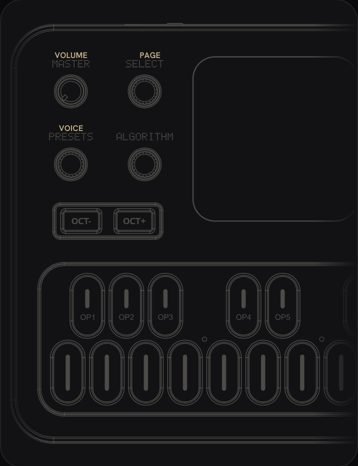 What every FM-1 control doesPick the firmware on yours, then tap any control to see what it does.
 How to add glide to one step0:38 · 3 STEPS
 How to play a random sequence0:28 · 2 STEPS
Les is independent and not affiliated with M-VAVE or the firmware authors. M-VAVE and FM-1 are trademarks of their owners.