FM-1 firmware · v0.3.1
PIGEON
PIGEON makes the FM-1 a sampler for chopped songs and beats: two songs, sixteen drum pads, three sequences, four phrase destinations and an arrangement. It suits hands-on sample performance and beat making. The hub marks this release beta. All behavior below comes from reading the tagged source.
- What it is
- A sample performance instrument with two songs to chop, sixteen drum pads, three sequence tracks and four stored phrases to arrange
- Best for
- Performing chopped audio and building sample beats; owners willing to learn this beta’s recording gestures
- Install
- GitHub release or hub
- Scan
- Scanned, nothing harmful found · Oct 30 What we checked
What each control does on PIGEON
TapSwipe across the panel, then tap any control to see what it does on PIGEON.
Start here
SEL is called SCL in PIGEON’s guide. Page buttons act on press; REC acts on release. ALGORITHM chooses Song 1, Drums, then Song 2. There is no fourth playable track or synthesizer page. More specific page and key-role rows take precedence over the general controls.
In v0.3.1 source, REC alone does nothing: its retired held-button handler consumes the tap. For stopped entry, hold FX, press SEQ, tap and release REC while FX remains down, then release FX. For live recording, hold FX while playback runs, tap and release REC, then release FX. The usual REC save and copy shortcuts also require FX to own the held-button state before navigating to their page. Holding LFO does not establish that state.
Both songs and the sixteen drum pads share 496 KiB of audio capacity; songs can use mono MP3 or IMA ADPCM, with up to 32 chops each and an alternate chop layout per song, while direct line recording, resampling and compressed reverse playback are unavailable. Splitting, joining, moving and swapping chops change key assignments rather than sequence note numbers, so existing patterns may sound different afterward.
The modes
| Page or key role | How to reach it |
|---|---|
| Song waveform | Choose Song 1 or Song 2 with ALGORITHM and press HOME from another page. |
| Drum kit | Choose Drums with ALGORITHM and press HOME from another page. |
| FX amounts | Press FX outside the tempo and chop-operation branches. |
| FX drive | Press FX from FX amounts. |
| Compressor | Press ENV outside a branch with its own ENV action. |
| Makeup gain | Press LFO outside a branch with its own LFO action. |
| Chop playback | On a song waveform, press EDIT. |
| Chop envelope | On Chop playback, press ENV. |
| Copy and split | On Chop playback, press LFO. |
| Swap and move | On Copy and split, press ENV. |
| Choke layout | On Copy and split, press FX. |
| Sequence grid | Press SEQ from another page, or from the piano roll. |
| Piano roll | Press SEQ on the sequence grid. |
| Step dynamics | Press ENV on the grid, roll or Timing. |
| Step pitch | Press ENV on Step dynamics. |
| Timing | Press LFO on the grid, roll or Step dynamics. |
| Recording | Press LFO on Timing. |
| Tempo tools | Press GLO, or press ENV on Recording. |
| Speed sync | On a song in Tempo tools, press FX. |
| Drum pad | On the kit HOME page, press ENV. |
| Drum rolls | On Drum pad, press LFO. |
| Mixer levels | Cycle ARP: levels, mute/solo, delay, chorus, reverb, waveform. |
| Mixer delay | Cycle ARP: levels, mute/solo, delay, chorus, reverb, waveform. |
| Mixer chorus | Cycle ARP: levels, mute/solo, delay, chorus, reverb, waveform. |
| Mixer reverb | Cycle ARP: levels, mute/solo, delay, chorus, reverb, waveform. |
| Mute and solo | Press ARP on Mixer levels. |
| Patterns | Press SEL once from another page. |
| Arrangement | Press SEL on Patterns. |
| Launch tools | Press ENV on Patterns or Arrangement. |
| Variations | Press ENV on Launch tools. |
| Settings / Display | Press HOME on the waveform or kit, then choose DISPLAY with ALGORITHM. |
| Settings / Control | Press HOME on the waveform or kit, then choose CONTROL with ALGORITHM. |
| Settings / Audio | Press HOME on the waveform or kit, then choose AUDIO with ALGORITHM. |
| Settings / Midi | Press HOME on the waveform or kit, then choose MIDI with ALGORITHM. |
| Settings / System | Press HOME on the waveform or kit, then choose SYSTEM with ALGORITHM. |
| Information | Choose Settings > SYSTEM > INFO and release OCT+. |
| About and credits | Choose Settings > SYSTEM > ABOUT and release OCT+. |
| GLO shortcuts | Hold GLO for the HOLD setting time or use a key or knob while holding it. |
| SEQ tools | Hold SEQ for the HOLD setting time or use a key or knob while holding it. |
| MIDI LEARN | Hold GLO and press D4. |
| Temporary FX | Hold LFO first, then press FX while still holding it, and turn a knob on FX amounts or FX drive. |
| Calibration | Use Settings > SYSTEM > CALIBRATION, or hold both OCT buttons while powering on. |
| Update mode | Hold OCT- and OCT+ together for more than five seconds. |
| Sleeping screen | Choose a SCREEN OFF timeout and leave panel input idle. |
| Song keys, first bank | Choose Song 1 or Song 2 with ALGORITHM and select a chop from 1–27 with PRESETS. |
| Song keys, later bank | Select chop 28–32 with PRESETS on a song track. |
| Kit keys | Choose the drum kit with ALGORITHM. |
| Stopped note editing | Stop playback, disarm the selected track, and open the grid, piano roll or Step Dynamics. |
| Stopped armed entry | Hold FX, press SEQ, tap and release REC while FX remains held, then release FX. |
| Live recording | While playback runs, hold FX, tap and release REC while FX remains held, then release FX. |
| Pattern selection keys | Press SEL to open Patterns. |
| Arrangement keys | Press SEL again from Patterns. |
| Keys on arrangement tools | Open Arrangement, then press ENV. |
| Keys on pattern variations | From Arrangement tools press ENV again. |
| Keys on stopped Step Pitch + Timing | Open Step Dynamics, then press ENV, while stopped and unarmed. |
| GLO held shortcuts | Hold GLO, then use a key. |
| SEQ held tools | Hold SEQ, then use a key. |
| REC with an existing held FX button | Hold FX before using REC, keeping FX down until REC is released; navigate to the needed page while still holding FX. |
| Start-up and recovery | For recovery, keep only OCT− pressed as you turn the FM-1 on; otherwise start normally. |
| Playing while Settings is open | Open Settings, Information or About with a song or kit selected. |
Play and choose tracks
| Do this | What happens |
|---|---|
| FX · press | Opens FX amounts, except on pages with a specific FX navigation action. |
| ENV · press | Opens compressor dynamics, except on pages with a specific ENV navigation action. |
| LFO · press | Opens compressor makeup, except on pages with a specific LFO navigation action. |
| EDIT · press | Returns to the waveform or kit page, except on pages with a specific EDIT action. |
| GLO · press | Opens Tempo tools on press. |
| GLO · hold | After the selected 0.3–0.6-second HOLD delay, shows mixer shortcuts, with the first opening saving its seen-state without asking, deferred during playback. |
| SEQ · press | Opens the selected track sequence grid, or alternates grid and piano roll when already on the sequence page. |
| SEQ · hold | After the selected 0.3–0.6-second HOLD delay, shows sequence tools, with the first opening saving its seen-state without asking, deferred during playback. |
| SEL · press | Opens Patterns, except that SEL cycles Patterns to Arrangement to waveform. |
| ARP · press | Cycles levels, mute/solo, delay, chorus, reverb and waveform. |
| HOME · press | Returns to the waveform or kit page from another sampler page. |
| SAVE · press | While stopped and silent, immediately overwrites the selected A–D phrase with the project without asking or flash undo, before either a tap release or hold is recognized. |
| SAVE · release | After a short SAVE press, opens Patterns on release without another flash write. |
| SAVE · hold past the threshold | After more than 0.7 seconds, swaps the last available track edit or load with its undo copy unless an arrangement is active, after the initial press already attempted to save the phrase. |
| REC · release | A REC tap alone has no effect because the retired recording layer swallows its release. |
| PLAY/STOP · press | Starts transport or stops playback and count-in, clearing step-entry arming for enabled sampler tracks when starting from a stopped sampler page. |
| OCT− · press | Does nothing on sampler pages except the song pitch, grid duration, Patterns clipboard and held-layer cases listed separately. |
| OCT+ · press | Does nothing on sampler pages except the song pitch, grid duration, Patterns clipboard and held-layer cases listed separately. |
| OCT+ · press together with OCT− | With both OCT buttons held for more than five seconds, enters the boot updater after a countdown beginning at two seconds. |
| ALGORITHM · turn | Chooses Song 1, Drums or Song 2, one track per turn direction. |
| SELECT · turn | Sets global tempo from 40 to 240 BPM unless BPM LOCK is enabled. |
| PRESETS · turn | On a song page, chooses a chop and its keyboard bank, except on pages with a specific PRESETS action; on Drums it does nothing. |
| MASTER · turn | Changes output volume, with USB output following it only when USB LEVEL is MASTER. |
| POWER · power on holding OCT− + OCT+ | Starts panel calibration at power-on and afterward saves the complete preferences only if their saved contents differ, even after cancellation, without another question or undo. |
Sequence grid
Press SEQ from another page, or from the piano roll.
Shows a sixteen-step page of the 1–64-step sequence, current step, notes per step, timing and transport state.
| Do this | What happens |
|---|---|
| KNOB 1 · turn | Sets tempo from 40 to 240 BPM. |
| KNOB 2 · turn | Chooses sample-end timing clockwise or tempo timing anticlockwise while stopped, with phrase loops and arrangements always using tempo timing. |
| KNOB 3 · turn | Chooses the sequence step while stopped. |
| KNOB 4 · turn | Sets sequence length from 1 to 64 while stopped, preserving later hidden notes and allowing sequence undo. |
| ENV · press | Opens Step dynamics. |
| LFO · press | Opens Timing. |
| EDIT · press | Clears the selected step and its locks immediately in memory while stopped without asking, then advances one step, with sequence undo available. |
| SEQ · press | Switches to the piano roll. |
| REC · release | A REC tap alone has no effect because the retired recording layer swallows its release. |
| OCT− · press | Moves to the next longer sequencer step duration. |
| OCT+ · press | Moves to the next shorter sequencer step duration. |
Coming from another firmware
Pick the firmware on your FM-1 now to see what installing PIGEON does to its data.
1 · Before you switch, back up on Stock V15
- Back up first. Keep the DX7 .syx banks you loaded so you can send them again (a bank arrives over MIDI SysEx and you pick A-D). Another route: installing Baud Girl’s FM-1+VA keeps your saved stock presets, and its Device Manager can then save all 128 presets as a .syx file. FM-1+VA is closed source; install it at your own risk. It is unknown whether stock's 16 patterns come through or can then be backed up. Write down patterns you care about. To come back, you need M-VAVE's own V15 file from its download page; the installers check it byte for byte. Stock V15’s automatic pattern saves and SAVE writes may also replace ChoralRoot’s legacy sounds 1–32, VA patches, FM6 patches 1–32, CZ patches 1–32 and FM TONE patches, kept for returning to ChoralRoot 0.21 or older. Stock V15’s write locations are uncertain. Stock V15 has no backup of its own; it sends notes over MIDI, never voice data.
2 · What happens to your Stock V15 data
Possibly at risk
- stock settings (and possibly patterns)
- stock presets (128, banks A-D)
What Les checked
PIGEON v0.5.0-beta.1Scanned October 30, 2026
What we checked for
- The file is exactly the one its author published
- It's the same file we saw when this release first came out
- It opens cleanly as an FM-1 firmware, nothing damaged
- It doesn't show up on your computer as a keyboard, mouse or other input device
- It doesn't show up as a USB drive or network adapter
- Its text mentions no computer command tools, like PowerShell, Terminal or a download command
What we found
- MIDI and audio, as expected
Not checked yet
- Its update loader, the part that writes the firmware onto your FM-1. A person hasn't reviewed it yet.
- What it does while it's running. We read the file; we don't run it.
- Whether the file was built from its published source code.
StatusScanned, nothing harmful found
Les has mapped its controls for v0.3.1. v0.5.0-beta.1 is out.
Les scans every firmware here whose file is public, and shows what it checked and what it found. A scan lowers the risk; it can't rule it out. This firmware is made by its author, not by Les or M-VAVE. Back up first, and install at your own risk. How Les scans firmware
Everything else on PIGEON
Saving, replacing and backing up
SAVE writes the selected A–D project on press while stopped and silent, without a confirmation or flash undo; its short release opens Patterns and its hold later invokes track undo, so holding SAVE can save an edit before undoing it in memory.
Chop boundaries, pitch, envelope, layouts, compressors, pad settings, end timing, live quantization, song choke and rolls save together after at least one second without a new metadata revision, with transport stopped and voices silent; a missing writable metadata area reports that edits were not saved and a write error retries later.
RESTORE LAST defaults on and saves a changed project after ten quiet seconds with playback stopped, released keys and buttons, silent voices and no transfer, with at least sixty seconds between successful saves; switching off does not flush pending edits.
Metronome and count-in changes on Recording take effect in memory but do not request a settings save themselves; close Settings afterward to save them.
Chops stop at 32; split also needs enough audio on both sides; arrangement insertion stops at sixteen sections; steps stop at four notes and a fifth note is refused; pitch and gate locks report a full lock store rather than adding a lock; sending a bank larger than negotiated capacity is rejected before erasing it.
Choose Read device bank to read the FM-1’s audio and chop settings, then Save bank to download that local copy; choose Back up full session to read the connected unit and download its current music, saved A–D projects, preferences, supported inherited sound banks, samples and chop settings.
A .kob file holds the encoded audio and optional chop/performance settings, but no current music, saved A–D projects or device preferences; a captured .pigeon session includes those, plus supported inherited user-sound banks, but excludes the separate FM6 voice bank, raw last-session copy, update recovery data and unrecognized foreign work.
Opening audio or an archive, editing it, using browser undo, applying a local song, or loading a browser library entry changes the local workspace only; Send bank asks once, then immediately replaces the device bank without automatically capturing a recovery session, while Restore session asks and first captures a recovery session, then replaces audio, supplied chop settings, saved objects and settings in separate commits that can leave a partial restore if interrupted.
Back up a bank and a full session before going back a version; the loader can refuse a standard-layout firmware while a PIGEON bank header remains, or an older smaller-capacity release when the bank is too large, so erase the bank headers with the bank tool (tools/ko_bank.py erase) when required after backing up, knowing that this invalidates the bank without securely removing its audio; older one-song releases need a matching one-song bank, and v0.3.1 keeps v0.3’s formats.
Timing and sample speed
Outside a running phrase chain, sample-end timing waits for the voices triggered by the step to finish, disabling their loop/latch for that trigger; missing or stolen voices count as finished, and a step without tracked voices waits one tempo step; pattern-loop and arrangement playback use tempo timing.
Speed sync changes pitch together with speed within half to double the original rate; changing chop boundaries alone does not recapture the reference, so adjust a sync control to recapture it.
Live quantization also delays played keys while playback runs with the track unarmed; if its pending-note queue is full, the new input is dropped.
Song waveform
Choose Song 1 or Song 2 with ALGORITHM and press HOME from another page.
Shows the selected chop, its boundaries, waveform, pitch and playback position, or an empty song prompt.
| Do this | What happens |
|---|---|
| KNOB 1 · turn | Moves the selected chop start within the song, with finer movement as you zoom in. |
| KNOB 2 · turn | Moves the selected chop end within the song, with finer movement as you zoom in. |
| KNOB 3 · turn | Moves the waveform view without choosing another chop. |
| KNOB 4 · turn | Changes horizontal zoom through seven levels. |
| EDIT · press | Opens Chop playback. |
| HOME · press | Opens Settings. |
| OCT− · press | On a song, moves selected chop pitch down one semitone within ±24, with chop undo available; on Drums it does nothing. |
| OCT+ · press | On a song, moves selected chop pitch up one semitone within ±24, with chop undo available; on Drums it does nothing. |
Drum kit
Choose Drums with ALGORITHM and press HOME from another page.
Shows the kit and its level, pitch, crush and tone controls.
| Do this | What happens |
|---|---|
| KNOB 1 · turn | Sets the drum track level. |
| KNOB 2 · turn | Sets the drum track sample pitch. |
| KNOB 3 · turn | Sets the drum track bit reduction. |
| KNOB 4 · turn | Sets the drum track tone filter. |
| ENV · press | Opens Drum pad. |
| EDIT · press | Does nothing on this page. |
| HOME · press | Opens Settings. |
Chop playback
On a song waveform, press EDIT.
Shows held loop, latch, split/join and chop undo controls.
| Do this | What happens |
|---|---|
| KNOB 1 · turn | Enables held looping clockwise or disables it anticlockwise for this chop. |
| KNOB 2 · turn | Enables latch clockwise or disables it anticlockwise for this chop. |
| KNOB 3 · turn | Splits clockwise at the cursor or midpoint, or joins with the previous chop anticlockwise, changing key assignments without asking and allowing chop undo. |
| KNOB 4 · turn | Swaps the last chop-table edit with its redo copy in either direction, without undoing a sample transfer. |
| ENV · press | Opens Chop envelope. |
| LFO · press | Opens Copy and split. |
| OCT− · press | On a song, moves selected chop pitch down one semitone within ±24, with chop undo available; on Drums it does nothing. |
| OCT+ · press | On a song, moves selected chop pitch up one semitone within ±24, with chop undo available; on Drums it does nothing. |
Chop envelope
On Chop playback, press ENV.
Shows chop attack, release, trigger mode and looping.
| Do this | What happens |
|---|---|
| KNOB 1 · turn | Sets chop attack from 0 to 155 ms in 5 ms steps. |
| KNOB 2 · turn | Sets chop release from 0 to 310 ms in 10 ms steps, with zero using the track release. |
| KNOB 3 · turn | Chooses hold, one-shot or latch for this chop. |
| KNOB 4 · turn | Enables the chop loop clockwise or disables it anticlockwise. |
| ENV · press | Opens Chop playback. |
| LFO · press | Opens Copy and split. |
Copy and split
On Chop playback, press LFO.
Shows destination chop, copy source, duplicate/split and settings-copy/join commands.
| Do this | What happens |
|---|---|
| KNOB 1 · turn | Chooses the destination chop. |
| KNOB 2 · turn | Chooses the source chop in this song. |
| KNOB 3 · turn | Duplicates clockwise or splits anticlockwise without asking, inserting a chop when there is room and allowing chop undo. |
| KNOB 4 · turn | Copies pitch and playback settings from the source clockwise or joins the preceding chop anticlockwise, without asking and allowing chop undo. |
| FX · press | Opens Choke layout. |
| ENV · press | Opens Swap and move. |
| LFO · press | Opens Chop playback. |
| REC · release | A REC tap alone has no effect because the retired recording layer swallows its release. |
| REC · press while holding FX | Hold FX, return HOME, open EDIT then LFO, and tap and release REC before releasing FX to overwrite the target with the source complete chop while stopped and silent without asking, with chop undo available. |
Swap and move
On Copy and split, press ENV.
Shows the source and destination chop keys and the swap and move commands.
| Do this | What happens |
|---|---|
| KNOB 1 · turn | Chooses the chop assignment to move or swap. |
| KNOB 2 · turn | Chooses its destination in this song. |
| KNOB 3 · turn | A clockwise turn swaps the two assignments without asking while stopped and silent, with chop undo available. |
| KNOB 4 · turn | A clockwise turn moves the assignment and shifts intervening keys without asking while stopped and silent, with chop undo available. |
| ENV · press | Opens Copy and split. |
Choke layout
On Copy and split, press FX.
Shows the selected chop choke group, active layout, song gain and layout-copy command.
| Do this | What happens |
|---|---|
| KNOB 1 · turn | Sets the selected chop group from 0 to 3, with zero allowing overlap. |
| KNOB 2 · turn | Selects layout B clockwise or A anticlockwise while stopped and silent, swapping tables and clearing chop undo. |
| KNOB 3 · turn | Sets the selected song track level. |
| KNOB 4 · turn | A clockwise turn overwrites the alternate chop layout from the current one without asking while stopped and silent, with no chop-table undo for this copy. |
| FX · press | Opens Copy and split. |
Drum pad
On the kit HOME page, press ENV.
Shows pitch, level, decay and choke group for the last white key played.
| Do this | What happens |
|---|---|
| KNOB 1 · turn | Sets the selected pad pitch from −24 to +24 semitones. |
| KNOB 2 · turn | Sets the selected pad level from 0 to 127. |
| KNOB 3 · turn | Sets the selected pad decay from 0 to 127, with zero playing the complete hit. |
| KNOB 4 · turn | Sets the selected pad choke group from 0 to 4, with zero disabling choke. |
| ENV · press | Returns to the kit page. |
| LFO · press | Opens Drum rolls. |
Drum rolls
On Drum pad, press LFO.
Shows the held-pad roll rate and roll enable setting.
| Do this | What happens |
|---|---|
| KNOB 1 · turn | Chooses quarter, eighth, sixteenth or thirty-second-note drum rolls. |
| KNOB 2 · turn | Enables held-pad rolls clockwise or disables them anticlockwise. |
| KNOB 3 · turn | Does nothing. |
| KNOB 4 · turn | Does nothing. |
| LFO · press | Opens Drum pad. |
Piano roll
Press SEQ on the sequence grid.
Shows the same sequence as note rows with up to four notes per step.
| Do this | What happens |
|---|---|
| KNOB 1 · turn | Sets tempo from 40 to 240 BPM. |
| KNOB 2 · turn | Chooses sample-end timing clockwise or tempo timing anticlockwise while stopped, with phrase loops and arrangements always using tempo timing. |
| KNOB 3 · turn | Chooses the sequence step while stopped. |
| KNOB 4 · turn | Sets sequence length from 1 to 64 while stopped, preserving later hidden notes and allowing sequence undo. |
| ENV · press | Opens Step dynamics. |
| LFO · press | Opens Timing. |
| EDIT · press | Clears the selected step and its locks immediately in memory while stopped without asking, then advances one step, with sequence undo available. |
| SEQ · press | Switches to the grid. |
| REC · release | A REC tap alone has no effect because the retired recording layer swallows its release. |
| OCT− · press | Moves to the next longer sequencer step duration. |
| OCT+ · press | Moves to the next shorter sequencer step duration. |
| PRESETS · turn | Scrolls piano-roll note rows. |
Step dynamics
Press ENV on the grid, roll or Timing.
Shows the selected step velocity, gate, chance and repeats.
| Do this | What happens |
|---|---|
| KNOB 1 · turn | Sets step velocity from 1 to 127 while stopped, with sequence undo available. |
| KNOB 2 · turn | Sets a gate lock from 1 to 127 while stopped, reporting a full lock store instead of adding a lock. |
| KNOB 3 · turn | Sets step chance from 0 to 100 percent while stopped, with sequence undo available. |
| KNOB 4 · turn | Sets one to four repeats while stopped, with sequence undo available. |
| ENV · press | Opens Step pitch. |
| LFO · press | Opens Timing. |
| PRESETS · turn | Chooses the step to edit. |
Step pitch
Press ENV on Step dynamics.
Shows step pitch, microtiming, play condition and the step number, with a misleading PRESETS hint.
| Do this | What happens |
|---|---|
| KNOB 1 · turn | Sets a step pitch lock from −24 to +24 semitones while stopped, reporting a full lock store instead of adding a lock. |
| KNOB 2 · turn | Changes step microtiming while stopped and disables track quantization, with sequence undo available. |
| KNOB 3 · turn | Chooses always, every second, every fourth, first pass or after first while stopped, with sequence undo available. |
| KNOB 4 · turn | Chooses the step while stopped. |
| ENV · press | Opens Step dynamics. |
| PRESETS · turn | Chooses a song chop despite the screen step-selection hint, with no effect on Drums. |
Timing
Press LFO on the grid, roll or Step dynamics.
Shows selected-track swing, default gate and global tempo.
| Do this | What happens |
|---|---|
| KNOB 1 · turn | Sets track swing from 0 to 100 percent, with sequence undo available. |
| KNOB 2 · turn | Sets the track default gate from 1 to 127, with sequence undo available. |
| KNOB 3 · turn | Sets global tempo from 40 to 240 BPM. |
| KNOB 4 · turn | Does nothing. |
| ENV · press | Opens Step dynamics. |
| LFO · press | Opens Recording. |
Recording
Press LFO on Timing.
Shows metronome, count-in, live quantization and song choke preferences.
| Do this | What happens |
|---|---|
| KNOB 1 · turn | Chooses metronome off, recording only or on. |
| KNOB 2 · turn | Chooses no count-in, one bar or two bars. |
| KNOB 3 · turn | Chooses live quantization off, sixteenth notes or eighth notes for this track. |
| KNOB 4 · turn | Enables song choke clockwise or disables it anticlockwise on a song, with no effect on Drums. |
| ENV · press | Opens Tempo tools. |
| LFO · press | Opens Timing. |
Tempo tools
Press GLO, or press ENV on Recording.
Shows tempo, reference beat count, calculated chop tempo and chop choice.
| Do this | What happens |
|---|---|
| KNOB 1 · turn | Sets global tempo from 40 to 240 BPM. |
| KNOB 2 · turn | Sets the reference chop length from 1 to 16 beats. |
| KNOB 3 · turn | On a song, applies the selected chop tempo when it falls between 40 and 240 BPM, with no effect on Drums. |
| KNOB 4 · turn | On a song, chooses the chop used for the tempo calculation. |
| FX · press | Opens Speed sync on a song; on Drums it opens FX amounts. |
| ENV · press | Opens Recording. |
| EDIT · press | Sets 40–240 BPM from repeated taps using up to four recent intervals. |
Speed sync
On a song in Tempo tools, press FX.
Shows captured reference beat count, sync enable, whole-song or chop reference and speed factor.
| Do this | What happens |
|---|---|
| KNOB 1 · turn | Sets reference length from 1 to 64 beats and recaptures its audio length. |
| KNOB 2 · turn | Enables speed sync clockwise or disables it anticlockwise and recaptures the reference length. |
| KNOB 3 · turn | Chooses the whole song clockwise or selected chop anticlockwise and recaptures its length. |
| KNOB 4 · turn | Chooses a chop and recaptures the sync reference length. |
| FX · press | Opens Tempo tools. |
Patterns
Press SEL once from another page.
Shows saved or empty A–D destinations, the current selection, unsaved state, clipboard and queued launch.
| Do this | What happens |
|---|---|
| KNOB 1 · turn | Selects A–D or queues a saved phrase during pattern playback, requiring the same selection again before discarding unsaved stopped edits. |
| KNOB 2 · turn | Copies the chosen saved phrase into the clipboard while stopped without changing flash. |
| KNOB 3 · turn | Adds the selected phrase to the arrangement clockwise or removes its last section anticlockwise while stopped, without asking or a dedicated arrangement undo. |
| KNOB 4 · turn | Pastes clockwise into the current phrase and saves it to the selected A–D slot at once while stopped and silent without asking or flash undo, or copies the current phrase anticlockwise. |
| ENV · press | Opens Launch tools. |
| SEL · press | Opens Arrangement. |
| REC · release | A REC tap alone has no effect because the retired recording layer swallows its release. |
| REC · press while holding FX | With FX already held before navigating here, a REC tap released while FX remains down immediately overwrites the selected A–D project while stopped and silent without asking or flash undo. |
| PLAY/STOP · press | Starts the selected saved phrase looping, or stops playback if already running, refusing an empty phrase. |
| OCT− · press | Copies the current phrase to the clipboard while stopped without writing flash. |
| OCT+ · press | Pastes the clipboard and immediately saves over selected A–D without asking or flash undo while stopped and silent. |
| PRESETS · turn | Selects A–D or queues a saved phrase during pattern playback, requiring a repeated selection before discarding unsaved stopped edits. |
Arrangement
Press SEL on Patterns.
Shows the selected or playing section, its phrase and repeat count, with up to sixteen sections.
| Do this | What happens |
|---|---|
| KNOB 1 · turn | Selects a section. |
| KNOB 2 · turn | Replaces all section lanes with the chosen A–D phrase while stopped without asking or a dedicated arrangement undo. |
| KNOB 3 · turn | Sets section repeats from 1 to 16 while stopped. |
| KNOB 4 · turn | Inserts the selected phrase after this section clockwise or deletes this section anticlockwise while stopped, without asking or a dedicated arrangement undo. |
| ENV · press | Opens Launch tools. |
| SEL · press | Returns to the waveform or kit page. |
| REC · release | A REC tap alone has no effect because the retired recording layer swallows its release. |
| REC · press while holding FX | With FX already held before navigating here, a REC tap released while FX remains down immediately overwrites the selected A–D project while stopped and silent without asking or flash undo. |
| PLAY/STOP · press | Starts the section arrangement, or stops playback if already running. |
| PRESETS · turn | Selects an arrangement section. |
Launch tools
Press ENV on Patterns or Arrangement.
Shows the launch boundary, section move and duplicate commands, and section number.
| Do this | What happens |
|---|---|
| KNOB 1 · turn | Chooses pattern-end launches clockwise or next-bar launches anticlockwise while stopped. |
| KNOB 2 · turn | Moves the selected section left or right while stopped without asking or a dedicated arrangement undo. |
| KNOB 3 · turn | Duplicates the selected section clockwise while stopped if fewer than sixteen sections exist, without asking or a dedicated arrangement undo. |
| KNOB 4 · turn | Does nothing despite the section display. |
| ENV · press | Opens Variations. |
| REC · release | A REC tap alone has no effect because the retired recording layer swallows its release. |
| REC · press while holding FX | With FX already held before navigating here, a REC tap released while FX remains down immediately overwrites the selected A–D project while stopped and silent without asking or flash undo. |
Variations
Press ENV on Launch tools.
Shows a duplicate destination, track-note clear, track-lock clear and duplicate command.
| Do this | What happens |
|---|---|
| KNOB 1 · turn | Chooses destination A–D while stopped and silent. |
| KNOB 2 · turn | A turn in either direction clears all 64 steps of this track immediately in memory while stopped and silent without asking, with sequence undo available. |
| KNOB 3 · turn | A turn in either direction clears all step locks of this track immediately in memory while stopped and silent without asking, with sequence undo available. |
| KNOB 4 · turn | A clockwise turn copies the phrase to the destination and saves it there immediately while stopped and silent without asking or flash undo. |
| ENV · press | Opens Launch tools. |
| REC · release | A REC tap alone has no effect because the retired recording layer swallows its release. |
| REC · press while holding FX | With FX already held before navigating here, a REC tap released while FX remains down immediately overwrites the selected A–D project while stopped and silent without asking or flash undo. |
FX amounts
Press FX outside the tempo and chop-operation branches.
Shows the selected track filter, delay send, chorus send and reverb send.
| Do this | What happens |
|---|---|
| KNOB 1 · turn | Sets the selected track filter, using the kit tone on Drums. |
| KNOB 2 · turn | Sets the selected track delay send. |
| KNOB 3 · turn | Sets the selected track chorus send. |
| KNOB 4 · turn | Sets the selected track reverb send. |
| FX · press | Opens FX drive. |
| EDIT · press | Immediately clears this track delay, chorus, reverb and drive amounts and opens its filter fully without asking or a dedicated reset undo, leaving shared delay controls and compression unchanged. |
| OCT− · press | On a song, moves selected chop pitch down one semitone within ±24, with chop undo available; on Drums it does nothing. |
| OCT+ · press | On a song, moves selected chop pitch up one semitone within ±24, with chop undo available; on Drums it does nothing. |
FX drive
Press FX from FX amounts.
Shows drive, shared delay time and feedback, and selected track level.
| Do this | What happens |
|---|---|
| KNOB 1 · turn | Sets selected track distortion. |
| KNOB 2 · turn | Sets delay time for the whole setup. |
| KNOB 3 · turn | Sets shared delay feedback from 0 to 120. |
| KNOB 4 · turn | Sets the selected track level. |
| FX · press | Opens FX amounts. |
| EDIT · press | Immediately clears this track delay, chorus, reverb and drive amounts and opens its filter fully without asking or a dedicated reset undo, leaving shared delay controls and compression unchanged. |
| OCT− · press | On a song, moves selected chop pitch down one semitone within ±24, with chop undo available; on Drums it does nothing. |
| OCT+ · press | On a song, moves selected chop pitch up one semitone within ±24, with chop undo available; on Drums it does nothing. |
Compressor
Press ENV outside a branch with its own ENV action.
Shows threshold, ratio, attack and release for the selected song or kit compressor.
| Do this | What happens |
|---|---|
| KNOB 1 · turn | Sets compressor threshold from 0 to −48 dB. |
| KNOB 2 · turn | Sets compressor ratio from 1:1 to 8:1. |
| KNOB 3 · turn | Sets compressor attack from 1 to 100 ms. |
| KNOB 4 · turn | Sets compressor release from 10 to 500 ms. |
| ENV · press | Does nothing on this page. |
| LFO · press | Opens compressor makeup. |
| OCT− · press | On a song, moves selected chop pitch down one semitone within ±24, with chop undo available; on Drums it does nothing. |
| OCT+ · press | On a song, moves selected chop pitch up one semitone within ±24, with chop undo available; on Drums it does nothing. |
Makeup gain
Press LFO outside a branch with its own LFO action.
Shows compressor makeup gain and bypass status, with bypass when ratio is 1:1 and makeup is zero.
| Do this | What happens |
|---|---|
| KNOB 1 · turn | Sets compressor makeup gain from 0 to 12 dB. |
| KNOB 2 · turn | Does nothing. |
| KNOB 3 · turn | Does nothing. |
| KNOB 4 · turn | Does nothing. |
| ENV · press | Opens compressor dynamics. |
| LFO · press | Does nothing on this page. |
| OCT− · press | On a song, moves selected chop pitch down one semitone within ±24, with chop undo available; on Drums it does nothing. |
| OCT+ · press | On a song, moves selected chop pitch up one semitone within ±24, with chop undo available; on Drums it does nothing. |
Mixer levels
Cycle ARP: levels, mute/solo, delay, chorus, reverb, waveform.
Shows Song 1, kit and Song 2 track levels and selected-track pan.
| Do this | What happens |
|---|---|
| KNOB 1 · turn | Sets the Song 1 levels. |
| KNOB 2 · turn | Sets the kit levels. |
| KNOB 3 · turn | Sets the Song 2 levels. |
| KNOB 4 · turn | Sets selected-track pan. |
Mute and solo
Press ARP on Mixer levels.
Shows three track mutes and a persistent solo choice.
| Do this | What happens |
|---|---|
| KNOB 1 · turn | Mutes Song 1 clockwise or unmutes it anticlockwise. |
| KNOB 2 · turn | Mutes the kit clockwise or unmutes it anticlockwise. |
| KNOB 3 · turn | Mutes Song 2 clockwise or unmutes it anticlockwise. |
| KNOB 4 · turn | Chooses no solo, Song 1, kit or Song 2. |
| OCT− · press | On a song, moves selected chop pitch down one semitone within ±24, with chop undo available; on Drums it does nothing. |
| OCT+ · press | On a song, moves selected chop pitch up one semitone within ±24, with chop undo available; on Drums it does nothing. |
Mixer delay
Cycle ARP: levels, mute/solo, delay, chorus, reverb, waveform.
Shows Song 1, kit and Song 2 track delay sends and selected-track pan.
| Do this | What happens |
|---|---|
| KNOB 1 · turn | Sets the Song 1 delay sends. |
| KNOB 2 · turn | Sets the kit delay sends. |
| KNOB 3 · turn | Sets the Song 2 delay sends. |
| KNOB 4 · turn | Sets selected-track pan. |
Mixer chorus
Cycle ARP: levels, mute/solo, delay, chorus, reverb, waveform.
Shows Song 1, kit and Song 2 track chorus sends and selected-track pan.
| Do this | What happens |
|---|---|
| KNOB 1 · turn | Sets the Song 1 chorus sends. |
| KNOB 2 · turn | Sets the kit chorus sends. |
| KNOB 3 · turn | Sets the Song 2 chorus sends. |
| KNOB 4 · turn | Sets selected-track pan. |
Mixer reverb
Cycle ARP: levels, mute/solo, delay, chorus, reverb, waveform.
Shows Song 1, kit and Song 2 track reverb sends and selected-track pan.
| Do this | What happens |
|---|---|
| KNOB 1 · turn | Sets the Song 1 reverb sends. |
| KNOB 2 · turn | Sets the kit reverb sends. |
| KNOB 3 · turn | Sets the Song 2 reverb sends. |
| KNOB 4 · turn | Sets selected-track pan. |
Temporary FX
Hold LFO first, then press FX while still holding it, and turn a knob on FX amounts or FX drive.
FX turns are temporary until LFO is released, unless OCT+ keeps them.
Shows the reopened FX page while LFO stays held, with temporary values restored on release unless OCT+ keeps them.
| Do this | What happens |
|---|---|
| KNOB 1 · turn while holding LFO | On FX amounts, sets the selected track filter, using the kit tone on Drums, restoring it when LFO is released. |
| KNOB 1 · turn while holding LFO | On FX drive, sets selected track distortion, restoring it when LFO is released. |
| KNOB 2 · turn while holding LFO | On FX amounts, sets the selected track delay send, restoring it when LFO is released. |
| KNOB 2 · turn while holding LFO | On FX drive, sets delay time for the whole setup, restoring it when LFO is released. |
| KNOB 3 · turn while holding LFO | On FX amounts, sets the selected track chorus send, restoring it when LFO is released. |
| KNOB 3 · turn while holding LFO | On FX drive, sets shared delay feedback from 0 to 120, restoring it when LFO is released. |
| KNOB 4 · turn while holding LFO | On FX amounts, sets the selected track reverb send, restoring it when LFO is released. |
| KNOB 4 · turn while holding LFO | On FX drive, sets the selected track level, restoring it when LFO is released. |
| LFO · release | Restores captured FX values on release unless OCT+ kept them. |
| OCT+ · press while holding LFO | Keeps the temporary FX changes while LFO is held instead of changing pitch. |
GLO shortcuts
Hold GLO for the HOLD setting time or use a key or knob while holding it.
A temporary mixer overlay with three levels, held solos, mute keys, unmute, tap tempo and MIDI LEARN.
| Do this | What happens |
|---|---|
| KNOB 1 · turn while holding GLO | Sets the Song 1 level and can select it for MIDI LEARN. |
| KNOB 2 · turn while holding GLO | Sets the kit level and can select it for MIDI LEARN. |
| KNOB 3 · turn while holding GLO | Sets the Song 2 level and can select it for MIDI LEARN. |
| KNOB 4 · turn while holding GLO | Does nothing because only three tracks are available. |
| GLO · release | Closes the held overlay on release and keeps its edits without another page jump. |
| SAVE · press | Does nothing while the shortcut layer owns the held input. |
| SAVE · hold past the threshold | Does nothing while the shortcut layer owns the held input. |
| REC · press while holding GLO | A REC tap released while this shortcut remains held toggles recording and starts transport if arming while stopped because the shortcut overlay bypasses stopped-grid entry. |
| PLAY/STOP · press while holding GLO | With GLO held, restarts internal playback from the top or starts when stopped, refusing a running external-clock restart. |
| OCT− · release | On release, restores mutes, levels and tempo to their state when the overlay opened without reverting flash writes. |
| ALGORITHM · turn | Does nothing while the held layer owns input. |
| SELECT · turn while holding GLO | Sets tempo even when BPM LOCK is on. |
| PRESETS · turn | Does nothing while the held layer owns input. |
SEQ tools
Hold SEQ for the HOLD setting time or use a key or knob while holding it.
A temporary track-tools overlay with length, duration, swing and gate; its first opening can save settings even with no edit.
| Do this | What happens |
|---|---|
| KNOB 1 · turn while holding SEQ | Sets track length from 1 to 64 without clearing hidden later steps. |
| KNOB 2 · turn while holding SEQ | Sets sequencer step duration. |
| KNOB 3 · turn while holding SEQ | Sets track swing. |
| KNOB 4 · turn while holding SEQ | Sets track default gate. |
| SEQ · release | Closes the held overlay on release and keeps its edits without another page jump. |
| SAVE · press | Does nothing while the shortcut layer owns the held input. |
| SAVE · hold past the threshold | Does nothing while the shortcut layer owns the held input. |
| REC · press while holding SEQ | A REC tap released while this shortcut remains held toggles recording and starts transport if arming while stopped because the shortcut overlay bypasses stopped-grid entry. |
| OCT− · release | On release, restores sequence notes, automation and timing to their state when the overlay opened without reverting flash writes. |
| ALGORITHM · turn | Does nothing while the held layer owns input. |
| PRESETS · turn | Does nothing while the held layer owns input. |
MIDI LEARN
Hold GLO and press D4.
Learns a received CC for a level selected with GLO-held KNOB 1–3; ordinary sampler-page knobs do not select a learn target.
Shows the selected parameter and learned controller assignment in the footer.
| Do this | What happens |
|---|---|
| OCT− · release | On release, removes the picked parameter controller assignment immediately without asking or undo and saves settings, deferred during playback. |
| OCT+ · release | On release, exits MIDI LEARN. |
REC with an existing held FX button
Hold FX before using REC, keeping FX down until REC is released; navigate to the needed page while still holding FX.
A source-traced way to reach recording commands that an ordinary REC tap cannot reach in v0.3.1, without a hardware test.
Shows the chosen sampler page; holding FX first lets a REC tap reach its command on release.
| Do this | What happens |
|---|---|
| REC · press while holding FX | A tap released while FX remains held toggles recording, staying stopped on the grid or roll but starting transport when arming on other ordinary playing pages. |
Settings / Display
Press HOME on the waveform or kit, then choose DISPLAY with ALGORITHM.
Shows ANIM: off/on/idle animation; LEDS: off/dim low/dim high/inverted; SCREEN OFF: never or 5/15/30/60 minutes.
| Do this | What happens |
|---|---|
| KNOB 1 · turn | Changes the selected valued setting, applied immediately and saved on closing Settings; action-only rows do nothing on a turn. |
| KNOB 2 · turn | Changes the selected valued setting, applied immediately and saved on closing Settings; action-only rows do nothing on a turn. |
| KNOB 3 · turn | Changes the selected valued setting, applied immediately and saved on closing Settings; action-only rows do nothing on a turn. |
| KNOB 4 · turn | Changes the selected valued setting, applied immediately and saved on closing Settings; action-only rows do nothing on a turn. |
| FX · press | Does nothing in Settings. |
| ENV · press | Does nothing in Settings. |
| LFO · press | Does nothing in Settings. |
| EDIT · press | Does nothing in Settings. |
| GLO · press | Does nothing in Settings. |
| SEQ · press | Does nothing in Settings. |
| SEL · press | Does nothing in Settings. |
| ARP · press | Does nothing in Settings. |
| HOME · press | Closes Settings and saves changed settings without asking or undo, deferred during playback, even when only calibration or a first menu visit changed the stored state. |
| SAVE · press | Does nothing in Settings. |
| REC · press | Does nothing in Settings. |
| PLAY/STOP · press | Does nothing in Settings. |
| OCT− · release | On release, steps to the previous value, with no action on action-only rows. |
| OCT+ · release | On release, advances the selected setting or runs the selected action, including clearing every MIDI LEARN assignment without a question or undo. |
| ALGORITHM · turn | Moves between the five Settings tabs, wrapping at either end. |
| SELECT · turn | Does nothing. |
| PRESETS · turn | Moves between the visible rows in this tab, wrapping at either end. |
Settings / Control
Press HOME on the waveform or kit, then choose CONTROL with ALGORITHM.
Shows HOLD: 0.3/0.4/0.5/0.6 seconds for GLO and SEQ layers; BPM LOCK: restrict SELECT tempo to GLO held.
| Do this | What happens |
|---|---|
| KNOB 1 · turn | Changes the selected valued setting, applied immediately and saved on closing Settings; action-only rows do nothing on a turn. |
| KNOB 2 · turn | Changes the selected valued setting, applied immediately and saved on closing Settings; action-only rows do nothing on a turn. |
| KNOB 3 · turn | Changes the selected valued setting, applied immediately and saved on closing Settings; action-only rows do nothing on a turn. |
| KNOB 4 · turn | Changes the selected valued setting, applied immediately and saved on closing Settings; action-only rows do nothing on a turn. |
| FX · press | Does nothing in Settings. |
| ENV · press | Does nothing in Settings. |
| LFO · press | Does nothing in Settings. |
| EDIT · press | Does nothing in Settings. |
| GLO · press | Does nothing in Settings. |
| SEQ · press | Does nothing in Settings. |
| SEL · press | Does nothing in Settings. |
| ARP · press | Does nothing in Settings. |
| HOME · press | Closes Settings and saves changed settings without asking or undo, deferred during playback, even when only calibration or a first menu visit changed the stored state. |
| SAVE · press | Does nothing in Settings. |
| REC · press | Does nothing in Settings. |
| PLAY/STOP · press | Does nothing in Settings. |
| OCT− · release | On release, steps to the previous value, with no action on action-only rows. |
| OCT+ · release | On release, advances the selected setting or runs the selected action, including clearing every MIDI LEARN assignment without a question or undo. |
| ALGORITHM · turn | Moves between the five Settings tabs, wrapping at either end. |
| SELECT · turn | Does nothing. |
| PRESETS · turn | Moves between the visible rows in this tab, wrapping at either end. |
Settings / Audio
Press HOME on the waveform or kit, then choose AUDIO with ALGORITHM.
Shows SPEAKER EQ: flat/lowcut/bass boost across outputs; USB LEVEL: master/fixed; CLICK: off/record/on; CLICK LEVEL: low/mid/high; COUNT-IN: off/one/two bars; TUNE: ±50 cents.
| Do this | What happens |
|---|---|
| KNOB 1 · turn | Changes the selected audio setting immediately, with TUNE kept by project save or autosave and the other audio preferences saved when Settings closes. |
| KNOB 2 · turn | Changes the selected audio setting immediately, with TUNE kept by project save or autosave and the other audio preferences saved when Settings closes. |
| KNOB 3 · turn | Changes the selected audio setting immediately, with TUNE kept by project save or autosave and the other audio preferences saved when Settings closes. |
| KNOB 4 · turn | Changes the selected audio setting immediately, with TUNE kept by project save or autosave and the other audio preferences saved when Settings closes. |
| FX · press | Does nothing in Settings. |
| ENV · press | Does nothing in Settings. |
| LFO · press | Does nothing in Settings. |
| EDIT · press | Does nothing in Settings. |
| GLO · press | Does nothing in Settings. |
| SEQ · press | Does nothing in Settings. |
| SEL · press | Does nothing in Settings. |
| ARP · press | Does nothing in Settings. |
| HOME · press | Closes Settings and saves changed settings without asking or undo, deferred during playback, even when only calibration or a first menu visit changed the stored state. |
| SAVE · press | Does nothing in Settings. |
| REC · press | Does nothing in Settings. |
| PLAY/STOP · press | Does nothing in Settings. |
| OCT− · release | On release, steps to the previous value, with no action on action-only rows. |
| OCT+ · release | On release, advances the selected setting or runs the selected action, including clearing every MIDI LEARN assignment without a question or undo. |
| ALGORITHM · turn | Moves between the five Settings tabs, wrapping at either end. |
| SELECT · turn | Does nothing. |
| PRESETS · turn | Moves between the visible rows in this tab, wrapping at either end. |
Settings / Midi
Press HOME on the waveform or kit, then choose MIDI with ALGORITHM.
Shows MIDI IN routing and LEARN CLEAR; MIDI IN belongs to the project, while clearing learned controls saves the changed preference map.
| Do this | What happens |
|---|---|
| KNOB 1 · turn | Changes MIDI IN routing immediately, kept by project save or autosave rather than closing Settings, while LEARN CLEAR does nothing on a turn. |
| KNOB 2 · turn | Changes MIDI IN routing immediately, kept by project save or autosave rather than closing Settings, while LEARN CLEAR does nothing on a turn. |
| KNOB 3 · turn | Changes MIDI IN routing immediately, kept by project save or autosave rather than closing Settings, while LEARN CLEAR does nothing on a turn. |
| KNOB 4 · turn | Changes MIDI IN routing immediately, kept by project save or autosave rather than closing Settings, while LEARN CLEAR does nothing on a turn. |
| FX · press | Does nothing in Settings. |
| ENV · press | Does nothing in Settings. |
| LFO · press | Does nothing in Settings. |
| EDIT · press | Does nothing in Settings. |
| GLO · press | Does nothing in Settings. |
| SEQ · press | Does nothing in Settings. |
| SEL · press | Does nothing in Settings. |
| ARP · press | Does nothing in Settings. |
| HOME · press | Closes Settings and saves changed settings without asking or undo, deferred during playback, even when only calibration or a first menu visit changed the stored state. |
| SAVE · press | Does nothing in Settings. |
| REC · press | Does nothing in Settings. |
| PLAY/STOP · press | Does nothing in Settings. |
| OCT− · release | On release, steps to the previous value, with no action on action-only rows. |
| OCT+ · release | On release, advances the selected setting or runs the selected action, including clearing every MIDI LEARN assignment without a question or undo. |
| ALGORITHM · turn | Moves between the five Settings tabs, wrapping at either end. |
| SELECT · turn | Does nothing. |
| PRESETS · turn | Moves between the visible rows in this tab, wrapping at either end. |
Settings / System
Press HOME on the waveform or kit, then choose SYSTEM with ALGORITHM.
Shows RESTORE LAST controls project autosave/restore; CALIBRATION teaches buttons and encoders; INFO shows firmware/USB/CPU; ABOUT opens credits.
| Do this | What happens |
|---|---|
| KNOB 1 · turn | Changes the selected valued setting, applied immediately and saved on closing Settings; action-only rows do nothing on a turn. |
| KNOB 2 · turn | Changes the selected valued setting, applied immediately and saved on closing Settings; action-only rows do nothing on a turn. |
| KNOB 3 · turn | Changes the selected valued setting, applied immediately and saved on closing Settings; action-only rows do nothing on a turn. |
| KNOB 4 · turn | Changes the selected valued setting, applied immediately and saved on closing Settings; action-only rows do nothing on a turn. |
| FX · press | Does nothing in Settings. |
| ENV · press | Does nothing in Settings. |
| LFO · press | Does nothing in Settings. |
| EDIT · press | Does nothing in Settings. |
| GLO · press | Does nothing in Settings. |
| SEQ · press | Does nothing in Settings. |
| SEL · press | Does nothing in Settings. |
| ARP · press | Does nothing in Settings. |
| HOME · press | Closes Settings and saves changed settings without asking or undo, deferred during playback, even when only calibration or a first menu visit changed the stored state. |
| SAVE · press | Does nothing in Settings. |
| REC · press | Does nothing in Settings. |
| PLAY/STOP · press | Does nothing in Settings. |
| OCT− · release | On release, steps to the previous value, with no action on action-only rows. |
| OCT+ · release | On release, advances the selected setting or runs the selected action, including clearing every MIDI LEARN assignment without a question or undo. |
| ALGORITHM · turn | Moves between the five Settings tabs, wrapping at either end. |
| SELECT · turn | Does nothing. |
| PRESETS · turn | Moves between the visible rows in this tab, wrapping at either end. |
Information
Choose Settings > SYSTEM > INFO and release OCT+.
Shows firmware version, USB state and CPU load.
| Do this | What happens |
|---|---|
| KNOB 1 · turn | Does nothing while this Settings information page is open. |
| KNOB 2 · turn | Does nothing while this Settings information page is open. |
| KNOB 3 · turn | Does nothing while this Settings information page is open. |
| KNOB 4 · turn | Does nothing while this Settings information page is open. |
| FX · press | Does nothing while this Settings information page is open. |
| ENV · press | Does nothing while this Settings information page is open. |
| LFO · press | Does nothing while this Settings information page is open. |
| EDIT · press | Does nothing while this Settings information page is open. |
| GLO · press | Does nothing while this Settings information page is open. |
| SEQ · press | Does nothing while this Settings information page is open. |
| SEL · press | Does nothing while this Settings information page is open. |
| ARP · press | Does nothing while this Settings information page is open. |
| HOME · press | Closes Settings and saves changed settings without asking or undo, deferred during playback. |
| SAVE · press | Does nothing while this Settings information page is open. |
| REC · press | Does nothing while this Settings information page is open. |
| PLAY/STOP · press | Does nothing while this Settings information page is open. |
| OCT− · release | Returns to the Settings tabs on release. |
| OCT+ · press | Does nothing while this Settings information page is open. |
| ALGORITHM · turn | Does nothing while this Settings information page is open. |
| SELECT · turn | Does nothing while this Settings information page is open. |
| PRESETS · turn | Does nothing. |
About and credits
Choose Settings > SYSTEM > ABOUT and release OCT+.
Shows project information and scrollable credits.
| Do this | What happens |
|---|---|
| KNOB 1 · turn | Does nothing while this Settings information page is open. |
| KNOB 2 · turn | Does nothing while this Settings information page is open. |
| KNOB 3 · turn | Does nothing while this Settings information page is open. |
| KNOB 4 · turn | Does nothing while this Settings information page is open. |
| FX · press | Does nothing while this Settings information page is open. |
| ENV · press | Does nothing while this Settings information page is open. |
| LFO · press | Does nothing while this Settings information page is open. |
| EDIT · press | Does nothing while this Settings information page is open. |
| GLO · press | Does nothing while this Settings information page is open. |
| SEQ · press | Does nothing while this Settings information page is open. |
| SEL · press | Does nothing while this Settings information page is open. |
| ARP · press | Does nothing while this Settings information page is open. |
| HOME · press | Closes Settings and saves changed settings without asking or undo, deferred during playback. |
| SAVE · press | Does nothing while this Settings information page is open. |
| REC · press | Does nothing while this Settings information page is open. |
| PLAY/STOP · press | Does nothing while this Settings information page is open. |
| OCT− · release | Returns to the Settings tabs on release. |
| OCT+ · press | Does nothing while this Settings information page is open. |
| ALGORITHM · turn | Does nothing while this Settings information page is open. |
| SELECT · turn | Does nothing while this Settings information page is open. |
| PRESETS · turn | Scrolls the credits. |
Calibration
Use Settings > SYSTEM > CALIBRATION, or hold both OCT buttons while powering on.
Prompts for fourteen buttons and seven clockwise encoder turns; any piano key or thirty seconds idle cancels and restores the prior mapping.
| Do this | What happens |
|---|---|
| KNOB 1 · turn clockwise | When prompted, records this encoder position and clockwise direction; settings are saved by the boot path or when Settings closes without a separate question or undo. |
| KNOB 2 · turn clockwise | When prompted, records this encoder position and clockwise direction; settings are saved by the boot path or when Settings closes without a separate question or undo. |
| KNOB 3 · turn clockwise | When prompted, records this encoder position and clockwise direction; settings are saved by the boot path or when Settings closes without a separate question or undo. |
| KNOB 4 · turn clockwise | When prompted, records this encoder position and clockwise direction; settings are saved by the boot path or when Settings closes without a separate question or undo. |
| FX · press | When prompted for this control, records its physical position in the calibration mapping. |
| ENV · press | When prompted for this control, records its physical position in the calibration mapping. |
| LFO · press | When prompted for this control, records its physical position in the calibration mapping. |
| EDIT · press | When prompted for this control, records its physical position in the calibration mapping. |
| GLO · press | When prompted for this control, records its physical position in the calibration mapping. |
| SEQ · press | When prompted for this control, records its physical position in the calibration mapping. |
| SEL · press | When prompted for this control, records its physical position in the calibration mapping. |
| ARP · press | When prompted for this control, records its physical position in the calibration mapping. |
| HOME · press | When prompted for this control, records its physical position in the calibration mapping. |
| SAVE · press | When prompted for this control, records its physical position in the calibration mapping. |
| REC · press | When prompted for this control, records its physical position in the calibration mapping. |
| PLAY/STOP · press | When prompted for this control, records its physical position in the calibration mapping. |
| OCT− · press | When prompted for this control, records its physical position in the calibration mapping. |
| OCT+ · press | When prompted for this control, records its physical position in the calibration mapping. |
| ALGORITHM · turn clockwise | When prompted, records this encoder position and clockwise direction; settings are saved by the boot path or when Settings closes without a separate question or undo. |
| SELECT · turn clockwise | When prompted, records this encoder position and clockwise direction; settings are saved by the boot path or when Settings closes without a separate question or undo. |
| PRESETS · turn clockwise | When prompted, records this encoder position and clockwise direction; settings are saved by the boot path or when Settings closes without a separate question or undo. |
| F3 · press | Cancels calibration and restores its prior mapping, with the boot path or a later Settings close still able to save changed settings without asking. |
| F♯3 · press | Cancels calibration and restores its prior mapping, with the boot path or a later Settings close still able to save changed settings without asking. |
| G3 · press | Cancels calibration and restores its prior mapping, with the boot path or a later Settings close still able to save changed settings without asking. |
| G♯3 · press | Cancels calibration and restores its prior mapping, with the boot path or a later Settings close still able to save changed settings without asking. |
| A3 · press | Cancels calibration and restores its prior mapping, with the boot path or a later Settings close still able to save changed settings without asking. |
| A♯3 · press | Cancels calibration and restores its prior mapping, with the boot path or a later Settings close still able to save changed settings without asking. |
| B3 · press | Cancels calibration and restores its prior mapping, with the boot path or a later Settings close still able to save changed settings without asking. |
| C4 · press | Cancels calibration and restores its prior mapping, with the boot path or a later Settings close still able to save changed settings without asking. |
| C♯4 · press | Cancels calibration and restores its prior mapping, with the boot path or a later Settings close still able to save changed settings without asking. |
| D4 · press | Cancels calibration and restores its prior mapping, with the boot path or a later Settings close still able to save changed settings without asking. |
| D♯4 · press | Cancels calibration and restores its prior mapping, with the boot path or a later Settings close still able to save changed settings without asking. |
| E4 · press | Cancels calibration and restores its prior mapping, with the boot path or a later Settings close still able to save changed settings without asking. |
| F4 · press | Cancels calibration and restores its prior mapping, with the boot path or a later Settings close still able to save changed settings without asking. |
| F♯4 · press | Cancels calibration and restores its prior mapping, with the boot path or a later Settings close still able to save changed settings without asking. |
| G4 · press | Cancels calibration and restores its prior mapping, with the boot path or a later Settings close still able to save changed settings without asking. |
| G♯4 · press | Cancels calibration and restores its prior mapping, with the boot path or a later Settings close still able to save changed settings without asking. |
| A4 · press | Cancels calibration and restores its prior mapping, with the boot path or a later Settings close still able to save changed settings without asking. |
| A♯4 · press | Cancels calibration and restores its prior mapping, with the boot path or a later Settings close still able to save changed settings without asking. |
| B4 · press | Cancels calibration and restores its prior mapping, with the boot path or a later Settings close still able to save changed settings without asking. |
| C5 · press | Cancels calibration and restores its prior mapping, with the boot path or a later Settings close still able to save changed settings without asking. |
| C♯5 · press | Cancels calibration and restores its prior mapping, with the boot path or a later Settings close still able to save changed settings without asking. |
| D5 · press | Cancels calibration and restores its prior mapping, with the boot path or a later Settings close still able to save changed settings without asking. |
| D♯5 · press | Cancels calibration and restores its prior mapping, with the boot path or a later Settings close still able to save changed settings without asking. |
| E5 · press | Cancels calibration and restores its prior mapping, with the boot path or a later Settings close still able to save changed settings without asking. |
| F5 · press | Cancels calibration and restores its prior mapping, with the boot path or a later Settings close still able to save changed settings without asking. |
| F♯5 · press | Cancels calibration and restores its prior mapping, with the boot path or a later Settings close still able to save changed settings without asking. |
| G5 · press | Cancels calibration and restores its prior mapping, with the boot path or a later Settings close still able to save changed settings without asking. |
Update mode
Hold OCT- and OCT+ together for more than five seconds.
Shows a countdown after two seconds, then enters the USB boot updater, with release before entry cancelling the countdown.
Sleeping screen
Choose a SCREEN OFF timeout and leave panel input idle.
The display sleeps; a key, button or encoder wakes it and the waking gesture is swallowed until release and a quiet interval.
The screen is dark until a panel gesture wakes it.
| Do this | What happens |
|---|---|
| KNOB 1 · turn | Wakes the screen without changing a value, with input swallowed until the encoder is quiet. |
| KNOB 2 · turn | Wakes the screen without changing a value, with input swallowed until the encoder is quiet. |
| KNOB 3 · turn | Wakes the screen without changing a value, with input swallowed until the encoder is quiet. |
| KNOB 4 · turn | Wakes the screen without changing a value, with input swallowed until the encoder is quiet. |
| FX · press | Wakes the screen without performing the usual button action, with input swallowed until release and a quiet interval. |
| ENV · press | Wakes the screen without performing the usual button action, with input swallowed until release and a quiet interval. |
| LFO · press | Wakes the screen without performing the usual button action, with input swallowed until release and a quiet interval. |
| EDIT · press | Wakes the screen without performing the usual button action, with input swallowed until release and a quiet interval. |
| GLO · press | Wakes the screen without performing the usual button action, with input swallowed until release and a quiet interval. |
| SEQ · press | Wakes the screen without performing the usual button action, with input swallowed until release and a quiet interval. |
| SEL · press | Wakes the screen without performing the usual button action, with input swallowed until release and a quiet interval. |
| ARP · press | Wakes the screen without performing the usual button action, with input swallowed until release and a quiet interval. |
| HOME · press | Wakes the screen without performing the usual button action, with input swallowed until release and a quiet interval. |
| SAVE · press | Wakes the screen without performing the usual button action, with input swallowed until release and a quiet interval. |
| REC · press | Wakes the screen without performing the usual button action, with input swallowed until release and a quiet interval. |
| PLAY/STOP · press | Wakes the screen without performing the usual button action, with input swallowed until release and a quiet interval. |
| OCT− · press | Wakes the screen without performing the usual button action, with input swallowed until release and a quiet interval. |
| OCT+ · press | Wakes the screen without performing the usual button action, with input swallowed until release and a quiet interval. |
| ALGORITHM · turn | Wakes the screen without changing a value, with input swallowed until the encoder is quiet. |
| SELECT · turn | Wakes the screen without changing a value, with input swallowed until the encoder is quiet. |
| PRESETS · turn | Wakes the screen without changing a value, with input swallowed until the encoder is quiet. |
| F3 · press | Wakes the screen without playing or editing, with input swallowed until release and a quiet interval. |
| F♯3 · press | Wakes the screen without playing or editing, with input swallowed until release and a quiet interval. |
| G3 · press | Wakes the screen without playing or editing, with input swallowed until release and a quiet interval. |
| G♯3 · press | Wakes the screen without playing or editing, with input swallowed until release and a quiet interval. |
| A3 · press | Wakes the screen without playing or editing, with input swallowed until release and a quiet interval. |
| A♯3 · press | Wakes the screen without playing or editing, with input swallowed until release and a quiet interval. |
| B3 · press | Wakes the screen without playing or editing, with input swallowed until release and a quiet interval. |
| C4 · press | Wakes the screen without playing or editing, with input swallowed until release and a quiet interval. |
| C♯4 · press | Wakes the screen without playing or editing, with input swallowed until release and a quiet interval. |
| D4 · press | Wakes the screen without playing or editing, with input swallowed until release and a quiet interval. |
| D♯4 · press | Wakes the screen without playing or editing, with input swallowed until release and a quiet interval. |
| E4 · press | Wakes the screen without playing or editing, with input swallowed until release and a quiet interval. |
| F4 · press | Wakes the screen without playing or editing, with input swallowed until release and a quiet interval. |
| F♯4 · press | Wakes the screen without playing or editing, with input swallowed until release and a quiet interval. |
| G4 · press | Wakes the screen without playing or editing, with input swallowed until release and a quiet interval. |
| G♯4 · press | Wakes the screen without playing or editing, with input swallowed until release and a quiet interval. |
| A4 · press | Wakes the screen without playing or editing, with input swallowed until release and a quiet interval. |
| A♯4 · press | Wakes the screen without playing or editing, with input swallowed until release and a quiet interval. |
| B4 · press | Wakes the screen without playing or editing, with input swallowed until release and a quiet interval. |
| C5 · press | Wakes the screen without playing or editing, with input swallowed until release and a quiet interval. |
| C♯5 · press | Wakes the screen without playing or editing, with input swallowed until release and a quiet interval. |
| D5 · press | Wakes the screen without playing or editing, with input swallowed until release and a quiet interval. |
| D♯5 · press | Wakes the screen without playing or editing, with input swallowed until release and a quiet interval. |
| E5 · press | Wakes the screen without playing or editing, with input swallowed until release and a quiet interval. |
| F5 · press | Wakes the screen without playing or editing, with input swallowed until release and a quiet interval. |
| F♯5 · press | Wakes the screen without playing or editing, with input swallowed until release and a quiet interval. |
| G5 · press | Wakes the screen without playing or editing, with input swallowed until release and a quiet interval. |
Start-up and recovery
For recovery, keep only OCT− pressed as you turn the FM-1 on; otherwise start normally.
A normal start shows the PIGEON splash before the sampler; OCT− alone requests the saved recovery loader or USB boot recovery, signalled by three short flashes or one long flash respectively.
| Do this | What happens |
|---|---|
| Hold OCT− alone while switching on | Holding OCT− alone while switching on requests the saved recovery loader, falling back to USB boot recovery if no valid loader remains or its handoff has already failed. |
| Three short recovery flashes in the first panel column | The saved update loader is taking over. |
| One long recovery flash in the first panel column | USB boot recovery is taking over because the saved loader was unusable or its handoff had failed. |
Play the key banks
The first bank maps white keys to chops 1–16 and black keys to 17–27. Selecting chop 28–32 with PRESETS changes to the later bank. Only its first five white keys play. An absent chop or pad is silent.
Song keys, first bank
Choose Song 1 or Song 2 with ALGORITHM and select a chop from 1–27 with PRESETS.
Regular playing pages use the 27 keys as chop pads; step editing and the pattern pages have separate key roles.
| Do this | What happens |
|---|---|
| F3 · press | Plays and selects chop 1 when present on the chosen song, or releases its existing latched voice on another press. |
| F3 · hold | Repeats a held chop only when looping is enabled and its trigger is not ONE-SHOT. |
| F3 · release | Releases a held chop through its envelope while one-shot and latched playback can continue. |
| F3 · press while holding EDIT | Auditions the ending of chop 1 once without recording or MIDI output, but pressing EDIT first opens Chop playback from the waveform, resets the track effects from either FX page, or clears the stopped grid step and advances without asking. |
| F♯3 · press | Plays and selects chop 17 when present on the chosen song, or releases its existing latched voice on another press. |
| F♯3 · hold | Repeats a held chop only when looping is enabled and its trigger is not ONE-SHOT. |
| F♯3 · release | Releases a held chop through its envelope while one-shot and latched playback can continue. |
| F♯3 · press while holding EDIT | Auditions the ending of chop 17 once without recording or MIDI output, but pressing EDIT first opens Chop playback from the waveform, resets the track effects from either FX page, or clears the stopped grid step and advances without asking. |
| G3 · press | Plays and selects chop 2 when present on the chosen song, or releases its existing latched voice on another press. |
| G3 · hold | Repeats a held chop only when looping is enabled and its trigger is not ONE-SHOT. |
| G3 · release | Releases a held chop through its envelope while one-shot and latched playback can continue. |
| G3 · press while holding EDIT | Auditions the ending of chop 2 once without recording or MIDI output, but pressing EDIT first opens Chop playback from the waveform, resets the track effects from either FX page, or clears the stopped grid step and advances without asking. |
| G♯3 · press | Plays and selects chop 18 when present on the chosen song, or releases its existing latched voice on another press. |
| G♯3 · hold | Repeats a held chop only when looping is enabled and its trigger is not ONE-SHOT. |
| G♯3 · release | Releases a held chop through its envelope while one-shot and latched playback can continue. |
| G♯3 · press while holding EDIT | Auditions the ending of chop 18 once without recording or MIDI output, but pressing EDIT first opens Chop playback from the waveform, resets the track effects from either FX page, or clears the stopped grid step and advances without asking. |
| A3 · press | Plays and selects chop 3 when present on the chosen song, or releases its existing latched voice on another press. |
| A3 · hold | Repeats a held chop only when looping is enabled and its trigger is not ONE-SHOT. |
| A3 · release | Releases a held chop through its envelope while one-shot and latched playback can continue. |
| A3 · press while holding EDIT | Auditions the ending of chop 3 once without recording or MIDI output, but pressing EDIT first opens Chop playback from the waveform, resets the track effects from either FX page, or clears the stopped grid step and advances without asking. |
| A♯3 · press | Plays and selects chop 19 when present on the chosen song, or releases its existing latched voice on another press. |
| A♯3 · hold | Repeats a held chop only when looping is enabled and its trigger is not ONE-SHOT. |
| A♯3 · release | Releases a held chop through its envelope while one-shot and latched playback can continue. |
| A♯3 · press while holding EDIT | Auditions the ending of chop 19 once without recording or MIDI output, but pressing EDIT first opens Chop playback from the waveform, resets the track effects from either FX page, or clears the stopped grid step and advances without asking. |
| B3 · press | Plays and selects chop 4 when present on the chosen song, or releases its existing latched voice on another press. |
| B3 · hold | Repeats a held chop only when looping is enabled and its trigger is not ONE-SHOT. |
| B3 · release | Releases a held chop through its envelope while one-shot and latched playback can continue. |
| B3 · press while holding EDIT | Auditions the ending of chop 4 once without recording or MIDI output, but pressing EDIT first opens Chop playback from the waveform, resets the track effects from either FX page, or clears the stopped grid step and advances without asking. |
| C4 · press | Plays and selects chop 5 when present on the chosen song, or releases its existing latched voice on another press. |
| C4 · hold | Repeats a held chop only when looping is enabled and its trigger is not ONE-SHOT. |
| C4 · release | Releases a held chop through its envelope while one-shot and latched playback can continue. |
| C4 · press while holding EDIT | Auditions the ending of chop 5 once without recording or MIDI output, but pressing EDIT first opens Chop playback from the waveform, resets the track effects from either FX page, or clears the stopped grid step and advances without asking. |
| C♯4 · press | Plays and selects chop 20 when present on the chosen song, or releases its existing latched voice on another press. |
| C♯4 · hold | Repeats a held chop only when looping is enabled and its trigger is not ONE-SHOT. |
| C♯4 · release | Releases a held chop through its envelope while one-shot and latched playback can continue. |
| C♯4 · press while holding EDIT | Auditions the ending of chop 20 once without recording or MIDI output, but pressing EDIT first opens Chop playback from the waveform, resets the track effects from either FX page, or clears the stopped grid step and advances without asking. |
| D4 · press | Plays and selects chop 6 when present on the chosen song, or releases its existing latched voice on another press. |
| D4 · hold | Repeats a held chop only when looping is enabled and its trigger is not ONE-SHOT. |
| D4 · release | Releases a held chop through its envelope while one-shot and latched playback can continue. |
| D4 · press while holding EDIT | Auditions the ending of chop 6 once without recording or MIDI output, but pressing EDIT first opens Chop playback from the waveform, resets the track effects from either FX page, or clears the stopped grid step and advances without asking. |
| D♯4 · press | Plays and selects chop 21 when present on the chosen song, or releases its existing latched voice on another press. |
| D♯4 · hold | Repeats a held chop only when looping is enabled and its trigger is not ONE-SHOT. |
| D♯4 · release | Releases a held chop through its envelope while one-shot and latched playback can continue. |
| D♯4 · press while holding EDIT | Auditions the ending of chop 21 once without recording or MIDI output, but pressing EDIT first opens Chop playback from the waveform, resets the track effects from either FX page, or clears the stopped grid step and advances without asking. |
| E4 · press | Plays and selects chop 7 when present on the chosen song, or releases its existing latched voice on another press. |
| E4 · hold | Repeats a held chop only when looping is enabled and its trigger is not ONE-SHOT. |
| E4 · release | Releases a held chop through its envelope while one-shot and latched playback can continue. |
| E4 · press while holding EDIT | Auditions the ending of chop 7 once without recording or MIDI output, but pressing EDIT first opens Chop playback from the waveform, resets the track effects from either FX page, or clears the stopped grid step and advances without asking. |
| F4 · press | Plays and selects chop 8 when present on the chosen song, or releases its existing latched voice on another press. |
| F4 · hold | Repeats a held chop only when looping is enabled and its trigger is not ONE-SHOT. |
| F4 · release | Releases a held chop through its envelope while one-shot and latched playback can continue. |
| F4 · press while holding EDIT | Auditions the ending of chop 8 once without recording or MIDI output, but pressing EDIT first opens Chop playback from the waveform, resets the track effects from either FX page, or clears the stopped grid step and advances without asking. |
| F♯4 · press | Plays and selects chop 22 when present on the chosen song, or releases its existing latched voice on another press. |
| F♯4 · hold | Repeats a held chop only when looping is enabled and its trigger is not ONE-SHOT. |
| F♯4 · release | Releases a held chop through its envelope while one-shot and latched playback can continue. |
| F♯4 · press while holding EDIT | Auditions the ending of chop 22 once without recording or MIDI output, but pressing EDIT first opens Chop playback from the waveform, resets the track effects from either FX page, or clears the stopped grid step and advances without asking. |
| G4 · press | Plays and selects chop 9 when present on the chosen song, or releases its existing latched voice on another press. |
| G4 · hold | Repeats a held chop only when looping is enabled and its trigger is not ONE-SHOT. |
| G4 · release | Releases a held chop through its envelope while one-shot and latched playback can continue. |
| G4 · press while holding EDIT | Auditions the ending of chop 9 once without recording or MIDI output, but pressing EDIT first opens Chop playback from the waveform, resets the track effects from either FX page, or clears the stopped grid step and advances without asking. |
| G♯4 · press | Plays and selects chop 23 when present on the chosen song, or releases its existing latched voice on another press. |
| G♯4 · hold | Repeats a held chop only when looping is enabled and its trigger is not ONE-SHOT. |
| G♯4 · release | Releases a held chop through its envelope while one-shot and latched playback can continue. |
| G♯4 · press while holding EDIT | Auditions the ending of chop 23 once without recording or MIDI output, but pressing EDIT first opens Chop playback from the waveform, resets the track effects from either FX page, or clears the stopped grid step and advances without asking. |
| A4 · press | Plays and selects chop 10 when present on the chosen song, or releases its existing latched voice on another press. |
| A4 · hold | Repeats a held chop only when looping is enabled and its trigger is not ONE-SHOT. |
| A4 · release | Releases a held chop through its envelope while one-shot and latched playback can continue. |
| A4 · press while holding EDIT | Auditions the ending of chop 10 once without recording or MIDI output, but pressing EDIT first opens Chop playback from the waveform, resets the track effects from either FX page, or clears the stopped grid step and advances without asking. |
| A♯4 · press | Plays and selects chop 24 when present on the chosen song, or releases its existing latched voice on another press. |
| A♯4 · hold | Repeats a held chop only when looping is enabled and its trigger is not ONE-SHOT. |
| A♯4 · release | Releases a held chop through its envelope while one-shot and latched playback can continue. |
| A♯4 · press while holding EDIT | Auditions the ending of chop 24 once without recording or MIDI output, but pressing EDIT first opens Chop playback from the waveform, resets the track effects from either FX page, or clears the stopped grid step and advances without asking. |
| B4 · press | Plays and selects chop 11 when present on the chosen song, or releases its existing latched voice on another press. |
| B4 · hold | Repeats a held chop only when looping is enabled and its trigger is not ONE-SHOT. |
| B4 · release | Releases a held chop through its envelope while one-shot and latched playback can continue. |
| B4 · press while holding EDIT | Auditions the ending of chop 11 once without recording or MIDI output, but pressing EDIT first opens Chop playback from the waveform, resets the track effects from either FX page, or clears the stopped grid step and advances without asking. |
| C5 · press | Plays and selects chop 12 when present on the chosen song, or releases its existing latched voice on another press. |
| C5 · hold | Repeats a held chop only when looping is enabled and its trigger is not ONE-SHOT. |
| C5 · release | Releases a held chop through its envelope while one-shot and latched playback can continue. |
| C5 · press while holding EDIT | Auditions the ending of chop 12 once without recording or MIDI output, but pressing EDIT first opens Chop playback from the waveform, resets the track effects from either FX page, or clears the stopped grid step and advances without asking. |
| C♯5 · press | Plays and selects chop 25 when present on the chosen song, or releases its existing latched voice on another press. |
| C♯5 · hold | Repeats a held chop only when looping is enabled and its trigger is not ONE-SHOT. |
| C♯5 · release | Releases a held chop through its envelope while one-shot and latched playback can continue. |
| C♯5 · press while holding EDIT | Auditions the ending of chop 25 once without recording or MIDI output, but pressing EDIT first opens Chop playback from the waveform, resets the track effects from either FX page, or clears the stopped grid step and advances without asking. |
| D5 · press | Plays and selects chop 13 when present on the chosen song, or releases its existing latched voice on another press. |
| D5 · hold | Repeats a held chop only when looping is enabled and its trigger is not ONE-SHOT. |
| D5 · release | Releases a held chop through its envelope while one-shot and latched playback can continue. |
| D5 · press while holding EDIT | Auditions the ending of chop 13 once without recording or MIDI output, but pressing EDIT first opens Chop playback from the waveform, resets the track effects from either FX page, or clears the stopped grid step and advances without asking. |
| D♯5 · press | Plays and selects chop 26 when present on the chosen song, or releases its existing latched voice on another press. |
| D♯5 · hold | Repeats a held chop only when looping is enabled and its trigger is not ONE-SHOT. |
| D♯5 · release | Releases a held chop through its envelope while one-shot and latched playback can continue. |
| D♯5 · press while holding EDIT | Auditions the ending of chop 26 once without recording or MIDI output, but pressing EDIT first opens Chop playback from the waveform, resets the track effects from either FX page, or clears the stopped grid step and advances without asking. |
| E5 · press | Plays and selects chop 14 when present on the chosen song, or releases its existing latched voice on another press. |
| E5 · hold | Repeats a held chop only when looping is enabled and its trigger is not ONE-SHOT. |
| E5 · release | Releases a held chop through its envelope while one-shot and latched playback can continue. |
| E5 · press while holding EDIT | Auditions the ending of chop 14 once without recording or MIDI output, but pressing EDIT first opens Chop playback from the waveform, resets the track effects from either FX page, or clears the stopped grid step and advances without asking. |
| F5 · press | Plays and selects chop 15 when present on the chosen song, or releases its existing latched voice on another press. |
| F5 · hold | Repeats a held chop only when looping is enabled and its trigger is not ONE-SHOT. |
| F5 · release | Releases a held chop through its envelope while one-shot and latched playback can continue. |
| F5 · press while holding EDIT | Auditions the ending of chop 15 once without recording or MIDI output, but pressing EDIT first opens Chop playback from the waveform, resets the track effects from either FX page, or clears the stopped grid step and advances without asking. |
| F♯5 · press | Plays and selects chop 27 when present on the chosen song, or releases its existing latched voice on another press. |
| F♯5 · hold | Repeats a held chop only when looping is enabled and its trigger is not ONE-SHOT. |
| F♯5 · release | Releases a held chop through its envelope while one-shot and latched playback can continue. |
| F♯5 · press while holding EDIT | Auditions the ending of chop 27 once without recording or MIDI output, but pressing EDIT first opens Chop playback from the waveform, resets the track effects from either FX page, or clears the stopped grid step and advances without asking. |
| G5 · press | Plays and selects chop 16 when present on the chosen song, or releases its existing latched voice on another press. |
| G5 · hold | Repeats a held chop only when looping is enabled and its trigger is not ONE-SHOT. |
| G5 · release | Releases a held chop through its envelope while one-shot and latched playback can continue. |
| G5 · press while holding EDIT | Auditions the ending of chop 16 once without recording or MIDI output, but pressing EDIT first opens Chop playback from the waveform, resets the track effects from either FX page, or clears the stopped grid step and advances without asking. |
Song keys, later bank
Select chop 28–32 with PRESETS on a song track.
The first five white keys reach chops 28–32; the remaining keys are silent.
| Do this | What happens |
|---|---|
| F3 · press | Plays and selects chop 28 in the second key bank. |
| F3 · hold | Repeats a held chop only when looping is enabled and its trigger is not ONE-SHOT. |
| F3 · release | Releases a held chop through its envelope while one-shot and latched playback can continue. |
| F3 · press while holding EDIT | Auditions the ending of chop 28 once without recording or MIDI output, but pressing EDIT first opens Chop playback from the waveform, resets the track effects from either FX page, or clears the stopped grid step and advances without asking. |
| F♯3 · press | Does nothing because this key falls beyond the 32 available chops. |
| G3 · press | Plays and selects chop 29 in the second key bank. |
| G3 · hold | Repeats a held chop only when looping is enabled and its trigger is not ONE-SHOT. |
| G3 · release | Releases a held chop through its envelope while one-shot and latched playback can continue. |
| G3 · press while holding EDIT | Auditions the ending of chop 29 once without recording or MIDI output, but pressing EDIT first opens Chop playback from the waveform, resets the track effects from either FX page, or clears the stopped grid step and advances without asking. |
| G♯3 · press | Does nothing because this key falls beyond the 32 available chops. |
| A3 · press | Plays and selects chop 30 in the second key bank. |
| A3 · hold | Repeats a held chop only when looping is enabled and its trigger is not ONE-SHOT. |
| A3 · release | Releases a held chop through its envelope while one-shot and latched playback can continue. |
| A3 · press while holding EDIT | Auditions the ending of chop 30 once without recording or MIDI output, but pressing EDIT first opens Chop playback from the waveform, resets the track effects from either FX page, or clears the stopped grid step and advances without asking. |
| A♯3 · press | Does nothing because this key falls beyond the 32 available chops. |
| B3 · press | Plays and selects chop 31 in the second key bank. |
| B3 · hold | Repeats a held chop only when looping is enabled and its trigger is not ONE-SHOT. |
| B3 · release | Releases a held chop through its envelope while one-shot and latched playback can continue. |
| B3 · press while holding EDIT | Auditions the ending of chop 31 once without recording or MIDI output, but pressing EDIT first opens Chop playback from the waveform, resets the track effects from either FX page, or clears the stopped grid step and advances without asking. |
| C4 · press | Plays and selects chop 32 in the second key bank. |
| C4 · hold | Repeats a held chop only when looping is enabled and its trigger is not ONE-SHOT. |
| C4 · release | Releases a held chop through its envelope while one-shot and latched playback can continue. |
| C4 · press while holding EDIT | Auditions the ending of chop 32 once without recording or MIDI output, but pressing EDIT first opens Chop playback from the waveform, resets the track effects from either FX page, or clears the stopped grid step and advances without asking. |
| C♯4 · press | Does nothing because this key falls beyond the 32 available chops. |
| D4 · press | Does nothing because this key falls beyond the 32 available chops. |
| D♯4 · press | Does nothing because this key falls beyond the 32 available chops. |
| E4 · press | Does nothing because this key falls beyond the 32 available chops. |
| F4 · press | Does nothing because this key falls beyond the 32 available chops. |
| F♯4 · press | Does nothing because this key falls beyond the 32 available chops. |
| G4 · press | Does nothing because this key falls beyond the 32 available chops. |
| G♯4 · press | Does nothing because this key falls beyond the 32 available chops. |
| A4 · press | Does nothing because this key falls beyond the 32 available chops. |
| A♯4 · press | Does nothing because this key falls beyond the 32 available chops. |
| B4 · press | Does nothing because this key falls beyond the 32 available chops. |
| C5 · press | Does nothing because this key falls beyond the 32 available chops. |
| C♯5 · press | Does nothing because this key falls beyond the 32 available chops. |
| D5 · press | Does nothing because this key falls beyond the 32 available chops. |
| D♯5 · press | Does nothing because this key falls beyond the 32 available chops. |
| E5 · press | Does nothing because this key falls beyond the 32 available chops. |
| F5 · press | Does nothing because this key falls beyond the 32 available chops. |
| F♯5 · press | Does nothing because this key falls beyond the 32 available chops. |
| G5 · press | Does nothing because this key falls beyond the 32 available chops. |
Kit keys
Choose the drum kit with ALGORITHM.
The sixteen white keys play its pads; the black keys have no sound.
| Do this | What happens |
|---|---|
| F3 · press | Plays pad 1 and selects it for the pad settings page. |
| F3 · hold | Retriggers this pad at the chosen roll rate while drum rolls are enabled. |
| F3 · release | Stops this pad’s held roll while its current one-shot hit can finish. |
| F♯3 · press | Does nothing on the drum kit. |
| G3 · press | Plays pad 2 and selects it for the pad settings page. |
| G3 · hold | Retriggers this pad at the chosen roll rate while drum rolls are enabled. |
| G3 · release | Stops this pad’s held roll while its current one-shot hit can finish. |
| G♯3 · press | Does nothing on the drum kit. |
| A3 · press | Plays pad 3 and selects it for the pad settings page. |
| A3 · hold | Retriggers this pad at the chosen roll rate while drum rolls are enabled. |
| A3 · release | Stops this pad’s held roll while its current one-shot hit can finish. |
| A♯3 · press | Does nothing on the drum kit. |
| B3 · press | Plays pad 4 and selects it for the pad settings page. |
| B3 · hold | Retriggers this pad at the chosen roll rate while drum rolls are enabled. |
| B3 · release | Stops this pad’s held roll while its current one-shot hit can finish. |
| C4 · press | Plays pad 5 and selects it for the pad settings page. |
| C4 · hold | Retriggers this pad at the chosen roll rate while drum rolls are enabled. |
| C4 · release | Stops this pad’s held roll while its current one-shot hit can finish. |
| C♯4 · press | Does nothing on the drum kit. |
| D4 · press | Plays pad 6 and selects it for the pad settings page. |
| D4 · hold | Retriggers this pad at the chosen roll rate while drum rolls are enabled. |
| D4 · release | Stops this pad’s held roll while its current one-shot hit can finish. |
| D♯4 · press | Does nothing on the drum kit. |
| E4 · press | Plays pad 7 and selects it for the pad settings page. |
| E4 · hold | Retriggers this pad at the chosen roll rate while drum rolls are enabled. |
| E4 · release | Stops this pad’s held roll while its current one-shot hit can finish. |
| F4 · press | Plays pad 8 and selects it for the pad settings page. |
| F4 · hold | Retriggers this pad at the chosen roll rate while drum rolls are enabled. |
| F4 · release | Stops this pad’s held roll while its current one-shot hit can finish. |
| F♯4 · press | Does nothing on the drum kit. |
| G4 · press | Plays pad 9 and selects it for the pad settings page. |
| G4 · hold | Retriggers this pad at the chosen roll rate while drum rolls are enabled. |
| G4 · release | Stops this pad’s held roll while its current one-shot hit can finish. |
| G♯4 · press | Does nothing on the drum kit. |
| A4 · press | Plays pad 10 and selects it for the pad settings page. |
| A4 · hold | Retriggers this pad at the chosen roll rate while drum rolls are enabled. |
| A4 · release | Stops this pad’s held roll while its current one-shot hit can finish. |
| A♯4 · press | Does nothing on the drum kit. |
| B4 · press | Plays pad 11 and selects it for the pad settings page. |
| B4 · hold | Retriggers this pad at the chosen roll rate while drum rolls are enabled. |
| B4 · release | Stops this pad’s held roll while its current one-shot hit can finish. |
| C5 · press | Plays pad 12 and selects it for the pad settings page. |
| C5 · hold | Retriggers this pad at the chosen roll rate while drum rolls are enabled. |
| C5 · release | Stops this pad’s held roll while its current one-shot hit can finish. |
| C♯5 · press | Does nothing on the drum kit. |
| D5 · press | Plays pad 13 and selects it for the pad settings page. |
| D5 · hold | Retriggers this pad at the chosen roll rate while drum rolls are enabled. |
| D5 · release | Stops this pad’s held roll while its current one-shot hit can finish. |
| D♯5 · press | Does nothing on the drum kit. |
| E5 · press | Plays pad 14 and selects it for the pad settings page. |
| E5 · hold | Retriggers this pad at the chosen roll rate while drum rolls are enabled. |
| E5 · release | Stops this pad’s held roll while its current one-shot hit can finish. |
| F5 · press | Plays pad 15 and selects it for the pad settings page. |
| F5 · hold | Retriggers this pad at the chosen roll rate while drum rolls are enabled. |
| F5 · release | Stops this pad’s held roll while its current one-shot hit can finish. |
| F♯5 · press | Does nothing on the drum kit. |
| G5 · press | Plays pad 16 and selects it for the pad settings page. |
| G5 · hold | Retriggers this pad at the chosen roll rate while drum rolls are enabled. |
| G5 · release | Stops this pad’s held roll while its current one-shot hit can finish. |
Stopped note editing
Stop playback, disarm the selected track, and open the grid, piano roll or Step Dynamics.
Keys add or remove notes at the selected step without sounding them or advancing; four distinct notes fit.
| Do this | What happens |
|---|---|
| F3 · press | Toggles this key’s mapped song chop or kit pad at the selected step immediately without sounding it, with four notes allowed and no question. |
| F♯3 · press | Toggles this key’s mapped song chop at the selected step immediately without sounding it, with four notes allowed; it does nothing on the kit. |
| G3 · press | Toggles this key’s mapped song chop or kit pad at the selected step immediately without sounding it, with four notes allowed and no question. |
| G♯3 · press | Toggles this key’s mapped song chop at the selected step immediately without sounding it, with four notes allowed; it does nothing on the kit. |
| A3 · press | Toggles this key’s mapped song chop or kit pad at the selected step immediately without sounding it, with four notes allowed and no question. |
| A♯3 · press | Toggles this key’s mapped song chop at the selected step immediately without sounding it, with four notes allowed; it does nothing on the kit. |
| B3 · press | Toggles this key’s mapped song chop or kit pad at the selected step immediately without sounding it, with four notes allowed and no question. |
| C4 · press | Toggles this key’s mapped song chop or kit pad at the selected step immediately without sounding it, with four notes allowed and no question. |
| C♯4 · press | Toggles this key’s mapped song chop at the selected step immediately without sounding it, with four notes allowed; it does nothing on the kit. |
| D4 · press | Toggles this key’s mapped song chop or kit pad at the selected step immediately without sounding it, with four notes allowed and no question. |
| D♯4 · press | Toggles this key’s mapped song chop at the selected step immediately without sounding it, with four notes allowed; it does nothing on the kit. |
| E4 · press | Toggles this key’s mapped song chop or kit pad at the selected step immediately without sounding it, with four notes allowed and no question. |
| F4 · press | Toggles this key’s mapped song chop or kit pad at the selected step immediately without sounding it, with four notes allowed and no question. |
| F♯4 · press | Toggles this key’s mapped song chop at the selected step immediately without sounding it, with four notes allowed; it does nothing on the kit. |
| G4 · press | Toggles this key’s mapped song chop or kit pad at the selected step immediately without sounding it, with four notes allowed and no question. |
| G♯4 · press | Toggles this key’s mapped song chop at the selected step immediately without sounding it, with four notes allowed; it does nothing on the kit. |
| A4 · press | Toggles this key’s mapped song chop or kit pad at the selected step immediately without sounding it, with four notes allowed and no question. |
| A♯4 · press | Toggles this key’s mapped song chop at the selected step immediately without sounding it, with four notes allowed; it does nothing on the kit. |
| B4 · press | Toggles this key’s mapped song chop or kit pad at the selected step immediately without sounding it, with four notes allowed and no question. |
| C5 · press | Toggles this key’s mapped song chop or kit pad at the selected step immediately without sounding it, with four notes allowed and no question. |
| C♯5 · press | Toggles this key’s mapped song chop at the selected step immediately without sounding it, with four notes allowed; it does nothing on the kit. |
| D5 · press | Toggles this key’s mapped song chop or kit pad at the selected step immediately without sounding it, with four notes allowed and no question. |
| D♯5 · press | Toggles this key’s mapped song chop at the selected step immediately without sounding it, with four notes allowed; it does nothing on the kit. |
| E5 · press | Toggles this key’s mapped song chop or kit pad at the selected step immediately without sounding it, with four notes allowed and no question. |
| F5 · press | Toggles this key’s mapped song chop or kit pad at the selected step immediately without sounding it, with four notes allowed and no question. |
| F♯5 · press | Toggles this key’s mapped song chop at the selected step immediately without sounding it, with four notes allowed; it does nothing on the kit. |
| G5 · press | Toggles this key’s mapped song chop or kit pad at the selected step immediately without sounding it, with four notes allowed and no question. |
Stopped armed entry
Hold FX, press SEQ, tap and release REC while FX remains held, then release FX.
The first note replaces the step and up to four notes form a chord; releasing its final held key advances once.
| Do this | What happens |
|---|---|
| F3 · press | Plays and writes this mapped chop or pad at the current step, replacing its previous notes when a new chord begins and retaining up to four notes. |
| F3 · release | If this key contributed a note, releasing the chord’s final held key advances once and wraps at the sequence length. |
| F♯3 · press | Plays and writes this mapped song chop at the current step with up to four notes; it does nothing on the kit. |
| F♯3 · release | If this key contributed a note, releasing the chord’s final held key advances once and wraps at the sequence length. |
| G3 · press | Plays and writes this mapped chop or pad at the current step, replacing its previous notes when a new chord begins and retaining up to four notes. |
| G3 · release | If this key contributed a note, releasing the chord’s final held key advances once and wraps at the sequence length. |
| G♯3 · press | Plays and writes this mapped song chop at the current step with up to four notes; it does nothing on the kit. |
| G♯3 · release | If this key contributed a note, releasing the chord’s final held key advances once and wraps at the sequence length. |
| A3 · press | Plays and writes this mapped chop or pad at the current step, replacing its previous notes when a new chord begins and retaining up to four notes. |
| A3 · release | If this key contributed a note, releasing the chord’s final held key advances once and wraps at the sequence length. |
| A♯3 · press | Plays and writes this mapped song chop at the current step with up to four notes; it does nothing on the kit. |
| A♯3 · release | If this key contributed a note, releasing the chord’s final held key advances once and wraps at the sequence length. |
| B3 · press | Plays and writes this mapped chop or pad at the current step, replacing its previous notes when a new chord begins and retaining up to four notes. |
| B3 · release | If this key contributed a note, releasing the chord’s final held key advances once and wraps at the sequence length. |
| C4 · press | Plays and writes this mapped chop or pad at the current step, replacing its previous notes when a new chord begins and retaining up to four notes. |
| C4 · release | If this key contributed a note, releasing the chord’s final held key advances once and wraps at the sequence length. |
| C♯4 · press | Plays and writes this mapped song chop at the current step with up to four notes; it does nothing on the kit. |
| C♯4 · release | If this key contributed a note, releasing the chord’s final held key advances once and wraps at the sequence length. |
| D4 · press | Plays and writes this mapped chop or pad at the current step, replacing its previous notes when a new chord begins and retaining up to four notes. |
| D4 · release | If this key contributed a note, releasing the chord’s final held key advances once and wraps at the sequence length. |
| D♯4 · press | Plays and writes this mapped song chop at the current step with up to four notes; it does nothing on the kit. |
| D♯4 · release | If this key contributed a note, releasing the chord’s final held key advances once and wraps at the sequence length. |
| E4 · press | Plays and writes this mapped chop or pad at the current step, replacing its previous notes when a new chord begins and retaining up to four notes. |
| E4 · release | If this key contributed a note, releasing the chord’s final held key advances once and wraps at the sequence length. |
| F4 · press | Plays and writes this mapped chop or pad at the current step, replacing its previous notes when a new chord begins and retaining up to four notes. |
| F4 · release | If this key contributed a note, releasing the chord’s final held key advances once and wraps at the sequence length. |
| F♯4 · press | Plays and writes this mapped song chop at the current step with up to four notes; it does nothing on the kit. |
| F♯4 · release | If this key contributed a note, releasing the chord’s final held key advances once and wraps at the sequence length. |
| G4 · press | Plays and writes this mapped chop or pad at the current step, replacing its previous notes when a new chord begins and retaining up to four notes. |
| G4 · release | If this key contributed a note, releasing the chord’s final held key advances once and wraps at the sequence length. |
| G♯4 · press | Plays and writes this mapped song chop at the current step with up to four notes; it does nothing on the kit. |
| G♯4 · release | If this key contributed a note, releasing the chord’s final held key advances once and wraps at the sequence length. |
| A4 · press | Plays and writes this mapped chop or pad at the current step, replacing its previous notes when a new chord begins and retaining up to four notes. |
| A4 · release | If this key contributed a note, releasing the chord’s final held key advances once and wraps at the sequence length. |
| A♯4 · press | Plays and writes this mapped song chop at the current step with up to four notes; it does nothing on the kit. |
| A♯4 · release | If this key contributed a note, releasing the chord’s final held key advances once and wraps at the sequence length. |
| B4 · press | Plays and writes this mapped chop or pad at the current step, replacing its previous notes when a new chord begins and retaining up to four notes. |
| B4 · release | If this key contributed a note, releasing the chord’s final held key advances once and wraps at the sequence length. |
| C5 · press | Plays and writes this mapped chop or pad at the current step, replacing its previous notes when a new chord begins and retaining up to four notes. |
| C5 · release | If this key contributed a note, releasing the chord’s final held key advances once and wraps at the sequence length. |
| C♯5 · press | Plays and writes this mapped song chop at the current step with up to four notes; it does nothing on the kit. |
| C♯5 · release | If this key contributed a note, releasing the chord’s final held key advances once and wraps at the sequence length. |
| D5 · press | Plays and writes this mapped chop or pad at the current step, replacing its previous notes when a new chord begins and retaining up to four notes. |
| D5 · release | If this key contributed a note, releasing the chord’s final held key advances once and wraps at the sequence length. |
| D♯5 · press | Plays and writes this mapped song chop at the current step with up to four notes; it does nothing on the kit. |
| D♯5 · release | If this key contributed a note, releasing the chord’s final held key advances once and wraps at the sequence length. |
| E5 · press | Plays and writes this mapped chop or pad at the current step, replacing its previous notes when a new chord begins and retaining up to four notes. |
| E5 · release | If this key contributed a note, releasing the chord’s final held key advances once and wraps at the sequence length. |
| F5 · press | Plays and writes this mapped chop or pad at the current step, replacing its previous notes when a new chord begins and retaining up to four notes. |
| F5 · release | If this key contributed a note, releasing the chord’s final held key advances once and wraps at the sequence length. |
| F♯5 · press | Plays and writes this mapped song chop at the current step with up to four notes; it does nothing on the kit. |
| F♯5 · release | If this key contributed a note, releasing the chord’s final held key advances once and wraps at the sequence length. |
| G5 · press | Plays and writes this mapped chop or pad at the current step, replacing its previous notes when a new chord begins and retaining up to four notes. |
| G5 · release | If this key contributed a note, releasing the chord’s final held key advances once and wraps at the sequence length. |
Live recording
While playback runs, hold FX, tap and release REC while FX remains held, then release FX.
Playable keys perform and record onto the running sequence; optional live quantization affects their timing.
| Do this | What happens |
|---|---|
| F3 · press | Plays and records this mapped chop or pad in the running phrase, subject to the live quantization setting. |
| F3 · release | Releases this playable key and stops its held roll if applicable, while the stored sampler step remains a trigger rather than recording a held-note gate. |
| F♯3 · press | Plays and records this mapped song chop in the running phrase; it does nothing on the kit. |
| F♯3 · release | Releases this playable key and stops its held roll if applicable, while the stored sampler step remains a trigger rather than recording a held-note gate. |
| G3 · press | Plays and records this mapped chop or pad in the running phrase, subject to the live quantization setting. |
| G3 · release | Releases this playable key and stops its held roll if applicable, while the stored sampler step remains a trigger rather than recording a held-note gate. |
| G♯3 · press | Plays and records this mapped song chop in the running phrase; it does nothing on the kit. |
| G♯3 · release | Releases this playable key and stops its held roll if applicable, while the stored sampler step remains a trigger rather than recording a held-note gate. |
| A3 · press | Plays and records this mapped chop or pad in the running phrase, subject to the live quantization setting. |
| A3 · release | Releases this playable key and stops its held roll if applicable, while the stored sampler step remains a trigger rather than recording a held-note gate. |
| A♯3 · press | Plays and records this mapped song chop in the running phrase; it does nothing on the kit. |
| A♯3 · release | Releases this playable key and stops its held roll if applicable, while the stored sampler step remains a trigger rather than recording a held-note gate. |
| B3 · press | Plays and records this mapped chop or pad in the running phrase, subject to the live quantization setting. |
| B3 · release | Releases this playable key and stops its held roll if applicable, while the stored sampler step remains a trigger rather than recording a held-note gate. |
| C4 · press | Plays and records this mapped chop or pad in the running phrase, subject to the live quantization setting. |
| C4 · release | Releases this playable key and stops its held roll if applicable, while the stored sampler step remains a trigger rather than recording a held-note gate. |
| C♯4 · press | Plays and records this mapped song chop in the running phrase; it does nothing on the kit. |
| C♯4 · release | Releases this playable key and stops its held roll if applicable, while the stored sampler step remains a trigger rather than recording a held-note gate. |
| D4 · press | Plays and records this mapped chop or pad in the running phrase, subject to the live quantization setting. |
| D4 · release | Releases this playable key and stops its held roll if applicable, while the stored sampler step remains a trigger rather than recording a held-note gate. |
| D♯4 · press | Plays and records this mapped song chop in the running phrase; it does nothing on the kit. |
| D♯4 · release | Releases this playable key and stops its held roll if applicable, while the stored sampler step remains a trigger rather than recording a held-note gate. |
| E4 · press | Plays and records this mapped chop or pad in the running phrase, subject to the live quantization setting. |
| E4 · release | Releases this playable key and stops its held roll if applicable, while the stored sampler step remains a trigger rather than recording a held-note gate. |
| F4 · press | Plays and records this mapped chop or pad in the running phrase, subject to the live quantization setting. |
| F4 · release | Releases this playable key and stops its held roll if applicable, while the stored sampler step remains a trigger rather than recording a held-note gate. |
| F♯4 · press | Plays and records this mapped song chop in the running phrase; it does nothing on the kit. |
| F♯4 · release | Releases this playable key and stops its held roll if applicable, while the stored sampler step remains a trigger rather than recording a held-note gate. |
| G4 · press | Plays and records this mapped chop or pad in the running phrase, subject to the live quantization setting. |
| G4 · release | Releases this playable key and stops its held roll if applicable, while the stored sampler step remains a trigger rather than recording a held-note gate. |
| G♯4 · press | Plays and records this mapped song chop in the running phrase; it does nothing on the kit. |
| G♯4 · release | Releases this playable key and stops its held roll if applicable, while the stored sampler step remains a trigger rather than recording a held-note gate. |
| A4 · press | Plays and records this mapped chop or pad in the running phrase, subject to the live quantization setting. |
| A4 · release | Releases this playable key and stops its held roll if applicable, while the stored sampler step remains a trigger rather than recording a held-note gate. |
| A♯4 · press | Plays and records this mapped song chop in the running phrase; it does nothing on the kit. |
| A♯4 · release | Releases this playable key and stops its held roll if applicable, while the stored sampler step remains a trigger rather than recording a held-note gate. |
| B4 · press | Plays and records this mapped chop or pad in the running phrase, subject to the live quantization setting. |
| B4 · release | Releases this playable key and stops its held roll if applicable, while the stored sampler step remains a trigger rather than recording a held-note gate. |
| C5 · press | Plays and records this mapped chop or pad in the running phrase, subject to the live quantization setting. |
| C5 · release | Releases this playable key and stops its held roll if applicable, while the stored sampler step remains a trigger rather than recording a held-note gate. |
| C♯5 · press | Plays and records this mapped song chop in the running phrase; it does nothing on the kit. |
| C♯5 · release | Releases this playable key and stops its held roll if applicable, while the stored sampler step remains a trigger rather than recording a held-note gate. |
| D5 · press | Plays and records this mapped chop or pad in the running phrase, subject to the live quantization setting. |
| D5 · release | Releases this playable key and stops its held roll if applicable, while the stored sampler step remains a trigger rather than recording a held-note gate. |
| D♯5 · press | Plays and records this mapped song chop in the running phrase; it does nothing on the kit. |
| D♯5 · release | Releases this playable key and stops its held roll if applicable, while the stored sampler step remains a trigger rather than recording a held-note gate. |
| E5 · press | Plays and records this mapped chop or pad in the running phrase, subject to the live quantization setting. |
| E5 · release | Releases this playable key and stops its held roll if applicable, while the stored sampler step remains a trigger rather than recording a held-note gate. |
| F5 · press | Plays and records this mapped chop or pad in the running phrase, subject to the live quantization setting. |
| F5 · release | Releases this playable key and stops its held roll if applicable, while the stored sampler step remains a trigger rather than recording a held-note gate. |
| F♯5 · press | Plays and records this mapped song chop in the running phrase; it does nothing on the kit. |
| F♯5 · release | Releases this playable key and stops its held roll if applicable, while the stored sampler step remains a trigger rather than recording a held-note gate. |
| G5 · press | Plays and records this mapped chop or pad in the running phrase, subject to the live quantization setting. |
| G5 · release | Releases this playable key and stops its held roll if applicable, while the stored sampler step remains a trigger rather than recording a held-note gate. |
Pattern selection keys
Press SEL to open Patterns.
The first four white keys request A–D and the other keys remain silent.
| Do this | What happens |
|---|---|
| F3 · press | Requests pattern A for all tracks, warning before discarding unsaved edits while stopped or queuing an occupied slot during pattern playback. |
| F♯3 · press | Does nothing on this page. |
| G3 · press | Requests pattern B for all tracks, warning before discarding unsaved edits while stopped or queuing an occupied slot during pattern playback. |
| G♯3 · press | Does nothing on this page. |
| A3 · press | Requests pattern C for all tracks, warning before discarding unsaved edits while stopped or queuing an occupied slot during pattern playback. |
| A♯3 · press | Does nothing on this page. |
| B3 · press | Requests pattern D for all tracks, warning before discarding unsaved edits while stopped or queuing an occupied slot during pattern playback. |
| C4 · press | Does nothing on this page. |
| C♯4 · press | Does nothing on this page. |
| D4 · press | Does nothing on this page. |
| D♯4 · press | Does nothing on this page. |
| E4 · press | Does nothing on this page. |
| F4 · press | Does nothing on this page. |
| F♯4 · press | Does nothing on this page. |
| G4 · press | Does nothing on this page. |
| G♯4 · press | Does nothing on this page. |
| A4 · press | Does nothing on this page. |
| A♯4 · press | Does nothing on this page. |
| B4 · press | Does nothing on this page. |
| C5 · press | Does nothing on this page. |
| C♯5 · press | Does nothing on this page. |
| D5 · press | Does nothing on this page. |
| D♯5 · press | Does nothing on this page. |
| E5 · press | Does nothing on this page. |
| F5 · press | Does nothing on this page. |
| F♯5 · press | Does nothing on this page. |
| G5 · press | Does nothing on this page. |
Arrangement keys
Press SEL again from Patterns.
The first four white keys append a section containing A–D after the selected section.
| Do this | What happens |
|---|---|
| F3 · press | Adds pattern A as a new section after the selected section while stopped, up to sixteen sections; SAVE stores the arrangement. |
| F♯3 · press | Does nothing on this page. |
| G3 · press | Adds pattern B as a new section after the selected section while stopped, up to sixteen sections; SAVE stores the arrangement. |
| G♯3 · press | Does nothing on this page. |
| A3 · press | Adds pattern C as a new section after the selected section while stopped, up to sixteen sections; SAVE stores the arrangement. |
| A♯3 · press | Does nothing on this page. |
| B3 · press | Adds pattern D as a new section after the selected section while stopped, up to sixteen sections; SAVE stores the arrangement. |
| C4 · press | Does nothing on this page. |
| C♯4 · press | Does nothing on this page. |
| D4 · press | Does nothing on this page. |
| D♯4 · press | Does nothing on this page. |
| E4 · press | Does nothing on this page. |
| F4 · press | Does nothing on this page. |
| F♯4 · press | Does nothing on this page. |
| G4 · press | Does nothing on this page. |
| G♯4 · press | Does nothing on this page. |
| A4 · press | Does nothing on this page. |
| A♯4 · press | Does nothing on this page. |
| B4 · press | Does nothing on this page. |
| C5 · press | Does nothing on this page. |
| C♯5 · press | Does nothing on this page. |
| D5 · press | Does nothing on this page. |
| D♯5 · press | Does nothing on this page. |
| E5 · press | Does nothing on this page. |
| F5 · press | Does nothing on this page. |
| F♯5 · press | Does nothing on this page. |
| G5 · press | Does nothing on this page. |
Keys on arrangement tools
Open Arrangement, then press ENV.
Keys have no action on this page.
| Do this | What happens |
|---|---|
| F3 · press | Does nothing on this page. |
| F♯3 · press | Does nothing on this page. |
| G3 · press | Does nothing on this page. |
| G♯3 · press | Does nothing on this page. |
| A3 · press | Does nothing on this page. |
| A♯3 · press | Does nothing on this page. |
| B3 · press | Does nothing on this page. |
| C4 · press | Does nothing on this page. |
| C♯4 · press | Does nothing on this page. |
| D4 · press | Does nothing on this page. |
| D♯4 · press | Does nothing on this page. |
| E4 · press | Does nothing on this page. |
| F4 · press | Does nothing on this page. |
| F♯4 · press | Does nothing on this page. |
| G4 · press | Does nothing on this page. |
| G♯4 · press | Does nothing on this page. |
| A4 · press | Does nothing on this page. |
| A♯4 · press | Does nothing on this page. |
| B4 · press | Does nothing on this page. |
| C5 · press | Does nothing on this page. |
| C♯5 · press | Does nothing on this page. |
| D5 · press | Does nothing on this page. |
| D♯5 · press | Does nothing on this page. |
| E5 · press | Does nothing on this page. |
| F5 · press | Does nothing on this page. |
| F♯5 · press | Does nothing on this page. |
| G5 · press | Does nothing on this page. |
Keys on pattern variations
From Arrangement tools press ENV again.
Keys have no action on this page.
| Do this | What happens |
|---|---|
| F3 · press | Does nothing on this page. |
| F♯3 · press | Does nothing on this page. |
| G3 · press | Does nothing on this page. |
| G♯3 · press | Does nothing on this page. |
| A3 · press | Does nothing on this page. |
| A♯3 · press | Does nothing on this page. |
| B3 · press | Does nothing on this page. |
| C4 · press | Does nothing on this page. |
| C♯4 · press | Does nothing on this page. |
| D4 · press | Does nothing on this page. |
| D♯4 · press | Does nothing on this page. |
| E4 · press | Does nothing on this page. |
| F4 · press | Does nothing on this page. |
| F♯4 · press | Does nothing on this page. |
| G4 · press | Does nothing on this page. |
| G♯4 · press | Does nothing on this page. |
| A4 · press | Does nothing on this page. |
| A♯4 · press | Does nothing on this page. |
| B4 · press | Does nothing on this page. |
| C5 · press | Does nothing on this page. |
| C♯5 · press | Does nothing on this page. |
| D5 · press | Does nothing on this page. |
| D♯5 · press | Does nothing on this page. |
| E5 · press | Does nothing on this page. |
| F5 · press | Does nothing on this page. |
| F♯5 · press | Does nothing on this page. |
| G5 · press | Does nothing on this page. |
Keys on stopped Step Pitch + Timing
Open Step Dynamics, then press ENV, while stopped and unarmed.
This page suppresses the keys without adding or removing step notes.
| Do this | What happens |
|---|---|
| F3 · press | Does nothing on this page. |
| F♯3 · press | Does nothing on this page. |
| G3 · press | Does nothing on this page. |
| G♯3 · press | Does nothing on this page. |
| A3 · press | Does nothing on this page. |
| A♯3 · press | Does nothing on this page. |
| B3 · press | Does nothing on this page. |
| C4 · press | Does nothing on this page. |
| C♯4 · press | Does nothing on this page. |
| D4 · press | Does nothing on this page. |
| D♯4 · press | Does nothing on this page. |
| E4 · press | Does nothing on this page. |
| F4 · press | Does nothing on this page. |
| F♯4 · press | Does nothing on this page. |
| G4 · press | Does nothing on this page. |
| G♯4 · press | Does nothing on this page. |
| A4 · press | Does nothing on this page. |
| A♯4 · press | Does nothing on this page. |
| B4 · press | Does nothing on this page. |
| C5 · press | Does nothing on this page. |
| C♯5 · press | Does nothing on this page. |
| D5 · press | Does nothing on this page. |
| D♯5 · press | Does nothing on this page. |
| E5 · press | Does nothing on this page. |
| F5 · press | Does nothing on this page. |
| F♯5 · press | Does nothing on this page. |
| G5 · press | Does nothing on this page. |
GLO held shortcuts
Hold GLO, then use a key.
White keys provide temporary solos and mixer actions; the first three black keys toggle track mutes.
| Do this | What happens |
|---|---|
| F3 · press while holding GLO | Temporarily solos Song 1 while this key remains held, without changing the stored mute settings. |
| F3 · release | Releases this key’s temporary solo. |
| F♯3 · press while holding GLO | Toggles the mute for Song 1 immediately without a question. |
| G3 · press while holding GLO | Temporarily solos the kit while this key remains held, without changing the stored mute settings. |
| G3 · release | Releases this key’s temporary solo. |
| G♯3 · press while holding GLO | Toggles the mute for the kit immediately without a question. |
| A3 · press while holding GLO | Temporarily solos Song 2 while this key remains held, without changing the stored mute settings. |
| A3 · release | Releases this key’s temporary solo. |
| A♯3 · press while holding GLO | Toggles the mute for Song 2 immediately without a question. |
| B3 · press while holding GLO | Does nothing in the GLO shortcuts. |
| C4 · press while holding GLO | Unmutes all tracks immediately without a question. |
| C♯4 · press while holding GLO | Does nothing in the GLO shortcuts. |
| D4 · press while holding GLO | Turns MIDI Learn on or off. |
| D♯4 · press while holding GLO | Does nothing in the GLO shortcuts. |
| E4 · press while holding GLO | Does nothing in the GLO shortcuts. |
| F4 · press while holding GLO | Sets tempo from the third tap onward using recent taps when the clock is internal. |
| F♯4 · press while holding GLO | Does nothing in the GLO shortcuts. |
| G4 · press while holding GLO | Does nothing in the GLO shortcuts. |
| G♯4 · press while holding GLO | Does nothing in the GLO shortcuts. |
| A4 · press while holding GLO | Does nothing in the GLO shortcuts. |
| A♯4 · press while holding GLO | Does nothing in the GLO shortcuts. |
| B4 · press while holding GLO | Does nothing in the GLO shortcuts. |
| C5 · press while holding GLO | Does nothing in the GLO shortcuts. |
| C♯5 · press while holding GLO | Does nothing in the GLO shortcuts. |
| D5 · press while holding GLO | Does nothing in the GLO shortcuts. |
| D♯5 · press while holding GLO | Does nothing in the GLO shortcuts. |
| E5 · press while holding GLO | Does nothing in the GLO shortcuts. |
| F5 · press while holding GLO | Does nothing in the GLO shortcuts. |
| F♯5 · press while holding GLO | Does nothing in the GLO shortcuts. |
| G5 · press while holding GLO | Does nothing in the GLO shortcuts. |
SEQ held tools
Hold SEQ, then use a key.
The first six white keys edit the selected track within its current length; later white keys and all black keys have no action for the three sampler tracks.
| Do this | What happens |
|---|---|
| F3 · press while holding SEQ | Clears the selected track’s notes inside its current length and removes locks from newly emptied steps immediately, without a question; SAVE undo restores the last change in memory. |
| F♯3 · press while holding SEQ | Does nothing because the sampler kit is not the inherited drum-synth engine. |
| G3 · press while holding SEQ | Reverses steps inside the selected track’s current length with their automation and locks; SAVE undo restores the last change in memory. |
| G♯3 · press while holding SEQ | Does nothing because the sampler kit is not the inherited drum-synth engine. |
| A3 · press while holding SEQ | Rotates steps one position earlier inside the selected track’s current length with their automation and locks; SAVE undo restores the last change in memory. |
| A♯3 · press while holding SEQ | Does nothing because the sampler kit is not the inherited drum-synth engine. |
| B3 · press while holding SEQ | Rotates steps one position later inside the selected track’s current length with their automation and locks; SAVE undo restores the last change in memory. |
| C4 · press while holding SEQ | Replaces notes inside the selected track’s current length with a generated phrase immediately, without a question; SAVE undo restores the last change in memory. |
| C♯4 · press while holding SEQ | Does nothing because the sampler kit is not the inherited drum-synth engine. |
| D4 · press while holding SEQ | Changes some existing notes, accents or probabilities inside the selected track’s current length immediately, without a question; SAVE undo restores the last change in memory. |
| D♯4 · press while holding SEQ | Does nothing because the sampler kit is not the inherited drum-synth engine. |
| E4 · press while holding SEQ | Does nothing for the three sampler tracks. |
| F4 · press while holding SEQ | Does nothing for the three sampler tracks. |
| F♯4 · press while holding SEQ | Does nothing because the sampler kit is not the inherited drum-synth engine. |
| G4 · press while holding SEQ | Does nothing for the three sampler tracks. |
| G♯4 · press while holding SEQ | Does nothing because the sampler kit is not the inherited drum-synth engine. |
| A4 · press while holding SEQ | Does nothing for the three sampler tracks. |
| A♯4 · press while holding SEQ | Does nothing because the sampler kit is not the inherited drum-synth engine. |
| B4 · press while holding SEQ | Does nothing for the three sampler tracks. |
| C5 · press while holding SEQ | Does nothing for the three sampler tracks. |
| C♯5 · press while holding SEQ | Does nothing because the sampler kit is not the inherited drum-synth engine. |
| D5 · press while holding SEQ | Does nothing for the three sampler tracks. |
| D♯5 · press while holding SEQ | Does nothing because the sampler kit is not the inherited drum-synth engine. |
| E5 · press while holding SEQ | Does nothing for the three sampler tracks. |
| F5 · press while holding SEQ | Does nothing for the three sampler tracks. |
| F♯5 · press while holding SEQ | Does nothing because the sampler kit is not the inherited drum-synth engine. |
| G5 · press while holding SEQ | Does nothing for the three sampler tracks. |
Playing while Settings is open
Open Settings, Information or About with a song or kit selected.
Keys still play the selected song bank or kit without changing the chop or pad selected for editing, and follow the existing recording state.
| Do this | What happens |
|---|---|
| F3 · press | Plays this key’s mapped chop or kit pad when present, following its current bank and recording state without selecting a different chop or pad for editing. |
| F3 · release | Releases its held chop or roll according to the trigger settings, with one-shot or latched audio allowed to continue. |
| F♯3 · press | Plays this key’s mapped chop or kit pad when present, following its current bank and recording state without selecting a different chop or pad for editing. |
| F♯3 · release | Releases its held chop or roll according to the trigger settings, with one-shot or latched audio allowed to continue. |
| G3 · press | Plays this key’s mapped chop or kit pad when present, following its current bank and recording state without selecting a different chop or pad for editing. |
| G3 · release | Releases its held chop or roll according to the trigger settings, with one-shot or latched audio allowed to continue. |
| G♯3 · press | Plays this key’s mapped chop or kit pad when present, following its current bank and recording state without selecting a different chop or pad for editing. |
| G♯3 · release | Releases its held chop or roll according to the trigger settings, with one-shot or latched audio allowed to continue. |
| A3 · press | Plays this key’s mapped chop or kit pad when present, following its current bank and recording state without selecting a different chop or pad for editing. |
| A3 · release | Releases its held chop or roll according to the trigger settings, with one-shot or latched audio allowed to continue. |
| A♯3 · press | Plays this key’s mapped chop or kit pad when present, following its current bank and recording state without selecting a different chop or pad for editing. |
| A♯3 · release | Releases its held chop or roll according to the trigger settings, with one-shot or latched audio allowed to continue. |
| B3 · press | Plays this key’s mapped chop or kit pad when present, following its current bank and recording state without selecting a different chop or pad for editing. |
| B3 · release | Releases its held chop or roll according to the trigger settings, with one-shot or latched audio allowed to continue. |
| C4 · press | Plays this key’s mapped chop or kit pad when present, following its current bank and recording state without selecting a different chop or pad for editing. |
| C4 · release | Releases its held chop or roll according to the trigger settings, with one-shot or latched audio allowed to continue. |
| C♯4 · press | Plays this key’s mapped chop or kit pad when present, following its current bank and recording state without selecting a different chop or pad for editing. |
| C♯4 · release | Releases its held chop or roll according to the trigger settings, with one-shot or latched audio allowed to continue. |
| D4 · press | Plays this key’s mapped chop or kit pad when present, following its current bank and recording state without selecting a different chop or pad for editing. |
| D4 · release | Releases its held chop or roll according to the trigger settings, with one-shot or latched audio allowed to continue. |
| D♯4 · press | Plays this key’s mapped chop or kit pad when present, following its current bank and recording state without selecting a different chop or pad for editing. |
| D♯4 · release | Releases its held chop or roll according to the trigger settings, with one-shot or latched audio allowed to continue. |
| E4 · press | Plays this key’s mapped chop or kit pad when present, following its current bank and recording state without selecting a different chop or pad for editing. |
| E4 · release | Releases its held chop or roll according to the trigger settings, with one-shot or latched audio allowed to continue. |
| F4 · press | Plays this key’s mapped chop or kit pad when present, following its current bank and recording state without selecting a different chop or pad for editing. |
| F4 · release | Releases its held chop or roll according to the trigger settings, with one-shot or latched audio allowed to continue. |
| F♯4 · press | Plays this key’s mapped chop or kit pad when present, following its current bank and recording state without selecting a different chop or pad for editing. |
| F♯4 · release | Releases its held chop or roll according to the trigger settings, with one-shot or latched audio allowed to continue. |
| G4 · press | Plays this key’s mapped chop or kit pad when present, following its current bank and recording state without selecting a different chop or pad for editing. |
| G4 · release | Releases its held chop or roll according to the trigger settings, with one-shot or latched audio allowed to continue. |
| G♯4 · press | Plays this key’s mapped chop or kit pad when present, following its current bank and recording state without selecting a different chop or pad for editing. |
| G♯4 · release | Releases its held chop or roll according to the trigger settings, with one-shot or latched audio allowed to continue. |
| A4 · press | Plays this key’s mapped chop or kit pad when present, following its current bank and recording state without selecting a different chop or pad for editing. |
| A4 · release | Releases its held chop or roll according to the trigger settings, with one-shot or latched audio allowed to continue. |
| A♯4 · press | Plays this key’s mapped chop or kit pad when present, following its current bank and recording state without selecting a different chop or pad for editing. |
| A♯4 · release | Releases its held chop or roll according to the trigger settings, with one-shot or latched audio allowed to continue. |
| B4 · press | Plays this key’s mapped chop or kit pad when present, following its current bank and recording state without selecting a different chop or pad for editing. |
| B4 · release | Releases its held chop or roll according to the trigger settings, with one-shot or latched audio allowed to continue. |
| C5 · press | Plays this key’s mapped chop or kit pad when present, following its current bank and recording state without selecting a different chop or pad for editing. |
| C5 · release | Releases its held chop or roll according to the trigger settings, with one-shot or latched audio allowed to continue. |
| C♯5 · press | Plays this key’s mapped chop or kit pad when present, following its current bank and recording state without selecting a different chop or pad for editing. |
| C♯5 · release | Releases its held chop or roll according to the trigger settings, with one-shot or latched audio allowed to continue. |
| D5 · press | Plays this key’s mapped chop or kit pad when present, following its current bank and recording state without selecting a different chop or pad for editing. |
| D5 · release | Releases its held chop or roll according to the trigger settings, with one-shot or latched audio allowed to continue. |
| D♯5 · press | Plays this key’s mapped chop or kit pad when present, following its current bank and recording state without selecting a different chop or pad for editing. |
| D♯5 · release | Releases its held chop or roll according to the trigger settings, with one-shot or latched audio allowed to continue. |
| E5 · press | Plays this key’s mapped chop or kit pad when present, following its current bank and recording state without selecting a different chop or pad for editing. |
| E5 · release | Releases its held chop or roll according to the trigger settings, with one-shot or latched audio allowed to continue. |
| F5 · press | Plays this key’s mapped chop or kit pad when present, following its current bank and recording state without selecting a different chop or pad for editing. |
| F5 · release | Releases its held chop or roll according to the trigger settings, with one-shot or latched audio allowed to continue. |
| F♯5 · press | Plays this key’s mapped chop or kit pad when present, following its current bank and recording state without selecting a different chop or pad for editing. |
| F♯5 · release | Releases its held chop or roll according to the trigger settings, with one-shot or latched audio allowed to continue. |
| G5 · press | Plays this key’s mapped chop or kit pad when present, following its current bank and recording state without selecting a different chop or pad for editing. |
| G5 · release | Releases its held chop or roll according to the trigger settings, with one-shot or latched audio allowed to continue. |
What the lights mean
| Do this | What happens |
|---|---|
| FX · dim | Unused buttons have a low glow with DIM HI or DIM LO selected; OFF removes it and INV lights inactive buttons. |
| Do this | What happens |
|---|---|
| SEL · dim | Unused buttons have a low glow with DIM HI or DIM LO selected; OFF removes it and INV lights inactive buttons. |
| Do this | What happens |
|---|---|
| ENV · dim | Unused buttons have a low glow with DIM HI or DIM LO selected; OFF removes it and INV lights inactive buttons. |
| Do this | What happens |
|---|---|
| LFO · dim | Unused buttons have a low glow with DIM HI or DIM LO selected; OFF removes it and INV lights inactive buttons. |
| LFO · flash · Start-up and recovery | During recovery, three short flashes in the first panel column mean the saved update loader is taking over. |
| LFO · flash · Start-up and recovery | During recovery, one long flash in the first panel column means the unit is entering USB boot recovery because a usable loader was unavailable or its handoff had already failed. |
| Do this | What happens |
|---|---|
| EDIT · dim | Unused buttons have a low glow with DIM HI or DIM LO selected; OFF removes it and INV lights inactive buttons. |
| Do this | What happens |
|---|---|
| GLO · dim | Unused buttons have a low glow with DIM HI or DIM LO selected; OFF removes it and INV lights inactive buttons. |
| GLO · breathing | Its shortcut layer is open, held or locked. |
| Do this | What happens |
|---|---|
| HOME · dim | Unused buttons have a low glow with DIM HI or DIM LO selected; OFF removes it and INV lights inactive buttons. |
| HOME · lit | Sampler pages keep the HOME family indicator active, shown dark instead when LEDs are inverted. |
| Do this | What happens |
|---|---|
| SAVE · dim | Unused buttons have a low glow with DIM HI or DIM LO selected; OFF removes it and INV lights inactive buttons. |
| Do this | What happens |
|---|---|
| ARP · dim | Unused buttons have a low glow with DIM HI or DIM LO selected; OFF removes it and INV lights inactive buttons. |
| Do this | What happens |
|---|---|
| SEQ · dim | Unused buttons have a low glow with DIM HI or DIM LO selected; OFF removes it and INV lights inactive buttons. |
| SEQ · breathing | Its shortcut layer is open, held or locked. |
| Do this | What happens |
|---|---|
| PLAY/STOP · dim | Unused buttons have a low glow with DIM HI or DIM LO selected; OFF removes it and INV lights inactive buttons. |
| PLAY/STOP · lit | Its green light stays on during playback while the other PLAY light is kept dark. |
| PLAY/STOP · flash | Its green light marks each count-in beat. |
| Do this | What happens |
|---|---|
| REC · dim | An unarmed REC has a faint glow in DIM HI or DIM LO, and is dark with OFF or INV selected. |
| REC · lit | At least one track is armed, with this indicator kept bright even in inverted or dark LED modes. |
| Do this | What happens |
|---|---|
| OCT− · dim | Unused buttons have a low glow with DIM HI or DIM LO selected; OFF removes it and INV lights inactive buttons. |
| OCT− · lit | Marks Back on Information or About, a restore snapshot in a held shortcut, or a global octave below zero, with normal LED polarity. |
| OCT− · breathing | The selected Settings value can move downward. |
| OCT− · flash · Start-up and recovery | During recovery, three short flashes in the first panel column mean the saved update loader is taking over. |
| OCT− · flash · Start-up and recovery | During recovery, one long flash in the first panel column means the unit is entering USB boot recovery because a usable loader was unavailable or its handoff had already failed. |
| Do this | What happens |
|---|---|
| OCT+ · dim | Unused buttons have a low glow with DIM HI or DIM LO selected; OFF removes it and INV lights inactive buttons. |
| OCT+ · lit | The legacy global octave is above zero; this light does not track the selected chop’s pitch. |
| OCT+ · breathing | The selected Settings item can increase or open, or a confirmation can proceed. |
| Do this | What happens |
|---|---|
| Key lights · lit | On regular sampler pages, active keys identify sounding voices on the selected track, with inverted polarity under INV and separate roles for recording and pattern selection. |
| Key lights · lit · Pattern selection keys | With normal LED polarity, the first four white keys show the selected pattern, or the active arrangement slot while the chain runs. |
| Key lights · lit · Arrangement keys | With normal LED polarity, the first four white keys show the selected pattern, or the active arrangement slot while the chain runs. |
| Key lights · blinking · Pattern selection keys | A queued pattern’s white key flashes while waiting for its launch boundary. |
| Key lights · lit · Live recording | With normal LED polarity, one white key marks the playing step within its sixteen-step page when the selected track is armed. |
| Key lights · lit · Stopped armed entry | With normal LED polarity, a white key marks an armed cursor inside the first sixteen steps, while later stopped cursors have no reliable indicator. |
| Key lights · lit · GLO held shortcuts | The first three black keys mark tracks allowed to sound and held white solo keys light; the MIDI Learn key lights when enabled. |
| Key lights · breathing · GLO held shortcuts | Available solo, unmute, MIDI Learn and internal-clock tap keys breathe until active. |
| Key lights · breathing · SEQ held tools | The first six white keys mark usable sequence tools unless an arrangement is running. |
| Key lights · dim | Inactive keys follow DIM HI, DIM LO, OFF or INV, with shortcut maps using their own lights. |
| Key lights · flash | A clean boot can sweep the keys and buttons unless animation is disabled; an enabled idle animation starts after sixty quiet seconds. |
| Key lights · flash · Start-up and recovery | During recovery, D4 and C♯5 flash three times briefly as the saved update loader takes over. |
| Key lights · flash · Start-up and recovery | During recovery, D4 and C♯5 give one long flash before USB boot recovery when the saved loader is unusable or its handoff has already failed. |
Before you switch firmware
- Back up first. Choose Read device bank to read the FM-1’s audio and chop settings, then Save bank to download that local copy; choose Back up full session to read the connected unit and download its current music, saved A–D projects, preferences, supported inherited sound banks, samples and chop settings.
- Back up in the firmware you are leaving first, with its own tool (above). Anything below marked at risk can be written over; whether an older saved copy survives depends on how often you saved, so do not count on it.
- What installing PIGEON does to the firmware you had before.
Show the detail
install/update using the incoming PIGEON loader: After validating chip key, whole package CRC and exact KOPOOL2/KOPOOL3 layout descriptors, erase/program only differing application sectors. Explicitly skip sample pool 60000-75FFF and 78000-91FFF. Invalidate recovery-marker sector first and write it last. Flash head 0000-3FFF and the remaining saved-data ranges are not program-write targets. No blanket saved-data erase is implemented by the PIGEON installer (an accepted incoming PIGEON package with both layout descriptors and valid marker). first and later application starts: conditional staging cleanup: Erase all five sectors only if the first 4 bytes or update-record first 8 bytes are nonblank and ota_staged does not recognize a whole own loader. With whole own loader retained, only the last E4000 sector may be erased for a leftover record outside loader bytes. No question. An E1000 journal alone does not trigger the probes (staging probes and own-loader recognition described above). first-start autosave after sampler setup: At first start from another firmware, the autosave baseline is taken before sampler tracks replace the initial synth setup. With RESTORE LAST on, the changed music is written after about 10 quiet seconds without an edit. An imported project is converted (see what PIGEON reads); a project it cannot read is replaced (RESTORE LAST is on; stopped, quiet working music for about 10 seconds). successful incoming-loader update-record cleanup: Conditional update-record cleanup only; no projects, sounds or samples are at risk from this cleanup. It is detail-only (After an install, erase only a 4 KiB sector whose last 256 bytes hold a valid update record (marker 0x5441 at +6 and a matching nonzero CRC16 over bytes 2..79): in practice the family's staging-record sector 0xE4000 and, on a first install from stock, stock's record sector 0xE8000. Saved music does not hold that record. This loader skips 0x97000-0xDFFFF and 0xEA000-0xFBFFF).
- Stock V15: Possibly at risk: stock settings (and possibly patterns); stock presets (128, banks A-D).
- Baud Girl FM-1+VA: Possibly at risk: Baud Girl presets (128); Baud Girl patterns (16, with locks).
- Felucca: At risk by itself: settings, button calibration, favourites, MIDI LEARN map. At risk by itself, under a condition: user sample slot USR1; the autosave (the music as you left it) (changed to the new format: the next save replaces the original sounds with PIGEON's sampler-track setup; Felucca can still read the project format, but switching back does not keep everything. Engines and sound controls mean different things. In PIGEON, sampler tracks replace the synth performance setup). At risk when you act: project slot A; project slot B; project slot C; project slot D; FM6 patches of the FM6 user presets; user sample slot USR2; user sample slot USR3; user presets 1-16; user presets 17-32. PIGEON keeps stored but does not show FM6 patches of the FM6 user presets until you write over the saved data. Kept but not shown, for backups. PIGEON does not play these synth patches. PIGEON reads user sample slot USR1 until you write over the saved data. Sample audio can be read. Loops and slices may play differently. Only existing slice marks set by hand are read. This does not import a synth project or add missing sample audio. PIGEON reads user sample slot USR2 until you write over the saved data. Sample audio can be read. Loops and slices may play differently. Only existing slice marks set by hand are read. This does not import a synth project or add missing sample audio. PIGEON reads user sample slot USR3 until you write over the saved data. Sample audio can be read. Loops and slices may play differently. Only existing slice marks set by hand are read. This does not import a synth project or add missing sample audio. PIGEON keeps stored but does not show user presets 1-16 until you write over the saved data. These synth sounds are kept but not shown, for backups. PIGEON does not play them. PIGEON keeps stored but does not show user presets 17-32 until you write over the saved data. These synth sounds are kept but not shown, for backups. PIGEON does not play them. PIGEON reads settings, button calibration, favourites, MIDI LEARN map until you write over the saved data. Shared preferences can mean different things. Choices this firmware cannot use are changed to ones it supports.
- SLOOP: At risk by itself: FM6 patch bank B1-B27; settings, calibration, song order, SYN1-4 kits, MIDI LEARN, theme and favourites. At risk by itself, under a condition: user sample slot USR1. At risk when you act: song section A (a whole project); song section B (a whole project); song section C (a whole project); song section D (a whole project); the music in progress (autosave); user sample slot USR2; user sample slot USR3; user sample slot USR4 (damaged (part written over)); user sounds U01-U16; user sounds U17-U32. PIGEON reads user sample slot USR1 until you write over the saved data. Sample audio can be read. Loops and slices may play differently. PIGEON reads user sample slot USR2 until you write over the saved data. Sample audio can be read. Loops and slices may play differently. PIGEON reads user sample slot USR3 until you write over the saved data. Sample audio can be read. Loops and slices may play differently. PIGEON keeps stored but does not show user sounds U01-U16 until you write over the saved data. These synth sounds are kept but not shown, for backups. PIGEON does not play them. PIGEON keeps stored but does not show user sounds U17-U32 until you write over the saved data. These synth sounds are kept but not shown, for backups. PIGEON does not play them.
- X0X: At risk by itself: the whole X0X project (settings, sound, all 32 patterns, song, knob motion). At risk by itself, under a condition: break loops slot 1. At risk when you act: break loops slot 2; break loops slot 3; X0X button calibration. PIGEON reads break loops slot 1 until you write over the saved data. Sample audio can be read. Loops and slices may play differently. PIGEON reads break loops slot 2 until you write over the saved data. Sample audio can be read. Loops and slices may play differently. PIGEON reads break loops slot 3 until you write over the saved data. Sample audio can be read. Loops and slices may play differently.
- JIANT: At risk by itself: settings, calibration, favourites, MENU options. At risk by itself, under a condition: song 4: four sections (whole projects); music in progress (RESTORE LAST). At risk when you act: song 1 section A (a whole project); song 1 section B (a whole project); song 1 section C (a whole project); song 1 section D (a whole project); FM6 patches for the FM6 user sounds; song 2: four sections (whole projects); song 3: four sections (whole projects); song 5: four sections (whole projects); song 6: four sections (whole projects); song 7: four sections (whole projects); song 8: four sections (whole projects); which song is current, every song's rows and scenes; user sounds U01-U16; user sounds U17-U32. JIANT RESTORE LAST OFF leaves PIGEON autosave on. JIANT ON turns it off because this setting has the opposite meaning. PIGEON keeps stored but does not show FM6 patches for the FM6 user sounds until you write over the saved data. Kept but not shown, for backups. PIGEON does not play these synth patches. PIGEON keeps stored but does not show user sounds U01-U16 until you write over the saved data. These synth sounds are kept but not shown, for backups. PIGEON does not play them. PIGEON keeps stored but does not show user sounds U17-U32 until you write over the saved data. These synth sounds are kept but not shown, for backups. PIGEON does not play them. PIGEON reads settings, calibration, favourites, MENU options until you write over the saved data. Shared preferences can mean different things. Choices this firmware cannot use are changed to ones it supports.
- Melodee: At risk by itself: shared user presets U037-U054; settings, factory favourites, calibration, saved template. At risk by itself, under a condition: project B: patterns, song, sounds, motion, recordings. At risk when you act: shared user presets U289-U378 (partly lost); shared user presets U379-U384; shared user presets U109-U126; project A: patterns, song, sounds, motion, recordings; project C: patterns, song, sounds, motion, recordings; project D: patterns, song, sounds, motion, recordings; shared user presets U145-U288; shared user presets U073-U090; shared user presets U091-U108; shared user presets U001-U018; shared user presets U019-U036; shared user presets U127-U144.
- FoMni: At risk by itself: FoMni setup (pages, chord buttons, lights). At risk when you act: FoMni button calibration.
- AMB-1: At risk by itself: AMB-1 pieces and setup. At risk when you act: AMB-1 panel calibration.
- ChoralRoot: At risk by itself: options, playing setup and panel calibration. At risk when you act: 32 imported DX7 voices; CZ-1 bank A (16 tones); CZ-1 bank B (16 tones); CZ-1 bank C (16 tones); CZ-1 bank D (16 tones); CZ-1 bank E (16 tones); CZ-1 bank F (16 tones); CZ-1 bank G (16 tones); CZ-1 bank H (16 tones); last session saved with a global save; favourite marks, chord/bass type and filter; 128 saved sounds with their complete engine patches; recorded loop 1; recorded loop 2; recorded loop 3; recorded loop 4; recorded loop 5; recorded loop 6; recorded loop 7; recorded loop 8; recorded loop 9; recorded loop 10.
- GHOULBOX: At risk by itself: settings and panel calibration. At risk by itself, under a condition: user sample slot USR1; music in progress (RESTORE LAST). At risk when you act: project A; project B; project C; project D; FM6 patches for user sounds; user sample slot USR2; user sample slot USR3; user sounds 1–16; user sounds 17–32. PIGEON keeps stored but does not show FM6 patches for user sounds until you write over the saved data. Kept but not shown, for backups. PIGEON does not play these synth patches. PIGEON reads user sample slot USR1 until you write over the saved data. Sample audio can be read. Loops and slices may play differently. Only existing slice marks set by hand are read. This does not import a synth project or add missing sample audio. PIGEON reads user sample slot USR2 until you write over the saved data. Sample audio can be read. Loops and slices may play differently. Only existing slice marks set by hand are read. This does not import a synth project or add missing sample audio. PIGEON reads user sample slot USR3 until you write over the saved data. Sample audio can be read. Loops and slices may play differently. Only existing slice marks set by hand are read. This does not import a synth project or add missing sample audio. PIGEON keeps stored but does not show user sounds 1–16 until you write over the saved data. These synth sounds are kept but not shown, for backups. PIGEON does not play them. PIGEON keeps stored but does not show user sounds 17–32 until you write over the saved data. These synth sounds are kept but not shown, for backups. PIGEON does not play them. PIGEON reads settings and panel calibration until you write over the saved data. Shared preferences can mean different things. Choices this firmware cannot use are changed to ones it supports.
- M-VAVE FM-1 Open: At risk by itself: Open shared sample audio. At risk when you act: Open USER project 1; Open USER project 2; Open USER project 3; Open USER project 4; Open USER project 5; Open USER project 6; Open USER project 7; Open USER project 8; Open USER project 9; Open USER project 10; Open USER project 11; Open USER project 12; Open USER project 13; Open USER project 14; Open USER project 15; Open USER project 16; Open device preferences.
- FM-106: At risk by itself: octave, last selected preset and MIDI preferences. At risk when you act: older stored user bank, if present (Beta4 does not store new edits).
- Hortator: At risk by itself: settings and panel calibration. At risk by itself, under a condition: user samples USR1. At risk when you act: project A; project B; project C; project D; user samples USR2; user samples USR3. PIGEON reads user samples USR1 until you write over the saved data. Sample audio can be read. Loops and slices may play differently. PIGEON reads user samples USR2 until you write over the saved data. Sample audio can be read. Loops and slices may play differently. PIGEON reads user samples USR3 until you write over the saved data. Sample audio can be read. Loops and slices may play differently.
- OberVave: At risk by itself: pattern 1 (its B-track sound can change if it uses a saved program; its pattern notes remain; other writes can also erase it); pattern 2 (its B-track sound can change if it uses a saved program; its pattern notes remain; other writes can also erase it); pattern 3 (its B-track sound can change if it uses a saved program; its pattern notes remain; other writes can also erase it); pattern 4 (its B-track sound can change if it uses a saved program; its pattern notes remain; other writes can also erase it); pattern 5 (its B-track sound can change if it uses a saved program; its pattern notes remain; other writes can also erase it); pattern 6 (its B-track sound can change if it uses a saved program; its pattern notes remain; other writes can also erase it); pattern 7 (its B-track sound can change if it uses a saved program; its pattern notes remain; other writes can also erase it); pattern 8 (its B-track sound can change if it uses a saved program; its pattern notes remain; other writes can also erase it); saved programs and global settings.
- Polly: At risk by itself: Optional QY70 style bank; Polly setup and channel sounds. At risk by itself, under a condition: Polly shared memory 14. At risk when you act: All four Polly songs; Polly shared memory 1; Polly shared memory 2; Polly shared memory 3; Polly shared memory 4; Polly shared memory 5; Polly shared memory 6; Polly shared memory 7; Polly shared memory 8; Polly shared memory 9; Polly shared memory 10; Polly shared memory 11; Polly shared memory 12; Polly shared memory 13; Polly shared memory 15; Polly shared memory 16; Polly button and encoder calibration.
- Skiff: At risk by itself: settings, calibration and favourites. At risk by itself, under a condition: user sample USR1; last session. At risk when you act: project A; project B; project C; project D; user sounds’ own FM6 patches; user sample USR2; user sample USR3; shared 64-pattern pool; user sound bank 1; user sound bank 2. PIGEON keeps stored but does not show user sounds’ own FM6 patches until you write over the saved data. Kept but not shown, for backups. PIGEON does not play these synth patches. PIGEON reads user sample USR1 until you write over the saved data. Sample audio can be read. Loops and slices may play differently. PIGEON reads user sample USR2 until you write over the saved data. Sample audio can be read. Loops and slices may play differently. PIGEON reads user sample USR3 until you write over the saved data. Sample audio can be read. Loops and slices may play differently. PIGEON keeps stored but does not show user sound bank 1 until you write over the saved data. These synth sounds are kept but not shown, for backups. PIGEON does not play them. PIGEON keeps stored but does not show user sound bank 2 until you write over the saved data. These synth sounds are kept but not shown, for backups. PIGEON does not play them. PIGEON reads settings, calibration and favourites until you write over the saved data. Shared preferences can mean different things. Choices this firmware cannot use are changed to ones it supports.
- sloopDX: At risk by itself: settings, calibration, song order, MIDI, theme and favourites. At risk by itself, under a condition: section A (sounds can change if their saved DX7 voices, chosen bank or drum kit are replaced; saved notes and controls stay; other writes can also erase it); section B (sounds can change if their saved DX7 voices, chosen bank or drum kit are replaced; saved notes and controls stay; other writes can also erase it); section C (sounds can change if their saved DX7 voices, chosen bank or drum kit are replaced; saved notes and controls stay; other writes can also erase it); section D (sounds can change if their saved DX7 voices, chosen bank or drum kit are replaced; saved notes and controls stay; other writes can also erase it); working loop (sounds can change if their saved DX7 voices, chosen bank or drum kit are replaced; saved notes and controls stay; other writes can also erase it); DX7 bank 5 voices 17–32; user presets 1–16 (sounds can change if their saved DX7 voices or chosen bank are replaced; saved notes and controls stay; other writes can also erase it); user presets 17–32 (sounds can change if their saved DX7 voices or chosen bank are replaced; saved notes and controls stay; other writes can also erase it). At risk when you act: DX7 bank 1 voices 1–16; DX7 bank 1 voices 17–32; DX7 bank 2 voices 1–16; DX7 bank 2 voices 17–32; DX7 bank 3 voices 1–16; DX7 bank 3 voices 17–32; DX7 bank 4 voices 1–16; DX7 bank 4 voices 17–32; DX7 bank 5 voices 1–16; DX7 bank 6 voices 1–16; DX7 bank 6 voices 17–32; DX7 bank 7 voices 1–16; DX7 bank 7 voices 17–32; DX7 bank 8 voices 1–16; DX7 bank 8 voices 17–32; selected DX7 bank; MY KIT. PIGEON keeps stored but does not show user presets 1–16 until you write over the saved data. These synth sounds are kept but not shown, for backups. PIGEON does not play them. PIGEON keeps stored but does not show user presets 17–32 until you write over the saved data. These synth sounds are kept but not shown, for backups. PIGEON does not play them.
- Rainbow Mode: At risk by itself: Felucca preferences, calibration and favourites; Rainbow WRITE song, greeting name, hat, volume limit and look-alikes. At risk by itself, under a condition: User sample USR1 and any slice positions you set in SLICE; the last session in the full version of Felucca (changed to the new format: the next save of this project uses PIGEON's newer project format and sampler setup; your previous firmware cannot load it if you switch back. Engines and sound controls mean different things. In PIGEON, sampler tracks replace the synth performance setup). At risk when you act: Project A: four tracks and their sounds, notes, automation, song chain and name; Project B: four tracks and their sounds, notes, automation, song chain and name; Project C: four tracks and their sounds, notes, automation, song chain and name; Project D: four tracks and their sounds, notes, automation, song chain and name; the FM6 patches used by the thirty-two user sounds; your old FM6 bank (B1–B27); User sample USR2 and any slice positions you set in SLICE; User sample USR3 and any slice positions you set in SLICE; user sounds U01–U16, names and sixteen-step patterns without automation; user sounds U17–U32, names and sixteen-step patterns without automation. PIGEON keeps stored but does not show your old FM6 bank (B1–B27) until you write over the saved data. Kept but not shown, for backups. PIGEON does not play these synth patches. PIGEON keeps stored but does not show the FM6 patches used by the thirty-two user sounds until you write over the saved data. Kept but not shown, for backups. PIGEON does not play these synth patches. PIGEON reads user sample USR1 and any slice positions you set in SLICE until you write over the saved data. Sample audio can be read. Loops and slices may play differently. Only existing slice marks set by hand are read. This does not import a synth project or add missing sample audio. PIGEON reads user sample USR2 and any slice positions you set in SLICE until you write over the saved data. Sample audio can be read. Loops and slices may play differently. Only existing slice marks set by hand are read. This does not import a synth project or add missing sample audio. PIGEON reads user sample USR3 and any slice positions you set in SLICE until you write over the saved data. Sample audio can be read. Loops and slices may play differently. Only existing slice marks set by hand are read. This does not import a synth project or add missing sample audio. PIGEON keeps stored but does not show user sounds U01–U16, names and sixteen-step patterns without automation until you write over the saved data. These synth sounds are kept but not shown, for backups. PIGEON does not play them. PIGEON keeps stored but does not show user sounds U17–U32, names and sixteen-step patterns without automation until you write over the saved data. These synth sounds are kept but not shown, for backups. PIGEON does not play them.
- DUELL beta: At risk by itself: last working music; settings and panel setup. At risk by itself, under a condition: saved patches. At risk when you act: multis M01–M02; multis M03–M04; multis M05–M06; multis M07–M08; user wavetable USR1; user wavetable USR2; user wavetable USR3; multis M09–M10; multis M11–M12; multis M13–M14; multis M15–M16; patterns P01–P06; patterns P07–P12; patterns P13–P16.
- FiMba-1 beta: At risk by itself: FiMba-1 beta sound and playing setup. At risk when you act: FiMba-1 beta panel calibration.
- MAKU: At risk by itself: settings and calibration. At risk by itself, under a condition: inherited user sample 1; up to sixteen liked worlds. At risk when you act: inherited project A; inherited project B; inherited project C; inherited project D; inherited FM6 patches for user presets; inherited user sample 2; inherited user sample 3; inherited user preset bank 1; inherited user preset bank 2. PIGEON keeps inherited FM6 patches for user presets in backups, but does not play them. Writing over that bank can lose those patches. PIGEON reads inherited user sample 1 until you write over the saved data. Sample audio can be read. Loops and slices may play differently. PIGEON reads inherited user sample 2 until you write over the saved data. Sample audio can be read. Loops and slices may play differently. PIGEON reads inherited user sample 3 until you write over the saved data. Sample audio can be read. Loops and slices may play differently. PIGEON keeps stored but does not show inherited user preset bank 1 until you write over the saved data. These synth sounds are kept but not shown, for backups. PIGEON does not play them. PIGEON keeps stored but does not show inherited user preset bank 2 until you write over the saved data. These synth sounds are kept but not shown, for backups. PIGEON does not play them. PIGEON reads settings and calibration until you write over the saved data. Some saved preferences mean different things in PIGEON. For choices PIGEON cannot use, it uses settings it supports.
- Fart Machine One: At risk when you act: learned button and encoder calibration.
- fm1-chord: At risk by itself: settings, panel calibration, four chord preset setups and the current chord setup. At risk by itself, under a condition: uploaded sample USR1 and optional SLICE markers. At risk when you act: chord preset P1: full synth project; chord preset P2: full synth project; chord preset P3: full synth project; chord preset P4: full synth project; FM6 bank B1-B27; uploaded sample USR2 and optional SLICE markers; uploaded sample USR3 and optional SLICE markers; user sounds 1-16; user sounds 17-32. PIGEON keeps stored but does not show FM6 bank B1-B27 until you write over the saved data. Kept but not shown, for backups. PIGEON does not play these synth patches. PIGEON reads uploaded sample USR1 and optional SLICE markers until you write over the saved data. Sample audio can be read. Loops and slices may play differently. Only existing slice marks set by hand are read. This does not import a synth project or add missing sample audio. PIGEON reads uploaded sample USR2 and optional SLICE markers until you write over the saved data. Sample audio can be read. Loops and slices may play differently. Only existing slice marks set by hand are read. This does not import a synth project or add missing sample audio. PIGEON reads uploaded sample USR3 and optional SLICE markers until you write over the saved data. Sample audio can be read. Loops and slices may play differently. Only existing slice marks set by hand are read. This does not import a synth project or add missing sample audio. PIGEON keeps stored but does not show user sounds 1-16 until you write over the saved data. These synth sounds are kept but not shown, for backups. PIGEON does not play them. PIGEON keeps stored but does not show user sounds 17-32 until you write over the saved data. These synth sounds are kept but not shown, for backups. PIGEON does not play them.
- SLOOP DX7 Banks: At risk by itself: FM6 patches B1–B27; settings, calibration, song order, synthesized drum kits and DX-bank setup. At risk by itself, under a condition: user sample USR1. At risk when you act: section A; section B; section C; section D; working loop; user sample USR2; user sample USR3; user sample USR4 (damaged (part written over)); DX7 bank 1 (32 voices); DX7 bank 2 (32 voices); DX7 bank 3 (32 voices); DX7 bank 4 (32 voices); DX7 bank 5 (32 voices); DX7 bank 6 (32 voices); DX7 bank 7 (32 voices); DX7 bank 8 (32 voices); DX7 bank 9 (32 voices); DX7 bank 10 (32 voices); DX7 bank 11 (32 voices); DX7 bank 12 (32 voices); user sounds 1–16; user sounds 17–32. After PIGEON replaces DX7 Banks’ saved settings, returning to DX7 Banks erases DX banks 1–8 at its first start without asking, including your own banks 5–8. Back up your DX banks before switching. PIGEON reads user sample USR1 until you write over the saved data. Sample audio can be read. Loops and slices may play differently. PIGEON reads user sample USR2 until you write over the saved data. Sample audio can be read. Loops and slices may play differently. PIGEON reads user sample USR3 until you write over the saved data. Sample audio can be read. Loops and slices may play differently. PIGEON keeps stored but does not show user sounds 1–16 until you write over the saved data. These synth sounds are kept but not shown, for backups. PIGEON does not play them. PIGEON keeps stored but does not show user sounds 17–32 until you write over the saved data. These synth sounds are kept but not shown, for backups. PIGEON does not play them.
- FuMi-1: At risk by itself: FuMi-1 sound and playing setup. At risk when you act: FuMi-1 button and encoder calibration.
- Jangada: At risk by itself: FM6 voices B1-B16; preferences, calibration and MIDI LEARN map. At risk by itself, under a condition: user samples USR1. At risk when you act: project 1; project 2; project 3; project 4; working music (autosave); user samples USR2; user samples USR3; user sounds U01-U16; user sounds U17-U32. PIGEON reads user samples USR1 until you write over the saved data. Sample audio can be read. Loops and slices may play differently. PIGEON reads user samples USR2 until you write over the saved data. Sample audio can be read. Loops and slices may play differently. PIGEON reads user samples USR3 until you write over the saved data. Sample audio can be read. Loops and slices may play differently.
- WaveLoop FM-1: At risk by itself: settings, calibration and favourites. At risk by itself, under a condition: user sample USR1; slice positions you set for USR1. At risk when you act: song 1; song 2; song 3; last session saved for the next start; FM6 patches and controls for each drum in user sounds; user sample USR2; slice positions you set for USR2; song 4; song 5; song 6; song 7; song 8; song 9; song 10; song 11; song 12; song order and selection; user sounds 1–16; user sounds 17–32. PIGEON keeps stored but does not show FM6 patches and controls for each drum in user sounds until you write over the saved data. Kept but not shown, for backups. PIGEON does not play these synth patches. PIGEON reads user sample USR1 until you write over the saved data. Sample audio can be read. Loops and slices may play differently. PIGEON reads user sample USR2 until you write over the saved data. Sample audio can be read. Loops and slices may play differently. PIGEON keeps stored but does not show user sounds 1–16 until you write over the saved data. These synth sounds are kept but not shown, for backups. PIGEON does not play them. PIGEON keeps stored but does not show user sounds 17–32 until you write over the saved data. These synth sounds are kept but not shown, for backups. PIGEON does not play them. PIGEON reads settings, calibration and favourites until you write over the saved data. Shared preferences can mean different things. Choices this firmware cannot use are changed to ones it supports.
- ORBIT: At risk by itself: saved section A (sounds can change or stop playing when separate samples, FM6 patches or SYN kits are replaced; saved notes and sound settings remain; other writes can also erase it); saved section B (sounds can change or stop playing when separate samples, FM6 patches or SYN kits are replaced; saved notes and sound settings remain; other writes can also erase it); saved section C (sounds can change or stop playing when separate samples, FM6 patches or SYN kits are replaced; saved notes and sound settings remain; other writes can also erase it); saved section D (sounds can change or stop playing when separate samples, FM6 patches or SYN kits are replaced; saved notes and sound settings remain; other writes can also erase it); working music kept by autosave (sounds can change or stop playing when separate samples, FM6 patches or SYN kits are replaced; saved notes and sound settings remain; other writes can also erase it); USER sounds U01-U16 (sounds can change or stop playing when separate samples, FM6 patches or SYN kits are replaced; saved notes and sound settings remain; other writes can also erase it); USER sounds U17-U32 (sounds can change or stop playing when separate samples, FM6 patches or SYN kits are replaced; saved notes and sound settings remain; other writes can also erase it); FM6 bank B1-B27; settings, calibration, song order, SYN1-SYN4 kits and MIDI preferences. At risk by itself, under a condition: sample slot USR1. At risk when you act: sample slot USR2; sample slot USR3; sample slot USR4 (damaged (part written over)). PIGEON reads sample slot USR1 until you write over the saved data. Sample audio can be read. Loops and slices may play differently. PIGEON reads sample slot USR2 until you write over the saved data. Sample audio can be read. Loops and slices may play differently. PIGEON reads sample slot USR3 until you write over the saved data. Sample audio can be read. Loops and slices may play differently.
- SLOOP Floyd FM: At risk by itself: settings, panel calibration and song order. At risk by itself, under a condition: user sample slot USR1. At risk when you act: song section A; song section B; song section C; song section D; the working loop kept by autosave; user sample slot USR2; user sample slot USR3; user sounds U01–U16; user sounds U17–U32. PIGEON reads user sample slot USR1 until you write over the saved data. Sample audio can be read. Loops and slices may play differently. PIGEON reads user sample slot USR2 until you write over the saved data. Sample audio can be read. Loops and slices may play differently. PIGEON reads user sample slot USR3 until you write over the saved data. Sample audio can be read. Loops and slices may play differently. PIGEON keeps stored but does not show user sounds U01–U16 until you write over the saved data. These synth sounds are kept but not shown, for backups. PIGEON does not play them. PIGEON keeps stored but does not show user sounds U17–U32 until you write over the saved data. These synth sounds are kept but not shown, for backups. PIGEON does not play them.
- winampFM Synth: At risk by itself: FM6 bank B1-B27; settings, panel calibration, song order, SYN kits and MIDI. At risk by itself, under a condition: sample USR1. At risk when you act: section A (whole project); section B (whole project); section C (whole project); section D (whole project); working music kept by autosave; sample USR2; sample USR3; sample USR4 (damaged (part written over)); user sounds 1-16; user sounds 17-32. PIGEON reads sample USR1 until you write over the saved data. Sample audio can be read. Loops and slices may play differently. PIGEON reads sample USR2 until you write over the saved data. Sample audio can be read. Loops and slices may play differently. PIGEON reads sample USR3 until you write over the saved data. Sample audio can be read. Loops and slices may play differently. PIGEON keeps stored but does not show user sounds 1-16 until you write over the saved data. These synth sounds are kept but not shown, for backups. PIGEON does not play them. PIGEON keeps stored but does not show user sounds 17-32 until you write over the saved data. These synth sounds are kept but not shown, for backups. PIGEON does not play them.
- Bubba Machine (beta): At risk by itself, under a condition: sixteen six-track patterns (some or all lost); song order and four scenes (some or all lost). At risk when you act: eight saved sampler takes; twelve uploaded sounds or DX7 banks; screen language pack; system preferences and last pattern.
- Felucca [Salt]: At risk by itself: screen preferences, calibration and favourites. At risk by itself, under a condition: user sample USR1. At risk when you act: project 1; project 2; project 3; project 4; user sample USR2; user sample USR3; user sounds U01-U16; user sounds U17-U32. PIGEON reads user sample USR1 until you write over the saved data. Sample audio can be read. Loops and slices may play differently. PIGEON reads user sample USR2 until you write over the saved data. Sample audio can be read. Loops and slices may play differently. PIGEON reads user sample USR3 until you write over the saved data. Sample audio can be read. Loops and slices may play differently. PIGEON keeps stored but does not show user sounds U01-U16 until you write over the saved data. These synth sounds are kept but not shown, for backups. PIGEON does not play them. PIGEON keeps stored but does not show user sounds U17-U32 until you write over the saved data. These synth sounds are kept but not shown, for backups. PIGEON does not play them.
- FM1 Move: At risk by itself: FM6 bank B1–B27; project 1 (sounds can change or stop playing when separate samples, FM6 patches or SYN kits are replaced; saved notes and sound settings remain; other writes can also erase it); project 2 (sounds can change or stop playing when separate samples, FM6 patches or SYN kits are replaced; saved notes and sound settings remain; other writes can also erase it); the working project kept by autosave (sounds can change or stop playing when separate samples, FM6 patches or SYN kits are replaced; saved notes and sound settings remain; other writes can also erase it); settings, calibration, SYN kits and stored MIDI mappings. At risk by itself, under a condition: sample slot USR1. At risk when you act: sample slot USR2; sample slot USR3; user sounds U01–U16; user sounds U17–U32. PIGEON reads sample slot USR1 until you write over the saved data. Sample audio can be read. Loops and slices may play differently. PIGEON reads sample slot USR2 until you write over the saved data. Sample audio can be read. Loops and slices may play differently. PIGEON reads sample slot USR3 until you write over the saved data. Sample audio can be read. Loops and slices may play differently. PIGEON keeps stored but does not show user sounds U01–U16 until you write over the saved data. These synth sounds are kept but not shown, for backups. PIGEON does not play them. PIGEON keeps stored but does not show user sounds U17–U32 until you write over the saved data. These synth sounds are kept but not shown, for backups. PIGEON does not play them.
- FM1 Quest: At risk by itself: settings, panel mapping, song order and Quest preferences/progress. At risk by itself, under a condition: sample USR2. At risk when you act: song section A; song section B; song section C; song section D; working music (autosave); sample USR1; sample USR3; Piano Hero P1; Piano Hero P2; Piano Hero P3; Piano Hero P4; Piano Hero P5; Piano Hero P6; FM Hero H1; FM Hero H2; FM Hero H3; FM Hero H4; FM Hero H5; FM Hero H6; user sounds U01–U16; user sounds U17–U32. PIGEON reads sample USR1 until you write over the saved data. Only sample slots that start in the same place in storage can be read. Other small sample slots are not moved to matching slots. PIGEON keeps stored but does not show user sounds U01–U16 until you write over the saved data. These synth sounds are kept but not shown, for backups. PIGEON does not play them. PIGEON keeps stored but does not show user sounds U17–U32 until you write over the saved data. These synth sounds are kept but not shown, for backups. PIGEON does not play them.
- Groove OS: Possibly at risk: Groove project slot 1; Groove project slot 2; Groove project slot 3; Groove resume autosave; Groove sound bank A; Groove sound bank B; Groove sound bank C; Groove sound bank D; Groove custom drum sounds and kits; Groove device preferences; Groove crash reports. Groove OS does not publish where or how it stores saved work, so data may be lost even where we cannot confirm shared storage. Before switching, use export all on its Projects page to save every project and the autosave. Use Save a backup on Your own sounds too: project exports remember the sounds but leave out the audio. Use Save a safety copy on Your FM-1 for the banks, songs, autosave and samples. Keep these files on your computer. Sound banks, custom sounds, settings and crash reports may be lost.
- What the next firmware does to PIGEON's data.
- Stock V15: At risk when you act: shared song and drum sample bank. Possibly at risk: saved pattern A; saved pattern B; saved pattern C; saved pattern D; the older FM6 patch bank PIGEON no longer uses; older FM6 patches for user presets; slice positions set by hand in the older format; user sample USR1 in the older format; chops, drum-pad and performance edits; user sample USR2 in the older format; user sample USR3 in the older format; older user preset bank 1; older user preset bank 2; last working session. If your PIGEON sample bank reaches storage written over when you install Stock V15, PIGEON will reject the whole bank, both songs and the kit. Export the PIGEON session and audio bank before switching. Stock is reported to store its own data where the bank starts, so export the bank whatever its size.
- Baud Girl FM-1+VA: Possibly at risk: saved pattern A; saved pattern B; saved pattern C; saved pattern D; the older FM6 patch bank PIGEON no longer uses; older FM6 patches for user presets; slice positions set by hand in the older format; shared song and drum sample bank; user sample USR1 in the older format; chops, drum-pad and performance edits; user sample USR2 in the older format; user sample USR3 in the older format; older user preset bank 1; older user preset bank 2; last working session.
- Felucca: At risk by itself: last working session; preferences, MIDI LEARN and panel calibration. At risk by itself, under a condition: the older FM6 patch bank PIGEON no longer uses; older FM6 patches for user presets. At risk when you act: shared song and drum sample bank; slice positions set by hand in the older format; chops, drum-pad and performance edits; saved pattern A; saved pattern B; saved pattern C; saved pattern D; user sample USR1 in the older format; user sample USR2 in the older format; user sample USR3 in the older format; older user preset bank 1; older user preset bank 2. Shared settings supply the RESTORE LAST choice. OFF stops automatic saving here. Preferences you save can change this. Otherwise, music is saved automatically after edits and a wait with playback stopped, no held keys or buttons and no sound. Shared settings can keep beta 2ND CORE turned on from an earlier Felucca session. If a sound calculation fails or takes too long, settings may be saved later. Felucca reads saved pattern A until you write over the saved data. Playback uses this firmware’s instruments and control meanings. Saved music may sound different even if it opens. Felucca reads saved pattern B until you write over the saved data. Playback uses this firmware’s instruments and control meanings. Saved music may sound different even if it opens. Felucca reads saved pattern C until you write over the saved data. Playback uses this firmware’s instruments and control meanings. Saved music may sound different even if it opens. Felucca reads saved pattern D until you write over the saved data. Playback uses this firmware’s instruments and control meanings. Saved music may sound different even if it opens. Felucca reads older FM6 patches for user presets until you write over the saved data. Changing a sound or its format can make its separate patch unavailable. Felucca reads user sample USR1 in the older format until you write over the saved data. Only data in this sample slot is read. Other saved work is separate. Felucca reads user sample USR2 in the older format until you write over the saved data. Only data in this sample slot is read. Other saved work is separate. Felucca reads user sample USR3 in the older format until you write over the saved data. Only data in this sample slot is read. Other saved work is separate. Felucca reads older user preset bank 1 until you write over the saved data. Only sounds this firmware can read will play. Saving into a slot it cannot read can replace it without an overwrite question. Felucca reads older user preset bank 2 until you write over the saved data. Only sounds this firmware can read will play. Saving into a slot it cannot read can replace it without an overwrite question. Felucca reads last working session until you write over the saved data. Playback uses this firmware’s instruments and control meanings. Saved music may sound different even if it opens. Felucca reads preferences, MIDI LEARN and panel calibration until you write over the saved data. These firmwares save settings and favourites in the same space. An edit here can change the other firmware’s choices.
- SLOOP: At risk by itself: the older FM6 patch bank PIGEON no longer uses; older FM6 patches for user presets; preferences, MIDI LEARN and panel calibration. At risk when you act: shared song and drum sample bank; saved pattern A; saved pattern B; saved pattern C; saved pattern D; slice positions set by hand in the older format; chops, drum-pad and performance edits; last working session; user sample USR1 in the older format; user sample USR2 in the older format; user sample USR3 in the older format; older user preset bank 1; older user preset bank 2. SLOOP reads user sample USR1 in the older format until you write over the saved data. Audio loads only if it fits this slot. Sending to or erasing this slot replaces it. SLOOP reads user sample USR2 in the older format until you write over the saved data. Audio loads only if it fits this slot. Sending to or erasing this slot replaces it. SLOOP reads user sample USR3 in the older format until you write over the saved data. Audio loads only if it fits this slot. Sending to or erasing this slot replaces it. SLOOP keeps stored but does not show older user preset bank 1 until you write over the saved data. Your sounds stay saved but cannot be shown or played. Saving into their slots removes them; saving elsewhere keeps them. Saving on the FM-1 needs another turn of the same control, with no warning that the slot holds a hidden sound. SLOOP keeps stored but does not show older user preset bank 2 until you write over the saved data. Your sounds stay saved but cannot be shown or played. Saving into their slots removes them; saving elsewhere keeps them. Saving on the FM-1 needs another turn of the same control, with no warning that the slot holds a hidden sound.
- X0X: At risk by itself: saved pattern A; saved pattern B; saved pattern C; saved pattern D; older user preset bank 2; preferences, MIDI LEARN and panel calibration. At risk when you act: shared song and drum sample bank; slice positions set by hand in the older format; chops, drum-pad and performance edits; older user preset bank 1; user sample USR1 in the older format; user sample USR2 in the older format; user sample USR3 in the older format. If your PIGEON sample bank reaches the storage that installing X0X writes over, PIGEON can no longer read any of the bank, either song or the kit. Export the PIGEON session and audio bank before switching. After you confirm a restore on the computer, X0X starts erasing before asking again on the FM-1. Saying no keeps X0X’s current project but does not bring back erased data from your previous firmware, even if the computer says nothing changed. X0X reads user sample USR1 in the older format until you write over the saved data. Each zone plays as a separate repeating break loop (up to 16 per sample). Key ranges, root notes, loop points and slice markers are not used. This applies only to older separate sample slots that still exist. The current combined sample bank uses a different format. X0X reads user sample USR2 in the older format until you write over the saved data. Each zone plays as a separate repeating break loop (up to 16 per sample). Key ranges, root notes, loop points and slice markers are not used. This applies only to older separate sample slots that still exist. The current combined sample bank uses a different format. X0X reads user sample USR3 in the older format until you write over the saved data. Each zone plays as a separate repeating break loop (up to 16 per sample). Key ranges, root notes, loop points and slice markers are not used. This applies only to older separate sample slots that still exist. The current combined sample bank uses a different format.
- JIANT: At risk by itself: shared song and drum sample bank; user sample USR3 in the older format; preferences, MIDI LEARN and panel calibration. At risk by itself, under a condition: older FM6 patches for user presets; last working session; the older FM6 patch bank PIGEON no longer uses. At risk when you act: saved pattern A; saved pattern B; saved pattern C; saved pattern D; user sample USR1 in the older format; slice positions set by hand in the older format; chops, drum-pad and performance edits; user sample USR2 in the older format; older user preset bank 1; older user preset bank 2. If RESTORE LAST was OFF before switching, it becomes ON in JIANT. The previous firmware’s default ON becomes OFF. JIANT copies only the patches your compatible FM6 user sounds use at first start. The old bank stays available for PIGEON's backup export until JIANT's next FM6 save.
- Melodee: At risk by itself: the older FM6 patch bank PIGEON no longer uses; older user preset bank 1; older user preset bank 2; preferences, MIDI LEARN and panel calibration. At risk by itself, under a condition: shared song and drum sample bank; saved pattern A; saved pattern B; saved pattern C; saved pattern D; older FM6 patches for user presets; slice positions set by hand in the older format; user sample USR3 in the older format; last working session. At risk when you act: user sample USR1 in the older format; chops, drum-pad and performance edits; user sample USR2 in the older format. At first start, Melodee replaces unreadable settings and any matching sound banks it cannot read, without asking.
- FoMni: At risk by itself: preferences, MIDI LEARN and panel calibration. At risk when you act: shared song and drum sample bank; older user preset bank 1. If your PIGEON sample bank reaches the storage that installing FoMni writes over, PIGEON can no longer read any of the bank, either song or the kit. Export the PIGEON session and audio bank before switching.
- AMB-1: At risk by itself: preferences, MIDI LEARN and panel calibration. At risk when you act: shared song and drum sample bank; older user preset bank 1.
- ChoralRoot: At risk by itself: shared song and drum sample bank; slice positions set by hand in the older format; user sample USR2 in the older format; user sample USR3 in the older format; preferences, MIDI LEARN and panel calibration. At risk when you act: saved pattern A; saved pattern B; saved pattern C; saved pattern D; the older FM6 patch bank PIGEON no longer uses; older FM6 patches for user presets; user sample USR1 in the older format; chops, drum-pad and performance edits; older user preset bank 1; older user preset bank 2. At first normal start, before you save, ChoralRoot can clear storage to make room and copy supported older sounds into its sound storage. Imported sounds can play differently. ChoralRoot reads older user preset bank 1 until you write over the saved data. Imported sounds may sound different, even if their names are kept. Confirming Flash Data erases the older banks they came from. ChoralRoot reads older user preset bank 2 until you write over the saved data. Imported sounds may sound different, even if their names are kept. Confirming Flash Data erases the older banks they came from.
- GHOULBOX: At risk by itself: the older FM6 patch bank PIGEON no longer uses; last working session; preferences, MIDI LEARN and panel calibration. At risk by itself, under a condition: older FM6 patches for user presets. At risk when you act: shared song and drum sample bank; saved pattern A; saved pattern B; saved pattern C; saved pattern D; slice positions set by hand in the older format; chops, drum-pad and performance edits; older user preset bank 1; older user preset bank 2; user sample USR1 in the older format; user sample USR2 in the older format; user sample USR3 in the older format. RESTORE LAST starts ON with the previous firmware’s fresh settings. Shared choices it reads can leave it OFF. A saved LOW click level skips the final change to ON. If CLICK was OFF or REC, an earlier change turns RESTORE LAST OFF. With CLICK ON, the previous RESTORE LAST choice stays. GHOULBOX reads older FM6 patches for user presets until you write over the saved data. GHOULBOX reads user sample USR1 in the older format until you write over the saved data. GHOULBOX reads user sample USR2 in the older format until you write over the saved data. GHOULBOX reads user sample USR3 in the older format until you write over the saved data.
- M-VAVE FM-1 Open: At risk by itself: shared song and drum sample bank. At risk by itself, under a condition: saved pattern A; saved pattern B; saved pattern C; saved pattern D; the older FM6 patch bank PIGEON no longer uses; older FM6 patches for user presets. At risk when you act: slice positions set by hand in the older format; user sample USR1 in the older format; chops, drum-pad and performance edits; user sample USR2 in the older format; user sample USR3 in the older format; older user preset bank 1; older user preset bank 2; last working session; preferences, MIDI LEARN and panel calibration. Open cannot use Pigeon’s audio as its own sample bank. Changing Open preferences or saving a USER project can replace part of that audio without asking to replace Pigeon’s work. A sample upload can reach more of it. Built-in samples are added after installation only when Open finds no recognizable sample bank; the information Open needs to read an older bank can survive Pigeon’s firmware updater. Back up Pigeon’s sample bank before switching. Workbench adds factory samples only if Open reports no sample bank it can recognize. A bank ready to use stays; an error does not cause automatic repair.
- FM-106: At risk by itself: preferences, MIDI LEARN and panel calibration. At risk when you act: shared song and drum sample bank. FM-106 Beta4 does not save edited user sounds, even when it says the save worked. Export them before turning off the FM-1 or changing firmware again.
- Hortator: At risk by itself: preferences, MIDI LEARN and panel calibration. At risk when you act: shared song and drum sample bank; saved pattern A; saved pattern B; saved pattern C; saved pattern D. Carried over: user sample USR1 in the older format (Hortator uses its own one-shot sound engines, so saved loops and slices play differently); user sample USR2 in the older format (Hortator uses its own one-shot sound engines, so saved loops and slices play differently); user sample USR3 in the older format (Hortator uses its own one-shot sound engines, so saved loops and slices play differently).
- OberVave: At risk by itself: shared song and drum sample bank; preferences, MIDI LEARN and panel calibration.
- Polly: At risk by itself: shared song and drum sample bank; saved pattern A; saved pattern B; saved pattern C; saved pattern D; the older FM6 patch bank PIGEON no longer uses; older FM6 patches for user presets; user sample USR1 in the older format; slice positions set by hand in the older format (partly lost); chops, drum-pad and performance edits; user sample USR2 in the older format; preferences, MIDI LEARN and panel calibration. At risk when you act: user sample USR3 in the older format; older user preset bank 1; older user preset bank 2; last working session. After you agree to restore on the computer, Polly starts erasing before the FM-1 asks. Saying no on the FM-1 keeps Polly’s current project, but cannot bring back erased data from your previous firmware, even if the computer says nothing changed.
- Skiff: At risk by itself: shared song and drum sample bank; chops, drum-pad and performance edits; last working session; preferences, MIDI LEARN and panel calibration; slice positions set by hand in the older format; user sample USR1 in the older format; user sample USR2 in the older format; user sample USR3 in the older format. At risk by itself, under a condition: saved pattern A; saved pattern B; saved pattern C; saved pattern D; the older FM6 patch bank PIGEON no longer uses; older FM6 patches for user presets. At risk when you act: older user preset bank 1; older user preset bank 2. If PIGEON still uses its older sample slots, Skiff automatically saves edited USR1 slices after you leave SLICES and playback stops. Without asking, that save erases PIGEON’s chop, drum-pad and performance edits. Skiff keeps the saved RESTORE LAST choice: ON allows autosave; OFF disables it. Skiff reads older FM6 patches for user presets until you write over the saved data. A separate saved FM6 patch works only while its matching FM6 user sound is still stored. Skiff reads slice positions set by hand in the older format until you write over the saved data. Saved slice points alone do not keep the sample they use. Skiff reads user sample USR2 in the older format until you write over the saved data. Skiff uses its own sound engines, so saved loops or slices can play differently. Skiff reads user sample USR3 in the older format until you write over the saved data. Skiff uses its own sound engines, so saved loops or slices can play differently.
- sloopDX: At risk by itself: shared song and drum sample bank; the older FM6 patch bank PIGEON no longer uses; older FM6 patches for user presets; user sample USR2 in the older format; preferences, MIDI LEARN and panel calibration. At risk by itself, under a condition: user sample USR1 in the older format; slice positions set by hand in the older format (partly lost); chops, drum-pad and performance edits. At risk when you act: saved pattern A; saved pattern B; saved pattern C; saved pattern D; older user preset bank 1; older user preset bank 2. sloopDX keeps stored but does not show older user preset bank 1 until you write over the saved data. Your sounds stay saved but cannot be shown or played. Saving into their slots removes them; saving elsewhere keeps them. Saving on the FM-1 needs another turn of the same control, with no warning that the slot holds a hidden sound. sloopDX keeps stored but does not show older user preset bank 2 until you write over the saved data. Your sounds stay saved but cannot be shown or played. Saving into their slots removes them; saving elsewhere keeps them. Saving on the FM-1 needs another turn of the same control, with no warning that the slot holds a hidden sound.
- Rainbow Mode: At risk by itself: preferences, MIDI LEARN and panel calibration. At risk by itself, under a condition: the older FM6 patch bank PIGEON no longer uses; last working session; older FM6 patches for user presets. At risk when you act: shared song and drum sample bank; saved pattern A; saved pattern B; saved pattern C; saved pattern D; slice positions set by hand in the older format; chops, drum-pad and performance edits; user sample USR1 in the older format; user sample USR2 in the older format; user sample USR3 in the older format; older user preset bank 1; older user preset bank 2. These shared settings leave RESTORE LAST on by default. A saved OFF choice stops automatic saving. Rainbow Mode reads older FM6 patches for user presets until you write over the saved data. Changing a sound or its format can make its separate patch unavailable. Rainbow Mode reads user sample USR1 in the older format until you write over the saved data. Only data in this sample slot is read. Other saved work is separate. Rainbow Mode reads user sample USR2 in the older format until you write over the saved data. Only data in this sample slot is read. Other saved work is separate. Rainbow Mode reads user sample USR3 in the older format until you write over the saved data. Only data in this sample slot is read. Other saved work is separate. Rainbow Mode reads older user preset bank 1 until you write over the saved data. Only sounds this firmware can read will play. Saving into a slot it cannot read can replace it without an overwrite question. Rainbow Mode reads older user preset bank 2 until you write over the saved data. Only sounds this firmware can read will play. Saving into a slot it cannot read can replace it without an overwrite question.
- DUELL beta: At risk by itself: last working session; preferences, MIDI LEARN and panel calibration. At risk when you act: shared song and drum sample bank; saved pattern A; saved pattern B; saved pattern C; saved pattern D; the older FM6 patch bank PIGEON no longer uses; older FM6 patches for user presets; user sample USR1 in the older format; slice positions set by hand in the older format; chops, drum-pad and performance edits; user sample USR2 in the older format; user sample USR3 in the older format; older user preset bank 1; older user preset bank 2. The installer starts with its erase option selected for this firmware change. Clear it before installing to avoid this extra erase.
- FiMba-1 beta: At risk by itself: preferences, MIDI LEARN and panel calibration. At risk when you act: shared song and drum sample bank; older user preset bank 1. If your PIGEON sample bank reaches the storage that installing FiMba-1 beta writes over, PIGEON can no longer read any of the bank, either song or the kit. Export the PIGEON session and audio bank before switching.
- MAKU: At risk by itself, under a condition: the older FM6 patch bank PIGEON no longer uses. At risk when you act: shared song and drum sample bank; last working session. Carried over: older FM6 patches for user presets; preferences, MIDI LEARN and panel calibration.
- Fart Machine One: At risk when you act: shared song and drum sample bank; older user preset bank 1. Fart Machine One does not import or save a music setup or loop. SAVE does nothing. Its recorded loop, tempo and effect choices last only while it stays on. Calibration is separate. If your PIGEON sample bank reaches the storage that installing Fart Machine One writes over, PIGEON can no longer read any of the bank, either song or the kit. Export the PIGEON session and audio bank before switching.
- fm1-chord: At risk by itself: preferences, MIDI LEARN and panel calibration. At risk when you act: shared song and drum sample bank; saved pattern A; saved pattern B; saved pattern C; saved pattern D; the older FM6 patch bank PIGEON no longer uses; older FM6 patches for user presets; slice positions set by hand in the older format; chops, drum-pad and performance edits; older user preset bank 1; older user preset bank 2; user sample USR1 in the older format; user sample USR2 in the older format; user sample USR3 in the older format. fm1-chord reads the older FM6 patch bank PIGEON no longer uses until you write over the saved data. fm1-chord reads user sample USR1 in the older format until you write over the saved data. Saved loop choices use ordinary looping. The ends of loops held by a gate signal can sound different. Only matching saved SLICE markers are restored. fm1-chord reads user sample USR2 in the older format until you write over the saved data. Saved loop choices use ordinary looping. The ends of loops held by a gate signal can sound different. Only matching saved SLICE markers are restored. fm1-chord reads user sample USR3 in the older format until you write over the saved data. Saved loop choices use ordinary looping. The ends of loops held by a gate signal can sound different. Only matching saved SLICE markers are restored.
- SLOOP DX7 Banks: At risk by itself: shared song and drum sample bank; the older FM6 patch bank PIGEON no longer uses; older FM6 patches for user presets; preferences, MIDI LEARN and panel calibration. At risk when you act: saved pattern A; saved pattern B; saved pattern C; saved pattern D; slice positions set by hand in the older format; chops, drum-pad and performance edits; last working session; user sample USR1 in the older format; user sample USR2 in the older format; user sample USR3 in the older format; older user preset bank 1; older user preset bank 2. SLOOP DX7 Banks reads user sample USR1 in the older format until you write over the saved data. Audio loads only if it fits this slot. Sending to or erasing this slot replaces it. Extra slice markers are ignored. Held loops play as ordinary loops. SLOOP DX7 Banks reads user sample USR2 in the older format until you write over the saved data. Audio loads only if it fits this slot. Sending to or erasing this slot replaces it. Extra slice markers are ignored. Held loops play as ordinary loops. SLOOP DX7 Banks reads user sample USR3 in the older format until you write over the saved data. Audio loads only if it fits this slot. Sending to or erasing this slot replaces it. Extra slice markers are ignored. Held loops play as ordinary loops. SLOOP DX7 Banks keeps stored but does not show older user preset bank 1 until you write over the saved data. Your sounds stay saved but cannot be shown or played. Saving into their slots removes them; saving elsewhere keeps them. Saving on the FM-1 needs another turn of the same control, with no warning that the slot holds a hidden sound. SLOOP DX7 Banks keeps stored but does not show older user preset bank 2 until you write over the saved data. Your sounds stay saved but cannot be shown or played. Saving into their slots removes them; saving elsewhere keeps them. Saving on the FM-1 needs another turn of the same control, with no warning that the slot holds a hidden sound.
- FuMi-1: At risk by itself: preferences, MIDI LEARN and panel calibration. At risk when you act: shared song and drum sample bank; older user preset bank 1. If your PIGEON sample bank reaches the storage that installing FuMi-1 writes over, PIGEON can no longer read any of the bank, either song or the kit. Export the PIGEON session and audio bank before switching.
- Jangada: At risk by itself: the older FM6 patch bank PIGEON no longer uses; older FM6 patches for user presets; preferences, MIDI LEARN and panel calibration. At risk when you act: shared song and drum sample bank; saved pattern A; saved pattern B; saved pattern C; saved pattern D; slice positions set by hand in the older format; chops, drum-pad and performance edits; older user preset bank 1; older user preset bank 2; last working session; user sample USR1 in the older format; user sample USR2 in the older format; user sample USR3 in the older format. Jangada can use older sample slots still stored on the FM-1. It cannot read Pigeon’s current combined sample bank. Only version 1 sounds from older sound banks can be imported; current versions look empty. Jangada reads user sample USR1 in the older format until you write over the saved data. This applies only to older sample slots still stored on the FM-1. Pigeon’s current combined sample bank cannot be imported. Jangada reads user sample USR2 in the older format until you write over the saved data. This applies only to older sample slots still stored on the FM-1. Pigeon’s current combined sample bank cannot be imported. Jangada reads user sample USR3 in the older format until you write over the saved data. This applies only to older sample slots still stored on the FM-1. Pigeon’s current combined sample bank cannot be imported.
- WaveLoop FM-1: At risk by itself: saved pattern A; saved pattern D; preferences, MIDI LEARN and panel calibration. At risk by itself, under a condition: shared song and drum sample bank; saved pattern B; saved pattern C; the older FM6 patch bank PIGEON no longer uses; slice positions set by hand in the older format; user sample USR3 in the older format; older FM6 patches for user presets. At risk when you act: chops, drum-pad and performance edits; user sample USR1 in the older format; user sample USR2 in the older format; older user preset bank 1; older user preset bank 2. WaveLoop FM-1 reads older FM6 patches for user presets until you write over the saved data. Changing a sound or its format can make its separate patch unavailable. WaveLoop FM-1 reads user sample USR1 in the older format until you write over the saved data. Only data in this sample slot is read. Other saved work is separate. Saved samples may have no slice positions set by you. WaveLoop FM-1 reads user sample USR2 in the older format until you write over the saved data. Only data in this sample slot is read. Other saved work is separate. Saved samples may have no slice positions set by you. WaveLoop FM-1 reads older user preset bank 1 until you write over the saved data. Only sounds this firmware can read will play. Saving into a slot it cannot read can replace it without an overwrite question. WaveLoop FM-1 reads older user preset bank 2 until you write over the saved data. Only sounds this firmware can read will play. Saving into a slot it cannot read can replace it without an overwrite question. WaveLoop FM-1 reads preferences, MIDI LEARN and panel calibration until you write over the saved data. These firmwares save settings and favourites in the same space. An edit here can change the other firmware’s choices.
- ORBIT: At risk by itself: the older FM6 patch bank PIGEON no longer uses; older FM6 patches for user presets; preferences, MIDI LEARN and panel calibration. At risk by itself, under a condition: saved pattern A; saved pattern B; saved pattern C; saved pattern D. At risk when you act: shared song and drum sample bank; slice positions set by hand in the older format; chops, drum-pad and performance edits; older user preset bank 1; older user preset bank 2; last working session; user sample USR1 in the older format; user sample USR2 in the older format; user sample USR3 in the older format. If your PIGEON sample bank is large enough to reach the flash that installing ORBIT writes, PIGEON then rejects the whole bank, both songs and the kit. Export the PIGEON session and audio bank before switching. ORBIT reads user sample USR1 in the older format until you write over the saved data. Slice marks set by hand are not loaded. Loop modes follow this firmware's playback rules. ORBIT reads user sample USR2 in the older format until you write over the saved data. Slice marks set by hand are not loaded. Loop modes follow this firmware's playback rules. ORBIT reads user sample USR3 in the older format until you write over the saved data. Slice marks set by hand are not loaded. Loop modes follow this firmware's playback rules.
- SLOOP Floyd FM: At risk by itself: the older FM6 patch bank PIGEON no longer uses; older FM6 patches for user presets; preferences, MIDI LEARN and panel calibration. At risk when you act: shared song and drum sample bank; saved pattern A; saved pattern B; saved pattern C; saved pattern D; slice positions set by hand in the older format (partly lost); chops, drum-pad and performance edits; user sample USR1 in the older format; user sample USR2 in the older format; user sample USR3 in the older format. Kept but not shown: older user preset bank 1 (Your sounds stay saved but cannot be shown or played. Saving into their slots removes them; saving elsewhere keeps them. Saving on the FM-1 needs another turn of the same control, with no warning that the slot holds a hidden sound); older user preset bank 2 (Your sounds stay saved but cannot be shown or played. Saving into their slots removes them; saving elsewhere keeps them. Saving on the FM-1 needs another turn of the same control, with no warning that the slot holds a hidden sound). SLOOP Floyd FM reads user sample USR1 in the older format until you write over the saved data. Audio loads only if it fits this slot. Sending to or erasing this slot replaces it. Extra slice markers are ignored. Held loops play as ordinary loops. SLOOP Floyd FM reads user sample USR2 in the older format until you write over the saved data. Audio loads only if it fits this slot. Sending to or erasing this slot replaces it. Extra slice markers are ignored. Held loops play as ordinary loops. SLOOP Floyd FM reads user sample USR3 in the older format until you write over the saved data. Audio loads only if it fits this slot. Sending to or erasing this slot replaces it. Extra slice markers are ignored. Held loops play as ordinary loops.
- winampFM Synth: At risk by itself: the older FM6 patch bank PIGEON no longer uses; older FM6 patches for user presets; preferences, MIDI LEARN and panel calibration. At risk by itself, under a condition: saved pattern A; saved pattern B; saved pattern C; saved pattern D. At risk when you act: shared song and drum sample bank; slice positions set by hand in the older format (partly lost); chops, drum-pad and performance edits; last working session; user sample USR1 in the older format; user sample USR2 in the older format; user sample USR3 in the older format; older user preset bank 1; older user preset bank 2. If your PIGEON sample bank is large enough to reach the flash that installing winampFM Synth writes, PIGEON then rejects the whole bank, both songs and the kit. Export the PIGEON session and audio bank before switching. winampFM Synth reads user sample USR1 in the older format until you write over the saved data. Slice marks set by hand are not loaded. Loop modes follow this firmware's playback rules. winampFM Synth reads user sample USR2 in the older format until you write over the saved data. Slice marks set by hand are not loaded. Loop modes follow this firmware's playback rules. winampFM Synth reads user sample USR3 in the older format until you write over the saved data. Slice marks set by hand are not loaded. Loop modes follow this firmware's playback rules. winampFM Synth keeps stored but does not show older user preset bank 1 until you write over the saved data. Newer sounds are kept but not shown. Only older version-1 sounds still in the bank can play. winampFM Synth keeps stored but does not show older user preset bank 2 until you write over the saved data. Newer sounds are kept but not shown. Only older version-1 sounds still in the bank can play.
- Bubba Machine (beta): At risk by itself: shared song and drum sample bank; saved pattern A; saved pattern B; saved pattern C; saved pattern D; the older FM6 patch bank PIGEON no longer uses; older FM6 patches for user presets; slice positions set by hand in the older format; user sample USR1 in the older format; chops, drum-pad and performance edits; user sample USR2 in the older format; older user preset bank 1; older user preset bank 2. At risk by itself, under a condition: user sample USR3 in the older format. At risk when you act: last working session. If your PIGEON sample bank is large enough to reach the flash that installing Bubba Machine (beta) writes, PIGEON then rejects the whole bank, both songs and the kit. Export the PIGEON session and audio bank before switching.
- Felucca [Salt]: At risk by itself: preferences, MIDI LEARN and panel calibration (changed to the new format: After a settings save here, the previous firmware cannot read the newer saved copy. Its settings and calibration may use defaults when you return. These firmwares save settings and favourites in the same space. An edit here can change the other firmware’s choices). At risk when you act: shared song and drum sample bank; saved pattern A; saved pattern B; saved pattern C; saved pattern D; slice positions set by hand in the older format (partly lost); chops, drum-pad and performance edits; user sample USR1 in the older format; user sample USR2 in the older format; user sample USR3 in the older format. Kept but not shown: older user preset bank 1 (These sounds stay stored but cannot be shown or played. Saving replaces only the slot you save into. Back them up before using a slot that looks empty); older user preset bank 2 (These sounds stay stored but cannot be shown or played. Saving replaces only the slot you save into. Back them up before using a slot that looks empty). Felucca [Salt] reads user sample USR1 in the older format until you write over the saved data. Slice positions you set in SLICE stay hidden. This firmware has no storage for slice positions. Felucca [Salt] reads user sample USR2 in the older format until you write over the saved data. Slice positions you set in SLICE stay hidden. This firmware has no storage for slice positions. Felucca [Salt] reads user sample USR3 in the older format until you write over the saved data. Slice positions you set in SLICE stay hidden. This firmware has no storage for slice positions.
- FM1 Move: At risk by itself, under a condition: shared song and drum sample bank. At risk when you act: slice positions set by hand in the older format; chops, drum-pad and performance edits; last working session; preferences, MIDI LEARN and panel calibration; user sample USR1 in the older format; user sample USR2 in the older format; user sample USR3 in the older format; older user preset bank 1; older user preset bank 2. If your PIGEON sample bank is large enough to reach the flash that installing FM1 Move writes, PIGEON then rejects the whole bank, both songs and the kit. Export the PIGEON session and audio bank before switching. FM1 Move reads user sample USR1 in the older format until you write over the saved data. Slice marks set by hand are not loaded. Loop modes follow this firmware's playback rules. FM1 Move reads user sample USR2 in the older format until you write over the saved data. Slice marks set by hand are not loaded. Loop modes follow this firmware's playback rules. FM1 Move reads user sample USR3 in the older format until you write over the saved data. Slice marks set by hand are not loaded. Loop modes follow this firmware's playback rules. FM1 Move keeps stored but does not show older user preset bank 1 until you write over the saved data. Newer sounds are kept but not shown. Only older version-1 sounds still in the bank can play. FM1 Move keeps stored but does not show older user preset bank 2 until you write over the saved data. Newer sounds are kept but not shown. Only older version-1 sounds still in the bank can play.
- FM1 Quest: At risk by itself: the older FM6 patch bank PIGEON no longer uses; older FM6 patches for user presets; preferences, MIDI LEARN and panel calibration. At risk when you act: shared song and drum sample bank; saved pattern A; saved pattern B; saved pattern C; saved pattern D; slice positions set by hand in the older format; user sample USR1 in the older format; chops, drum-pad and performance edits; user sample USR2 in the older format; user sample USR3 in the older format; older user preset bank 1; older user preset bank 2. Quest can play your saved USR1 until you write over it, if its audio and zones fit Quest’s smaller sample slot. Sending a sample to USR1 or erasing it loses the old sample. This includes holding REC on USR1 in IMPORTER when Quest can read it. Sending a sample to USR2 or erasing USR2 can damage the end of the old USR1. Back up USR1 first. FM1 Quest keeps stored but does not show older user preset bank 1 until you write over the saved data. Your sounds stay saved but cannot be shown or played. Saving into their slots removes them; saving elsewhere keeps them. Saving on the FM-1 needs another turn of the same control, with no warning that the slot holds a hidden sound. FM1 Quest keeps stored but does not show older user preset bank 2 until you write over the saved data. Your sounds stay saved but cannot be shown or played. Saving into their slots removes them; saving elsewhere keeps them. Saving on the FM-1 needs another turn of the same control, with no warning that the slot holds a hidden sound.
- Groove OS: At risk when you act: shared song and drum sample bank. Possibly at risk: preferences, MIDI LEARN and panel calibration; saved pattern A; saved pattern B; saved pattern C; saved pattern D; last working session; older user preset bank 1; older user preset bank 2; the older FM6 patch bank PIGEON no longer uses; older FM6 patches for user presets; user sample USR1 in the older format; user sample USR2 in the older format; user sample USR3 in the older format; chops, drum-pad and performance edits; slice positions set by hand in the older format. The official route first puts V15 back, then installs Groove OS. Treat this firmware’s saved work as lost and back it up with its own tools before starting. Groove OS’s project saves, autosave, preferences, sample uploads and extra installed pages can also replace leftover work; nobody has published which parts of storage they use. A sound missing from PRESETS may still occupy storage, and do not count on Groove OS’s own backups to keep it.
- Who reads whose data.
Show the detail
Other firmwares reading PIGEON's data: Felucca reads and uses PIGEON's preferences, MIDI LEARN and panel calibration; older user preset bank 1; older user preset bank 2; older FM6 patches for user presets; user sample USR1 in the older format; user sample USR2 in the older format; user sample USR3 in the older format (These firmwares save settings and favourites in the same space. An edit here can change the other firmware’s choices; Only sounds this firmware can read will play. Saving into a slot it cannot read can replace it without an overwrite question; Changing a sound or its format can make its separate patch unavailable; Only data in this sample slot is read. Other saved work is separate); Felucca lists PIGEON's saved pattern A; saved pattern B; saved pattern C; saved pattern D; last working session, but plays them differently (Playback uses this firmware’s instruments and control meanings. Saved music may sound different even if it opens); Felucca takes over PIGEON's older FM6 patch bank PIGEON no longer uses, converting them (If a valid current bank of FM6 patches for your sounds remains, the older bank is not changed to the new format); Rainbow Mode takes over PIGEON's preferences, MIDI LEARN and panel calibration; older FM6 patch bank PIGEON no longer uses, converting them (These firmwares save settings and favourites in the same space. An edit here can change the other firmware’s choices; If a valid current bank of FM6 patches for your sounds remains, the older bank is not changed to the new format); Rainbow Mode reads and uses PIGEON's older user preset bank 1; older user preset bank 2; older FM6 patches for user presets; user sample USR1 in the older format; user sample USR2 in the older format; user sample USR3 in the older format (Only sounds this firmware can read will play. Saving into a slot it cannot read can replace it without an overwrite question; Changing a sound or its format can make its separate patch unavailable; Only data in this sample slot is read. Other saved work is separate); Felucca [Salt] takes over PIGEON's preferences, MIDI LEARN and panel calibration, converting them (These firmwares save settings and favourites in the same space. An edit here can change the other firmware’s choices); Felucca [Salt] reads and uses PIGEON's user sample USR1 in the older format; user sample USR2 in the older format; user sample USR3 in the older format (Slice positions you set in SLICE stay hidden. This firmware has no storage for slice positions); WaveLoop FM-1 reads and uses PIGEON's preferences, MIDI LEARN and panel calibration; older user preset bank 1; older user preset bank 2; older FM6 patches for user presets; user sample USR1 in the older format; user sample USR2 in the older format (These firmwares save settings and favourites in the same space. An edit here can change the other firmware’s choices; Only sounds this firmware can read will play. Saving into a slot it cannot read can replace it without an overwrite question; Changing a sound or its format can make its separate patch unavailable; Only data in this sample slot is read. Other saved work is separate; Saved samples may have no slice positions set by you); WaveLoop FM-1 takes over PIGEON's older FM6 patch bank PIGEON no longer uses, converting them (If a valid current bank of FM6 patches for your sounds remains, the older bank is not changed to the new format); SLOOP reads and uses PIGEON's user sample USR1 in the older format; user sample USR2 in the older format; user sample USR3 in the older format (Audio loads only if it fits this slot. Sending to or erasing this slot replaces it); SLOOP DX7 Banks reads and uses PIGEON's user sample USR1 in the older format; user sample USR2 in the older format; user sample USR3 in the older format (Audio loads only if it fits this slot. Sending to or erasing this slot replaces it. Extra slice markers are ignored. Held loops play as ordinary loops); SLOOP Floyd FM reads and uses PIGEON's user sample USR1 in the older format; user sample USR2 in the older format; user sample USR3 in the older format (Audio loads only if it fits this slot. Sending to or erasing this slot replaces it. Extra slice markers are ignored. Held loops play as ordinary loops); FM1 Quest reads and uses PIGEON's user sample USR1 in the older format (USR1 plays only if its audio and zones fit Quest’s 64 KiB slot. Sending into or erasing USR1 replaces it, including holding REC on a readable USR1 in IMPORTER. Sending into or erasing USR2 can damage the end of the old USR1. Extra slice markers are not used here); JIANT lists PIGEON's preferences, MIDI LEARN and panel calibration; older FM6 patches for user presets, but plays them differently (JIANT changes saved sounds when it loads them, so they stop using their own FM6 patches. They use a factory patch or the initial voice instead); JIANT takes over PIGEON's older user preset bank 1; older user preset bank 2; older FM6 patch bank PIGEON no longer uses, converting them (JIANT no longer has SAMPLE, GRAIN, SLICE or PHYS. Those sounds use its initial ANALOG sound, except old drum and percussion sounds, which become DRUM sounds. Imported names and patterns do not mean the original sample audio or sound is kept; Only patches linked to compatible FM6 user sounds are copied. The old bank stays available for PIGEON's backup export until JIANT's next FM6 save); ChoralRoot takes over PIGEON's preferences, MIDI LEARN and panel calibration; older FM6 patch bank PIGEON no longer uses, converting them (After ChoralRoot saves these settings, PIGEON cannot read the newer saved copy. It uses default preferences and panel calibration when you return; This applies only if the older 27-slot bank is still stored. A newer bank of FM6 patches in the same storage is separate and is not imported); ChoralRoot lists PIGEON's older user preset bank 1; older user preset bank 2, but plays them differently (Imported sounds may sound different, even if their names are kept. Confirming Flash Data erases the older banks they came from); GHOULBOX lists PIGEON's preferences, MIDI LEARN and panel calibration; older user preset bank 1; older user preset bank 2, but plays them differently; GHOULBOX takes over PIGEON's saved pattern A; saved pattern B; saved pattern C; saved pattern D; older FM6 patch bank PIGEON no longer uses; last working session, converting them; GHOULBOX reads and uses PIGEON's older FM6 patches for user presets; user sample USR1 in the older format; user sample USR2 in the older format; user sample USR3 in the older format; fm1-chord takes over PIGEON's preferences, MIDI LEARN and panel calibration; older user preset bank 1; older user preset bank 2, converting them (Some sound engine numbers and controls mean different things, so a listed sound may play differently. The separate FM6 patches for those sounds are not recovered); fm1-chord reads and uses PIGEON's older FM6 patch bank PIGEON no longer uses; user sample USR1 in the older format; user sample USR2 in the older format; user sample USR3 in the older format (Saved loop choices use ordinary looping. The ends of loops held by a gate signal can sound different. Only matching saved SLICE markers are restored); MAKU reads and uses PIGEON's preferences, MIDI LEARN and panel calibration; older user preset bank 1; older user preset bank 2; older FM6 patches for user presets; user sample USR1 in the older format; user sample USR2 in the older format; user sample USR3 in the older format (MAKU leaves these sample bytes in place, but its controls use built-in material; these uploaded samples are not available to play here); MAKU takes over PIGEON's older FM6 patch bank PIGEON no longer uses, converting them; Jangada reads and uses PIGEON's user sample USR1 in the older format; user sample USR2 in the older format; user sample USR3 in the older format (This applies only to older sample slots still stored on the FM-1. Pigeon’s current combined sample bank cannot be imported); Skiff lists PIGEON's older user preset bank 1; older user preset bank 2, but plays them differently (The same saved sound format does not guarantee the same sound or pattern playback); Skiff takes over PIGEON's older FM6 patch bank PIGEON no longer uses, converting them; Skiff reads and uses PIGEON's older FM6 patches for user presets; user sample USR1 in the older format; slice positions set by hand in the older format; user sample USR2 in the older format; user sample USR3 in the older format (A separate saved FM6 patch works only while its matching FM6 user sound is still stored; Skiff uses its own sound engines, so saved loops or slices can play differently; Saved slice points alone do not keep the sample they use); Hortator lists PIGEON's user sample USR1 in the older format; user sample USR2 in the older format; user sample USR3 in the older format, but plays them differently (Hortator uses its own one-shot sound engines, so saved loops and slices play differently); ORBIT takes over PIGEON's older user preset bank 1; older user preset bank 2, converting them (Only older version-1 sounds can change to this format; engine numbers and sound controls may mean different things and change how they play); ORBIT reads and uses PIGEON's user sample USR1 in the older format; user sample USR2 in the older format; user sample USR3 in the older format (Slice marks set by hand are not loaded. Loop modes follow this firmware's playback rules); winampFM Synth reads and uses PIGEON's user sample USR1 in the older format; user sample USR2 in the older format; user sample USR3 in the older format (Slice marks set by hand are not loaded. Loop modes follow this firmware's playback rules); FM1 Move reads and uses PIGEON's user sample USR1 in the older format; user sample USR2 in the older format; user sample USR3 in the older format (Slice marks set by hand are not loaded. Loop modes follow this firmware's playback rules); X0X lists PIGEON's user sample USR1 in the older format; user sample USR2 in the older format; user sample USR3 in the older format, but plays them differently (Each zone plays as a separate repeating break loop (up to 16 per sample). Key ranges, root notes, loop points and slice markers are not used. This applies only to older separate sample slots that still exist. The current combined sample bank uses a different format); Jangada converts only older version 1 sounds in this group. Newer sound versions look empty, and saving anywhere in the group drops them from the rewritten group.; Skiff imports some settings and calibration, but can change and save the previous firmware’s preferences without asking. What PIGEON reads of other firmwares' data: PIGEON reads and uses Felucca's settings, button calibration, favourites, MIDI LEARN map; user sample slot USR1; user sample slot USR2; user sample slot USR3 (Shared preferences can mean different things. Choices this firmware cannot use are changed to ones it supports; Sample audio can be read. Loops and slices may play differently; Only existing slice marks set by hand are read. This does not import a synth project or add missing sample audio); PIGEON takes over Felucca's project slot A; project slot B; project slot C; project slot D; autosave (the music as you left it), converting them (Engines and sound controls mean different things. In PIGEON, sampler tracks replace the synth performance setup); PIGEON reads and uses SLOOP's user sample slot USR1; user sample slot USR2; user sample slot USR3 (Sample audio can be read. Loops and slices may play differently); PIGEON reads and uses X0X's break loops slot 1; break loops slot 2; break loops slot 3 (Sample audio can be read. Loops and slices may play differently); PIGEON reads and uses JIANT's settings, calibration, favourites, MENU options (Shared preferences can mean different things. Choices this firmware cannot use are changed to ones it supports); PIGEON reads and uses GHOULBOX's settings and panel calibration; user sample slot USR1; user sample slot USR2; user sample slot USR3 (Shared preferences can mean different things. Choices this firmware cannot use are changed to ones it supports; Sample audio can be read. Loops and slices may play differently; Only existing slice marks set by hand are read. This does not import a synth project or add missing sample audio); PIGEON takes over Hortator's settings and panel calibration, converting them (Only some settings are changed to the new format. Your songs are not stored in these settings. Switching back may lose settings); PIGEON reads and uses Hortator's user samples USR1; user samples USR2; user samples USR3 (Sample audio can be read. Loops and slices may play differently); PIGEON reads and uses Skiff's settings, calibration and favourites; user sample USR1; user sample USR2; user sample USR3 (Shared preferences can mean different things. Choices this firmware cannot use are changed to ones it supports; Sample audio can be read. Loops and slices may play differently); PIGEON reads and uses Rainbow Mode's Felucca preferences, calibration and favourites; Rainbow WRITE song, greeting name, hat, volume limit and look-alikes; User sample USR1 and any slice positions you set in SLICE; User sample USR2 and any slice positions you set in SLICE; User sample USR3 and any slice positions you set in SLICE (calibration and shared preferences can still be read, but the WRITE song is not kept; Sample audio can be read. Loops and slices may play differently; Only existing slice marks set by hand are read. This does not import a synth project or add missing sample audio); PIGEON takes over Rainbow Mode's Project A: four tracks and their sounds, notes, automation, song chain and name; Project B: four tracks and their sounds, notes, automation, song chain and name; Project C: four tracks and their sounds, notes, automation, song chain and name; Project D: four tracks and their sounds, notes, automation, song chain and name; last session in the full version of Felucca, converting them (Engines and sound controls mean different things. In PIGEON, sampler tracks replace the synth performance setup); PIGEON reads and uses MAKU's settings and calibration; inherited user sample 1; inherited user sample 2; inherited user sample 3 (Some saved preferences mean different things in PIGEON. For choices PIGEON cannot use, it uses settings it supports; Sample audio can be read. Loops and slices may play differently); PIGEON takes over MAKU's inherited project A; inherited project B; inherited project C; inherited project D, converting them (Engines and sound controls mean different things. In PIGEON, sampler tracks replace the synth performance setup); PIGEON reads and uses fm1-chord's uploaded sample USR1 and optional SLICE markers; uploaded sample USR2 and optional SLICE markers; uploaded sample USR3 and optional SLICE markers (Sample audio can be read. Loops and slices may play differently; Only existing slice marks set by hand are read. This does not import a synth project or add missing sample audio); PIGEON reads and uses SLOOP DX7 Banks's user sample USR1; user sample USR2; user sample USR3 (Sample audio can be read. Loops and slices may play differently); PIGEON reads and uses Jangada's user samples USR1; user samples USR2; user samples USR3 (Sample audio can be read. Loops and slices may play differently); PIGEON reads and uses WaveLoop FM-1's settings, calibration and favourites; user sample USR1; user sample USR2 (Shared preferences can mean different things. Choices this firmware cannot use are changed to ones it supports; Sample audio can be read. Loops and slices may play differently); PIGEON takes over WaveLoop FM-1's song 1; song 2; song 3; last session saved for the next start, converting them (Engines and sound controls mean different things. In PIGEON, sampler tracks replace the synth performance setup); PIGEON reads and uses ORBIT's sample slot USR1; sample slot USR2; sample slot USR3 (Sample audio can be read. Loops and slices may play differently); PIGEON reads and uses SLOOP Floyd FM's user sample slot USR1; user sample slot USR2; user sample slot USR3 (Sample audio can be read. Loops and slices may play differently); PIGEON reads and uses winampFM Synth's sample USR1; sample USR2; sample USR3 (Sample audio can be read. Loops and slices may play differently); PIGEON takes over Felucca [Salt]'s project 1; project 2; project 3; project 4, converting them (Engines and sound controls mean different things. In PIGEON, sampler tracks replace the synth performance setup); PIGEON reads and uses Felucca [Salt]'s user sample USR1; user sample USR2; user sample USR3 (Sample audio can be read. Loops and slices may play differently); PIGEON reads and uses FM1 Move's sample slot USR1; sample slot USR2; sample slot USR3 (Sample audio can be read. Loops and slices may play differently); PIGEON reads and uses FM1 Quest's sample USR1 (Only sample slots that start in the same place in storage can be read. Other small sample slots are not moved to matching slots). Everything else of another firmware's looks empty or foreign to the reader.
- Every way each write can happen, for all mapped firmwares: the flash atlas's table.
See the switching advice in this section. Back up in the firmware that made the work before installing or starting PIGEON, and download PIGEON bank and session backups before leaving it.
PIGEON stores four A–D projects, a last working session, preferences, and one shared bank for both songs and the drum kit, with separate chop and performance settings; this describes its saved work, not a promise that it survives installing another firmware.
Replacing the audio bank changes what every saved phrase can play, and a damaged bank tail can make the complete bank unavailable on return; neither panel undo nor browser undo recovers overwritten device data.
A .kob file holds the encoded audio and optional chop/performance settings, but no current music, saved A–D projects or device preferences; a captured .pigeon session includes those, plus supported inherited user-sound banks, but excludes the separate FM6 voice bank, raw last-session copy, update recovery data and unrecognized foreign work.
PIGEON’s full-session capture requires a readable shared bank and cannot capture the older separate Felucca-family sample slots before migration; back those up with their original firmware’s compatible tool before sending the first PIGEON bank.
Opening audio or an archive, editing it, using browser undo, applying a local song, or loading a browser library entry changes the local workspace only; Send bank asks once, then immediately replaces the device bank without automatically capturing a recovery session, while Restore session asks and first captures a recovery session, then replaces audio, supplied chop settings, saved objects and settings in separate commits that can leave a partial restore if interrupted.
Restoring a session also restores empty saved slots from the archive, replacing data already there; its current music first returns to memory and may persist through ordinary autosave later, while undo in the browser cannot reverse a device transfer.
Sending a bank without the optional chop-settings tail can leave the old chop-settings sector in place, but only settings whose stored audio fingerprints match can apply to the replacement audio.
Before PIGEON’s first start, back up using the firmware that made the work. With RESTORE LAST on, initial sampler setup can lead to a save after ten quiet seconds without an owner edit or question, using the autosave area. See the switching advice in this section for the affected saved work.
Later music changes can save automatically after ten quiet seconds, at least sixty seconds after a successful prior save, while RESTORE LAST remains on; no question is asked and later writes can replace both copies. See the switching advice in this section for the affected saved work.
Closing Settings, first opening GLO or SEQ shortcuts, learning or clearing MIDI controls, or sending preferences from an editor can replace the preference area without asking; even a first unedited Settings close can write. See the switching advice in this section for the affected saved work.
Calibration can write the complete preferences after the power-on procedure returns, even after cancellation, or when Settings closes after menu calibration; it asks no extra question. Unchanged preferences skip the write; changed preferences wait until playback stops, and undo cannot recover overwritten work. See the switching advice in this section for the affected saved work.
A surviving alternate copy is not a backup: later writes can replace it too, and returning to a firmware that rejects the replacement may reset or ignore its saved work.
SAVE, paste and duplicate into A–D write the selected project area immediately while stopped and silent, without an overwrite question or flash undo. See the switching advice in this section for the affected saved work.
After its confirmation, Send bank to FM1 invalidates the old bank immediately, then writes only the audio space needed by the incoming size and any supplied chop settings, without a further question or device undo. See the switching advice in this section for the affected saved work. The library tool (tools/pigeon_library.py) has upload and restore commands that use the same bank writes without a device or computer question; each first saves a recovery file and stops before writing if the existing bank cannot be read. Restore then writes the archive’s saved projects, older user preset banks, older FM6 patches and preferences, including empty saved slots, and returns its current music to memory for later autosave.
The compatible older sample-transfer commands work only while no shared PIGEON bank is active. Starting a slot send invalidates that slot immediately; later blocks replace the space they reach, and a slot erase clears the complete slot, without a device question or undo. See the switching advice in this section for the affected saved work.
Chop, drum-pad and performance edits can save their shared settings after one stopped, silent second without another edit, with no question, when the loaded bank or compatible sample leaves a writable area. See the switching advice in this section for the affected saved work. Compatible older sample audio is not erased by this save, and loaded slice markers are retained; unrelated leftover data there is not preserved.
Restore session to FM1 first asks and captures a recovery session, then writes audio, chop settings, project areas and preferences as described above, including empty archive slots. See the switching advice in this section for the affected saved work. PIGEON’s SAVE, paste and duplicate into A–D, project saves from an editor or MIDI tool, Send bank to FM1 or a bank upload with the bank tool or the library tool’s upload, the older sample-transfer commands, chop saves and other sample-setting writes, bank erases, and backup or session restores (including the library tool’s restore) can also replace ChoralRoot’s legacy sounds 1–32, VA patches, FM6 patches 1–32, CZ patches 1–32 and FM TONE patches, kept for returning to ChoralRoot 0.21 or older.
At start-up, occupied update probes can cause the update area to be erased without asking unless a complete recognized recovery loader can be retained. X0X and Polly restore information alone does not trigger it, but is lost when the probes do trigger cleanup. See the switching advice in this section for the affected saved work.
PIGEON’s own compatible installer skips its expanded sample areas and has no blanket saved-data erase option. See the switching advice in this section for the affected saved work. After installation, its update-record cleanup erases only a sector holding a valid update record; saved projects, sounds and samples are not update records.
On returning after preference writes, FM-106 or OberVave can reject the replacement and use defaults; OberVave can lose its complete set of 32 programs. See the switching advice in this section for the affected saved work. DUELL and sloopDX can choose a newer stored record and then reject its preference format without retrying an older readable payload. Melodee rejects foreign preferences and can immediately save its defaults without a question. X0X can reset its complete project if a required sound, pattern, song, motion or preference component cannot load. Repeated PIGEON writes can remove both original copies, so returning to the old firmware is not an undo.
PIGEON can read compatible older Felucca-family settings and projects, and separate sample slots including X0X break loops, but it changes incompatible instrument sources to sampler tracks and does not preserve the original synthesizer performance; most other firmware data is rejected rather than converted, and a rejected slot is not protected from later writes.
Before leaving PIGEON, download a bank backup and a full-session backup. A bank larger than roughly 236 KiB uses space normally occupied by firmware. Installing a standard-layout firmware overwrites that portion of the bank; when you return, PIGEON checks the entire bank and rejects both songs and the drum kit if any used part was changed. PIGEON’s own compatible installer deliberately skips those sample areas. Even a smaller bank has no survival guarantee because other firmwares can write its audio, chops, projects or preferences at start-up, during use or when saving.
The overlaps come from the source-defined layouts; back up before you switch.
Restore session and the sample tool’s firmware-install action first capture a recovery session, so they stop before writing if the connected unit has no readable PIGEON shared bank; the separate firmware installer instead asks you to acknowledge that you have backed up and does not capture one for you.
For another custom firmware, the guide’s route is: download its backups, follow its stock-return process to reach M-VAVE V15, then install PIGEON; returning to stock has its own data risks, so do that only after the backup.
Back up a bank and a full session before going back a version; the loader can refuse a standard-layout firmware while a PIGEON bank header remains, or an older smaller-capacity release when the bank is too large, so erase the bank headers with the bank tool (tools/ko_bank.py erase) when required after backing up, knowing that this invalidates the bank without securely removing its audio; older one-song releases need a matching one-song bank, and v0.3.1 keeps v0.3’s formats.
Where the docs and the firmware disagree
- SAVE also acts outside Patterns: On any ordinary sampler page, SAVE first attempts to overwrite the selected A–D phrase on press without asking; a short release opens Patterns and a hold later invokes track undo, which cannot undo that flash save.
- Launch tools section knob: KNOB 4 on Launch tools has no section-selection handler; use Arrangement KNOB 1 or PRESETS on Arrangement.
- FX hint on advanced steps: FX from advanced steps opens ordinary FX amounts; Speed sync is reached from Tempo tools.
- Calibration access: PIGEON opens Settings with a HOME press on waveform or kit; a hold has no separate menu action.
- The Step Pitch + Timing cursor hint: PRESETS changes the song chop on this page; KNOB 4 actually selects its step, and stopped unarmed keys are suppressed rather than toggled.
- Temporary FX shortcut: Pressing LFO leaves FX immediately; the remaining temporary-FX handler is reachable by holding LFO first and then pressing FX before turning its knobs.
- Sequence shortcut lane hints: The kit uses the sample engine, so the inherited drum-engine test excludes its lane keys and drum-specific tools; only six whole-track tools work.
- Recording-page preferences need a later settings save: Those two knobs update recording settings in memory without requesting a settings write; close Settings to persist them, while the other two knobs mark sampler metadata dirty.
- Ordinary REC is swallowed: An ordinary REC tap is consumed by the retired REC layer and its returned tap is discarded; holding FX first, navigating back to the needed page and releasing a REC tap while FX remains down reaches the handler, with no hardware test of this route.
- Live quantization while unarmed: The pending-note handler applies it whenever transport plays, without checking whether the track is armed; a full pending queue drops the new input.
Limits of this map
- Beyond step 16, the stopped armed cursor has no reliable key-light indicator because the source reads past its sixteen-key indicator table.
- No physical FM-1 checks were performed; all entries come from reading v0.3.1 source.
- Bluetooth, live line recording and resampling are not available in the shipped sampler profile.
Mapped from TheShrimpBlimp/pigeon at v0.3.1 (113f6e6), 2026-10-17. An independent checker found zero errors in round 3 (2026-10-17). Every mapped behavior is tied to tagged source in [pigeon.json](pigeon.json). Source reading is not a hardware test. PIGEON is GPL-3.0-only, directed by The Shrimp Blimp and based on Felucca by Leo Kuroshita / Hügelton Instruments. This is an independent guide with original wording, not an affiliated publication.
Ask Les about your own setup
Say what you want to make and what else you use. Les gives you steps for your own gear, one at a time, and says why each one works.
To get an invite: leave your email, then join the Les Discord.
 How to use grooves in Ableton 120:42 · 4 STEPS
 How to use the arpeggiator0:37 · 4 STEPS
 How to make a deep bass0:38 · 4 STEPS
 How to make an evolving pad0:44 · 4 STEPS
 How the Mod Matrix works0:39 · 3 STEPS
 How to morph between two versions of a pad0:40 · 4 STEPS
 How the two wave knobs on a PolyBrute oscillator work0:42 · 4 STEPS
 How to add swing0:34 · 2 STEPS
 How to change the bells on the FM-1 AMB-10:36 · 3 STEPS · AMB-1
 How to turn the FM-1 AMB-1 into a drone0:37 · 3 STEPS · AMB-1
 How to steer the melody on the FM-1 AMB-10:36 · 3 STEPS · AMB-1
 How to use the arpeggiator0:41 · 4 STEPS · STOCK
 How to play a dominant 7th on the FM-1 with ChoralRoot0:33 · 3 STEPS · CHORALROOT
 How to play minor 9th chords with one finger on the FM-1 with ChoralRoot0:37 · 3 STEPS · CHORALROOT
 How to play a I-vi-IV-V on the FM-1 with ChoralRoot0:39 · 4 STEPS · CHORALROOT
 How to get the Casio CZ sound on the FM-1 with Melodee0:34 · 3 STEPS · MELODEE
 How to get a Prophet-5 sound on the FM-1 with Melodee0:40 · 4 STEPS · MELODEE
 How to record without quantize on the FM-1 with Melodee0:28 · 2 STEPS · MELODEE
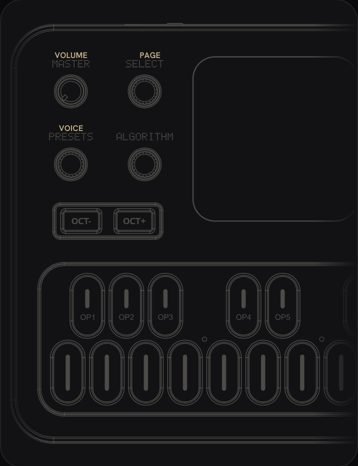 What every FM-1 control doesPick the firmware on yours, then tap any control to see what it does.
 How to add glide to one step0:38 · 3 STEPS
 How to play a random sequence0:28 · 2 STEPS
Les is independent and not affiliated with M-VAVE or the firmware authors. M-VAVE and FM-1 are trademarks of their owners.