FM-1 firmware · 1.4
Groove OS
Groove OS makes the FM-1 an eight-track groovebox with FM and virtual-analog sounds, drum kits, custom samples, patterns, scenes and lessons. This guide covers playing songs, editing them and keeping them safe.
- What it is
- An eight-track groovebox with FM and virtual-analog voices, drum kits, custom samples, scenes and lessons on the unit
- Best for
- Making songs across eight parts and learning through guided lessons
- Install
- Maker’s install page (paid and closed source; Les links to the maker)
- Scan
- Not scanned What we checked
What each control does on Groove OS
TapSwipe across the panel, then tap any control to see what it does on Groove OS.
On every button on Groove OS: LONG HELP CARD. After one second displays this button’s help card; releasing closes the card without a further short-tap action.
Start here
Evidence: the supplied public 1.4 guide and supporting public pages. Every control entry has vendor-doc evidence. Switching overlaps are separately marked as inferred from attributed storage layouts.
Before installing anything else: See Before you switch firmware below. The V15 route erases Groove projects and clears custom sounds from the unit. While Groove OS still runs, export all projects and separately save a custom-sound backup, or take Account > Your FM-1 > Save a safety copy. A project file alone omits sample audio.
The modes
SELECT visits TRACKS → MIX → PERFORM → KEYS → PROJECT. The table also lists tool pages and cursor contexts within menus; repeated STORE or LOAD contexts describe the same row’s knob and button actions.
| Page or context | Open it | Purpose |
|---|---|---|
| View wheel | Turn SELECT. | The wheel orders TRACKS, MIX, PERFORM, KEYS and PROJECT. |
| Menu navigation | Open a menu with SEL or a tool button. | Rows show editable values, deeper pages, actions or an unavailable state. |
| Confirmation question | Request an action that needs confirmation. | Shows the pending action and its cost, initially choosing CANCEL. |
| SHIFT help | Hold HOME without using another control. | After 300 ms by default the header shows SHIFT; after 600 ms its help page explains the current page’s alternate controls. |
| Transport stopped | Stop with PLAY. | No loop is running; REC can begin with a count-in. |
| Transport playing | Start with PLAY. | The loop runs; pending record, mute and solo changes follow LAUNCH. |
| Count-in | Press REC from a stop with COUNT-IN enabled. | Counts one bar before an overdub starts. |
| Recording | Press REC and let the launch line or count-in arrive. | A red transport dot and colored screen edges mark an overdub; track selection is blocked. |
| TRACKS: sound lane | Turn SELECT to TRACKS and ALGORITHM to a sound track. | Shows up to four track lanes, selected track, loop ends, playhead and the track’s sound macros. |
| TRACKS: KIT lane | Select a KIT lane on TRACKS. | Shows the kit lane and the selected pad’s controls. |
| TRACKS: MIDI OUT | Select a MIDI OUT lane on TRACKS. | Shows the external-note track’s loop and MIDI controls. |
| TRACKS: TIME | Move ALGORITHM above the track lanes. | Shows the project’s beat grid, tempo, swing, record quantise and click. |
| Add track | Move to + ADD TRACK and press SEL. | Offers FM SOUND, VA SOUND, FM KIT or VA KIT up to eight tracks, blocked during recording or count-in. |
| TIME menu | Press SEL on TIME. | Lists time menu rows; ALGORITHM chooses a row, K1 edits values, SEL opens or runs actions, and HOME returns. |
| TIME menu: COUNT-IN | Open TIME menu, then move ALGORITHM to COUNT-IN. | The cursor is on COUNT-IN in TIME menu. |
| TIME menu: LAUNCH | Open TIME menu, then move ALGORITHM to LAUNCH. | The cursor is on LAUNCH in TIME menu. |
| TIME menu: CLICK VOL | Open TIME menu, then move ALGORITHM to CLICK VOL. | The cursor is on CLICK VOL in TIME menu. |
| TIME menu: MIDI CLOCK | Open TIME menu, then move ALGORITHM to MIDI CLOCK. | The cursor is on MIDI CLOCK in TIME menu. |
| TIME menu: TAP TEMPO | Open TIME menu, then move ALGORITHM to TAP TEMPO. | The cursor is on TAP TEMPO in TIME menu. |
| TRACK menu | Press SEL on a track lane or MIX strip. | Lists track menu rows; ALGORITHM chooses a row, K1 edits values, SEL opens or runs actions, and HOME returns. |
| TRACK menu: SOUND | Open TRACK menu, then move ALGORITHM to SOUND. | The cursor is on SOUND in TRACK menu. |
| TRACK menu: PADS + STEPS | Open TRACK menu, then move ALGORITHM to PADS + STEPS. | The cursor is on PADS + STEPS in TRACK menu. |
| TRACK menu: ENGINE | Open TRACK menu, then move ALGORITHM to ENGINE. | The cursor is on ENGINE in TRACK menu. |
| TRACK menu: SEQUENCER | Open TRACK menu, then move ALGORITHM to SEQUENCER. | The cursor is on SEQUENCER in TRACK menu. |
| TRACK menu: ARP | Open TRACK menu and move ALGORITHM to ARP. | The cursor is on ARP in TRACK menu. |
| TRACK menu: AUTOMATION | Open TRACK menu, then move ALGORITHM to AUTOMATION. | The cursor is on AUTOMATION in TRACK menu. |
| TRACK menu: TRACK FX | Open TRACK menu, then move ALGORITHM to TRACK FX. | The cursor is on TRACK FX in TRACK menu. |
| TRACK menu: LENGTH | Open TRACK menu and move ALGORITHM to LENGTH. | The cursor is on LENGTH in TRACK menu. |
| TRACK menu: OCTAVE | Open TRACK menu, then move ALGORITHM to OCTAVE. | The cursor is on OCTAVE in TRACK menu. |
| TRACK menu: TRANSPOSE | Open TRACK menu, then move ALGORITHM to TRANSPOSE. | The cursor is on TRANSPOSE in TRACK menu. |
| TRACK menu: TIMING | Open TRACK menu, then move ALGORITHM to TIMING. | The cursor is on TIMING in TRACK menu. |
| TRACK menu: MIDI OUT CH | Open TRACK menu, then move ALGORITHM to MIDI OUT CH. | The cursor is on MIDI OUT CH in TRACK menu. |
| TRACK menu: MIDI CH | Open TRACK menu, then move ALGORITHM to MIDI CH. | The cursor is on MIDI CH in TRACK menu. |
| TRACK menu: RENAME | Open TRACK menu, then move ALGORITHM to RENAME. | The cursor is on RENAME in TRACK menu. |
| TRACK menu: DUPLICATE | Open TRACK menu, then move ALGORITHM to DUPLICATE. | The cursor is on DUPLICATE in TRACK menu. |
| TRACK menu: CLEAR | Open TRACK menu and move ALGORITHM to CLEAR. | The cursor is on CLEAR in TRACK menu. |
| TRACK menu: DELETE | Open TRACK menu and move ALGORITHM to DELETE. | The cursor is on DELETE in TRACK menu. |
| AUTOMATION | Open TRACK menu > AUTOMATION. | Draws recorded knob curves, with up to four lanes visible. |
| SOUND: FM | Open TRACK menu > SOUND on a FM track. | Shows the operator routing diagram with the sound’s four macros. |
| SOUND: VA | Open TRACK menu > SOUND on a VA track. | Shows the filter response and synthesis envelopes with the sound’s four macros. |
| SOUND menu | Press SEL on SOUND or tap EDIT. | Lists sound menu rows; ALGORITHM chooses a row, K1 edits values, SEL opens or runs actions, and HOME returns. |
| SOUND menu: RESET MACROS | Open SOUND menu, then move ALGORITHM to RESET MACROS. | The cursor is on RESET MACROS in SOUND menu. |
| SOUND menu: COPY SOUND | Open SOUND menu, then move ALGORITHM to COPY SOUND. | The cursor is on COPY SOUND in SOUND menu. |
| SOUND menu: PASTE SOUND | Open SOUND menu, then move ALGORITHM to PASTE SOUND. | The cursor is on PASTE SOUND in SOUND menu. |
| SOUND menu: INIT SOUND | Open SOUND menu, then move ALGORITHM to INIT SOUND. | The cursor is on INIT SOUND in SOUND menu. |
| FM editor: VOICE | Choose VOICE in the FM SOUND menu. | Shows the VOICE group’s synthesis picture and knob values. |
| FM editor: PITCH ENV | Choose PITCH ENV in the FM SOUND menu. | Shows the PITCH ENV group’s synthesis picture and knob values. |
| FM editor: LFO | Choose LFO in the FM SOUND menu. | Shows the LFO group’s synthesis picture and knob values. |
| FM editor: AMP ENV | Choose AMP ENV in the FM SOUND menu. | Shows the AMP ENV group’s synthesis picture and knob values. |
| FM editor: PLAY | Choose PLAY in the FM SOUND menu. | Shows the PLAY group’s synthesis picture and knob values. |
| FM editor: NAME | Choose NAME in the FM SOUND menu. | Shows the NAME group’s synthesis picture and knob values. |
| FM editor: OP1 | Choose OP1 in the FM SOUND menu. | Shows the OP1 group’s synthesis picture and knob values. |
| FM editor: OP2 | Choose OP2 in the FM SOUND menu. | Shows the OP2 group’s synthesis picture and knob values. |
| FM editor: OP3 | Choose OP3 in the FM SOUND menu. | Shows the OP3 group’s synthesis picture and knob values. |
| FM editor: OP4 | Choose OP4 in the FM SOUND menu. | Shows the OP4 group’s synthesis picture and knob values. |
| FM editor: OP5 | Choose OP5 in the FM SOUND menu. | Shows the OP5 group’s synthesis picture and knob values. |
| FM editor: OP6 | Choose OP6 in the FM SOUND menu. | Shows the OP6 group’s synthesis picture and knob values. |
| VA editor: OSC | Choose OSC in the VA SOUND menu. | Shows the OSC group’s synthesis picture and knob values. |
| VA editor: FILTER | Choose FILTER in the VA SOUND menu. | Shows the FILTER group’s synthesis picture and knob values. |
| VA editor: FILTER ENV | Choose FILTER ENV in the VA SOUND menu. | Shows the FILTER ENV group’s synthesis picture and knob values. |
| VA editor: AMP ENV | Choose AMP ENV in the VA SOUND menu. | Shows the AMP ENV group’s synthesis picture and knob values. |
| VA editor: LFO | Choose LFO in the VA SOUND menu. | Shows the LFO group’s synthesis picture and knob values. |
| Browser: sound | Turn PRESETS and highlight a sound row. | Shows sounds grouped by bank, engine and type, with favorites, recent slots and the current sound marked. |
| Browser: kit | Turn PRESETS and highlight a kit row. | Shows sounds grouped by bank, engine and type, with favorites, recent slots and the current sound marked. |
| KEYS | Turn SELECT to KEYS. | Shows the keybed’s root, scale, note mapping and chord setting; these settings affect note-playing pages. |
| KEYS menu | Press SEL on KEYS. | Lists keys menu rows; ALGORITHM chooses a row, K1 edits values, SEL opens or runs actions, and HOME returns. |
| KEYS menu: CHORDS | Open KEYS menu and move ALGORITHM to CHORDS. | The cursor is on CHORDS in KEYS menu. |
| KEYS menu: LATCH | Open KEYS menu and move ALGORITHM to LATCH. | The cursor is on LATCH in KEYS menu. |
| KEYS menu: VELO CURVE | Open KEYS menu, then move ALGORITHM to VELO CURVE. | The cursor is on VELO CURVE in KEYS menu. |
| KEYS menu: FIXED VELO | Open KEYS menu, then move ALGORITHM to FIXED VELO. | The cursor is on FIXED VELO in KEYS menu. |
| KEYS menu: SCALE LEDS | Open KEYS menu, then move ALGORITHM to SCALE LEDS. | The cursor is on SCALE LEDS in KEYS menu. |
| KEYS menu: ROOT BY KEY | Open KEYS menu, then move ALGORITHM to ROOT BY KEY. | The cursor is on ROOT BY KEY in KEYS menu. |
| Root selection | Choose ROOT BY KEY in the KEYS menu. | Prompts for a key to set the root. |
| CHORDS editor | Open KEYS menu > CHORDS. | Shows a selected pad’s chord and voices, with the chord’s notes lit on the keys. |
| Chord pads | Set CHORDS to PADS or use SHIFT+SEL on a non-KIT track. | Eight white keys starting at C4 play chords, the seven lower keys control chord performance, intervening black keys are silent, and the upper seven keys remain notes. |
| Chords on scale keys | Set CHORDS to PLAY on KEYS. | Each in-scale key triggers its degree’s chord. |
| ARP | Press ARP on a sound track without its sequencer enabled. | Shows note order, timing, octave range, gate and the held chord, or an illustrative A-minor chord when no keys are held. |
| ARP menu | Press SEL on ARP. | Lists arp menu rows; ALGORITHM chooses a row, K1 edits values, SEL opens or runs actions, and HOME returns. |
| ARP menu: LATCH | Open ARP menu and move ALGORITHM to LATCH. | The cursor is on LATCH in ARP menu. |
| ARP menu: SWING | Open ARP menu and move ALGORITHM to SWING. | The cursor is on SWING in ARP menu. |
| ARP menu: VELOCITY | Open ARP menu and move ALGORITHM to VELOCITY. | The cursor is on VELOCITY in ARP menu. |
| ARP menu: CHORDS | Open ARP menu and move ALGORITHM to CHORDS. | The cursor is on CHORDS in ARP menu. |
| SEQ: step | Open SEQ on a sound track and move onto a step. | Shows a sixteen-column note grid and bar strip, step velocity and conditions, with up to four notes in each step. |
| SEQ: pattern row | Move ALGORITHM before step 1. | Shows the whole pattern in an eight-by-eight overview with length, rate, swing and gate. |
| STEP menu | Press SEL on a nonempty SEQ step. | Lists step menu rows; ALGORITHM chooses a row, K1 edits values, SEL opens or runs actions, and HOME returns. |
| STEP menu: NOTES | Open STEP menu and move ALGORITHM to NOTES. | The cursor is on NOTES in STEP menu. |
| STEP menu: RATCHET | Open STEP menu, then move ALGORITHM to RATCHET. | The cursor is on RATCHET in STEP menu. |
| STEP menu: CONDITION | Open STEP menu, then move ALGORITHM to CONDITION. | The cursor is on CONDITION in STEP menu. |
| STEP menu: ACCENT | Open STEP menu, then move ALGORITHM to ACCENT. | The cursor is on ACCENT in STEP menu. |
| STEP menu: SLIDE | Open STEP menu, then move ALGORITHM to SLIDE. | The cursor is on SLIDE in STEP menu. |
| STEP menu: TIE | Open STEP menu, then move ALGORITHM to TIE. | The cursor is on TIE in STEP menu. |
| STEP menu: FLAM | Open STEP menu, then move ALGORITHM to FLAM. | The cursor is on FLAM in STEP menu. |
| STEP menu: TRANSPOSE | Open STEP menu and move ALGORITHM to TRANSPOSE. | The cursor is on TRANSPOSE in STEP menu. |
| STEP menu: COPY | Open STEP menu and move ALGORITHM to COPY. | The cursor is on COPY in STEP menu. |
| STEP menu: PASTE | Open STEP menu and move ALGORITHM to PASTE. | The cursor is on PASTE in STEP menu. |
| STEP menu: CLEAR | Open STEP menu and move ALGORITHM to CLEAR. | The cursor is on CLEAR in STEP menu. |
| STEP menu: CLEAR LOCKS | Open STEP menu, then move ALGORITHM to CLEAR LOCKS. | The cursor is on CLEAR LOCKS in STEP menu. |
| Step note list | Open STEP > NOTES. | Lists up to four notes in the step. |
| PATTERN menu | Press SEL on SEQ’s pattern row. | Lists pattern menu rows; ALGORITHM chooses a row, K1 edits values, SEL opens or runs actions, and HOME returns. |
| PATTERN menu: PATTERN | Open PATTERN menu, then move ALGORITHM to PATTERN. | The cursor is on PATTERN in PATTERN menu. |
| PATTERN menu: STORE | Open PATTERN, choose STORE, turn K1 to pick a slot and use SEL for the action. | The STORE row selects its A–P slot with K1 and runs with SEL. |
| PATTERN menu: STORE | Open PATTERN, choose STORE, turn K1 to pick a slot and use SEL for the action. | The STORE row selects its A–P slot with K1 and runs with SEL. |
| PATTERN menu: LOAD | Open PATTERN, choose LOAD, turn K1 to pick a slot and use SEL for the action. | The LOAD row selects its A–P slot with K1 and runs with SEL. |
| PATTERN menu: LOAD | Open PATTERN, choose LOAD, turn K1 to pick a slot and use SEL for the action. | The LOAD row selects its A–P slot with K1 and runs with SEL. |
| PATTERN menu: CHAIN | Open PATTERN menu, then move ALGORITHM to CHAIN. | The cursor is on CHAIN in PATTERN menu. |
| PATTERN menu: DICE | Open PATTERN menu, then move ALGORITHM to DICE. | The cursor is on DICE in PATTERN menu. |
| PATTERN menu: GENERATE | Open PATTERN menu and move ALGORITHM to GENERATE. | The cursor is on GENERATE in PATTERN menu. |
| PATTERN menu: TRANSPOSE | Open PATTERN menu and move ALGORITHM to TRANSPOSE. | The cursor is on TRANSPOSE in PATTERN menu. |
| PATTERN menu: DIRECTION | Open PATTERN menu, then move ALGORITHM to DIRECTION. | The cursor is on DIRECTION in PATTERN menu. |
| PATTERN menu: COPY | Open PATTERN menu and move ALGORITHM to COPY. | The cursor is on COPY in PATTERN menu. |
| PATTERN menu: PASTE | Open PATTERN menu and move ALGORITHM to PASTE. | The cursor is on PASTE in PATTERN menu. |
| PATTERN menu: STRETCH | Open PATTERN menu, then move ALGORITHM to STRETCH. | The cursor is on STRETCH in PATTERN menu. |
| PATTERN menu: SQUEEZE | Open PATTERN menu, then move ALGORITHM to SQUEEZE. | The cursor is on SQUEEZE in PATTERN menu. |
| PATTERN menu: 2X | Open PATTERN menu, then move ALGORITHM to 2X. | The cursor is on 2X in PATTERN menu. |
| PATTERN menu: 1/2X | Open PATTERN menu, then move ALGORITHM to 1/2X. | The cursor is on 1/2X in PATTERN menu. |
| PATTERN menu: REPEATER | Open PATTERN menu, then move ALGORITHM to REPEATER. | The cursor is on REPEATER in PATTERN menu. |
| PATTERN menu: REROLL CHANCE | Open PATTERN menu and move ALGORITHM to REROLL CHANCE. | The cursor is on REROLL CHANCE in PATTERN menu. |
| PATTERN menu: PRINT | Open PATTERN menu, then move ALGORITHM to PRINT. | The cursor is on PRINT in PATTERN menu. |
| PATTERN menu: ALL SEQ OFF | Open PATTERN menu, then move ALGORITHM to ALL SEQ OFF. | The cursor is on ALL SEQ OFF in PATTERN menu. |
| PATTERN menu: CLEAR | Open PATTERN menu and move ALGORITHM to CLEAR. | The cursor is on CLEAR in PATTERN menu. |
| NOTE DICE | Open PATTERN > GENERATE. | Lists note dice rows; ALGORITHM chooses a row, K1 edits values, SEL opens or runs actions, and HOME returns. |
| NOTE DICE: DENSITY | Open NOTE DICE, then move ALGORITHM to DENSITY. | The cursor is on DENSITY in NOTE DICE. |
| NOTE DICE: RANGE | Open NOTE DICE, then move ALGORITHM to RANGE. | The cursor is on RANGE in NOTE DICE. |
| NOTE DICE: KEEP | Open NOTE DICE, then move ALGORITHM to KEEP. | The cursor is on KEEP in NOTE DICE. |
| NOTE DICE: MOTION | Open NOTE DICE, then move ALGORITHM to MOTION. | The cursor is on MOTION in NOTE DICE. |
| NOTE DICE: ROLL | Open NOTE DICE and move ALGORITHM to ROLL. | The cursor is on ROLL in NOTE DICE. |
| NOTE DICE: RESET SETTINGS | Open NOTE DICE and move ALGORITHM to RESET SETTINGS. | The cursor is on RESET SETTINGS in NOTE DICE. |
| Pattern chain | Open PATTERN > CHAIN. | Lists pattern chain rows; ALGORITHM chooses a row, K1 edits values, SEL opens or runs actions, and HOME returns. |
| CHAIN: entries | Open PATTERN > CHAIN. | Shows ordered pattern entries, up to sixteen; the guide does not give the add-entry control. |
| Pattern chain: CLEAR | Open Pattern chain and move ALGORITHM to CLEAR. | The cursor is on CLEAR in Pattern chain. |
| REPEATER | Open PATTERN > REPEATER. | Lists repeater rows; ALGORITHM chooses a row, K1 edits values, SEL opens or runs actions, and HOME returns. |
| REPEATER: FROM STEP | Open REPEATER, then move ALGORITHM to FROM STEP. | The cursor is on FROM STEP in REPEATER. |
| REPEATER: STEPS | Open REPEATER and move ALGORITHM to STEPS. | The cursor is on STEPS in REPEATER. |
| REPEATER: TIMES | Open REPEATER, then move ALGORITHM to TIMES. | The cursor is on TIMES in REPEATER. |
| REPEATER: REPEAT | Open REPEATER and move ALGORITHM to REPEAT. | The cursor is on REPEAT in REPEATER. |
| KIT pads | Select a KIT track outside its step grid. | White keys repeat eight pads; the first eight black keys choose and sound pads. |
| KIT: step grid | Press SEQ on a KIT track and move onto a step. | Shows eight pad rows, sixteen steps, current bar, hit velocity, conditions, ratchets and locks. |
| KIT: pattern row | Move ALGORITHM before step 1 on KIT. | Shows every pad’s hits over the bars, with track length, fixed sixteenth-note rate, project swing and kit velocity. |
| KIT menu | Press SEL on the KIT pattern row. | Lists kit menu rows; ALGORITHM chooses a row, K1 edits values, SEL opens or runs actions, and HOME returns. |
| KIT menu: KIT | Open KIT menu, then move ALGORITHM to KIT. | The cursor is on KIT in KIT menu. |
| KIT menu: VELO | Open KIT menu and move ALGORITHM to VELO. | The cursor is on VELO in KIT menu. |
| KIT menu: ALL TUNE | Open KIT menu, then move ALGORITHM to ALL TUNE. | The cursor is on ALL TUNE in KIT menu. |
| KIT menu: ALL DECAY | Open KIT menu, then move ALGORITHM to ALL DECAY. | The cursor is on ALL DECAY in KIT menu. |
| KIT menu: DICE | Open KIT menu, then move ALGORITHM to DICE. | The cursor is on DICE in KIT menu. |
| KIT menu: GENERATE | Open KIT menu and move ALGORITHM to GENERATE. | The cursor is on GENERATE in KIT menu. |
| KIT menu: CLEAR ALL HITS | Open KIT menu and move ALGORITHM to CLEAR ALL HITS. | The cursor is on CLEAR ALL HITS in KIT menu. |
| DRUM DICE | Open KIT > GENERATE. | Lists drum dice rows; ALGORITHM chooses a row, K1 edits values, SEL opens or runs actions, and HOME returns. |
| DRUM DICE: KICK | Open DRUM DICE, then move ALGORITHM to KICK. | The cursor is on KICK in DRUM DICE. |
| DRUM DICE: SNARE / CLAP | Open DRUM DICE, then move ALGORITHM to SNARE / CLAP. | The cursor is on SNARE / CLAP in DRUM DICE. |
| DRUM DICE: HATS / RIDE | Open DRUM DICE, then move ALGORITHM to HATS / RIDE. | The cursor is on HATS / RIDE in DRUM DICE. |
| DRUM DICE: PERCUSSION | Open DRUM DICE, then move ALGORITHM to PERCUSSION. | The cursor is on PERCUSSION in DRUM DICE. |
| DRUM DICE: VARIATION | Open DRUM DICE, then move ALGORITHM to VARIATION. | The cursor is on VARIATION in DRUM DICE. |
| DRUM DICE: ROLL | Open DRUM DICE and move ALGORITHM to ROLL. | The cursor is on ROLL in DRUM DICE. |
| DRUM DICE: RESET SETTINGS | Open DRUM DICE and move ALGORITHM to RESET SETTINGS. | The cursor is on RESET SETTINGS in DRUM DICE. |
| PAD menu | Press SEL on a KIT step; hit rows appear only for an existing hit. | Lists pad menu rows; ALGORITHM chooses a row, K1 edits values, SEL opens or runs actions, and HOME returns. |
| PAD menu: SOUND | Open PAD menu and move ALGORITHM to SOUND. | The cursor is on SOUND in PAD menu. |
| PAD menu: TUNE | Open PAD menu and move ALGORITHM to TUNE. | The cursor is on TUNE in PAD menu. |
| PAD menu: DECAY | Open PAD menu and move ALGORITHM to DECAY. | The cursor is on DECAY in PAD menu. |
| PAD menu: LEVEL | Open PAD menu and move ALGORITHM to LEVEL. | The cursor is on LEVEL in PAD menu. |
| PAD menu: CHOKE | Open PAD menu, then move ALGORITHM to CHOKE. | The cursor is on CHOKE in PAD menu. |
| PAD menu: REVERB | Open PAD menu and move ALGORITHM to REVERB. | The cursor is on REVERB in PAD menu. |
| PAD menu: DELAY | Open PAD menu and move ALGORITHM to DELAY. | The cursor is on DELAY in PAD menu. |
| PAD menu: MUTE | Open PAD menu and move ALGORITHM to MUTE. | The cursor is on MUTE in PAD menu. |
| PAD menu: HIT VELO | Open PAD menu, then move ALGORITHM to HIT VELO. | The cursor is on HIT VELO in PAD menu. |
| PAD menu: CONDITION | Open PAD menu and move ALGORITHM to CONDITION. | The cursor is on CONDITION in PAD menu. |
| PAD menu: RATCHET | Open PAD menu and move ALGORITHM to RATCHET. | The cursor is on RATCHET in PAD menu. |
| PAD menu: FLAM | Open PAD menu and move ALGORITHM to FLAM. | The cursor is on FLAM in PAD menu. |
| PAD menu: NUDGE | Open PAD menu and move ALGORITHM to NUDGE. | The cursor is on NUDGE in PAD menu. |
| PAD menu: COPY | Open PAD menu and move ALGORITHM to COPY. | The cursor is on COPY in PAD menu. |
| PAD menu: PASTE | Open PAD menu and move ALGORITHM to PASTE. | The cursor is on PASTE in PAD menu. |
| PAD menu: CLEAR | Open PAD menu and move ALGORITHM to CLEAR. | The cursor is on CLEAR in PAD menu. |
| PAD menu: CLEAR LOCKS | Open PAD menu and move ALGORITHM to CLEAR LOCKS. | The cursor is on CLEAR LOCKS in PAD menu. |
| MIX: track strip | Turn SELECT to MIX and ALGORITHM to a track. | Shows track levels, mute and solo indicators, and separate reverb and delay sends, with MAIN fixed at the right. |
| MIX: MAIN | Move ALGORITHM to MAIN on MIX. | Shows whole-mix reverb and delay return levels, drive gain and filter cutoff. |
| TRACK FX: INSERTS | Press FX, then choose INSERTS with ALGORITHM. | Shows the selected track’s insert chain, level and send branches. |
| TRACK FX: SENDS | Press FX, then choose SENDS with ALGORITHM. | Shows the selected track’s insert chain, level and send branches. |
| MAIN FX: REVERB | Hold HOME and tap FX, then choose REVERB with ALGORITHM. | Shows the shared effect chain and the selected reverb block’s diagram, values and enabled state. |
| REVERB menu | Press SEL on MAIN FX REVERB. | Lists reverb menu rows; ALGORITHM chooses a row, K1 edits values, SEL opens or runs actions, and HOME returns. |
| REVERB menu: ON / OFF | Open REVERB menu and move ALGORITHM to ON / OFF. | The cursor is on ON / OFF in REVERB menu. |
| REVERB menu: BYPASS ALL | Open REVERB menu, then move ALGORITHM to BYPASS ALL. | The cursor is on BYPASS ALL in REVERB menu. |
| REVERB menu: TYPE | Open REVERB menu and move ALGORITHM to TYPE. | The cursor is on TYPE in REVERB menu. |
| REVERB menu: DELAY TO REVERB | Open REVERB menu and move ALGORITHM to DELAY TO REVERB. | The cursor is on DELAY TO REVERB in REVERB menu. |
| MAIN FX: DELAY | Hold HOME and tap FX, then choose DELAY with ALGORITHM. | Shows the shared effect chain and the selected delay block’s diagram, values and enabled state. |
| DELAY menu | Press SEL on MAIN FX DELAY. | Lists delay menu rows; ALGORITHM chooses a row, K1 edits values, SEL opens or runs actions, and HOME returns. |
| DELAY menu: ON / OFF | Open DELAY menu and move ALGORITHM to ON / OFF. | The cursor is on ON / OFF in DELAY menu. |
| DELAY menu: BYPASS ALL | Open DELAY menu, then move ALGORITHM to BYPASS ALL. | The cursor is on BYPASS ALL in DELAY menu. |
| DELAY menu: DELAY TO REVERB | Open DELAY menu and move ALGORITHM to DELAY TO REVERB. | The cursor is on DELAY TO REVERB in DELAY menu. |
| MAIN FX: FILTER | Hold HOME and tap FX, then choose FILTER with ALGORITHM. | Shows the shared effect chain and the selected filter block’s diagram, values and enabled state. |
| FILTER menu | Press SEL on MAIN FX FILTER. | Lists filter menu rows; ALGORITHM chooses a row, K1 edits values, SEL opens or runs actions, and HOME returns. |
| FILTER menu: ON / OFF | Open FILTER menu and move ALGORITHM to ON / OFF. | The cursor is on ON / OFF in FILTER menu. |
| FILTER menu: BYPASS ALL | Open FILTER menu, then move ALGORITHM to BYPASS ALL. | The cursor is on BYPASS ALL in FILTER menu. |
| FILTER menu: TYPE | Open FILTER menu and move ALGORITHM to TYPE. | The cursor is on TYPE in FILTER menu. |
| FILTER menu: EARLIER | Open FILTER menu, then move ALGORITHM to EARLIER. | The cursor is on EARLIER in FILTER menu. |
| FILTER menu: LATER | Open FILTER menu, then move ALGORITHM to LATER. | The cursor is on LATER in FILTER menu. |
| MAIN FX: DRIVE | Hold HOME and tap FX, then choose DRIVE with ALGORITHM. | Shows the shared effect chain and the selected drive block’s diagram, values and enabled state. |
| DRIVE menu | Press SEL on MAIN FX DRIVE. | Lists drive menu rows; ALGORITHM chooses a row, K1 edits values, SEL opens or runs actions, and HOME returns. |
| DRIVE menu: ON / OFF | Open DRIVE menu and move ALGORITHM to ON / OFF. | The cursor is on ON / OFF in DRIVE menu. |
| DRIVE menu: BYPASS ALL | Open DRIVE menu, then move ALGORITHM to BYPASS ALL. | The cursor is on BYPASS ALL in DRIVE menu. |
| DRIVE menu: EARLIER | Open DRIVE menu, then move ALGORITHM to EARLIER. | The cursor is on EARLIER in DRIVE menu. |
| DRIVE menu: LATER | Open DRIVE menu, then move ALGORITHM to LATER. | The cursor is on LATER in DRIVE menu. |
| MAIN FX: CHORUS | Hold HOME and tap FX, then choose CHORUS with ALGORITHM. | Shows the shared effect chain and the selected chorus block’s diagram, values and enabled state. |
| CHORUS menu | Press SEL on MAIN FX CHORUS. | Lists chorus menu rows; ALGORITHM chooses a row, K1 edits values, SEL opens or runs actions, and HOME returns. |
| CHORUS menu: ON / OFF | Open CHORUS menu and move ALGORITHM to ON / OFF. | The cursor is on ON / OFF in CHORUS menu. |
| CHORUS menu: BYPASS ALL | Open CHORUS menu, then move ALGORITHM to BYPASS ALL. | The cursor is on BYPASS ALL in CHORUS menu. |
| CHORUS menu: EARLIER | Open CHORUS menu, then move ALGORITHM to EARLIER. | The cursor is on EARLIER in CHORUS menu. |
| CHORUS menu: LATER | Open CHORUS menu, then move ALGORITHM to LATER. | The cursor is on LATER in CHORUS menu. |
| MAIN FX: PHASER | Hold HOME and tap FX, then choose PHASER with ALGORITHM. | Shows the shared effect chain and the selected phaser block’s diagram, values and enabled state. |
| PHASER menu | Press SEL on MAIN FX PHASER. | Lists phaser menu rows; ALGORITHM chooses a row, K1 edits values, SEL opens or runs actions, and HOME returns. |
| PHASER menu: ON / OFF | Open PHASER menu and move ALGORITHM to ON / OFF. | The cursor is on ON / OFF in PHASER menu. |
| PHASER menu: BYPASS ALL | Open PHASER menu, then move ALGORITHM to BYPASS ALL. | The cursor is on BYPASS ALL in PHASER menu. |
| PHASER menu: EARLIER | Open PHASER menu, then move ALGORITHM to EARLIER. | The cursor is on EARLIER in PHASER menu. |
| PHASER menu: LATER | Open PHASER menu, then move ALGORITHM to LATER. | The cursor is on LATER in PHASER menu. |
| PERFORM | Turn SELECT to the third view. | Shows eleven scenes, track states, eight punch effects and four temporary throws, with queued changes blinking. |
| PROJECT | Turn SELECT to the last view. | Shows three song slots with names, track counts, tempo, size and lane thumbnails, plus NEW. |
| Slot menu | Press SEL on a project slot. | Lists slot menu rows; ALGORITHM chooses a row, K1 edits values, SEL opens or runs actions, and HOME returns. |
| Slot menu: LOAD | Open Slot menu and move ALGORITHM to LOAD. | The cursor is on LOAD in Slot menu. |
| Slot menu: SAVE HERE | Open Slot menu, then move ALGORITHM to SAVE HERE. | The cursor is on SAVE HERE in Slot menu. |
| Slot menu: RENAME | Open Slot menu, then move ALGORITHM to RENAME. | The cursor is on RENAME in Slot menu. |
| Slot menu: DUPLICATE | Open Slot menu and move ALGORITHM to DUPLICATE. | The cursor is on DUPLICATE in Slot menu. |
| Slot menu: DELETE | Open Slot menu and move ALGORITHM to DELETE. | The cursor is on DELETE in Slot menu. |
| NEW | Press SEL on NEW in PROJECT. | Offers EMPTY and a MORE row pointing to website songs. |
| RENAME | Choose RENAME for the loaded project or selected track. | Shows a name editor; the first typed key replaces the old name unless K1 or K2 was used first to edit in place. |
| SETTINGS | Tap GLO outside a course or hold it for one second within a course. | Lists SYNTH, MIDI, CONTROLS, HINTS, STARTUP, BLUETOOTH, STORAGE, ABOUT and LEARN. |
| SETTINGS: SYNTH | Choose SYNTH in SETTINGS. | Shows shared FM settings. |
| SETTINGS: MIDI | Choose MIDI in SETTINGS. | Shows MIDI routing and clock settings. |
| SETTINGS: CONTROLS | Choose CONTROLS in SETTINGS. | Shows control timing and preview settings. |
| SETTINGS: STORAGE | Choose STORAGE in SETTINGS. | Shows project space and destructive storage actions. |
| SETTINGS: ABOUT | Choose ABOUT in SETTINGS. | Shows version, battery and crash reports. |
| SETTINGS: LEARN | Choose LEARN in SETTINGS. | Shows six on-unit courses. |
| SETTINGS | Tap GLO outside a course, or hold GLO within a course. | HINTS, STARTUP and BLUETOOTH are rows on the top-level SETTINGS page. |
| SETTINGS: HINTS | Open SETTINGS and select HINTS. | The cursor is on HINTS in SETTINGS. |
| SETTINGS: STARTUP | Open SETTINGS and select STARTUP. | The cursor is on STARTUP in SETTINGS. |
| SETTINGS: BLUETOOTH | Open SETTINGS and select BLUETOOTH. | The cursor is on BLUETOOTH in SETTINGS. |
| SYNTH settings | Open SETTINGS > SYNTH. | Lists synth settings rows; ALGORITHM chooses a row, K1 edits values, SEL opens or runs actions, and HOME returns. |
| SYNTH settings: BEND UP | Open SYNTH settings, then move ALGORITHM to BEND UP. | The cursor is on BEND UP in SYNTH settings. |
| SYNTH settings: BEND DOWN | Open SYNTH settings, then move ALGORITHM to BEND DOWN. | The cursor is on BEND DOWN in SYNTH settings. |
| SYNTH settings: GLIDE | Open SYNTH settings and move ALGORITHM to GLIDE. | The cursor is on GLIDE in SYNTH settings. |
| SYNTH settings: GLIDE TIME | Open SYNTH settings, then move ALGORITHM to GLIDE TIME. | The cursor is on GLIDE TIME in SYNTH settings. |
| SYNTH settings: POLY / MONO | Open SYNTH settings and move ALGORITHM to POLY / MONO. | The cursor is on POLY / MONO in SYNTH settings. |
| MIDI settings | Open SETTINGS > MIDI. | Lists midi settings rows; ALGORITHM chooses a row, K1 edits values, SEL opens or runs actions, and HOME returns. |
| MIDI settings: MIDI CH | Open MIDI settings and move ALGORITHM to MIDI CH. | The cursor is on MIDI CH in MIDI settings. |
| MIDI settings: CLOCK | Open MIDI settings and move ALGORITHM to CLOCK. | The cursor is on CLOCK in MIDI settings. |
| MIDI settings: FX CC CH | Open MIDI settings, then move ALGORITHM to FX CC CH. | The cursor is on FX CC CH in MIDI settings. |
| MIDI settings: STOCK CH | Open MIDI settings, then move ALGORITHM to STOCK CH. | The cursor is on STOCK CH in MIDI settings. |
| Control settings | Open SETTINGS > CONTROLS. | Lists control settings rows; ALGORITHM chooses a row, K1 edits values, SEL opens or runs actions, and HOME returns. |
| Control settings: BACK TAP | Open Control settings, then move ALGORITHM to BACK TAP. | The cursor is on BACK TAP in Control settings. |
| Control settings: WHEEL SETTLE | Open Control settings, then move ALGORITHM to WHEEL SETTLE. | The cursor is on WHEEL SETTLE in Control settings. |
| Control settings: PREVIEW | Open Control settings, then move ALGORITHM to PREVIEW. | The cursor is on PREVIEW in Control settings. |
| STORAGE | Open SETTINGS > STORAGE. | Lists storage rows; ALGORITHM chooses a row, K1 edits values, SEL opens or runs actions, and HOME returns. |
| STORAGE: RESET BANK | Open STORAGE, then move ALGORITHM to RESET BANK. | The cursor is on RESET BANK in STORAGE. |
| STORAGE: ERASE ALL | Open STORAGE, then move ALGORITHM to ERASE ALL. | The cursor is on ERASE ALL in STORAGE. |
| RESET BANK | Open STORAGE > RESET BANK. | Lists the four banks whose 32 sounds can be restored to factory presets. |
| ABOUT | Open SETTINGS > ABOUT. | Lists about rows; ALGORITHM chooses a row, K1 edits values, SEL opens or runs actions, and HOME returns. |
| ABOUT: CRASH LOG | Open ABOUT, then move ALGORITHM to CRASH LOG. | The cursor is on CRASH LOG in ABOUT. |
| ABOUT: CLEAR LOG | Open ABOUT, then move ALGORITHM to CLEAR LOG. | The cursor is on CLEAR LOG in ABOUT. |
| LEARN: courses | Open SETTINGS > LEARN. | Lists FIRST GROOVE, LOCK IT IN, YOUR SOUND, SPACE + MIX, PLAY IT LIVE and YOUR OWN KIT, or an unavailable-courses row. |
| Course playing | Start or load a course and close its card. | Keeps the lesson step and progress on the song’s bottom line while normal controls remain active. |
| Learn card: NOW | Tap GLO within a course, then choose NOW with SELECT. | Shows the current or earlier step, chapter and earned segments. |
| Learn card: WHY | Tap GLO within a course, then choose WHY with SELECT. | Shows the step’s reason and listening advice. |
| Learn card: OPTIONS | Tap GLO within a course, then choose OPTIONS with SELECT. | Shows skip, free-play, finish or resume choices. |
| Learn OPTIONS | Turn SELECT to OPTIONS in a lesson card. | Lists learn options rows; ALGORITHM chooses a row, K1 edits values, SEL opens or runs actions, and HOME returns. |
| Learn OPTIONS: SKIP STEP | Open Learn OPTIONS, then move ALGORITHM to SKIP STEP. | The cursor is on SKIP STEP in Learn OPTIONS. |
| Learn OPTIONS: FREE PLAY | Open Learn OPTIONS, then move ALGORITHM to FREE PLAY. | The cursor is on FREE PLAY in Learn OPTIONS. |
| Learn OPTIONS: FINISH GUIDE | Open Learn OPTIONS, then move ALGORITHM to FINISH GUIDE. | The cursor is on FINISH GUIDE in Learn OPTIONS. |
| Learn OPTIONS: RESUME GUIDE | Open Learn OPTIONS, then move ALGORITHM to RESUME GUIDE. | The cursor is on RESUME GUIDE in Learn OPTIONS. |
| Stock safe mode | Hold OCT- and OCT+ while powering on for about three seconds. | Shows a grey boot G with SAFE MODE and STOCK UI, then uses stock controls for this power cycle without removing Groove OS or its projects. |
| Startup | Power on without the octave-button safe-mode hold. | Shows the Groove OS logo, then resumes the autosave or opens the configured new session on TRACKS. |
| Incomplete extension | Open an unavailable extension page after an interrupted install. | Shows an update-completion message for MAIN FX, KEYS, SETTINGS or the sound editor while other playing and saving functions remain usable. |
| Save in progress | Press SAVE, select a destination if needed and answer any replacement or playback question. | Shows progress and a keep-powered instruction while the project is written; the old saved copy remains if writing fails. |
| Shared display header | Open an ordinary view. | Shows page and track or project, transport, bar/beat, tempo, beat indicators, battery after its first reading, unsaved status and any USB remote link. |
| MIDI input | Connect a MIDI controller by USB or the wired MIDI input. | Incoming channel messages reach their assigned tracks; unused channels do not fall through to the selected track. |
| Program Change | Send Program Change on the selected track’s receive channel. | Selects FM voices from A–D, ignoring VA slots, KIT tracks, other channels and an open preset browser. |
| Panel over MIDI CC | Send panel CC messages on any configured track channel. | MIDI controller values drive the panel’s knobs, cursor, view wheel and transport buttons. |
| Effects over MIDI CC | Set SETTINGS > MIDI > FX CC CH, then send CCs on that channel. | Each shared effect receives an on switch and three values, using the parameter’s own range. |
| Incoming DX7 voice | Close PRESETS, select a sound track and send a single DX7 voice. | An accepted voice replaces the track sound immediately and resets its macros, while a received bank opens a question. |
| BANK: 32 VOICES | Receive a valid 32-voice DX7 bank. | Asks whether to cancel or browse the temporary bank; choosing BROWSE opens its SYSEX tab without writing banks A–D. |
| USB remote panel | Connect a compatible page to the FM-1 over USB MIDI. | A linked page can inspect and operate the panel while ordinary questions and stage locks still apply. |
| MIDI clock OUT | Set MIDI CLOCK to OUT. | Sends USB clock at twenty-four pulses per beat with transport Start and Stop. |
| MIDI clock EXT | Set MIDI CLOCK to EXT and supply an external clock. | Follows clock pulses and incoming transport; the controls that set tempo by hand are unavailable. |
| MIDI OUT track | Choose MIDI OUT in a sound track’s ENGINE menu. | Sends that track’s notes over USB on its output channel instead of playing an internal sound. |
Pick sounds
Browser: sound
| Do this | What happens |
|---|---|
| Turn ALGORITHM | Moves the audition highlight while leaving the track’s chosen sound unchanged. |
| Turn PRESETS | Moves the audition highlight while leaving the track’s chosen sound unchanged. |
| Release HOME | Closes the browser and leaves the track’s selected sound or kit unchanged. |
| Release SEL | Takes the highlighted sound or kit if the track can accept it, scheduling a playing track’s change at the next bar except a SysEx voice, and closing the browser. |
| Turn K1 | Chooses all, favorite, recent or an available SysEx bank tab. |
| Turn K2 | Marks a favorite clockwise or removes it counterclockwise, remembering a slot rather than its sound. |
| Turn K3 | Filters by sound type, with untyped DX7 voices visible only in ALL. |
| Turn K4 | Jumps between KITS and banks A–D while its legend identifies the highlighted slot. |
| Screen | Shows sounds grouped by bank, engine and type, with favorites, recent slots and the current sound marked. |
| Press F3 | Auditions the highlighted sound through current note settings without recording it, with VA audition silent when all eight track slots are used. |
| Release F3 | Releases its audition note with the sound it began with, even if the highlighted sound changed. |
| Press F#3 | Auditions the highlighted sound through current note settings without recording it, with VA audition silent when all eight track slots are used. |
| Release F#3 | Releases its audition note with the sound it began with, even if the highlighted sound changed. |
| Press G3 | Auditions the highlighted sound through current note settings without recording it, with VA audition silent when all eight track slots are used. |
| Release G3 | Releases its audition note with the sound it began with, even if the highlighted sound changed. |
| Press G#3 | Auditions the highlighted sound through current note settings without recording it, with VA audition silent when all eight track slots are used. |
| Release G#3 | Releases its audition note with the sound it began with, even if the highlighted sound changed. |
| Press A3 | Auditions the highlighted sound through current note settings without recording it, with VA audition silent when all eight track slots are used. |
| Release A3 | Releases its audition note with the sound it began with, even if the highlighted sound changed. |
| Press A#3 | Auditions the highlighted sound through current note settings without recording it, with VA audition silent when all eight track slots are used. |
| Release A#3 | Releases its audition note with the sound it began with, even if the highlighted sound changed. |
| Press B3 | Auditions the highlighted sound through current note settings without recording it, with VA audition silent when all eight track slots are used. |
| Release B3 | Releases its audition note with the sound it began with, even if the highlighted sound changed. |
| Press C4 | Auditions the highlighted sound through current note settings without recording it, with VA audition silent when all eight track slots are used. |
| Release C4 | Releases its audition note with the sound it began with, even if the highlighted sound changed. |
| Press C#4 | Auditions the highlighted sound through current note settings without recording it, with VA audition silent when all eight track slots are used. |
| Release C#4 | Releases its audition note with the sound it began with, even if the highlighted sound changed. |
| Press D4 | Auditions the highlighted sound through current note settings without recording it, with VA audition silent when all eight track slots are used. |
| Release D4 | Releases its audition note with the sound it began with, even if the highlighted sound changed. |
| Press D#4 | Auditions the highlighted sound through current note settings without recording it, with VA audition silent when all eight track slots are used. |
| Release D#4 | Releases its audition note with the sound it began with, even if the highlighted sound changed. |
| Press E4 | Auditions the highlighted sound through current note settings without recording it, with VA audition silent when all eight track slots are used. |
| Release E4 | Releases its audition note with the sound it began with, even if the highlighted sound changed. |
| Press F4 | Auditions the highlighted sound through current note settings without recording it, with VA audition silent when all eight track slots are used. |
| Release F4 | Releases its audition note with the sound it began with, even if the highlighted sound changed. |
| Press F#4 | Auditions the highlighted sound through current note settings without recording it, with VA audition silent when all eight track slots are used. |
| Release F#4 | Releases its audition note with the sound it began with, even if the highlighted sound changed. |
| Press G4 | Auditions the highlighted sound through current note settings without recording it, with VA audition silent when all eight track slots are used. |
| Release G4 | Releases its audition note with the sound it began with, even if the highlighted sound changed. |
| Press G#4 | Auditions the highlighted sound through current note settings without recording it, with VA audition silent when all eight track slots are used. |
| Release G#4 | Releases its audition note with the sound it began with, even if the highlighted sound changed. |
| Press A4 | Auditions the highlighted sound through current note settings without recording it, with VA audition silent when all eight track slots are used. |
| Release A4 | Releases its audition note with the sound it began with, even if the highlighted sound changed. |
| Press A#4 | Auditions the highlighted sound through current note settings without recording it, with VA audition silent when all eight track slots are used. |
| Release A#4 | Releases its audition note with the sound it began with, even if the highlighted sound changed. |
| Press B4 | Auditions the highlighted sound through current note settings without recording it, with VA audition silent when all eight track slots are used. |
| Release B4 | Releases its audition note with the sound it began with, even if the highlighted sound changed. |
| Press C5 | Auditions the highlighted sound through current note settings without recording it, with VA audition silent when all eight track slots are used. |
| Release C5 | Releases its audition note with the sound it began with, even if the highlighted sound changed. |
| Press C#5 | Auditions the highlighted sound through current note settings without recording it, with VA audition silent when all eight track slots are used. |
| Release C#5 | Releases its audition note with the sound it began with, even if the highlighted sound changed. |
| Press D5 | Auditions the highlighted sound through current note settings without recording it, with VA audition silent when all eight track slots are used. |
| Release D5 | Releases its audition note with the sound it began with, even if the highlighted sound changed. |
| Press D#5 | Auditions the highlighted sound through current note settings without recording it, with VA audition silent when all eight track slots are used. |
| Release D#5 | Releases its audition note with the sound it began with, even if the highlighted sound changed. |
| Press E5 | Auditions the highlighted sound through current note settings without recording it, with VA audition silent when all eight track slots are used. |
| Release E5 | Releases its audition note with the sound it began with, even if the highlighted sound changed. |
| Press F5 | Auditions the highlighted sound through current note settings without recording it, with VA audition silent when all eight track slots are used. |
| Release F5 | Releases its audition note with the sound it began with, even if the highlighted sound changed. |
| Press F#5 | Auditions the highlighted sound through current note settings without recording it, with VA audition silent when all eight track slots are used. |
| Release F#5 | Releases its audition note with the sound it began with, even if the highlighted sound changed. |
| Press G5 | Auditions the highlighted sound through current note settings without recording it, with VA audition silent when all eight track slots are used. |
| Release G5 | Releases its audition note with the sound it began with, even if the highlighted sound changed. |
Browser: kit
| Do this | What happens |
|---|---|
| Turn ALGORITHM | Moves the audition highlight while leaving the track’s chosen sound unchanged. |
| Turn PRESETS | Moves the audition highlight while leaving the track’s chosen sound unchanged. |
| Release HOME | Closes the browser and leaves the track’s selected sound or kit unchanged. |
| Release SEL | Takes the highlighted sound or kit if the track can accept it, scheduling a playing track’s change at the next bar except a SysEx voice, and closing the browser. |
| Turn K1 | Chooses all, favorite, recent or an available SysEx bank tab. |
| Turn K2 | Marks a favorite clockwise or removes it counterclockwise, remembering a slot rather than its sound. |
| Turn K3 | Filters by sound type, with untyped DX7 voices visible only in ALL. |
| Turn K4 | Jumps between KITS and banks A–D while its legend identifies the highlighted slot. |
| Screen | Shows sounds grouped by bank, engine and type, with favorites, recent slots and the current sound marked. |
| Press F3 | Plays pad 1 of the highlighted audition kit without recording. |
| Press F#3 | Selects and sounds pad 1 of the highlighted kit without recording. |
| Press G3 | Plays pad 2 of the highlighted audition kit without recording. |
| Press G#3 | Selects and sounds pad 2 of the highlighted kit without recording. |
| Press A3 | Plays pad 3 of the highlighted audition kit without recording. |
| Press A#3 | Selects and sounds pad 3 of the highlighted kit without recording. |
| Press B3 | Plays pad 4 of the highlighted audition kit without recording. |
| Press C4 | Plays pad 5 of the highlighted audition kit without recording. |
| Press C#4 | Selects and sounds pad 4 of the highlighted kit without recording. |
| Press D4 | Plays pad 6 of the highlighted audition kit without recording. |
| Press D#4 | Selects and sounds pad 5 of the highlighted kit without recording. |
| Press E4 | Plays pad 7 of the highlighted audition kit without recording. |
| Press F4 | Plays pad 8 of the highlighted audition kit without recording. |
| Press F#4 | Selects and sounds pad 6 of the highlighted kit without recording. |
| Press G4 | Plays pad 1 of the highlighted audition kit without recording. |
| Press G#4 | Selects and sounds pad 7 of the highlighted kit without recording. |
| Press A4 | Plays pad 2 of the highlighted audition kit without recording. |
| Press A#4 | Selects and sounds pad 8 of the highlighted kit without recording. |
| Press B4 | Plays pad 3 of the highlighted audition kit without recording. |
| Press C5 | Plays pad 4 of the highlighted audition kit without recording. |
| Press D5 | Plays pad 5 of the highlighted audition kit without recording. |
| Press E5 | Plays pad 6 of the highlighted audition kit without recording. |
| Press F5 | Plays pad 7 of the highlighted audition kit without recording. |
| Press G5 | Plays pad 8 of the highlighted audition kit without recording. |
Patterns and drums
ARP
| Do this | What happens |
|---|---|
| Release SEL | Opens the arpeggiator’s menu. |
| Turn K1 | Chooses UP, DOWN, UPDN, RAND or played-note ORDER. |
| Turn K2 | Sets quarter through thirty-second-note rates including triplets. |
| Turn K3 | Sets a range from one to four octaves. |
| Turn K4 | Sets note duration from 10 to 100% of each step. |
| Hold HOME and use SAVE | With a chord held prints the arpeggio across the track’s full loop as one undoable take. |
| Release ARP | Disables the arpeggiator and returns to TRACKS. |
| Screen | Shows note order, timing, octave range, gate and the held chord, or an illustrative A-minor chord when no keys are held. |
ARP menu
| Do this | What happens |
|---|---|
| Screen | Lists arp menu rows; ALGORITHM chooses a row, K1 edits values, SEL opens or runs actions, and HOME returns. |
ARP menu: LATCH
| Do this | What happens |
|---|---|
| Turn K1 | Keeps the arpeggio running after key release when enabled. |
| Screen | The cursor is on LATCH in ARP menu. |
ARP menu: SWING
| Do this | What happens |
|---|---|
| Turn K1 | Sets arpeggio swing from OFF through 75% in single-percentage steps. |
| Screen | The cursor is on SWING in ARP menu. |
ARP menu: VELOCITY
| Do this | What happens |
|---|---|
| Turn K1 | Chooses played velocity or a fixed value from 1 to 127. |
| Screen | The cursor is on VELOCITY in ARP menu. |
ARP menu: CHORDS
| Do this | What happens |
|---|---|
| Turn K1 | Toggles chord pads between OFF and PADS. |
| Screen | The cursor is on CHORDS in ARP menu. |
SEQ: step
| Do this | What happens |
|---|---|
| Turn ALGORITHM | Moves across steps and changes bars at their boundaries, without advancing again on key release if moved during a held note. |
| Hold SEQ and turn ALGORITHM | Moves the cursor between pitch rows. |
| Hold SEL and turn ALGORITHM | Moves the cursor step’s notes, settings and locks to another step, swapping with an occupied destination on SEL release. |
| Release SEL | Opens STEP for an occupied step, while an empty step prompts for K1 to create a note. |
| Release SEL | After a SEL-held step move drops the moved step at its destination, swapping with an occupied step. |
| Turn K1 | Adds a note to an empty step or moves the selected note through the current scale. |
| Hold SEQ and turn K1 | Locks sound macro 1 to the cursor step, using the shared pool of 64 locks and retaining only the newest lock edit for undo. |
| Hold F3 and turn K1 | Moves the held note or whole held chord through the scale. |
| Hold F#3 and turn K1 | Moves the held note or whole held chord through the scale. |
| Hold G3 and turn K1 | Moves the held note or whole held chord through the scale. |
| Hold G#3 and turn K1 | Moves the held note or whole held chord through the scale. |
| Hold A3 and turn K1 | Moves the held note or whole held chord through the scale. |
| Hold A#3 and turn K1 | Moves the held note or whole held chord through the scale. |
| Hold B3 and turn K1 | Moves the held note or whole held chord through the scale. |
| Hold C4 and turn K1 | Moves the held note or whole held chord through the scale. |
| Hold C#4 and turn K1 | Moves the held note or whole held chord through the scale. |
| Hold D4 and turn K1 | Moves the held note or whole held chord through the scale. |
| Hold D#4 and turn K1 | Moves the held note or whole held chord through the scale. |
| Hold E4 and turn K1 | Moves the held note or whole held chord through the scale. |
| Hold F4 and turn K1 | Moves the held note or whole held chord through the scale. |
| Hold F#4 and turn K1 | Moves the held note or whole held chord through the scale. |
| Hold G4 and turn K1 | Moves the held note or whole held chord through the scale. |
| Hold G#4 and turn K1 | Moves the held note or whole held chord through the scale. |
| Hold A4 and turn K1 | Moves the held note or whole held chord through the scale. |
| Hold A#4 and turn K1 | Moves the held note or whole held chord through the scale. |
| Hold B4 and turn K1 | Moves the held note or whole held chord through the scale. |
| Hold C5 and turn K1 | Moves the held note or whole held chord through the scale. |
| Hold C#5 and turn K1 | Moves the held note or whole held chord through the scale. |
| Hold D5 and turn K1 | Moves the held note or whole held chord through the scale. |
| Hold D#5 and turn K1 | Moves the held note or whole held chord through the scale. |
| Hold E5 and turn K1 | Moves the held note or whole held chord through the scale. |
| Hold F5 and turn K1 | Moves the held note or whole held chord through the scale. |
| Hold F#5 and turn K1 | Moves the held note or whole held chord through the scale. |
| Hold G5 and turn K1 | Moves the held note or whole held chord through the scale. |
| Turn K2 | Sets the selected note’s velocity. |
| Hold SEQ and turn K2 | Locks sound macro 2 to the cursor step, using the shared pool of 64 locks and retaining only the newest lock edit for undo. |
| Hold F3 and turn K2 | Sets the held note or all held chord notes’ velocities. |
| Hold F#3 and turn K2 | Sets the held note or all held chord notes’ velocities. |
| Hold G3 and turn K2 | Sets the held note or all held chord notes’ velocities. |
| Hold G#3 and turn K2 | Sets the held note or all held chord notes’ velocities. |
| Hold A3 and turn K2 | Sets the held note or all held chord notes’ velocities. |
| Hold A#3 and turn K2 | Sets the held note or all held chord notes’ velocities. |
| Hold B3 and turn K2 | Sets the held note or all held chord notes’ velocities. |
| Hold C4 and turn K2 | Sets the held note or all held chord notes’ velocities. |
| Hold C#4 and turn K2 | Sets the held note or all held chord notes’ velocities. |
| Hold D4 and turn K2 | Sets the held note or all held chord notes’ velocities. |
| Hold D#4 and turn K2 | Sets the held note or all held chord notes’ velocities. |
| Hold E4 and turn K2 | Sets the held note or all held chord notes’ velocities. |
| Hold F4 and turn K2 | Sets the held note or all held chord notes’ velocities. |
| Hold F#4 and turn K2 | Sets the held note or all held chord notes’ velocities. |
| Hold G4 and turn K2 | Sets the held note or all held chord notes’ velocities. |
| Hold G#4 and turn K2 | Sets the held note or all held chord notes’ velocities. |
| Hold A4 and turn K2 | Sets the held note or all held chord notes’ velocities. |
| Hold A#4 and turn K2 | Sets the held note or all held chord notes’ velocities. |
| Hold B4 and turn K2 | Sets the held note or all held chord notes’ velocities. |
| Hold C5 and turn K2 | Sets the held note or all held chord notes’ velocities. |
| Hold C#5 and turn K2 | Sets the held note or all held chord notes’ velocities. |
| Hold D5 and turn K2 | Sets the held note or all held chord notes’ velocities. |
| Hold D#5 and turn K2 | Sets the held note or all held chord notes’ velocities. |
| Hold E5 and turn K2 | Sets the held note or all held chord notes’ velocities. |
| Hold F5 and turn K2 | Sets the held note or all held chord notes’ velocities. |
| Hold F#5 and turn K2 | Sets the held note or all held chord notes’ velocities. |
| Hold G5 and turn K2 | Sets the held note or all held chord notes’ velocities. |
| Turn K3 | Sets the shared length of the step’s notes in steps. |
| Hold SEQ and turn K3 | Locks sound macro 3 to the cursor step, using the shared pool of 64 locks and retaining only the newest lock edit for undo. |
| Hold F3 and turn K3 | Sets the held step’s note length. |
| Hold F#3 and turn K3 | Sets the held step’s note length. |
| Hold G3 and turn K3 | Sets the held step’s note length. |
| Hold G#3 and turn K3 | Sets the held step’s note length. |
| Hold A3 and turn K3 | Sets the held step’s note length. |
| Hold A#3 and turn K3 | Sets the held step’s note length. |
| Hold B3 and turn K3 | Sets the held step’s note length. |
| Hold C4 and turn K3 | Sets the held step’s note length. |
| Hold C#4 and turn K3 | Sets the held step’s note length. |
| Hold D4 and turn K3 | Sets the held step’s note length. |
| Hold D#4 and turn K3 | Sets the held step’s note length. |
| Hold E4 and turn K3 | Sets the held step’s note length. |
| Hold F4 and turn K3 | Sets the held step’s note length. |
| Hold F#4 and turn K3 | Sets the held step’s note length. |
| Hold G4 and turn K3 | Sets the held step’s note length. |
| Hold G#4 and turn K3 | Sets the held step’s note length. |
| Hold A4 and turn K3 | Sets the held step’s note length. |
| Hold A#4 and turn K3 | Sets the held step’s note length. |
| Hold B4 and turn K3 | Sets the held step’s note length. |
| Hold C5 and turn K3 | Sets the held step’s note length. |
| Hold C#5 and turn K3 | Sets the held step’s note length. |
| Hold D5 and turn K3 | Sets the held step’s note length. |
| Hold D#5 and turn K3 | Sets the held step’s note length. |
| Hold E5 and turn K3 | Sets the held step’s note length. |
| Hold F5 and turn K3 | Sets the held step’s note length. |
| Hold F#5 and turn K3 | Sets the held step’s note length. |
| Hold G5 and turn K3 | Sets the held step’s note length. |
| Turn K4 | Sets ALWAYS, a 5% probability increment or a fill or repeating-pass condition. |
| Hold SEQ and turn K4 | Locks sound macro 4 to the cursor step, using the shared pool of 64 locks and retaining only the newest lock edit for undo. |
| Hold F3 and turn K4 | Sets the held step’s chance or condition. |
| Hold F#3 and turn K4 | Sets the held step’s chance or condition. |
| Hold G3 and turn K4 | Sets the held step’s chance or condition. |
| Hold G#3 and turn K4 | Sets the held step’s chance or condition. |
| Hold A3 and turn K4 | Sets the held step’s chance or condition. |
| Hold A#3 and turn K4 | Sets the held step’s chance or condition. |
| Hold B3 and turn K4 | Sets the held step’s chance or condition. |
| Hold C4 and turn K4 | Sets the held step’s chance or condition. |
| Hold C#4 and turn K4 | Sets the held step’s chance or condition. |
| Hold D4 and turn K4 | Sets the held step’s chance or condition. |
| Hold D#4 and turn K4 | Sets the held step’s chance or condition. |
| Hold E4 and turn K4 | Sets the held step’s chance or condition. |
| Hold F4 and turn K4 | Sets the held step’s chance or condition. |
| Hold F#4 and turn K4 | Sets the held step’s chance or condition. |
| Hold G4 and turn K4 | Sets the held step’s chance or condition. |
| Hold G#4 and turn K4 | Sets the held step’s chance or condition. |
| Hold A4 and turn K4 | Sets the held step’s chance or condition. |
| Hold A#4 and turn K4 | Sets the held step’s chance or condition. |
| Hold B4 and turn K4 | Sets the held step’s chance or condition. |
| Hold C5 and turn K4 | Sets the held step’s chance or condition. |
| Hold C#5 and turn K4 | Sets the held step’s chance or condition. |
| Hold D5 and turn K4 | Sets the held step’s chance or condition. |
| Hold D#5 and turn K4 | Sets the held step’s chance or condition. |
| Hold E5 and turn K4 | Sets the held step’s chance or condition. |
| Hold F5 and turn K4 | Sets the held step’s chance or condition. |
| Hold F#5 and turn K4 | Sets the held step’s chance or condition. |
| Hold G5 and turn K4 | Sets the held step’s chance or condition. |
| Hold HOME and use REC | After a 1.5-second hold asks to clear the step and its settings and locks, with undo restoring notes but not removed locks. |
| Hold HOME and use SAVE | Prints the pattern over the track’s whole loop as one undoable take without copying parameter locks, refusing an empty or already-printed pattern. |
| Release SEQ | Disables this track’s sequencer pattern and returns to TRACKS, except that releasing a grid-only lock-edit hold has no toggle action. |
| Hold HOME and use OCT− | Moves to the previous pattern bar while keeping the cursor’s step within that bar. |
| Hold SEL and use OCT− | Moves to the previous pattern bar while keeping the cursor’s step within that bar. |
| Hold HOME and use OCT+ | Moves to the next pattern bar while keeping the cursor’s step within that bar. |
| Hold SEL and use OCT+ | Moves to the next pattern bar while keeping the cursor’s step within that bar. |
| Screen | Shows a sixteen-column note grid and bar strip, step velocity and conditions, with up to four notes in each step. |
| Press F3 | Writes this key’s mapped note at the cursor step, stacking up to four notes while other keys remain held. |
| Release F3 | Advances after the last key of the written note or chord is released unless ALGORITHM moved the cursor during the hold. |
| Hold SEQ and use F3 | Replaces the cursor step’s notes with a rest and moves ahead, as part of the undoable note-typing run. |
| Hold SEL and use F3 | Moves the cursor to step 1 of its working bar rather than the bar FOLLOW happens to display. |
| Press F#3 | Writes this key’s mapped note at the cursor step, stacking up to four notes while other keys remain held. |
| Release F#3 | Advances after the last key of the written note or chord is released unless ALGORITHM moved the cursor during the hold. |
| Hold SEQ and use F#3 | Replaces the cursor step’s notes with a rest and moves ahead, as part of the undoable note-typing run. |
| Press G3 | Writes this key’s mapped note at the cursor step, stacking up to four notes while other keys remain held. |
| Release G3 | Advances after the last key of the written note or chord is released unless ALGORITHM moved the cursor during the hold. |
| Hold SEQ and use G3 | Replaces the cursor step’s notes with a rest and moves ahead, as part of the undoable note-typing run. |
| Hold SEL and use G3 | Moves the cursor to step 2 of its working bar rather than the bar FOLLOW happens to display. |
| Press G#3 | Writes this key’s mapped note at the cursor step, stacking up to four notes while other keys remain held. |
| Release G#3 | Advances after the last key of the written note or chord is released unless ALGORITHM moved the cursor during the hold. |
| Hold SEQ and use G#3 | Replaces the cursor step’s notes with a rest and moves ahead, as part of the undoable note-typing run. |
| Press A3 | Writes this key’s mapped note at the cursor step, stacking up to four notes while other keys remain held. |
| Release A3 | Advances after the last key of the written note or chord is released unless ALGORITHM moved the cursor during the hold. |
| Hold SEQ and use A3 | Replaces the cursor step’s notes with a rest and moves ahead, as part of the undoable note-typing run. |
| Hold SEL and use A3 | Moves the cursor to step 3 of its working bar rather than the bar FOLLOW happens to display. |
| Press A#3 | Writes this key’s mapped note at the cursor step, stacking up to four notes while other keys remain held. |
| Release A#3 | Advances after the last key of the written note or chord is released unless ALGORITHM moved the cursor during the hold. |
| Hold SEQ and use A#3 | Replaces the cursor step’s notes with a rest and moves ahead, as part of the undoable note-typing run. |
| Press B3 | Writes this key’s mapped note at the cursor step, stacking up to four notes while other keys remain held. |
| Release B3 | Advances after the last key of the written note or chord is released unless ALGORITHM moved the cursor during the hold. |
| Hold SEQ and use B3 | Replaces the cursor step’s notes with a rest and moves ahead, as part of the undoable note-typing run. |
| Hold SEL and use B3 | Moves the cursor to step 4 of its working bar rather than the bar FOLLOW happens to display. |
| Press C4 | Writes this key’s mapped note at the cursor step, stacking up to four notes while other keys remain held. |
| Release C4 | Advances after the last key of the written note or chord is released unless ALGORITHM moved the cursor during the hold. |
| Hold SEQ and use C4 | Replaces the cursor step’s notes with a rest and moves ahead, as part of the undoable note-typing run. |
| Hold SEL and use C4 | Moves the cursor to step 5 of its working bar rather than the bar FOLLOW happens to display. |
| Press C#4 | Writes this key’s mapped note at the cursor step, stacking up to four notes while other keys remain held. |
| Release C#4 | Advances after the last key of the written note or chord is released unless ALGORITHM moved the cursor during the hold. |
| Hold SEQ and use C#4 | Replaces the cursor step’s notes with a rest and moves ahead, as part of the undoable note-typing run. |
| Press D4 | Writes this key’s mapped note at the cursor step, stacking up to four notes while other keys remain held. |
| Release D4 | Advances after the last key of the written note or chord is released unless ALGORITHM moved the cursor during the hold. |
| Hold SEQ and use D4 | Replaces the cursor step’s notes with a rest and moves ahead, as part of the undoable note-typing run. |
| Hold SEL and use D4 | Moves the cursor to step 6 of its working bar rather than the bar FOLLOW happens to display. |
| Press D#4 | Writes this key’s mapped note at the cursor step, stacking up to four notes while other keys remain held. |
| Release D#4 | Advances after the last key of the written note or chord is released unless ALGORITHM moved the cursor during the hold. |
| Hold SEQ and use D#4 | Replaces the cursor step’s notes with a rest and moves ahead, as part of the undoable note-typing run. |
| Press E4 | Writes this key’s mapped note at the cursor step, stacking up to four notes while other keys remain held. |
| Release E4 | Advances after the last key of the written note or chord is released unless ALGORITHM moved the cursor during the hold. |
| Hold SEQ and use E4 | Replaces the cursor step’s notes with a rest and moves ahead, as part of the undoable note-typing run. |
| Hold SEL and use E4 | Moves the cursor to step 7 of its working bar rather than the bar FOLLOW happens to display. |
| Press F4 | Writes this key’s mapped note at the cursor step, stacking up to four notes while other keys remain held. |
| Release F4 | Advances after the last key of the written note or chord is released unless ALGORITHM moved the cursor during the hold. |
| Hold SEQ and use F4 | Replaces the cursor step’s notes with a rest and moves ahead, as part of the undoable note-typing run. |
| Hold SEL and use F4 | Moves the cursor to step 8 of its working bar rather than the bar FOLLOW happens to display. |
| Press F#4 | Writes this key’s mapped note at the cursor step, stacking up to four notes while other keys remain held. |
| Release F#4 | Advances after the last key of the written note or chord is released unless ALGORITHM moved the cursor during the hold. |
| Hold SEQ and use F#4 | Replaces the cursor step’s notes with a rest and moves ahead, as part of the undoable note-typing run. |
| Press G4 | Writes this key’s mapped note at the cursor step, stacking up to four notes while other keys remain held. |
| Release G4 | Advances after the last key of the written note or chord is released unless ALGORITHM moved the cursor during the hold. |
| Hold SEQ and use G4 | Replaces the cursor step’s notes with a rest and moves ahead, as part of the undoable note-typing run. |
| Hold SEL and use G4 | Moves the cursor to step 9 of its working bar rather than the bar FOLLOW happens to display. |
| Press G#4 | Writes this key’s mapped note at the cursor step, stacking up to four notes while other keys remain held. |
| Release G#4 | Advances after the last key of the written note or chord is released unless ALGORITHM moved the cursor during the hold. |
| Hold SEQ and use G#4 | Replaces the cursor step’s notes with a rest and moves ahead, as part of the undoable note-typing run. |
| Press A4 | Writes this key’s mapped note at the cursor step, stacking up to four notes while other keys remain held. |
| Release A4 | Advances after the last key of the written note or chord is released unless ALGORITHM moved the cursor during the hold. |
| Hold SEQ and use A4 | Replaces the cursor step’s notes with a rest and moves ahead, as part of the undoable note-typing run. |
| Hold SEL and use A4 | Moves the cursor to step 10 of its working bar rather than the bar FOLLOW happens to display. |
| Press A#4 | Writes this key’s mapped note at the cursor step, stacking up to four notes while other keys remain held. |
| Release A#4 | Advances after the last key of the written note or chord is released unless ALGORITHM moved the cursor during the hold. |
| Hold SEQ and use A#4 | Replaces the cursor step’s notes with a rest and moves ahead, as part of the undoable note-typing run. |
| Press B4 | Writes this key’s mapped note at the cursor step, stacking up to four notes while other keys remain held. |
| Release B4 | Advances after the last key of the written note or chord is released unless ALGORITHM moved the cursor during the hold. |
| Hold SEQ and use B4 | Replaces the cursor step’s notes with a rest and moves ahead, as part of the undoable note-typing run. |
| Hold SEL and use B4 | Moves the cursor to step 11 of its working bar rather than the bar FOLLOW happens to display. |
| Press C5 | Writes this key’s mapped note at the cursor step, stacking up to four notes while other keys remain held. |
| Release C5 | Advances after the last key of the written note or chord is released unless ALGORITHM moved the cursor during the hold. |
| Hold SEQ and use C5 | Replaces the cursor step’s notes with a rest and moves ahead, as part of the undoable note-typing run. |
| Hold SEL and use C5 | Moves the cursor to step 12 of its working bar rather than the bar FOLLOW happens to display. |
| Press C#5 | Writes this key’s mapped note at the cursor step, stacking up to four notes while other keys remain held. |
| Release C#5 | Advances after the last key of the written note or chord is released unless ALGORITHM moved the cursor during the hold. |
| Hold SEQ and use C#5 | Replaces the cursor step’s notes with a rest and moves ahead, as part of the undoable note-typing run. |
| Press D5 | Writes this key’s mapped note at the cursor step, stacking up to four notes while other keys remain held. |
| Release D5 | Advances after the last key of the written note or chord is released unless ALGORITHM moved the cursor during the hold. |
| Hold SEQ and use D5 | Replaces the cursor step’s notes with a rest and moves ahead, as part of the undoable note-typing run. |
| Hold SEL and use D5 | Moves the cursor to step 13 of its working bar rather than the bar FOLLOW happens to display. |
| Press D#5 | Writes this key’s mapped note at the cursor step, stacking up to four notes while other keys remain held. |
| Release D#5 | Advances after the last key of the written note or chord is released unless ALGORITHM moved the cursor during the hold. |
| Hold SEQ and use D#5 | Replaces the cursor step’s notes with a rest and moves ahead, as part of the undoable note-typing run. |
| Press E5 | Writes this key’s mapped note at the cursor step, stacking up to four notes while other keys remain held. |
| Release E5 | Advances after the last key of the written note or chord is released unless ALGORITHM moved the cursor during the hold. |
| Hold SEQ and use E5 | Replaces the cursor step’s notes with a rest and moves ahead, as part of the undoable note-typing run. |
| Hold SEL and use E5 | Moves the cursor to step 14 of its working bar rather than the bar FOLLOW happens to display. |
| Press F5 | Writes this key’s mapped note at the cursor step, stacking up to four notes while other keys remain held. |
| Release F5 | Advances after the last key of the written note or chord is released unless ALGORITHM moved the cursor during the hold. |
| Hold SEQ and use F5 | Replaces the cursor step’s notes with a rest and moves ahead, as part of the undoable note-typing run. |
| Hold SEL and use F5 | Moves the cursor to step 15 of its working bar rather than the bar FOLLOW happens to display. |
| Press F#5 | Writes this key’s mapped note at the cursor step, stacking up to four notes while other keys remain held. |
| Release F#5 | Advances after the last key of the written note or chord is released unless ALGORITHM moved the cursor during the hold. |
| Hold SEQ and use F#5 | Replaces the cursor step’s notes with a rest and moves ahead, as part of the undoable note-typing run. |
| Press G5 | Writes this key’s mapped note at the cursor step, stacking up to four notes while other keys remain held. |
| Release G5 | Advances after the last key of the written note or chord is released unless ALGORITHM moved the cursor during the hold. |
| Hold SEQ and use G5 | Replaces the cursor step’s notes with a rest and moves ahead, as part of the undoable note-typing run. |
| Hold SEL and use G5 | Moves the cursor to step 16 of its working bar rather than the bar FOLLOW happens to display. |
SEQ: pattern row
| Do this | What happens |
|---|---|
| Release SEL | Opens the pattern operations menu. |
| Turn K1 | Sets pattern length from 1–64 steps, repeating whole bars only into empty added bars and waiting for pattern end while playing. |
| Turn K2 | Sets step speed and waits for the pattern boundary while playing, extending the track loop if needed. |
| Turn K3 | Sets 50–75% swing, with 50% on a sixteenth-note pattern following project swing. |
| Turn K4 | Sets sounding duration to 10–100% of the note’s full step length. |
| Hold HOME and use REC | After a 1.5-second hold asks to clear the whole pattern, with undo restoring notes but not removed locks. |
| Hold HOME and use SAVE | Prints the pattern over the track’s whole loop as one undoable take without copying parameter locks, refusing an empty or already-printed pattern. |
| Release SEQ | Disables this track’s sequencer pattern and returns to TRACKS, except that releasing a grid-only lock-edit hold has no toggle action. |
| Screen | Shows the whole pattern in an eight-by-eight overview with length, rate, swing and gate. |
STEP menu
| Do this | What happens |
|---|---|
| Screen | Lists step menu rows; ALGORITHM chooses a row, K1 edits values, SEL opens or runs actions, and HOME returns. |
STEP menu: NOTES
| Do this | What happens |
|---|---|
| Release SEL | Opens the step’s note list for individual velocities and removal. |
| Screen | The cursor is on NOTES in STEP menu. |
STEP menu: RATCHET
| Do this | What happens |
|---|---|
| Turn K1 | Sets one to four repeats within the step’s duration. |
| Screen | The cursor is on RATCHET in STEP menu. |
STEP menu: CONDITION
| Do this | What happens |
|---|---|
| Turn K1 | Sets fill, non-fill or repeating-pass conditions for the step. |
| Screen | The cursor is on CONDITION in STEP menu. |
STEP menu: ACCENT
| Do this | What happens |
|---|---|
| Turn K1 | Toggles a louder step. |
| Screen | The cursor is on ACCENT in STEP menu. |
STEP menu: SLIDE
| Do this | What happens |
|---|---|
| Turn K1 | Toggles glide into the next note. |
| Screen | The cursor is on SLIDE in STEP menu. |
STEP menu: TIE
| Do this | What happens |
|---|---|
| Turn K1 | Toggles holding into the next step. |
| Screen | The cursor is on TIE in STEP menu. |
STEP menu: FLAM
| Do this | What happens |
|---|---|
| Turn K1 | Toggles a quiet grace note before this step. |
| Screen | The cursor is on FLAM in STEP menu. |
STEP menu: TRANSPOSE
| Do this | What happens |
|---|---|
| Turn K1 | Transposes every note of this step by semitones. |
| Screen | The cursor is on TRANSPOSE in STEP menu. |
STEP menu: COPY
| Do this | What happens |
|---|---|
| Release SEL | Copies this step’s notes, settings and parameter locks. |
| Screen | The cursor is on COPY in STEP menu. |
STEP menu: PASTE
| Do this | What happens |
|---|---|
| Release SEL | Pastes the copied step including its settings and locks into the working pattern. |
| Screen | The cursor is on PASTE in STEP menu. |
STEP menu: CLEAR
| Do this | What happens |
|---|---|
| Release SEL | After confirmation clears this step, settings and locks, with undo restoring notes but not dropped locks. |
| Screen | The cursor is on CLEAR in STEP menu. |
STEP menu: CLEAR LOCKS
| Do this | What happens |
|---|---|
| Release SEL | Removes this step’s parameter locks, with only the latest lock edit retained for undo. |
| Screen | The cursor is on CLEAR LOCKS in STEP menu. |
Step note list
| Do this | What happens |
|---|---|
| Release SEL | Removes the highlighted note from this step in the working pattern. |
| Turn K1 | Sets velocity for the highlighted note of this step. |
| Screen | Lists up to four notes in the step. |
PATTERN menu
| Do this | What happens |
|---|---|
| Screen | Lists pattern menu rows; ALGORITHM chooses a row, K1 edits values, SEL opens or runs actions, and HOME returns. |
PATTERN menu: PATTERN
| Do this | What happens |
|---|---|
| Turn K1 | Chooses stored pattern A–P at once when stopped or at pattern end when playing, requiring another turn to discard unstored edits. |
| Screen | The cursor is on PATTERN in PATTERN menu. |
PATTERN menu: STORE
| Do this | What happens |
|---|---|
| Turn K1 | Chooses the destination stored-pattern slot. |
| Screen | The STORE row selects its A–P slot with K1 and runs with SEL. |
PATTERN menu: STORE
| Do this | What happens |
|---|---|
| Release SEL | Stores the current pattern in the chosen A–P slot and asks before replacing another pattern; the guide does not state its separate flash-write timing. |
| Screen | The STORE row selects its A–P slot with K1 and runs with SEL. |
PATTERN menu: LOAD
| Do this | What happens |
|---|---|
| Turn K1 | Chooses the stored-pattern slot to copy into the working pattern. |
| Screen | The LOAD row selects its A–P slot with K1 and runs with SEL. |
PATTERN menu: LOAD
| Do this | What happens |
|---|---|
| Release SEL | After confirmation loads the selected stored pattern into the working pattern, as an undoable pattern edit. |
| Screen | The LOAD row selects its A–P slot with K1 and runs with SEL. |
PATTERN menu: CHAIN
| Do this | What happens |
|---|---|
| Release SEL | Opens up to sixteen ordered stored-pattern entries, with two or more activating the chain. |
| Release SEL | Opens the ordered pattern chain. |
| Screen | The cursor is on CHAIN in PATTERN menu. |
PATTERN menu: DICE
| Do this | What happens |
|---|---|
| Release SEL | Replaces the track’s pattern using its NOTE DICE settings as one undoable roll without closing the menu. |
| Screen | The cursor is on DICE in PATTERN menu. |
PATTERN menu: GENERATE
| Do this | What happens |
|---|---|
| Release SEL | Opens this track’s note-generation settings. |
| Screen | The cursor is on GENERATE in PATTERN menu. |
PATTERN menu: TRANSPOSE
| Do this | What happens |
|---|---|
| Turn K1 | Transposes the pattern within −24 to +24 semitones. |
| Screen | The cursor is on TRANSPOSE in PATTERN menu. |
PATTERN menu: DIRECTION
| Do this | What happens |
|---|---|
| Turn K1 | Chooses forward, reverse, ping-pong or random step order. |
| Screen | The cursor is on DIRECTION in PATTERN menu. |
PATTERN menu: COPY
| Do this | What happens |
|---|---|
| Release SEL | Copies the working pattern. |
| Screen | The cursor is on COPY in PATTERN menu. |
PATTERN menu: PASTE
| Do this | What happens |
|---|---|
| Release SEL | After confirmation replaces the working pattern from the copy without copying locks, with pattern undo available. |
| Screen | The cursor is on PASTE in PATTERN menu. |
PATTERN menu: STRETCH
| Do this | What happens |
|---|---|
| Release SEL | Doubles step spacing and pattern length when at most 32 steps, with pattern undo available. |
| Screen | The cursor is on STRETCH in PATTERN menu. |
PATTERN menu: SQUEEZE
| Do this | What happens |
|---|---|
| Release SEL | Halves length by merging step pairs and reports dropped notes, with pattern undo available. |
| Screen | The cursor is on SQUEEZE in PATTERN menu. |
PATTERN menu: 2X
| Do this | What happens |
|---|---|
| Release SEL | Squeezes and repeats the pattern within its existing length, with pattern undo available. |
| Screen | The cursor is on 2X in PATTERN menu. |
PATTERN menu: 1/2X
| Do this | What happens |
|---|---|
| Release SEL | Stretches the first half across the current length, with pattern undo available. |
| Screen | The cursor is on 1/2X in PATTERN menu. |
PATTERN menu: REPEATER
| Do this | What happens |
|---|---|
| Release SEL | Opens run-repetition settings. |
| Screen | The cursor is on REPEATER in PATTERN menu. |
PATTERN menu: REROLL CHANCE
| Do this | What happens |
|---|---|
| Release SEL | Rerolls steps’ random chances. |
| Screen | The cursor is on REROLL CHANCE in PATTERN menu. |
PATTERN menu: PRINT
| Do this | What happens |
|---|---|
| Release SEL | Writes the pattern over the track loop as one undoable take without parameter locks. |
| Screen | The cursor is on PRINT in PATTERN menu. |
PATTERN menu: ALL SEQ OFF
| Do this | What happens |
|---|---|
| Release SEL | Turns off every track’s sequencer pattern. |
| Screen | The cursor is on ALL SEQ OFF in PATTERN menu. |
PATTERN menu: CLEAR
| Do this | What happens |
|---|---|
| Release SEL | After confirmation clears the working pattern, with undo restoring its notes but not removed locks. |
| Screen | The cursor is on CLEAR in PATTERN menu. |
NOTE DICE
| Do this | What happens |
|---|---|
| Screen | Lists note dice rows; ALGORITHM chooses a row, K1 edits values, SEL opens or runs actions, and HOME returns. |
NOTE DICE: DENSITY
| Do this | What happens |
|---|---|
| Turn K1 | Sets AUTO or 1–100% rhythmic density unless KEEP preserves rhythm or notes. |
| Screen | The cursor is on DENSITY in NOTE DICE. |
NOTE DICE: RANGE
| Do this | What happens |
|---|---|
| Turn K1 | Sets the generated line’s span from one to three octaves. |
| Screen | The cursor is on RANGE in NOTE DICE. |
NOTE DICE: KEEP
| Do this | What happens |
|---|---|
| Turn K1 | Chooses AUTO, FREE, RHYTHM or NOTES to decide what survives the next roll. |
| Screen | The cursor is on KEEP in NOTE DICE. |
NOTE DICE: MOTION
| Do this | What happens |
|---|---|
| Turn K1 | Chooses natural, repeated-note, stepwise or leaping motion. |
| Screen | The cursor is on MOTION in NOTE DICE. |
NOTE DICE: ROLL
| Do this | What happens |
|---|---|
| Release SEL | Writes a new in-scale line using these settings as one undoable roll. |
| Screen | The cursor is on ROLL in NOTE DICE. |
NOTE DICE: RESET SETTINGS
| Do this | What happens |
|---|---|
| Release SEL | Returns this track’s note-generation settings to AUTO for future rolls, without changing its current notes. |
| Screen | The cursor is on RESET SETTINGS in NOTE DICE. |
Pattern chain
| Do this | What happens |
|---|---|
| Screen | Lists pattern chain rows; ALGORITHM chooses a row, K1 edits values, SEL opens or runs actions, and HOME returns. |
CHAIN: entries
| Do this | What happens |
|---|---|
| Screen | Shows ordered pattern entries, up to sixteen; the guide does not give the add-entry control. |
Pattern chain: CLEAR
| Do this | What happens |
|---|---|
| Release SEL | Clears the chain in the working song; the guide does not specify the confirmation or undo behavior. |
| Screen | The cursor is on CLEAR in Pattern chain. |
REPEATER
| Do this | What happens |
|---|---|
| Screen | Lists repeater rows; ALGORITHM chooses a row, K1 edits values, SEL opens or runs actions, and HOME returns. |
REPEATER: FROM STEP
| Do this | What happens |
|---|---|
| Turn K1 | Sets where the repeated run begins. |
| Screen | The cursor is on FROM STEP in REPEATER. |
REPEATER: STEPS
| Do this | What happens |
|---|---|
| Turn K1 | Sets how many steps form the repeated run. |
| Screen | The cursor is on STEPS in REPEATER. |
REPEATER: TIMES
| Do this | What happens |
|---|---|
| Turn K1 | Sets 1–63 repeats or FILL to the pattern’s end. |
| Screen | The cursor is on TIMES in REPEATER. |
REPEATER: REPEAT
| Do this | What happens |
|---|---|
| Release SEL | Repeats that run into the working pattern, with pattern undo available. |
| Screen | The cursor is on REPEAT in REPEATER. |
KIT pads
| Do this | What happens |
|---|---|
| Screen | White keys repeat eight pads; the first eight black keys choose and sound pads. |
| Press F3 | Plays pad 1 of the selected kit. |
| Press F#3 | Selects and sounds pad 1 without writing a grid hit. |
| Press G3 | Plays pad 2 of the selected kit. |
| Press G#3 | Selects and sounds pad 2 without writing a grid hit. |
| Press A3 | Plays pad 3 of the selected kit. |
| Press A#3 | Selects and sounds pad 3 without writing a grid hit. |
| Press B3 | Plays pad 4 of the selected kit. |
| Press C4 | Plays pad 5 of the selected kit. |
| Press C#4 | Selects and sounds pad 4 without writing a grid hit. |
| Press D4 | Plays pad 6 of the selected kit. |
| Press D#4 | Selects and sounds pad 5 without writing a grid hit. |
| Press E4 | Plays pad 7 of the selected kit. |
| Press F4 | Plays pad 8 of the selected kit. |
| Press F#4 | Selects and sounds pad 6 without writing a grid hit. |
| Press G4 | Plays pad 1 of the selected kit. |
| Press G#4 | Selects and sounds pad 7 without writing a grid hit. |
| Press A4 | Plays pad 2 of the selected kit. |
| Press A#4 | Selects and sounds pad 8 without writing a grid hit. |
| Press B4 | Plays pad 3 of the selected kit. |
| Press C5 | Plays pad 4 of the selected kit. |
| Press D5 | Plays pad 5 of the selected kit. |
| Press E5 | Plays pad 6 of the selected kit. |
| Press F5 | Plays pad 7 of the selected kit. |
| Press G5 | Plays pad 8 of the selected kit. |
KIT: step grid
| Do this | What happens |
|---|---|
| Hold SEL and turn ALGORITHM | Selects the adjacent drum pad rather than another step. |
| Hold SEQ and turn ALGORITHM | Selects the adjacent drum pad rather than another step. |
| Turn ALGORITHM | Moves the step cursor and reveals the next bar when crossing its end. |
| Release SEL | Opens PAD for the cursor step, and allows FOLLOW to resume. |
| Turn K1 | Tunes the selected pad within −12 to +12 semitones. |
| Hold F3 and turn K1 | Locks the held step 1 hit’s tune without changing the pad’s default, within the shared 64-lock limit. |
| Hold G3 and turn K1 | Locks the held step 2 hit’s tune without changing the pad’s default, within the shared 64-lock limit. |
| Hold A3 and turn K1 | Locks the held step 3 hit’s tune without changing the pad’s default, within the shared 64-lock limit. |
| Hold B3 and turn K1 | Locks the held step 4 hit’s tune without changing the pad’s default, within the shared 64-lock limit. |
| Hold C4 and turn K1 | Locks the held step 5 hit’s tune without changing the pad’s default, within the shared 64-lock limit. |
| Hold D4 and turn K1 | Locks the held step 6 hit’s tune without changing the pad’s default, within the shared 64-lock limit. |
| Hold E4 and turn K1 | Locks the held step 7 hit’s tune without changing the pad’s default, within the shared 64-lock limit. |
| Hold F4 and turn K1 | Locks the held step 8 hit’s tune without changing the pad’s default, within the shared 64-lock limit. |
| Hold G4 and turn K1 | Locks the held step 9 hit’s tune without changing the pad’s default, within the shared 64-lock limit. |
| Hold A4 and turn K1 | Locks the held step 10 hit’s tune without changing the pad’s default, within the shared 64-lock limit. |
| Hold B4 and turn K1 | Locks the held step 11 hit’s tune without changing the pad’s default, within the shared 64-lock limit. |
| Hold C5 and turn K1 | Locks the held step 12 hit’s tune without changing the pad’s default, within the shared 64-lock limit. |
| Hold D5 and turn K1 | Locks the held step 13 hit’s tune without changing the pad’s default, within the shared 64-lock limit. |
| Hold E5 and turn K1 | Locks the held step 14 hit’s tune without changing the pad’s default, within the shared 64-lock limit. |
| Hold F5 and turn K1 | Locks the held step 15 hit’s tune without changing the pad’s default, within the shared 64-lock limit. |
| Hold G5 and turn K1 | Locks the held step 16 hit’s tune without changing the pad’s default, within the shared 64-lock limit. |
| Turn K2 | Sets pad decay from 14% to 379%, with 100% retaining the full custom sample and lower values shortening it. |
| Hold F3 and turn K2 | Locks the held step 1 hit’s decay without changing the pad’s default, within the shared 64-lock limit. |
| Hold G3 and turn K2 | Locks the held step 2 hit’s decay without changing the pad’s default, within the shared 64-lock limit. |
| Hold A3 and turn K2 | Locks the held step 3 hit’s decay without changing the pad’s default, within the shared 64-lock limit. |
| Hold B3 and turn K2 | Locks the held step 4 hit’s decay without changing the pad’s default, within the shared 64-lock limit. |
| Hold C4 and turn K2 | Locks the held step 5 hit’s decay without changing the pad’s default, within the shared 64-lock limit. |
| Hold D4 and turn K2 | Locks the held step 6 hit’s decay without changing the pad’s default, within the shared 64-lock limit. |
| Hold E4 and turn K2 | Locks the held step 7 hit’s decay without changing the pad’s default, within the shared 64-lock limit. |
| Hold F4 and turn K2 | Locks the held step 8 hit’s decay without changing the pad’s default, within the shared 64-lock limit. |
| Hold G4 and turn K2 | Locks the held step 9 hit’s decay without changing the pad’s default, within the shared 64-lock limit. |
| Hold A4 and turn K2 | Locks the held step 10 hit’s decay without changing the pad’s default, within the shared 64-lock limit. |
| Hold B4 and turn K2 | Locks the held step 11 hit’s decay without changing the pad’s default, within the shared 64-lock limit. |
| Hold C5 and turn K2 | Locks the held step 12 hit’s decay without changing the pad’s default, within the shared 64-lock limit. |
| Hold D5 and turn K2 | Locks the held step 13 hit’s decay without changing the pad’s default, within the shared 64-lock limit. |
| Hold E5 and turn K2 | Locks the held step 14 hit’s decay without changing the pad’s default, within the shared 64-lock limit. |
| Hold F5 and turn K2 | Locks the held step 15 hit’s decay without changing the pad’s default, within the shared 64-lock limit. |
| Hold G5 and turn K2 | Locks the held step 16 hit’s decay without changing the pad’s default, within the shared 64-lock limit. |
| Turn K3 | Sets the selected pad’s level from 0 to 100. |
| Hold F3 and turn K3 | Locks the held step 1 hit’s level without changing the pad’s default, within the shared 64-lock limit. |
| Hold G3 and turn K3 | Locks the held step 2 hit’s level without changing the pad’s default, within the shared 64-lock limit. |
| Hold A3 and turn K3 | Locks the held step 3 hit’s level without changing the pad’s default, within the shared 64-lock limit. |
| Hold B3 and turn K3 | Locks the held step 4 hit’s level without changing the pad’s default, within the shared 64-lock limit. |
| Hold C4 and turn K3 | Locks the held step 5 hit’s level without changing the pad’s default, within the shared 64-lock limit. |
| Hold D4 and turn K3 | Locks the held step 6 hit’s level without changing the pad’s default, within the shared 64-lock limit. |
| Hold E4 and turn K3 | Locks the held step 7 hit’s level without changing the pad’s default, within the shared 64-lock limit. |
| Hold F4 and turn K3 | Locks the held step 8 hit’s level without changing the pad’s default, within the shared 64-lock limit. |
| Hold G4 and turn K3 | Locks the held step 9 hit’s level without changing the pad’s default, within the shared 64-lock limit. |
| Hold A4 and turn K3 | Locks the held step 10 hit’s level without changing the pad’s default, within the shared 64-lock limit. |
| Hold B4 and turn K3 | Locks the held step 11 hit’s level without changing the pad’s default, within the shared 64-lock limit. |
| Hold C5 and turn K3 | Locks the held step 12 hit’s level without changing the pad’s default, within the shared 64-lock limit. |
| Hold D5 and turn K3 | Locks the held step 13 hit’s level without changing the pad’s default, within the shared 64-lock limit. |
| Hold E5 and turn K3 | Locks the held step 14 hit’s level without changing the pad’s default, within the shared 64-lock limit. |
| Hold F5 and turn K3 | Locks the held step 15 hit’s level without changing the pad’s default, within the shared 64-lock limit. |
| Hold G5 and turn K3 | Locks the held step 16 hit’s level without changing the pad’s default, within the shared 64-lock limit. |
| Turn K4 | Chooses played velocity or fixed values 40, 64, 80, 100 or 127. |
| Hold F3 and turn K4 | Locks the held step 1 hit’s velocity without changing the pad’s default, within the shared 64-lock limit. |
| Hold G3 and turn K4 | Locks the held step 2 hit’s velocity without changing the pad’s default, within the shared 64-lock limit. |
| Hold A3 and turn K4 | Locks the held step 3 hit’s velocity without changing the pad’s default, within the shared 64-lock limit. |
| Hold B3 and turn K4 | Locks the held step 4 hit’s velocity without changing the pad’s default, within the shared 64-lock limit. |
| Hold C4 and turn K4 | Locks the held step 5 hit’s velocity without changing the pad’s default, within the shared 64-lock limit. |
| Hold D4 and turn K4 | Locks the held step 6 hit’s velocity without changing the pad’s default, within the shared 64-lock limit. |
| Hold E4 and turn K4 | Locks the held step 7 hit’s velocity without changing the pad’s default, within the shared 64-lock limit. |
| Hold F4 and turn K4 | Locks the held step 8 hit’s velocity without changing the pad’s default, within the shared 64-lock limit. |
| Hold G4 and turn K4 | Locks the held step 9 hit’s velocity without changing the pad’s default, within the shared 64-lock limit. |
| Hold A4 and turn K4 | Locks the held step 10 hit’s velocity without changing the pad’s default, within the shared 64-lock limit. |
| Hold B4 and turn K4 | Locks the held step 11 hit’s velocity without changing the pad’s default, within the shared 64-lock limit. |
| Hold C5 and turn K4 | Locks the held step 12 hit’s velocity without changing the pad’s default, within the shared 64-lock limit. |
| Hold D5 and turn K4 | Locks the held step 13 hit’s velocity without changing the pad’s default, within the shared 64-lock limit. |
| Hold E5 and turn K4 | Locks the held step 14 hit’s velocity without changing the pad’s default, within the shared 64-lock limit. |
| Hold F5 and turn K4 | Locks the held step 15 hit’s velocity without changing the pad’s default, within the shared 64-lock limit. |
| Hold G5 and turn K4 | Locks the held step 16 hit’s velocity without changing the pad’s default, within the shared 64-lock limit. |
| Hold HOME and use REC | After 1.5 seconds asks to remove every hit of the selected pad, which cannot be undone. |
| Release SEQ | Disables KIT step editing and returns to TRACKS while the recorded drum hits remain and keep playing. |
| Press OCT− | Shows the previous bar of the kit’s grid. |
| Press OCT+ | Shows the next bar of the kit’s grid. |
| Screen | Shows eight pad rows, sixteen steps, current bar, hit velocity, conditions, ratchets and locks. |
| Release F3 | A tap released within 300 ms toggles the selected pad’s hit on step 1 of the working bar, while a hold alone preserves an existing hit. |
| Hold F3 | Places the cursor on step 1 without removing an existing hit. |
| Release F3 | After holding step 1 and editing its locks, adds a hit on an empty step when the key is released. |
| Press F#3 | Selects and sounds pad 1 without writing a grid hit. |
| Hold SEL and use F#3 | Selects pad 1 and toggles its hit at the cursor step, using the kit’s fixed or played velocity. |
| Release G3 | A tap released within 300 ms toggles the selected pad’s hit on step 2 of the working bar, while a hold alone preserves an existing hit. |
| Hold G3 | Places the cursor on step 2 without removing an existing hit. |
| Release G3 | After holding step 2 and editing its locks, adds a hit on an empty step when the key is released. |
| Press G#3 | Selects and sounds pad 2 without writing a grid hit. |
| Hold SEL and use G#3 | Selects pad 2 and toggles its hit at the cursor step, using the kit’s fixed or played velocity. |
| Release A3 | A tap released within 300 ms toggles the selected pad’s hit on step 3 of the working bar, while a hold alone preserves an existing hit. |
| Hold A3 | Places the cursor on step 3 without removing an existing hit. |
| Release A3 | After holding step 3 and editing its locks, adds a hit on an empty step when the key is released. |
| Press A#3 | Selects and sounds pad 3 without writing a grid hit. |
| Hold SEL and use A#3 | Selects pad 3 and toggles its hit at the cursor step, using the kit’s fixed or played velocity. |
| Release B3 | A tap released within 300 ms toggles the selected pad’s hit on step 4 of the working bar, while a hold alone preserves an existing hit. |
| Hold B3 | Places the cursor on step 4 without removing an existing hit. |
| Release B3 | After holding step 4 and editing its locks, adds a hit on an empty step when the key is released. |
| Release C4 | A tap released within 300 ms toggles the selected pad’s hit on step 5 of the working bar, while a hold alone preserves an existing hit. |
| Hold C4 | Places the cursor on step 5 without removing an existing hit. |
| Release C4 | After holding step 5 and editing its locks, adds a hit on an empty step when the key is released. |
| Press C#4 | Selects and sounds pad 4 without writing a grid hit. |
| Hold SEL and use C#4 | Selects pad 4 and toggles its hit at the cursor step, using the kit’s fixed or played velocity. |
| Release D4 | A tap released within 300 ms toggles the selected pad’s hit on step 6 of the working bar, while a hold alone preserves an existing hit. |
| Hold D4 | Places the cursor on step 6 without removing an existing hit. |
| Release D4 | After holding step 6 and editing its locks, adds a hit on an empty step when the key is released. |
| Press D#4 | Selects and sounds pad 5 without writing a grid hit. |
| Hold SEL and use D#4 | Selects pad 5 and toggles its hit at the cursor step, using the kit’s fixed or played velocity. |
| Release E4 | A tap released within 300 ms toggles the selected pad’s hit on step 7 of the working bar, while a hold alone preserves an existing hit. |
| Hold E4 | Places the cursor on step 7 without removing an existing hit. |
| Release E4 | After holding step 7 and editing its locks, adds a hit on an empty step when the key is released. |
| Release F4 | A tap released within 300 ms toggles the selected pad’s hit on step 8 of the working bar, while a hold alone preserves an existing hit. |
| Hold F4 | Places the cursor on step 8 without removing an existing hit. |
| Release F4 | After holding step 8 and editing its locks, adds a hit on an empty step when the key is released. |
| Press F#4 | Selects and sounds pad 6 without writing a grid hit. |
| Hold SEL and use F#4 | Selects pad 6 and toggles its hit at the cursor step, using the kit’s fixed or played velocity. |
| Release G4 | A tap released within 300 ms toggles the selected pad’s hit on step 9 of the working bar, while a hold alone preserves an existing hit. |
| Hold G4 | Places the cursor on step 9 without removing an existing hit. |
| Release G4 | After holding step 9 and editing its locks, adds a hit on an empty step when the key is released. |
| Press G#4 | Selects and sounds pad 7 without writing a grid hit. |
| Hold SEL and use G#4 | Selects pad 7 and toggles its hit at the cursor step, using the kit’s fixed or played velocity. |
| Release A4 | A tap released within 300 ms toggles the selected pad’s hit on step 10 of the working bar, while a hold alone preserves an existing hit. |
| Hold A4 | Places the cursor on step 10 without removing an existing hit. |
| Release A4 | After holding step 10 and editing its locks, adds a hit on an empty step when the key is released. |
| Press A#4 | Selects and sounds pad 8 without writing a grid hit. |
| Hold SEL and use A#4 | Selects pad 8 and toggles its hit at the cursor step, using the kit’s fixed or played velocity. |
| Release B4 | A tap released within 300 ms toggles the selected pad’s hit on step 11 of the working bar, while a hold alone preserves an existing hit. |
| Hold B4 | Places the cursor on step 11 without removing an existing hit. |
| Release B4 | After holding step 11 and editing its locks, adds a hit on an empty step when the key is released. |
| Release C5 | A tap released within 300 ms toggles the selected pad’s hit on step 12 of the working bar, while a hold alone preserves an existing hit. |
| Hold C5 | Places the cursor on step 12 without removing an existing hit. |
| Release C5 | After holding step 12 and editing its locks, adds a hit on an empty step when the key is released. |
| Release D5 | A tap released within 300 ms toggles the selected pad’s hit on step 13 of the working bar, while a hold alone preserves an existing hit. |
| Hold D5 | Places the cursor on step 13 without removing an existing hit. |
| Release D5 | After holding step 13 and editing its locks, adds a hit on an empty step when the key is released. |
| Release E5 | A tap released within 300 ms toggles the selected pad’s hit on step 14 of the working bar, while a hold alone preserves an existing hit. |
| Hold E5 | Places the cursor on step 14 without removing an existing hit. |
| Release E5 | After holding step 14 and editing its locks, adds a hit on an empty step when the key is released. |
| Release F5 | A tap released within 300 ms toggles the selected pad’s hit on step 15 of the working bar, while a hold alone preserves an existing hit. |
| Hold F5 | Places the cursor on step 15 without removing an existing hit. |
| Release F5 | After holding step 15 and editing its locks, adds a hit on an empty step when the key is released. |
| Release G5 | A tap released within 300 ms toggles the selected pad’s hit on step 16 of the working bar, while a hold alone preserves an existing hit. |
| Hold G5 | Places the cursor on step 16 without removing an existing hit. |
| Release G5 | After holding step 16 and editing its locks, adds a hit on an empty step when the key is released. |
KIT: pattern row
| Do this | What happens |
|---|---|
| Release SEL | Opens the KIT menu. |
| Turn K1 | Sets kit length in steps through the track’s bar length. |
| Turn K2 | Leaves the drum grid at its required sixteenth-note rate. |
| Turn K3 | Sets project swing, also changing the TIME row and eligible melodic patterns. |
| Turn K4 | Chooses played velocity or fixed values 40, 64, 80, 100 or 127. |
| Hold HOME and use REC | After 1.5 seconds asks to remove all kit hits, with undo available. |
| Release SEQ | Disables KIT step editing and returns to TRACKS while the recorded drum hits remain and keep playing. |
| Screen | Shows every pad’s hits over the bars, with track length, fixed sixteenth-note rate, project swing and kit velocity. |
| Hold SEL and use F#3 | Selects pad 1 without writing a hit because no step is selected. |
| Hold SEL and use G#3 | Selects pad 2 without writing a hit because no step is selected. |
| Hold SEL and use A#3 | Selects pad 3 without writing a hit because no step is selected. |
| Hold SEL and use C#4 | Selects pad 4 without writing a hit because no step is selected. |
| Hold SEL and use D#4 | Selects pad 5 without writing a hit because no step is selected. |
| Hold SEL and use F#4 | Selects pad 6 without writing a hit because no step is selected. |
| Hold SEL and use G#4 | Selects pad 7 without writing a hit because no step is selected. |
| Hold SEL and use A#4 | Selects pad 8 without writing a hit because no step is selected. |
KIT menu
| Do this | What happens |
|---|---|
| Release SEQ | Disables KIT step editing and returns to TRACKS while the hits remain and keep playing. |
| Screen | Lists kit menu rows; ALGORITHM chooses a row, K1 edits values, SEL opens or runs actions, and HOME returns. |
| Release F3 | A tap released within 300 ms toggles the selected pad’s hit on step 1 of the working bar, while a hold alone preserves an existing hit. |
| Hold F3 | Places the cursor on step 1 without removing an existing hit. |
| Press F#3 | Selects and sounds pad 1 without writing a grid hit. |
| Hold SEL and use F#3 | Selects pad 1 and toggles its hit at the cursor step, using the kit’s fixed or played velocity. |
| Release G3 | A tap released within 300 ms toggles the selected pad’s hit on step 2 of the working bar, while a hold alone preserves an existing hit. |
| Hold G3 | Places the cursor on step 2 without removing an existing hit. |
| Press G#3 | Selects and sounds pad 2 without writing a grid hit. |
| Hold SEL and use G#3 | Selects pad 2 and toggles its hit at the cursor step, using the kit’s fixed or played velocity. |
| Release A3 | A tap released within 300 ms toggles the selected pad’s hit on step 3 of the working bar, while a hold alone preserves an existing hit. |
| Hold A3 | Places the cursor on step 3 without removing an existing hit. |
| Press A#3 | Selects and sounds pad 3 without writing a grid hit. |
| Hold SEL and use A#3 | Selects pad 3 and toggles its hit at the cursor step, using the kit’s fixed or played velocity. |
| Release B3 | A tap released within 300 ms toggles the selected pad’s hit on step 4 of the working bar, while a hold alone preserves an existing hit. |
| Hold B3 | Places the cursor on step 4 without removing an existing hit. |
| Release C4 | A tap released within 300 ms toggles the selected pad’s hit on step 5 of the working bar, while a hold alone preserves an existing hit. |
| Hold C4 | Places the cursor on step 5 without removing an existing hit. |
| Press C#4 | Selects and sounds pad 4 without writing a grid hit. |
| Hold SEL and use C#4 | Selects pad 4 and toggles its hit at the cursor step, using the kit’s fixed or played velocity. |
| Release D4 | A tap released within 300 ms toggles the selected pad’s hit on step 6 of the working bar, while a hold alone preserves an existing hit. |
| Hold D4 | Places the cursor on step 6 without removing an existing hit. |
| Press D#4 | Selects and sounds pad 5 without writing a grid hit. |
| Hold SEL and use D#4 | Selects pad 5 and toggles its hit at the cursor step, using the kit’s fixed or played velocity. |
| Release E4 | A tap released within 300 ms toggles the selected pad’s hit on step 7 of the working bar, while a hold alone preserves an existing hit. |
| Hold E4 | Places the cursor on step 7 without removing an existing hit. |
| Release F4 | A tap released within 300 ms toggles the selected pad’s hit on step 8 of the working bar, while a hold alone preserves an existing hit. |
| Hold F4 | Places the cursor on step 8 without removing an existing hit. |
| Press F#4 | Selects and sounds pad 6 without writing a grid hit. |
| Hold SEL and use F#4 | Selects pad 6 and toggles its hit at the cursor step, using the kit’s fixed or played velocity. |
| Release G4 | A tap released within 300 ms toggles the selected pad’s hit on step 9 of the working bar, while a hold alone preserves an existing hit. |
| Hold G4 | Places the cursor on step 9 without removing an existing hit. |
| Press G#4 | Selects and sounds pad 7 without writing a grid hit. |
| Hold SEL and use G#4 | Selects pad 7 and toggles its hit at the cursor step, using the kit’s fixed or played velocity. |
| Release A4 | A tap released within 300 ms toggles the selected pad’s hit on step 10 of the working bar, while a hold alone preserves an existing hit. |
| Hold A4 | Places the cursor on step 10 without removing an existing hit. |
| Press A#4 | Selects and sounds pad 8 without writing a grid hit. |
| Hold SEL and use A#4 | Selects pad 8 and toggles its hit at the cursor step, using the kit’s fixed or played velocity. |
| Release B4 | A tap released within 300 ms toggles the selected pad’s hit on step 11 of the working bar, while a hold alone preserves an existing hit. |
| Hold B4 | Places the cursor on step 11 without removing an existing hit. |
| Release C5 | A tap released within 300 ms toggles the selected pad’s hit on step 12 of the working bar, while a hold alone preserves an existing hit. |
| Hold C5 | Places the cursor on step 12 without removing an existing hit. |
| Release D5 | A tap released within 300 ms toggles the selected pad’s hit on step 13 of the working bar, while a hold alone preserves an existing hit. |
| Hold D5 | Places the cursor on step 13 without removing an existing hit. |
| Release E5 | A tap released within 300 ms toggles the selected pad’s hit on step 14 of the working bar, while a hold alone preserves an existing hit. |
| Hold E5 | Places the cursor on step 14 without removing an existing hit. |
| Release F5 | A tap released within 300 ms toggles the selected pad’s hit on step 15 of the working bar, while a hold alone preserves an existing hit. |
| Hold F5 | Places the cursor on step 15 without removing an existing hit. |
| Release G5 | A tap released within 300 ms toggles the selected pad’s hit on step 16 of the working bar, while a hold alone preserves an existing hit. |
| Hold G5 | Places the cursor on step 16 without removing an existing hit. |
KIT menu: KIT
| Do this | What happens |
|---|---|
| Turn K1 | Chooses a built-in kit over the current beat, asking before discarding edited pads, or uses OFF to turn an empty kit into a sound track. |
| Screen | The cursor is on KIT in KIT menu. |
KIT menu: VELO
| Do this | What happens |
|---|---|
| Turn K1 | Chooses played or fixed kit velocity. |
| Screen | The cursor is on VELO in KIT menu. |
KIT menu: ALL TUNE
| Do this | What happens |
|---|---|
| Turn K1 | Adds a shared pitch shift within −12 to +12 semitones to every pad. |
| Screen | The cursor is on ALL TUNE in KIT menu. |
KIT menu: ALL DECAY
| Do this | What happens |
|---|---|
| Turn K1 | Adds a shared decay adjustment to every pad. |
| Screen | The cursor is on ALL DECAY in KIT menu. |
KIT menu: DICE
| Do this | What happens |
|---|---|
| Release SEL | Replaces the kit’s beat using its DRUM DICE settings as one undoable roll. |
| Screen | The cursor is on DICE in KIT menu. |
KIT menu: GENERATE
| Do this | What happens |
|---|---|
| Release SEL | Opens drum-generation settings saved with this track. |
| Screen | The cursor is on GENERATE in KIT menu. |
KIT menu: CLEAR ALL HITS
| Do this | What happens |
|---|---|
| Release SEL | After confirmation removes all drum hits, with undo available. |
| Screen | The cursor is on CLEAR ALL HITS in KIT menu. |
DRUM DICE
| Do this | What happens |
|---|---|
| Screen | Lists drum dice rows; ALGORITHM chooses a row, K1 edits values, SEL opens or runs actions, and HOME returns. |
DRUM DICE: KICK
| Do this | What happens |
|---|---|
| Turn K1 | Chooses AUTO, OFF or 1–100% kick activity for the next roll. |
| Screen | The cursor is on KICK in DRUM DICE. |
DRUM DICE: SNARE / CLAP
| Do this | What happens |
|---|---|
| Turn K1 | Chooses AUTO, OFF or 1–100% snare and clap activity for the next roll. |
| Screen | The cursor is on SNARE / CLAP in DRUM DICE. |
DRUM DICE: HATS / RIDE
| Do this | What happens |
|---|---|
| Turn K1 | Chooses AUTO, OFF or 1–100% hat and ride activity for the next roll. |
| Screen | The cursor is on HATS / RIDE in DRUM DICE. |
DRUM DICE: PERCUSSION
| Do this | What happens |
|---|---|
| Turn K1 | Chooses AUTO, OFF or 1–100% percussion activity for the next roll. |
| Screen | The cursor is on PERCUSSION in DRUM DICE. |
DRUM DICE: VARIATION
| Do this | What happens |
|---|---|
| Turn K1 | Chooses a varied final bar, a repeated bar or independently generated bars. |
| Screen | The cursor is on VARIATION in DRUM DICE. |
DRUM DICE: ROLL
| Do this | What happens |
|---|---|
| Release SEL | Writes a new beat with these settings as one undoable roll, leaving it unchanged when every drum family is OFF. |
| Screen | The cursor is on ROLL in DRUM DICE. |
DRUM DICE: RESET SETTINGS
| Do this | What happens |
|---|---|
| Release SEL | Returns this track’s drum-generation settings to AUTO without changing existing hits. |
| Screen | The cursor is on RESET SETTINGS in DRUM DICE. |
PAD menu
| Do this | What happens |
|---|---|
| Release SEQ | Disables KIT step editing and returns to TRACKS while the hits remain and keep playing. |
| Screen | Lists pad menu rows; ALGORITHM chooses a row, K1 edits values, SEL opens or runs actions, and HOME returns. |
| Release F3 | A tap released within 300 ms toggles the selected pad’s hit on step 1 of the working bar, while a hold alone preserves an existing hit. |
| Hold F3 | Places the cursor on step 1 without removing an existing hit. |
| Press F#3 | Selects and sounds pad 1 without writing a grid hit. |
| Hold SEL and use F#3 | Selects pad 1 and toggles its hit at the cursor step, using the kit’s fixed or played velocity. |
| Release G3 | A tap released within 300 ms toggles the selected pad’s hit on step 2 of the working bar, while a hold alone preserves an existing hit. |
| Hold G3 | Places the cursor on step 2 without removing an existing hit. |
| Press G#3 | Selects and sounds pad 2 without writing a grid hit. |
| Hold SEL and use G#3 | Selects pad 2 and toggles its hit at the cursor step, using the kit’s fixed or played velocity. |
| Release A3 | A tap released within 300 ms toggles the selected pad’s hit on step 3 of the working bar, while a hold alone preserves an existing hit. |
| Hold A3 | Places the cursor on step 3 without removing an existing hit. |
| Press A#3 | Selects and sounds pad 3 without writing a grid hit. |
| Hold SEL and use A#3 | Selects pad 3 and toggles its hit at the cursor step, using the kit’s fixed or played velocity. |
| Release B3 | A tap released within 300 ms toggles the selected pad’s hit on step 4 of the working bar, while a hold alone preserves an existing hit. |
| Hold B3 | Places the cursor on step 4 without removing an existing hit. |
| Release C4 | A tap released within 300 ms toggles the selected pad’s hit on step 5 of the working bar, while a hold alone preserves an existing hit. |
| Hold C4 | Places the cursor on step 5 without removing an existing hit. |
| Press C#4 | Selects and sounds pad 4 without writing a grid hit. |
| Hold SEL and use C#4 | Selects pad 4 and toggles its hit at the cursor step, using the kit’s fixed or played velocity. |
| Release D4 | A tap released within 300 ms toggles the selected pad’s hit on step 6 of the working bar, while a hold alone preserves an existing hit. |
| Hold D4 | Places the cursor on step 6 without removing an existing hit. |
| Press D#4 | Selects and sounds pad 5 without writing a grid hit. |
| Hold SEL and use D#4 | Selects pad 5 and toggles its hit at the cursor step, using the kit’s fixed or played velocity. |
| Release E4 | A tap released within 300 ms toggles the selected pad’s hit on step 7 of the working bar, while a hold alone preserves an existing hit. |
| Hold E4 | Places the cursor on step 7 without removing an existing hit. |
| Release F4 | A tap released within 300 ms toggles the selected pad’s hit on step 8 of the working bar, while a hold alone preserves an existing hit. |
| Hold F4 | Places the cursor on step 8 without removing an existing hit. |
| Press F#4 | Selects and sounds pad 6 without writing a grid hit. |
| Hold SEL and use F#4 | Selects pad 6 and toggles its hit at the cursor step, using the kit’s fixed or played velocity. |
| Release G4 | A tap released within 300 ms toggles the selected pad’s hit on step 9 of the working bar, while a hold alone preserves an existing hit. |
| Hold G4 | Places the cursor on step 9 without removing an existing hit. |
| Press G#4 | Selects and sounds pad 7 without writing a grid hit. |
| Hold SEL and use G#4 | Selects pad 7 and toggles its hit at the cursor step, using the kit’s fixed or played velocity. |
| Release A4 | A tap released within 300 ms toggles the selected pad’s hit on step 10 of the working bar, while a hold alone preserves an existing hit. |
| Hold A4 | Places the cursor on step 10 without removing an existing hit. |
| Press A#4 | Selects and sounds pad 8 without writing a grid hit. |
| Hold SEL and use A#4 | Selects pad 8 and toggles its hit at the cursor step, using the kit’s fixed or played velocity. |
| Release B4 | A tap released within 300 ms toggles the selected pad’s hit on step 11 of the working bar, while a hold alone preserves an existing hit. |
| Hold B4 | Places the cursor on step 11 without removing an existing hit. |
| Release C5 | A tap released within 300 ms toggles the selected pad’s hit on step 12 of the working bar, while a hold alone preserves an existing hit. |
| Hold C5 | Places the cursor on step 12 without removing an existing hit. |
| Release D5 | A tap released within 300 ms toggles the selected pad’s hit on step 13 of the working bar, while a hold alone preserves an existing hit. |
| Hold D5 | Places the cursor on step 13 without removing an existing hit. |
| Release E5 | A tap released within 300 ms toggles the selected pad’s hit on step 14 of the working bar, while a hold alone preserves an existing hit. |
| Hold E5 | Places the cursor on step 14 without removing an existing hit. |
| Release F5 | A tap released within 300 ms toggles the selected pad’s hit on step 15 of the working bar, while a hold alone preserves an existing hit. |
| Hold F5 | Places the cursor on step 15 without removing an existing hit. |
| Release G5 | A tap released within 300 ms toggles the selected pad’s hit on step 16 of the working bar, while a hold alone preserves an existing hit. |
| Hold G5 | Places the cursor on step 16 without removing an existing hit. |
PAD menu: SOUND
| Do this | What happens |
|---|---|
| Turn K1 | Chooses OFF, track sound, a built-in drum, a stored kit sound or a custom sample by name, with missing samples using their stand-ins. |
| Screen | The cursor is on SOUND in PAD menu. |
PAD menu: TUNE
| Do this | What happens |
|---|---|
| Turn K1 | Tunes this pad within −12 to +12 semitones. |
| Screen | The cursor is on TUNE in PAD menu. |
PAD menu: DECAY
| Do this | What happens |
|---|---|
| Turn K1 | Sets this pad’s decay from 14% to 379%, with custom samples shortened only below 100%. |
| Screen | The cursor is on DECAY in PAD menu. |
PAD menu: LEVEL
| Do this | What happens |
|---|---|
| Turn K1 | Sets this pad’s level within 0–100. |
| Screen | The cursor is on LEVEL in PAD menu. |
PAD menu: CHOKE
| Do this | What happens |
|---|---|
| Turn K1 | Chooses no choke or group A or B, where pads stop one another. |
| Screen | The cursor is on CHOKE in PAD menu. |
PAD menu: REVERB
| Do this | What happens |
|---|---|
| Turn K1 | Chooses TRACK or 0–100% reverb send, with one clockwise click from TRACK producing a dry pad. |
| Screen | The cursor is on REVERB in PAD menu. |
PAD menu: DELAY
| Do this | What happens |
|---|---|
| Turn K1 | Chooses TRACK or 0–100% delay send, with one clockwise click from TRACK producing a dry pad. |
| Screen | The cursor is on DELAY in PAD menu. |
PAD menu: MUTE
| Do this | What happens |
|---|---|
| Turn K1 | Toggles this pad’s own mute, kept with the project. |
| Screen | The cursor is on MUTE in PAD menu. |
PAD menu: HIT VELO
| Do this | What happens |
|---|---|
| Turn K1 | Sets velocity of an existing cursor hit up to 127. |
| Screen | The cursor is on HIT VELO in PAD menu. |
PAD menu: CONDITION
| Do this | What happens |
|---|---|
| Turn K1 | Sets ALWAYS, a probability in 5% steps or a fill or repeating-pass condition for an existing hit. |
| Screen | The cursor is on CONDITION in PAD menu. |
PAD menu: RATCHET
| Do this | What happens |
|---|---|
| Turn K1 | Chooses OFF or two to four repeats for an existing hit. |
| Screen | The cursor is on RATCHET in PAD menu. |
PAD menu: FLAM
| Do this | What happens |
|---|---|
| Turn K1 | Toggles an existing hit’s quiet grace note roughly 15 ms early. |
| Screen | The cursor is on FLAM in PAD menu. |
PAD menu: NUDGE
| Do this | What happens |
|---|---|
| Turn K1 | Offsets an existing hit within −11 to +11 ticks. |
| Screen | The cursor is on NUDGE in PAD menu. |
PAD menu: COPY
| Do this | What happens |
|---|---|
| Release SEL | Copies this pad’s hits. |
| Screen | The cursor is on COPY in PAD menu. |
PAD menu: PASTE
| Do this | What happens |
|---|---|
| Release SEL | After confirmation pastes the copied pad hits; the guide does not specify undo support. |
| Screen | The cursor is on PASTE in PAD menu. |
PAD menu: CLEAR
| Do this | What happens |
|---|---|
| Release SEL | After confirmation clears this pad’s hits without undo. |
| Screen | The cursor is on CLEAR in PAD menu. |
PAD menu: CLEAR LOCKS
| Do this | What happens |
|---|---|
| Release SEL | Removes the cursor hit’s parameter locks, with only the newest lock edit available for undo. |
| Screen | The cursor is on CLEAR LOCKS in PAD menu. |
Coming from another firmware
Pick the firmware on your FM-1 now to see what installing Groove OS does to its data.
1 · Before you switch, back up on Stock V15
- Back up first. Keep the DX7 .syx banks you loaded so you can send them again (a bank arrives over MIDI SysEx and you pick A-D). Another route: installing Baud Girl’s FM-1+VA keeps your saved stock presets, and its Device Manager can then save all 128 presets as a .syx file. FM-1+VA is closed source; install it at your own risk. It is unknown whether stock's 16 patterns come through or can then be backed up. Write down patterns you care about. To come back, you need M-VAVE's own V15 file from its download page; the installers check it byte for byte. Stock V15’s automatic pattern saves and SAVE writes may also replace ChoralRoot’s legacy sounds 1–32, VA patches, FM6 patches 1–32, CZ patches 1–32 and FM TONE patches, kept for returning to ChoralRoot 0.21 or older. Stock V15’s write locations are uncertain. Stock V15 has no backup of its own; it sends notes over MIDI, never voice data.
2 · What happens to your Stock V15 data
Possibly at risk
- stock settings (and possibly patterns)
- stock Bluetooth data
(Your stock A–D sounds stay when Groove OS is installed and may play slightly differently because Groove OS changes detune, fast LFO timing and how it handles notes with zero velocity. In Groove OS, loading a sound pack or DX7 bank (including in safe mode), RESET BANK, restoring A–D or a start-up that completes an interrupted bank copy replaces sounds in those banks. Stock V15 has no backup of its own: before installing Groove OS, keep the DX7 .syx banks you loaded, or install Baud Girl’s FM-1+VA and export all 128 with her Device Manager (FM-1+VA is closed source, so install it at your own risk). It is unknown whether stock patterns and preferences are kept. Write down patterns and preferences you care about before installing.)
What Les checked
Groove OS
StatusNot scanned
Groove OS isn't open source, so Les links to it and doesn't scan it.
Les has mapped its controls for 1.4.
Les scans every firmware here whose file is public, and shows what it checked and what it found. A scan lowers the risk; it can't rule it out. This firmware is made by its author, not by Les or M-VAVE. Back up first, and install at your own risk. How Les scans firmware
Everything else on Groove OS
General controls
Holding HOME is SHIFT immediately. A short unused HOME tap goes back, except on PERFORM. Most page buttons act on release; REC acts on press. PLAY starts on press and stops on release, except a hold used for tempo leaves playback running. More specific keybed, page and modal jobs replace the general jobs below.
| Do this | What happens |
|---|---|
| Hold HOME and turn SELECT | Adjusts project tempo by one BPM per detent unless external MIDI clock controls it. |
| Turn ALGORITHM | Moves the cursor through the current screen’s items. |
| Hold HOME and turn ALGORITHM | Selects the adjacent track unless recording or counting in blocks a track change. |
| Turn PRESETS | Opens the sound browser and moves its highlight on the first detent. |
| Hold HOME and turn PRESETS | Opens the sound browser if needed and changes its sound-type filter. |
| Release HOME | A short unused tap returns one level or from a view to TRACKS, except that PERFORM stays on screen. |
| Hold HOME | Acts as SHIFT immediately for newly used controls and keys, while an already-held note keeps sounding. |
| Hold HOME and use SEL | Toggles chord pads between PADS and OFF except on KIT tracks and PERFORM. |
| Hold SEL and turn K1 | Moves an applicable numeric value ten units per detent, or clears its existing recorded lane on the first detent when the legend reads CLEAR, with lane clear undoable. |
| Hold PLAY and turn K1 | Sets tempo by one BPM per detent unless clock is EXT, and leaves playback running after PLAY is released. |
| Hold SEL and turn K2 | Moves an applicable numeric value ten units per detent, or clears its existing recorded lane on the first detent when the legend reads CLEAR, with lane clear undoable. |
| Hold SEL and turn K3 | Moves an applicable numeric value ten units per detent, or clears its existing recorded lane on the first detent when the legend reads CLEAR, with lane clear undoable. |
| Hold SEL and turn K4 | Moves an applicable numeric value ten units per detent, or clears its existing recorded lane on the first detent when the legend reads CLEAR, with lane clear undoable. |
| Hold HOME and use PLAY | Redoes the latest available undo across tracks, within the 16-step journal. |
| Hold HOME and use REC | A tap shorter than 500 ms undoes the latest eligible action across tracks, with at most 16 journal steps and only the newest pattern edit and lock edit retained. |
| Hold HOME and use REC | Holding for 1.5 seconds requests the cursor’s clear or delete action and asks first, while releasing before the threshold cancels the hold. |
| Release SAVE | Writes the song to its loaded slot or a new song’s first empty slot, asks before replacing another song or stopping playback, opens PROJECT for a choice when full, retains the old save on failure, and cannot be undone. |
| Hold HOME and use SAVE | Outside SEQ and a chord-held ARP print, captures the selected track’s recent loop of notes and knob moves as an undoable take while playback runs. |
| Release FX | Opens the selected track’s effects or returns to the previous page, with TIME and MAIN opening the shared effects instead. |
| Hold HOME and use FX | Opens the effects shared by all tracks. |
| Release ENV | Opens the amp-envelope editor or returns to the previous page. |
| Release LFO | Opens the LFO editor or returns to the previous page. |
| Release EDIT | Opens the sound’s group menu or returns to the previous page. |
| Release GLO | Opens SETTINGS or returns, except that in a course a tap shows its guide card. |
| Release SEQ | Opens and enables the selected track’s pattern unless ARP owns that track, with the separate KIT grid taking drum tracks. |
| Hold HOME and use SEQ | Replaces the selected sound track’s line or kit’s beat using its DICE settings as one undoable edit retained in the song when saved. |
| Release ARP | Toggles the project’s single arpeggiator for the selected sound track, opening ARP when enabled and returning to TRACKS when disabled, unless that track’s pattern blocks enabling. |
| Hold HOME and use ARP | Opens ARP settings without toggling the arpeggiator. |
| Press OCT− | Moves the selected sound track’s octave down within −3 to +3, with separate bar-navigation gestures on grids. |
| Press OCT+ | Moves the selected sound track’s octave up within −3 to +3, with separate bar-navigation gestures on grids. |
| Turn MASTER | Adjusts the FM-1’s overall listening volume. |
| Power on holding OCT− + OCT+ | Starts the stock interface for this boot when both octave buttons stay held for about three seconds, leaving Groove projects untouched. |
| Press F3 | Plays the selected sound track through its octave, IN KEY and chord settings when the keybed is in note-playing mode, using the configured key velocity. |
| Release F3 | Releases the note started by this key in ordinary note-playing contexts. |
| Press F#3 | Plays the selected sound track through its octave, IN KEY and chord settings when the keybed is in note-playing mode, using the configured key velocity. |
| Release F#3 | Releases the note started by this key in ordinary note-playing contexts. |
| Press G3 | Plays the selected sound track through its octave, IN KEY and chord settings when the keybed is in note-playing mode, using the configured key velocity. |
| Release G3 | Releases the note started by this key in ordinary note-playing contexts. |
| Press G#3 | Plays the selected sound track through its octave, IN KEY and chord settings when the keybed is in note-playing mode, using the configured key velocity. |
| Release G#3 | Releases the note started by this key in ordinary note-playing contexts. |
| Press A3 | Plays the selected sound track through its octave, IN KEY and chord settings when the keybed is in note-playing mode, using the configured key velocity. |
| Release A3 | Releases the note started by this key in ordinary note-playing contexts. |
| Press A#3 | Plays the selected sound track through its octave, IN KEY and chord settings when the keybed is in note-playing mode, using the configured key velocity. |
| Release A#3 | Releases the note started by this key in ordinary note-playing contexts. |
| Press B3 | Plays the selected sound track through its octave, IN KEY and chord settings when the keybed is in note-playing mode, using the configured key velocity. |
| Release B3 | Releases the note started by this key in ordinary note-playing contexts. |
| Press C4 | Plays the selected sound track through its octave, IN KEY and chord settings when the keybed is in note-playing mode, using the configured key velocity. |
| Release C4 | Releases the note started by this key in ordinary note-playing contexts. |
| Press C#4 | Plays the selected sound track through its octave, IN KEY and chord settings when the keybed is in note-playing mode, using the configured key velocity. |
| Release C#4 | Releases the note started by this key in ordinary note-playing contexts. |
| Press D4 | Plays the selected sound track through its octave, IN KEY and chord settings when the keybed is in note-playing mode, using the configured key velocity. |
| Release D4 | Releases the note started by this key in ordinary note-playing contexts. |
| Press D#4 | Plays the selected sound track through its octave, IN KEY and chord settings when the keybed is in note-playing mode, using the configured key velocity. |
| Release D#4 | Releases the note started by this key in ordinary note-playing contexts. |
| Press E4 | Plays the selected sound track through its octave, IN KEY and chord settings when the keybed is in note-playing mode, using the configured key velocity. |
| Release E4 | Releases the note started by this key in ordinary note-playing contexts. |
| Press F4 | Plays the selected sound track through its octave, IN KEY and chord settings when the keybed is in note-playing mode, using the configured key velocity. |
| Release F4 | Releases the note started by this key in ordinary note-playing contexts. |
| Press F#4 | Plays the selected sound track through its octave, IN KEY and chord settings when the keybed is in note-playing mode, using the configured key velocity. |
| Release F#4 | Releases the note started by this key in ordinary note-playing contexts. |
| Press G4 | Plays the selected sound track through its octave, IN KEY and chord settings when the keybed is in note-playing mode, using the configured key velocity. |
| Release G4 | Releases the note started by this key in ordinary note-playing contexts. |
| Press G#4 | Plays the selected sound track through its octave, IN KEY and chord settings when the keybed is in note-playing mode, using the configured key velocity. |
| Release G#4 | Releases the note started by this key in ordinary note-playing contexts. |
| Press A4 | Plays the selected sound track through its octave, IN KEY and chord settings when the keybed is in note-playing mode, using the configured key velocity. |
| Release A4 | Releases the note started by this key in ordinary note-playing contexts. |
| Press A#4 | Plays the selected sound track through its octave, IN KEY and chord settings when the keybed is in note-playing mode, using the configured key velocity. |
| Release A#4 | Releases the note started by this key in ordinary note-playing contexts. |
| Press B4 | Plays the selected sound track through its octave, IN KEY and chord settings when the keybed is in note-playing mode, using the configured key velocity. |
| Release B4 | Releases the note started by this key in ordinary note-playing contexts. |
| Press C5 | Plays the selected sound track through its octave, IN KEY and chord settings when the keybed is in note-playing mode, using the configured key velocity. |
| Release C5 | Releases the note started by this key in ordinary note-playing contexts. |
| Press C#5 | Plays the selected sound track through its octave, IN KEY and chord settings when the keybed is in note-playing mode, using the configured key velocity. |
| Release C#5 | Releases the note started by this key in ordinary note-playing contexts. |
| Press D5 | Plays the selected sound track through its octave, IN KEY and chord settings when the keybed is in note-playing mode, using the configured key velocity. |
| Release D5 | Releases the note started by this key in ordinary note-playing contexts. |
| Press D#5 | Plays the selected sound track through its octave, IN KEY and chord settings when the keybed is in note-playing mode, using the configured key velocity. |
| Release D#5 | Releases the note started by this key in ordinary note-playing contexts. |
| Press E5 | Plays the selected sound track through its octave, IN KEY and chord settings when the keybed is in note-playing mode, using the configured key velocity. |
| Release E5 | Releases the note started by this key in ordinary note-playing contexts. |
| Press F5 | Plays the selected sound track through its octave, IN KEY and chord settings when the keybed is in note-playing mode, using the configured key velocity. |
| Release F5 | Releases the note started by this key in ordinary note-playing contexts. |
| Press F#5 | Plays the selected sound track through its octave, IN KEY and chord settings when the keybed is in note-playing mode, using the configured key velocity. |
| Release F#5 | Releases the note started by this key in ordinary note-playing contexts. |
| Press G5 | Plays the selected sound track through its octave, IN KEY and chord settings when the keybed is in note-playing mode, using the configured key velocity. |
| Release G5 | Releases the note started by this key in ordinary note-playing contexts. |
Navigate and record
View wheel
| Do this | What happens |
|---|---|
| Turn SELECT | Chooses TRACKS, MIX, PERFORM, KEYS or PROJECT in that order. |
| Long-hold PLAY | After one second displays this button’s help card; releasing closes the card without a further short-tap action. |
| Long-hold SAVE | After one second displays this button’s help card; releasing closes the card without a further short-tap action. |
| Long-hold FX | After one second displays this button’s help card; releasing closes the card without a further short-tap action. |
| Long-hold ENV | After one second displays this button’s help card; releasing closes the card without a further short-tap action. |
| Long-hold LFO | After one second displays this button’s help card; releasing closes the card without a further short-tap action. |
| Long-hold EDIT | After one second displays this button’s help card; releasing closes the card without a further short-tap action. |
| Long-hold GLO | After one second displays this button’s help card; releasing closes the card without a further short-tap action. |
| Long-hold SEQ | After one second displays this button’s help card; releasing closes the card without a further short-tap action. |
| Long-hold ARP | After one second displays this button’s help card; releasing closes the card without a further short-tap action. |
| Screen | The wheel orders TRACKS, MIX, PERFORM, KEYS and PROJECT. |
Menu navigation
| Do this | What happens |
|---|---|
| Turn ALGORITHM | Chooses a menu row, with the last cursor position remembered. |
| Release SEL | Opens a submenu or runs the highlighted action, while a value row is edited with K1 and an unavailable row explains why it cannot act. |
| Turn K1 | Edits the highlighted value row. |
| Screen | Rows show editable values, deeper pages, actions or an unavailable state. |
Confirmation question
| Do this | What happens |
|---|---|
| Turn ALGORITHM | Selects a choice in the confirmation question. |
| Release HOME | Cancels the pending confirmation question. |
| Release SEL | Executes the chosen answer to the pending confirmation question. |
| Screen | Shows the pending action and its cost, initially choosing CANCEL. |
SHIFT help
| Do this | What happens |
|---|---|
| Screen | After 300 ms by default the header shows SHIFT; after 600 ms its help page explains the current page’s alternate controls. |
| Hold HOME and use F3 | Sets the selected track’s loop to one bar, or the melodic pattern to sixteen steps on SEQ. |
| Hold HOME and use G3 | Sets the selected track’s loop to two bars, or the melodic pattern to thirty-two steps on SEQ. |
| Hold HOME and use A3 | Sets the selected track’s loop to four bars, or the melodic pattern to sixty-four steps on SEQ. |
| Hold HOME and use B3 | Sets the selected track’s loop to eight bars except on melodic SEQ, where this shortcut is unavailable. |
| Hold HOME and use C4 | Selects LAUNCH OFF so record, mute, solo, pattern and loop-length changes happen immediately. |
| Hold HOME and use D4 | Selects LAUNCH BEAT so recording, mutes and solos use the next beat while pattern and length changes use their bar or pattern boundary. |
| Hold HOME and use E4 | Selects LAUNCH BAR so recording, mutes and solos use the next bar while pattern and length changes use their bar or pattern boundary. |
| Hold HOME and use F4 | Disables input quantisation for newly recorded notes. |
| Hold HOME and use G4 | Snaps newly recorded notes to the nearest sixteenth. |
| Hold HOME and use A4 | Toggles metronome playback. |
| Hold HOME and use B4 | Toggles the one-bar click count before recording from a stop. |
| Hold HOME and use F#5 | Uses taps to set tempo from the second tap, averaging the latest three gaps unless clock is EXT. |
Transport stopped
| Do this | What happens |
|---|---|
| Press PLAY | Starts playback from the first bar. |
| Press REC | Starts a one-bar count-in then an overdub, or starts the overdub immediately with COUNT-IN off. |
Transport playing
| Do this | What happens |
|---|---|
| Release PLAY | Stops transport and recording, cancels a count-in and queued actions except a pending loop length, unless this PLAY hold was used to turn K1 for tempo. |
| Press REC | Queues recording to begin on the LAUNCH boundary, or cancels an already-pending start. |
Count-in
| Do this | What happens |
|---|---|
| Release PLAY | Stops transport and recording, cancels a count-in and queued actions except a pending loop length, unless this PLAY hold was used to turn K1 for tempo. |
| Press REC | Cancels the count-in. |
| Screen | Counts one bar before an overdub starts. |
Recording
| Do this | What happens |
|---|---|
| Release PLAY | Stops transport and recording, cancels a count-in and queued actions except a pending loop length, unless this PLAY hold was used to turn K1 for tempo. |
| Press REC | Queues the end of the overdub on the LAUNCH boundary while playback continues. |
| Screen | A red transport dot and colored screen edges mark an overdub; track selection is blocked. |
Shared display header
| Do this | What happens |
|---|---|
| Screen | Shows page and track or project, transport, bar/beat, tempo, beat indicators, battery after its first reading, unsaved status and any USB remote link. |
Tracks and timing
TRACKS: sound lane
| Do this | What happens |
|---|---|
| Turn ALGORITHM | Moves through TIME, track lanes and the add-track row, selecting any lane reached. |
| Release SEL | Opens the selected track’s menu. |
| Hold SEL | Displays recorded knob curves over the selected lane. |
| Turn K1 | Adjusts sound macro 1 within −50 to +50, with its name determined by the sound and FM changes heard from the next note. |
| Turn K2 | Adjusts sound macro 2 within −50 to +50, with its name determined by the sound and FM changes heard from the next note. |
| Turn K3 | Adjusts sound macro 3 within −50 to +50, with its name determined by the sound and FM changes heard from the next note. |
| Turn K4 | Adjusts sound macro 4 within −50 to +50, with its name determined by the sound and FM changes heard from the next note. |
| Hold HOME and use REC | After a 1.5-second hold asks to clear this track’s notes and knob moves plus its sound pattern, with undo restoring notes and pattern together but not dropped locks. |
| Screen | Shows up to four track lanes, selected track, loop ends, playhead and the track’s sound macros. |
TRACKS: KIT lane
| Do this | What happens |
|---|---|
| Release SEL | Opens the selected kit track’s menu. |
| Turn K1 | Adjusts the selected pad’s pitch. |
| Turn K2 | Adjusts the selected pad’s ring time. |
| Turn K3 | Adjusts the selected pad’s volume. |
| Turn K4 | Sets the kit’s fixed or played velocity. |
| Hold HOME and use REC | After holding for 1.5 seconds asks to clear this kit track’s recorded hits and knob moves, with undo restoring the cleared track recording. |
| Screen | Shows the kit lane and the selected pad’s controls. |
TRACKS: MIDI OUT
| Do this | What happens |
|---|---|
| Release SEL | Opens the selected external-note track’s menu. |
| Turn K1 | Changes the track’s loop length. |
| Turn K2 | Changes its played octave. |
| Turn K3 | Transposes the external-note track. |
| Turn K4 | Sets the channel that transmits the track’s notes. |
| Hold HOME and use REC | After holding for 1.5 seconds asks to clear this MIDI OUT track’s recorded notes and knob moves, with track-clear undo available. |
| Screen | Shows the external-note track’s loop and MIDI controls. |
TRACKS: TIME
| Do this | What happens |
|---|---|
| Release SEL | Opens the project’s timing menu. |
| Turn K1 | Sets project tempo from 40 to 240 BPM unless clock is EXT. |
| Turn K2 | Sets straight timing or 51–75% swing for eligible sixteenth-note patterns and drums without moving recorded notes. |
| Turn K3 | Chooses OFF or sixteenth-note snapping for newly recorded notes. |
| Turn K4 | Turns the project’s click on or off, independently of count-in clicks. |
| Release FX | Opens MAIN FX and returns to TIME on another FX tap. |
| Screen | Shows the project’s beat grid, tempo, swing, record quantise and click. |
Add track
| Do this | What happens |
|---|---|
| Release SEL | Creates and selects the chosen track type without taking a project slot, unless eight tracks or active recording prevent it. |
| Screen | Offers FM SOUND, VA SOUND, FM KIT or VA KIT up to eight tracks, blocked during recording or count-in. |
TIME menu
| Do this | What happens |
|---|---|
| Screen | Lists time menu rows; ALGORITHM chooses a row, K1 edits values, SEL opens or runs actions, and HOME returns. |
TIME menu: COUNT-IN
| Do this | What happens |
|---|---|
| Turn K1 | Sets whether REC from a stop waits for one bar of clicks. |
| Screen | The cursor is on COUNT-IN in TIME menu. |
TIME menu: LAUNCH
| Do this | What happens |
|---|---|
| Turn K1 | Chooses immediate, beat or bar alignment for recording, mute and solo, with loop and pattern changes using their bar or pattern boundary. |
| Screen | The cursor is on LAUNCH in TIME menu. |
TIME menu: CLICK VOL
| Do this | What happens |
|---|---|
| Turn K1 | Sets metronome volume from 0 to 100. |
| Screen | The cursor is on CLICK VOL in TIME menu. |
TIME menu: MIDI CLOCK
| Do this | What happens |
|---|---|
| Turn K1 | Chooses internal tempo, USB MIDI clock output or following external MIDI clock. |
| Screen | The cursor is on MIDI CLOCK in TIME menu. |
TIME menu: TAP TEMPO
| Do this | What happens |
|---|---|
| Release SEL | Uses SEL taps to calculate tempo, beginning with the second tap and averaging the latest three gaps, unless clock is EXT. |
| Screen | The cursor is on TAP TEMPO in TIME menu. |
TRACK menu
| Do this | What happens |
|---|---|
| Screen | Lists track menu rows; ALGORITHM chooses a row, K1 edits values, SEL opens or runs actions, and HOME returns. |
TRACK menu: SOUND
| Do this | What happens |
|---|---|
| Release SEL | Opens the sound view for an internal sound track. |
| Screen | The cursor is on SOUND in TRACK menu. |
TRACK menu: PADS + STEPS
| Do this | What happens |
|---|---|
| Release SEL | Opens the kit grid on a KIT track. |
| Screen | The cursor is on PADS + STEPS in TRACK menu. |
TRACK menu: ENGINE
| Do this | What happens |
|---|---|
| Release SEL | Opens engine choices, retaining each track’s FM and VA sounds and requiring an empty track to change between sounds and kits. |
| Screen | The cursor is on ENGINE in TRACK menu. |
TRACK menu: SEQUENCER
| Do this | What happens |
|---|---|
| Release SEL | Enables and opens the sound track’s pattern. |
| Screen | The cursor is on SEQUENCER in TRACK menu. |
TRACK menu: ARP
| Do this | What happens |
|---|---|
| Release SEL | Enables and opens the arpeggiator on this sound track. |
| Screen | The cursor is on ARP in TRACK menu. |
TRACK menu: AUTOMATION
| Do this | What happens |
|---|---|
| Release SEL | Opens recorded knob lanes if any exist. |
| Screen | The cursor is on AUTOMATION in TRACK menu. |
TRACK menu: TRACK FX
| Do this | What happens |
|---|---|
| Release SEL | Opens effects for this internal-audio track. |
| Screen | The cursor is on TRACK FX in TRACK menu. |
TRACK menu: LENGTH
| Do this | What happens |
|---|---|
| Turn K1 | Changes loop length from one to eight bars, repeating existing material into longer loops with undo and hiding material beyond a shorter end. |
| Hold SEL and turn K1 | Doubles or halves the track’s bar length per detent rather than moving by ten. |
| Screen | The cursor is on LENGTH in TRACK menu. |
TRACK menu: OCTAVE
| Do this | What happens |
|---|---|
| Turn K1 | Sets a sound track’s octave within −3 to +3, unavailable on drums. |
| Screen | The cursor is on OCTAVE in TRACK menu. |
TRACK menu: TRANSPOSE
| Do this | What happens |
|---|---|
| Turn K1 | Shifts a sound track within −24 to +24 semitones, unavailable on drums. |
| Screen | The cursor is on TRANSPOSE in TRACK menu. |
TRACK menu: TIMING
| Do this | What happens |
|---|---|
| Turn K1 | Offsets track playback by up to 12 ticks earlier or later. |
| Screen | The cursor is on TIMING in TRACK menu. |
TRACK menu: MIDI OUT CH
| Do this | What happens |
|---|---|
| Turn K1 | Sets an external-note track’s transmit channel from 1 to 16. |
| Screen | The cursor is on MIDI OUT CH in TRACK menu. |
TRACK menu: MIDI CH
| Do this | What happens |
|---|---|
| Turn K1 | Sets this track’s receive channel from 1 to 16. |
| Screen | The cursor is on MIDI CH in TRACK menu. |
TRACK menu: RENAME
| Do this | What happens |
|---|---|
| Release SEL | Opens a track-name editor with a five-character limit. |
| Screen | The cursor is on RENAME in TRACK menu. |
TRACK menu: DUPLICATE
| Do this | What happens |
|---|---|
| Release SEL | Creates a track copy including sound, notes and pattern but omitting parameter locks, if track and note capacity allow. |
| Screen | The cursor is on DUPLICATE in TRACK menu. |
TRACK menu: CLEAR
| Do this | What happens |
|---|---|
| Release SEL | After confirmation clears recorded notes and knob moves plus a sound track’s pattern, with one undo restoring them except dropped locks. |
| Screen | The cursor is on CLEAR in TRACK menu. |
TRACK menu: DELETE
| Do this | What happens |
|---|---|
| Release SEL | After confirmation removes this track unless it is the last, with undo restoring its sound, notes, pattern, locks and lanes in place. |
| Screen | The cursor is on DELETE in TRACK menu. |
AUTOMATION
| Do this | What happens |
|---|---|
| Release SEL | Clears the highlighted recorded knob lane in the working song, with undo available. |
| Screen | Draws recorded knob curves, with up to four lanes visible. |
Shape a sound
SOUND: FM
| Do this | What happens |
|---|---|
| Release SEL | Opens the sound’s editor-group menu. |
| Turn K1 | Adjusts the selected sound’s macro 1, as named below the screen. |
| Turn K2 | Adjusts the selected sound’s macro 2, as named below the screen. |
| Turn K3 | Adjusts the selected sound’s macro 3, as named below the screen. |
| Turn K4 | Adjusts the selected sound’s macro 4, as named below the screen. |
| Hold HOME and use REC | After a 1.5-second hold asks to clear this track’s notes and knob moves plus its sound pattern, with undo restoring notes and pattern together but not dropped locks. |
| Screen | Shows the operator routing diagram with the sound’s four macros. |
SOUND: VA
| Do this | What happens |
|---|---|
| Release SEL | Opens the sound’s editor-group menu. |
| Turn K1 | Adjusts the selected sound’s macro 1, as named below the screen. |
| Turn K2 | Adjusts the selected sound’s macro 2, as named below the screen. |
| Turn K3 | Adjusts the selected sound’s macro 3, as named below the screen. |
| Turn K4 | Adjusts the selected sound’s macro 4, as named below the screen. |
| Hold HOME and use REC | After a 1.5-second hold asks to clear this track’s notes and knob moves plus its sound pattern, with undo restoring notes and pattern together but not dropped locks. |
| Screen | Shows the filter response and synthesis envelopes with the sound’s four macros. |
SOUND menu
| Do this | What happens |
|---|---|
| Release SEL | Opens the highlighted FM or VA synthesis group, or runs the selected sound action. |
| Screen | Lists sound menu rows; ALGORITHM chooses a row, K1 edits values, SEL opens or runs actions, and HOME returns. |
SOUND menu: RESET MACROS
| Do this | What happens |
|---|---|
| Release SEL | After confirmation returns all four sound macros to zero in the working song; the guide does not specify undo support. |
| Screen | The cursor is on RESET MACROS in SOUND menu. |
SOUND menu: COPY SOUND
| Do this | What happens |
|---|---|
| Release SEL | Copies the selected FM sound for pasting onto another track. |
| Screen | The cursor is on COPY SOUND in SOUND menu. |
SOUND menu: PASTE SOUND
| Do this | What happens |
|---|---|
| Release SEL | After confirmation replaces this track’s FM sound with the copied one; the guide does not specify undo support. |
| Screen | The cursor is on PASTE SOUND in SOUND menu. |
SOUND menu: INIT SOUND
| Do this | What happens |
|---|---|
| Release SEL | After confirmation replaces the selected FM sound with the initial DX7 voice; the guide does not specify undo support. |
| Screen | The cursor is on INIT SOUND in SOUND menu. |
FM editor: VOICE
| Do this | What happens |
|---|---|
| Turn ALGORITHM | Changes the displayed FM editor group. |
| Release HOME | Returns to the sound’s group menu. |
| Turn K1 | Chooses FM routing from algorithms 1–32. |
| Turn K2 | Sets FM feedback from 0–7. |
| Turn K3 | Changes oscillator synchronization. |
| Turn K4 | Transposes the voice. |
| Screen | Shows the VOICE group’s synthesis picture and knob values. |
FM editor: PITCH ENV
| Do this | What happens |
|---|---|
| Turn ALGORITHM | Changes the displayed FM editor group. |
| Release HOME | Returns to the sound’s group menu. |
| Turn K1 | Sets pitch-envelope level 1. |
| Hold HOME and turn K1 | Sets pitch-envelope rate 1. |
| Turn K2 | Sets pitch-envelope level 2. |
| Hold HOME and turn K2 | Sets pitch-envelope rate 2. |
| Turn K3 | Sets pitch-envelope level 3. |
| Hold HOME and turn K3 | Sets pitch-envelope rate 3. |
| Turn K4 | Sets pitch-envelope level 4. |
| Hold HOME and turn K4 | Sets pitch-envelope rate 4. |
| Screen | Shows the PITCH ENV group’s synthesis picture and knob values. |
FM editor: LFO
| Do this | What happens |
|---|---|
| Turn ALGORITHM | Changes the displayed FM editor group. |
| Release HOME | Returns to the sound’s group menu. |
| Turn K1 | Chooses the shared FM LFO waveform. |
| Hold HOME and turn K1 | Sets amplitude modulation. |
| Turn K2 | Sets the LFO speed shared by all FM tracks. |
| Hold HOME and turn K2 | Sets pitch-modulation sensitivity. |
| Turn K3 | Sets the FM LFO’s onset delay. |
| Hold HOME and turn K3 | Changes FM LFO synchronization. |
| Turn K4 | Sets FM pitch modulation. |
| Hold HOME and turn K4 | Sets the LFO speed shared by all FM tracks. |
| Screen | Shows the LFO group’s synthesis picture and knob values. |
FM editor: AMP ENV
| Do this | What happens |
|---|---|
| Turn ALGORITHM | Changes the displayed FM editor group. |
| Release HOME | Returns to the sound’s group menu. |
| Release SEL | Toggles the amp envelope that affects every FM track and bypasses their track inserts while enabled. |
| Turn K1 | Sets attack of the amp envelope shared by all FM tracks. |
| Turn K2 | Sets decay of the amp envelope shared by all FM tracks. |
| Turn K3 | Sets sustain of the amp envelope shared by all FM tracks. |
| Turn K4 | Sets release of the amp envelope shared by all FM tracks. |
| Screen | Shows the AMP ENV group’s synthesis picture and knob values. |
FM editor: PLAY
| Do this | What happens |
|---|---|
| Turn ALGORITHM | Changes the displayed FM editor group. |
| Release HOME | Returns to the sound’s group menu. |
| Turn K1 | Chooses polyphonic or monophonic FM behavior for all FM tracks. |
| Hold HOME and turn K1 | Sets the shared FM upward bend range. |
| Turn K2 | Chooses full-time or legato-only glide for all FM tracks. |
| Hold HOME and turn K2 | Sets the shared FM downward bend range. |
| Turn K3 | Sets glide duration for all FM tracks. |
| Hold HOME and turn K3 | Sets shared FM pitch-modulation sensitivity. |
| Turn K4 | Transposes only the selected track. |
| Hold HOME and turn K4 | Sets shared FM pitch modulation. |
| Screen | Shows the PLAY group’s synthesis picture and knob values. |
FM editor: NAME
| Do this | What happens |
|---|---|
| Turn ALGORITHM | Changes the displayed FM editor group. |
| Release HOME | Returns to the sound’s group menu. |
| Turn K1 | Chooses the sound-name character. |
| Turn K2 | Selects its character position. |
| Turn K3 | Inserts into the sound name. |
| Turn K4 | Deletes from the sound name. |
| Screen | Shows the NAME group’s synthesis picture and knob values. |
FM editor: OP1
| Do this | What happens |
|---|---|
| Turn ALGORITHM | Changes the displayed FM editor group. |
| Release HOME | Returns to the sound’s group menu. |
| Turn K1 | Sets operator 1 output level. |
| Hold HOME and turn K1 | Sets operator 1 envelope attack. |
| Turn K2 | Sets operator 1 frequency ratio. |
| Hold HOME and turn K2 | Sets operator 1 envelope decay. |
| Turn K3 | Fine-tunes operator 1. |
| Hold HOME and turn K3 | Sets operator 1 envelope sustain. |
| Turn K4 | Detunes operator 1. |
| Hold HOME and turn K4 | Sets operator 1 envelope release. |
| Screen | Shows the OP1 group’s synthesis picture and knob values. |
FM editor: OP2
| Do this | What happens |
|---|---|
| Turn ALGORITHM | Changes the displayed FM editor group. |
| Release HOME | Returns to the sound’s group menu. |
| Turn K1 | Sets operator 2 output level. |
| Hold HOME and turn K1 | Sets operator 2 envelope attack. |
| Turn K2 | Sets operator 2 frequency ratio. |
| Hold HOME and turn K2 | Sets operator 2 envelope decay. |
| Turn K3 | Fine-tunes operator 2. |
| Hold HOME and turn K3 | Sets operator 2 envelope sustain. |
| Turn K4 | Detunes operator 2. |
| Hold HOME and turn K4 | Sets operator 2 envelope release. |
| Screen | Shows the OP2 group’s synthesis picture and knob values. |
FM editor: OP3
| Do this | What happens |
|---|---|
| Turn ALGORITHM | Changes the displayed FM editor group. |
| Release HOME | Returns to the sound’s group menu. |
| Turn K1 | Sets operator 3 output level. |
| Hold HOME and turn K1 | Sets operator 3 envelope attack. |
| Turn K2 | Sets operator 3 frequency ratio. |
| Hold HOME and turn K2 | Sets operator 3 envelope decay. |
| Turn K3 | Fine-tunes operator 3. |
| Hold HOME and turn K3 | Sets operator 3 envelope sustain. |
| Turn K4 | Detunes operator 3. |
| Hold HOME and turn K4 | Sets operator 3 envelope release. |
| Screen | Shows the OP3 group’s synthesis picture and knob values. |
FM editor: OP4
| Do this | What happens |
|---|---|
| Turn ALGORITHM | Changes the displayed FM editor group. |
| Release HOME | Returns to the sound’s group menu. |
| Turn K1 | Sets operator 4 output level. |
| Hold HOME and turn K1 | Sets operator 4 envelope attack. |
| Turn K2 | Sets operator 4 frequency ratio. |
| Hold HOME and turn K2 | Sets operator 4 envelope decay. |
| Turn K3 | Fine-tunes operator 4. |
| Hold HOME and turn K3 | Sets operator 4 envelope sustain. |
| Turn K4 | Detunes operator 4. |
| Hold HOME and turn K4 | Sets operator 4 envelope release. |
| Screen | Shows the OP4 group’s synthesis picture and knob values. |
FM editor: OP5
| Do this | What happens |
|---|---|
| Turn ALGORITHM | Changes the displayed FM editor group. |
| Release HOME | Returns to the sound’s group menu. |
| Turn K1 | Sets operator 5 output level. |
| Hold HOME and turn K1 | Sets operator 5 envelope attack. |
| Turn K2 | Sets operator 5 frequency ratio. |
| Hold HOME and turn K2 | Sets operator 5 envelope decay. |
| Turn K3 | Fine-tunes operator 5. |
| Hold HOME and turn K3 | Sets operator 5 envelope sustain. |
| Turn K4 | Detunes operator 5. |
| Hold HOME and turn K4 | Sets operator 5 envelope release. |
| Screen | Shows the OP5 group’s synthesis picture and knob values. |
FM editor: OP6
| Do this | What happens |
|---|---|
| Turn ALGORITHM | Changes the displayed FM editor group. |
| Release HOME | Returns to the sound’s group menu. |
| Turn K1 | Sets operator 6 output level. |
| Hold HOME and turn K1 | Sets operator 6 envelope attack. |
| Turn K2 | Sets operator 6 frequency ratio. |
| Hold HOME and turn K2 | Sets operator 6 envelope decay. |
| Turn K3 | Fine-tunes operator 6. |
| Hold HOME and turn K3 | Sets operator 6 envelope sustain. |
| Turn K4 | Detunes operator 6. |
| Hold HOME and turn K4 | Sets operator 6 envelope release. |
| Screen | Shows the OP6 group’s synthesis picture and knob values. |
VA editor: OSC
| Do this | What happens |
|---|---|
| Turn ALGORITHM | Changes the displayed VA editor group. |
| Release HOME | Returns to the sound’s group menu. |
| Turn K1 | Chooses saw, square, triangle or sine oscillator. |
| Hold HOME and turn K1 | Sets oscillator noise. |
| Turn K2 | Sets the level of six detuned oscillators around the central oscillator. |
| Hold HOME and turn K2 | Changes pulse width. |
| Turn K3 | Sets the detuned oscillators’ spread. |
| Hold HOME and turn K3 | Sets oscillator drift. |
| Turn K4 | Sets the suboscillator. |
| Hold HOME and turn K4 | Sets oscillator level. |
| Screen | Shows the OSC group’s synthesis picture and knob values. |
VA editor: FILTER
| Do this | What happens |
|---|---|
| Turn ALGORITHM | Changes the displayed VA editor group. |
| Release HOME | Returns to the sound’s group menu. |
| Turn K1 | Chooses LP24, LP12, BP, HP or no VA filter. |
| Turn K2 | Sets VA filter cutoff. |
| Turn K3 | Sets VA filter resonance. |
| Turn K4 | Sets VA filter drive. |
| Screen | Shows the FILTER group’s synthesis picture and knob values. |
VA editor: FILTER ENV
| Do this | What happens |
|---|---|
| Turn ALGORITHM | Changes the displayed VA editor group. |
| Release HOME | Returns to the sound’s group menu. |
| Turn K1 | Sets VA filter-envelope attack. |
| Hold HOME and turn K1 | Sets filter-envelope depth. |
| Turn K2 | Sets VA filter-envelope decay. |
| Hold HOME and turn K2 | Sets filter keyboard tracking. |
| Turn K3 | Sets VA filter-envelope sustain. |
| Hold HOME and turn K3 | Sets filter velocity response. |
| Turn K4 | Sets VA filter-envelope release. |
| Hold HOME and turn K4 | Sets the same VA filter cutoff as the FILTER group. |
| Screen | Shows the FILTER ENV group’s synthesis picture and knob values. |
VA editor: AMP ENV
| Do this | What happens |
|---|---|
| Turn ALGORITHM | Changes the displayed VA editor group. |
| Release HOME | Returns to the sound’s group menu. |
| Turn K1 | Sets VA amp-envelope attack. |
| Hold HOME and turn K1 | Sets amp velocity response. |
| Turn K2 | Sets VA amp-envelope decay. |
| Hold HOME and turn K2 | Sets amp output level. |
| Turn K3 | Sets VA amp-envelope sustain. |
| Hold HOME and turn K3 | Chooses polyphonic, monophonic or legato VA behavior. |
| Turn K4 | Sets VA amp-envelope release. |
| Hold HOME and turn K4 | Sets VA glide. |
| Screen | Shows the AMP ENV group’s synthesis picture and knob values. |
VA editor: LFO
| Do this | What happens |
|---|---|
| Turn ALGORITHM | Changes the displayed VA editor group. |
| Release HOME | Returns to the sound’s group menu. |
| Turn K1 | Chooses triangle, sine, square or sample-and-hold LFO. |
| Turn K2 | Sets VA LFO rate. |
| Turn K3 | Sets VA LFO pitch modulation. |
| Turn K4 | Sets VA LFO filter modulation. |
| Screen | Shows the LFO group’s synthesis picture and knob values. |
Keys and chords
KEYS
| Do this | What happens |
|---|---|
| Release SEL | Opens the keybed’s menu. |
| Turn K1 | Sets the project’s root pitch class. |
| Turn K2 | Chooses one of twelve scales. |
| Turn K3 | Chooses chromatic OFF, nearest-note SNAP, out-of-scale FILTER or white-key scale mapping. |
| Turn K4 | Chooses ordinary notes, eight chord pads or a chord on each in-scale key. |
| Screen | Shows the keybed’s root, scale, note mapping and chord setting; these settings affect note-playing pages. |
| Hold SEL and use F3 | Sets the project root to this key’s pitch class instead of sounding a note. |
| Hold SEL and use F#3 | Sets the project root to this key’s pitch class instead of sounding a note. |
| Hold SEL and use G3 | Sets the project root to this key’s pitch class instead of sounding a note. |
| Hold SEL and use G#3 | Sets the project root to this key’s pitch class instead of sounding a note. |
| Hold SEL and use A3 | Sets the project root to this key’s pitch class instead of sounding a note. |
| Hold SEL and use A#3 | Sets the project root to this key’s pitch class instead of sounding a note. |
| Hold SEL and use B3 | Sets the project root to this key’s pitch class instead of sounding a note. |
| Hold SEL and use C4 | Sets the project root to this key’s pitch class instead of sounding a note. |
| Hold SEL and use C#4 | Sets the project root to this key’s pitch class instead of sounding a note. |
| Hold SEL and use D4 | Sets the project root to this key’s pitch class instead of sounding a note. |
| Hold SEL and use D#4 | Sets the project root to this key’s pitch class instead of sounding a note. |
| Hold SEL and use E4 | Sets the project root to this key’s pitch class instead of sounding a note. |
| Hold SEL and use F4 | Sets the project root to this key’s pitch class instead of sounding a note. |
| Hold SEL and use F#4 | Sets the project root to this key’s pitch class instead of sounding a note. |
| Hold SEL and use G4 | Sets the project root to this key’s pitch class instead of sounding a note. |
| Hold SEL and use G#4 | Sets the project root to this key’s pitch class instead of sounding a note. |
| Hold SEL and use A4 | Sets the project root to this key’s pitch class instead of sounding a note. |
| Hold SEL and use A#4 | Sets the project root to this key’s pitch class instead of sounding a note. |
| Hold SEL and use B4 | Sets the project root to this key’s pitch class instead of sounding a note. |
| Hold SEL and use C5 | Sets the project root to this key’s pitch class instead of sounding a note. |
| Hold SEL and use C#5 | Sets the project root to this key’s pitch class instead of sounding a note. |
| Hold SEL and use D5 | Sets the project root to this key’s pitch class instead of sounding a note. |
| Hold SEL and use D#5 | Sets the project root to this key’s pitch class instead of sounding a note. |
| Hold SEL and use E5 | Sets the project root to this key’s pitch class instead of sounding a note. |
| Hold SEL and use F5 | Sets the project root to this key’s pitch class instead of sounding a note. |
| Hold SEL and use F#5 | Sets the project root to this key’s pitch class instead of sounding a note. |
| Hold SEL and use G5 | Sets the project root to this key’s pitch class instead of sounding a note. |
KEYS menu
| Do this | What happens |
|---|---|
| Screen | Lists keys menu rows; ALGORITHM chooses a row, K1 edits values, SEL opens or runs actions, and HOME returns. |
KEYS menu: CHORDS
| Do this | What happens |
|---|---|
| Release SEL | Opens the chord-voicing editor. |
| Screen | The cursor is on CHORDS in KEYS menu. |
KEYS menu: LATCH
| Do this | What happens |
|---|---|
| Turn K1 | Toggles whether chord performance modes latch instead of acting only while held. |
| Screen | The cursor is on LATCH in KEYS menu. |
KEYS menu: VELO CURVE
| Do this | What happens |
|---|---|
| Turn K1 | Chooses key velocity 117 with SOFT, 90 with LINEAR or 63 with HARD. |
| Screen | The cursor is on VELO CURVE in KEYS menu. |
KEYS menu: FIXED VELO
| Do this | What happens |
|---|---|
| Turn K1 | Chooses OFF or a fixed key velocity from 1 to 127. |
| Screen | The cursor is on FIXED VELO in KEYS menu. |
KEYS menu: SCALE LEDS
| Do this | What happens |
|---|---|
| Turn K1 | Toggles key lights that mark scale notes when IN KEY is enabled. |
| Screen | The cursor is on SCALE LEDS in KEYS menu. |
KEYS menu: ROOT BY KEY
| Do this | What happens |
|---|---|
| Release SEL | Waits for a key to choose the root pitch class. |
| Screen | The cursor is on ROOT BY KEY in KEYS menu. |
Root selection
| Do this | What happens |
|---|---|
| Screen | Prompts for a key to set the root. |
| Press F3 | Sets the root to this key’s pitch class. |
| Press F#3 | Sets the root to this key’s pitch class. |
| Press G3 | Sets the root to this key’s pitch class. |
| Press G#3 | Sets the root to this key’s pitch class. |
| Press A3 | Sets the root to this key’s pitch class. |
| Press A#3 | Sets the root to this key’s pitch class. |
| Press B3 | Sets the root to this key’s pitch class. |
| Press C4 | Sets the root to this key’s pitch class. |
| Press C#4 | Sets the root to this key’s pitch class. |
| Press D4 | Sets the root to this key’s pitch class. |
| Press D#4 | Sets the root to this key’s pitch class. |
| Press E4 | Sets the root to this key’s pitch class. |
| Press F4 | Sets the root to this key’s pitch class. |
| Press F#4 | Sets the root to this key’s pitch class. |
| Press G4 | Sets the root to this key’s pitch class. |
| Press G#4 | Sets the root to this key’s pitch class. |
| Press A4 | Sets the root to this key’s pitch class. |
| Press A#4 | Sets the root to this key’s pitch class. |
| Press B4 | Sets the root to this key’s pitch class. |
| Press C5 | Sets the root to this key’s pitch class. |
| Press C#5 | Sets the root to this key’s pitch class. |
| Press D5 | Sets the root to this key’s pitch class. |
| Press D#5 | Sets the root to this key’s pitch class. |
| Press E5 | Sets the root to this key’s pitch class. |
| Press F5 | Sets the root to this key’s pitch class. |
| Press F#5 | Sets the root to this key’s pitch class. |
| Press G5 | Sets the root to this key’s pitch class. |
CHORDS editor
| Do this | What happens |
|---|---|
| Turn ALGORITHM | Selects which chord pad to inspect. |
| Turn K1 | Chooses triads, sevenths, added tones, ninths or extended chords. |
| Turn K2 | Chooses root voicings, linked inversions, substitutions or a mix with borrowed chords. |
| Turn K3 | Sets one of four chord spreads. |
| Turn K4 | Sets ascending note spacing from OFF through 150 ms. |
| Screen | Shows a selected pad’s chord and voices, with the chord’s notes lit on the keys. |
Chord pads
| Do this | What happens |
|---|---|
| Screen | Eight white keys starting at C4 play chords, the seven lower keys control chord performance, intervening black keys are silent, and the upper seven keys remain notes. |
| Press F3 | Toggles chord-performance latching so the six neighboring performance keys toggle their modes rather than acting only while held. |
| Hold F#3 | While active makes each chord-pad press step upward through the chord’s notes. |
| Press F#3 | Toggles this key’s chord-performance mode when LATCH is on. |
| Release F#3 | Ends this key’s held chord-performance mode when LATCH is off. |
| Hold G3 | While active makes each chord-pad press step downward through the chord’s notes. |
| Press G3 | Toggles this key’s chord-performance mode when LATCH is on. |
| Release G3 | Ends this key’s held chord-performance mode when LATCH is off. |
| Hold G#3 | While active raises another chord tone by an octave on each chord-pad press. |
| Press G#3 | Toggles this key’s chord-performance mode when LATCH is on. |
| Release G#3 | Ends this key’s held chord-performance mode when LATCH is off. |
| Hold A3 | While active lowers chord tones by octaves. |
| Press A3 | Toggles this key’s chord-performance mode when LATCH is on. |
| Release A3 | Ends this key’s held chord-performance mode when LATCH is off. |
| Hold A#3 | While active makes a chord-pad press play the bass before the upper chord. |
| Press A#3 | Toggles this key’s chord-performance mode when LATCH is on. |
| Release A#3 | Ends this key’s held chord-performance mode when LATCH is off. |
| Hold B3 | While active alternates the two lowest chord tones with the remaining chord. |
| Press B3 | Toggles this key’s chord-performance mode when LATCH is on. |
| Release B3 | Ends this key’s held chord-performance mode when LATCH is off. |
| Press C4 | Plays the chord assigned to this physical letter in the current key, following the pad’s voicing and spread. |
| Press C#4 | Stays silent between chord pads. |
| Press D4 | Plays the chord assigned to this physical letter in the current key, following the pad’s voicing and spread. |
| Press D#4 | Stays silent between chord pads. |
| Press E4 | Plays the chord assigned to this physical letter in the current key, following the pad’s voicing and spread. |
| Press F4 | Plays the chord assigned to this physical letter in the current key, following the pad’s voicing and spread. |
| Press F#4 | Stays silent between chord pads. |
| Press G4 | Plays the chord assigned to this physical letter in the current key, following the pad’s voicing and spread. |
| Press G#4 | Stays silent between chord pads. |
| Press A4 | Plays the chord assigned to this physical letter in the current key, following the pad’s voicing and spread. |
| Press A#4 | Stays silent between chord pads. |
| Press B4 | Plays the chord assigned to this physical letter in the current key, following the pad’s voicing and spread. |
| Press C5 | Plays the chord assigned to this physical letter in the current key, following the pad’s voicing and spread. |
| Press C#5 | Plays an ordinary mapped note above the chord-pad range. |
| Press D5 | Plays an ordinary mapped note above the chord-pad range. |
| Press D#5 | Plays an ordinary mapped note above the chord-pad range. |
| Press E5 | Plays an ordinary mapped note above the chord-pad range. |
| Press F5 | Plays an ordinary mapped note above the chord-pad range. |
| Press F#5 | Plays an ordinary mapped note above the chord-pad range. |
| Press G5 | Plays an ordinary mapped note above the chord-pad range. |
Chords on scale keys
| Do this | What happens |
|---|---|
| Screen | Each in-scale key triggers its degree’s chord. |
| Press F3 | Plays the chord on this key’s scale degree when it is in the selected scale. |
| Press F#3 | Plays the chord on this key’s scale degree when it is in the selected scale. |
| Press G3 | Plays the chord on this key’s scale degree when it is in the selected scale. |
| Press G#3 | Plays the chord on this key’s scale degree when it is in the selected scale. |
| Press A3 | Plays the chord on this key’s scale degree when it is in the selected scale. |
| Press A#3 | Plays the chord on this key’s scale degree when it is in the selected scale. |
| Press B3 | Plays the chord on this key’s scale degree when it is in the selected scale. |
| Press C4 | Plays the chord on this key’s scale degree when it is in the selected scale. |
| Press C#4 | Plays the chord on this key’s scale degree when it is in the selected scale. |
| Press D4 | Plays the chord on this key’s scale degree when it is in the selected scale. |
| Press D#4 | Plays the chord on this key’s scale degree when it is in the selected scale. |
| Press E4 | Plays the chord on this key’s scale degree when it is in the selected scale. |
| Press F4 | Plays the chord on this key’s scale degree when it is in the selected scale. |
| Press F#4 | Plays the chord on this key’s scale degree when it is in the selected scale. |
| Press G4 | Plays the chord on this key’s scale degree when it is in the selected scale. |
| Press G#4 | Plays the chord on this key’s scale degree when it is in the selected scale. |
| Press A4 | Plays the chord on this key’s scale degree when it is in the selected scale. |
| Press A#4 | Plays the chord on this key’s scale degree when it is in the selected scale. |
| Press B4 | Plays the chord on this key’s scale degree when it is in the selected scale. |
| Press C5 | Plays the chord on this key’s scale degree when it is in the selected scale. |
| Press C#5 | Plays the chord on this key’s scale degree when it is in the selected scale. |
| Press D5 | Plays the chord on this key’s scale degree when it is in the selected scale. |
| Press D#5 | Plays the chord on this key’s scale degree when it is in the selected scale. |
| Press E5 | Plays the chord on this key’s scale degree when it is in the selected scale. |
| Press F5 | Plays the chord on this key’s scale degree when it is in the selected scale. |
| Press F#5 | Plays the chord on this key’s scale degree when it is in the selected scale. |
| Press G5 | Plays the chord on this key’s scale degree when it is in the selected scale. |
Mix and effects
MIX: track strip
| Do this | What happens |
|---|---|
| Turn ALGORITHM | Selects a track strip, the add-track item or MAIN, scrolling when needed. |
| Release SEL | Opens this track’s menu. |
| Turn K1 | Sets the track’s level from 0 to 100. |
| Turn K2 | Toggles this track’s mute on the LAUNCH boundary while playing. |
| Turn K3 | Solos only this track on the LAUNCH boundary while playing, replacing other solos. |
| Hold HOME and turn K3 | Adds or removes this track’s solo without cancelling other solos. |
| Turn K4 | Sets this audio track’s reverb send from 0 to 100%. |
| Hold HOME and turn K4 | Sets this audio track’s delay send from 0 to 100%. |
| Hold HOME and use REC | After holding for 1.5 seconds asks to clear the selected track’s recorded notes and knob moves and, for a sound track, its pattern, with undo restoring notes and pattern but not removed locks. |
| Screen | Shows track levels, mute and solo indicators, and separate reverb and delay sends, with MAIN fixed at the right. |
MIX: MAIN
| Do this | What happens |
|---|---|
| Release SEL | Opens the shared MAIN FX editor. |
| Turn K1 | Sets the shared reverb return level. |
| Turn K2 | Sets the shared delay return level. |
| Turn K3 | Sets the master drive gain. |
| Turn K4 | Sets the master filter cutoff. |
| Release FX | Opens the shared MAIN FX editor. |
| Screen | Shows whole-mix reverb and delay return levels, drive gain and filter cutoff. |
TRACK FX: INSERTS
| Do this | What happens |
|---|---|
| Turn ALGORITHM | Switches between this track’s INSERTS and SENDS groups. |
| Turn K1 | Sets this track’s soft-saturation drive from OFF to 100. |
| Turn K2 | Reduces bit depth and then sample rate as crush increases. |
| Turn K3 | Turns left for low-pass filtering, through OFF, then right for high-pass filtering. |
| Turn K4 | Chooses OFF, beat divisions or one of four rhythmic gates. |
| Release FX | Returns to the page from which track effects were opened. |
| Screen | Shows the selected track’s insert chain, level and send branches. |
TRACK FX: SENDS
| Do this | What happens |
|---|---|
| Turn ALGORITHM | Switches between this track’s INSERTS and SENDS groups. |
| Turn K1 | Sets this track’s level, matching MIX. |
| Turn K2 | Sets this track’s reverb send, matching MIX. |
| Turn K3 | Sets this track’s delay send, matching MIX’s SHIFT row. |
| Turn K4 | Solos this track for checking its sound. |
| Release FX | Returns to the page from which track effects were opened. |
| Screen | Shows the selected track’s insert chain, level and send branches. |
MAIN FX: REVERB
| Do this | What happens |
|---|---|
| Turn ALGORITHM | Selects REVERB, DELAY or a whole-mix insert block. |
| Release SEL | Opens the selected effect block’s menu. |
| Turn K1 | Sets reverb decay. |
| Turn K2 | Sets the shared reverb return level, matching MIX MAIN. |
| Turn K3 | Chooses room, hall or plate reverb, briefly fading the mix when changed. |
| Turn K4 | Toggles the shared reverb. |
| Release FX | Returns to the page that opened MAIN FX. |
| Screen | Shows the shared effect chain and the selected reverb block’s diagram, values and enabled state. |
REVERB menu
| Do this | What happens |
|---|---|
| Screen | Lists reverb menu rows; ALGORITHM chooses a row, K1 edits values, SEL opens or runs actions, and HOME returns. |
REVERB menu: ON / OFF
| Do this | What happens |
|---|---|
| Release SEL | Toggles this block’s enabled state. |
| Screen | The cursor is on ON / OFF in REVERB menu. |
REVERB menu: BYPASS ALL
| Do this | What happens |
|---|---|
| Release SEL | Toggles all shared effects off or back on with a brief mix fade. |
| Screen | The cursor is on BYPASS ALL in REVERB menu. |
REVERB menu: TYPE
| Do this | What happens |
|---|---|
| Release SEL | Selects the next reverb type with a brief mix fade. |
| Screen | The cursor is on TYPE in REVERB menu. |
REVERB menu: DELAY TO REVERB
| Do this | What happens |
|---|---|
| Release SEL | Toggles delay feeding reverb, kept with the project. |
| Screen | The cursor is on DELAY TO REVERB in REVERB menu. |
MAIN FX: DELAY
| Do this | What happens |
|---|---|
| Turn ALGORITHM | Selects REVERB, DELAY or a whole-mix insert block. |
| Release SEL | Opens the selected effect block’s menu. |
| Turn K1 | Sets delay feedback. |
| Turn K2 | Sets delay time. |
| Turn K3 | Sets the shared delay return level, matching MIX MAIN. |
| Turn K4 | Toggles the shared delay. |
| Release FX | Returns to the page that opened MAIN FX. |
| Screen | Shows the shared effect chain and the selected delay block’s diagram, values and enabled state. |
DELAY menu
| Do this | What happens |
|---|---|
| Screen | Lists delay menu rows; ALGORITHM chooses a row, K1 edits values, SEL opens or runs actions, and HOME returns. |
DELAY menu: ON / OFF
| Do this | What happens |
|---|---|
| Release SEL | Toggles this block’s enabled state. |
| Screen | The cursor is on ON / OFF in DELAY menu. |
DELAY menu: BYPASS ALL
| Do this | What happens |
|---|---|
| Release SEL | Toggles all shared effects off or back on with a brief mix fade. |
| Screen | The cursor is on BYPASS ALL in DELAY menu. |
DELAY menu: DELAY TO REVERB
| Do this | What happens |
|---|---|
| Release SEL | Toggles delay feeding reverb, kept with the project. |
| Screen | The cursor is on DELAY TO REVERB in DELAY menu. |
MAIN FX: FILTER
| Do this | What happens |
|---|---|
| Turn ALGORITHM | Selects REVERB, DELAY or a whole-mix insert block. |
| Release SEL | Opens the selected effect block’s menu. |
| Turn K1 | Sets master filter cutoff, matching MIX MAIN. |
| Turn K2 | Sets master filter resonance. |
| Turn K3 | Chooses low-pass, band-pass or high-pass filtering with a brief mix fade. |
| Turn K4 | Toggles the master filter with a brief mix fade. |
| Release FX | Returns to the page that opened MAIN FX. |
| Screen | Shows the shared effect chain and the selected filter block’s diagram, values and enabled state. |
FILTER menu
| Do this | What happens |
|---|---|
| Screen | Lists filter menu rows; ALGORITHM chooses a row, K1 edits values, SEL opens or runs actions, and HOME returns. |
FILTER menu: ON / OFF
| Do this | What happens |
|---|---|
| Release SEL | Toggles this block’s enabled state. |
| Screen | The cursor is on ON / OFF in FILTER menu. |
FILTER menu: BYPASS ALL
| Do this | What happens |
|---|---|
| Release SEL | Toggles all shared effects off or back on with a brief mix fade. |
| Screen | The cursor is on BYPASS ALL in FILTER menu. |
FILTER menu: TYPE
| Do this | What happens |
|---|---|
| Release SEL | Selects the next filter type with a brief mix fade. |
| Screen | The cursor is on TYPE in FILTER menu. |
FILTER menu: EARLIER
| Do this | What happens |
|---|---|
| Release SEL | Moves this insert earlier in the master chain with a brief mix fade. |
| Screen | The cursor is on EARLIER in FILTER menu. |
FILTER menu: LATER
| Do this | What happens |
|---|---|
| Release SEL | Moves this insert later in the master chain with a brief mix fade. |
| Screen | The cursor is on LATER in FILTER menu. |
MAIN FX: DRIVE
| Do this | What happens |
|---|---|
| Turn ALGORITHM | Selects REVERB, DELAY or a whole-mix insert block. |
| Release SEL | Opens the selected effect block’s menu. |
| Turn K1 | Sets the master drive gain, matching MIX MAIN. |
| Turn K2 | Sets master-drive color, with 50 as neutral. |
| Turn K3 | Sets drive output trim, with 80 retaining the prior mix level. |
| Turn K4 | Toggles the master drive. |
| Release FX | Returns to the page that opened MAIN FX. |
| Screen | Shows the shared effect chain and the selected drive block’s diagram, values and enabled state. |
DRIVE menu
| Do this | What happens |
|---|---|
| Screen | Lists drive menu rows; ALGORITHM chooses a row, K1 edits values, SEL opens or runs actions, and HOME returns. |
DRIVE menu: ON / OFF
| Do this | What happens |
|---|---|
| Release SEL | Toggles this block’s enabled state. |
| Screen | The cursor is on ON / OFF in DRIVE menu. |
DRIVE menu: BYPASS ALL
| Do this | What happens |
|---|---|
| Release SEL | Toggles all shared effects off or back on with a brief mix fade. |
| Screen | The cursor is on BYPASS ALL in DRIVE menu. |
DRIVE menu: EARLIER
| Do this | What happens |
|---|---|
| Release SEL | Moves this insert earlier in the master chain with a brief mix fade. |
| Screen | The cursor is on EARLIER in DRIVE menu. |
DRIVE menu: LATER
| Do this | What happens |
|---|---|
| Release SEL | Moves this insert later in the master chain with a brief mix fade. |
| Screen | The cursor is on LATER in DRIVE menu. |
MAIN FX: CHORUS
| Do this | What happens |
|---|---|
| Turn ALGORITHM | Selects REVERB, DELAY or a whole-mix insert block. |
| Release SEL | Opens the selected effect block’s menu. |
| Turn K1 | Sets chorus speed. |
| Turn K2 | Sets chorus depth. |
| Turn K3 | Sets whole-mix chorus amount. |
| Turn K4 | Toggles chorus. |
| Release FX | Returns to the page that opened MAIN FX. |
| Screen | Shows the shared effect chain and the selected chorus block’s diagram, values and enabled state. |
CHORUS menu
| Do this | What happens |
|---|---|
| Screen | Lists chorus menu rows; ALGORITHM chooses a row, K1 edits values, SEL opens or runs actions, and HOME returns. |
CHORUS menu: ON / OFF
| Do this | What happens |
|---|---|
| Release SEL | Toggles this block’s enabled state. |
| Screen | The cursor is on ON / OFF in CHORUS menu. |
CHORUS menu: BYPASS ALL
| Do this | What happens |
|---|---|
| Release SEL | Toggles all shared effects off or back on with a brief mix fade. |
| Screen | The cursor is on BYPASS ALL in CHORUS menu. |
CHORUS menu: EARLIER
| Do this | What happens |
|---|---|
| Release SEL | Moves this insert earlier in the master chain with a brief mix fade. |
| Screen | The cursor is on EARLIER in CHORUS menu. |
CHORUS menu: LATER
| Do this | What happens |
|---|---|
| Release SEL | Moves this insert later in the master chain with a brief mix fade. |
| Screen | The cursor is on LATER in CHORUS menu. |
MAIN FX: PHASER
| Do this | What happens |
|---|---|
| Turn ALGORITHM | Selects REVERB, DELAY or a whole-mix insert block. |
| Release SEL | Opens the selected effect block’s menu. |
| Turn K1 | Sets phaser speed. |
| Turn K2 | Sets phaser depth. |
| Turn K3 | Sets whole-mix phaser amount. |
| Turn K4 | Toggles phaser. |
| Release FX | Returns to the page that opened MAIN FX. |
| Screen | Shows the shared effect chain and the selected phaser block’s diagram, values and enabled state. |
PHASER menu
| Do this | What happens |
|---|---|
| Screen | Lists phaser menu rows; ALGORITHM chooses a row, K1 edits values, SEL opens or runs actions, and HOME returns. |
PHASER menu: ON / OFF
| Do this | What happens |
|---|---|
| Release SEL | Toggles this block’s enabled state. |
| Screen | The cursor is on ON / OFF in PHASER menu. |
PHASER menu: BYPASS ALL
| Do this | What happens |
|---|---|
| Release SEL | Toggles all shared effects off or back on with a brief mix fade. |
| Screen | The cursor is on BYPASS ALL in PHASER menu. |
PHASER menu: EARLIER
| Do this | What happens |
|---|---|
| Release SEL | Moves this insert earlier in the master chain with a brief mix fade. |
| Screen | The cursor is on EARLIER in PHASER menu. |
PHASER menu: LATER
| Do this | What happens |
|---|---|
| Release SEL | Moves this insert later in the master chain with a brief mix fade. |
| Screen | The cursor is on LATER in PHASER menu. |
Perform live
PERFORM
| Do this | What happens |
|---|---|
| Turn SELECT | Toward MIX leaves on one detent, while toward KEYS during playback or count-in requires two detents within one second. |
| Release HOME | Keeps the PERFORM view on screen. |
| Release HOME | After staging mutes with SHIFT, queues the group together on the next LAUNCH line. |
| Hold HOME | Keeps the stage visible with a band explaining staged mutes, scene capture and throw return. |
| Press SEL | Taps tempo even when this press begins a pad-mute hold, unless the external MIDI clock owns tempo. |
| Hold SEL | Shows the selected KIT’s pads, or the first KIT if another track is selected, on the first eight white-key lights. |
| Hold HOME and use SEL | Glides all four throws to the project’s stored values over one bar. |
| Turn K1 | Sweeps the enabled master filter as a temporary throw, which is not saved. |
| Turn K2 | Sweeps the enabled reverb throw across the mix without changing the saved song. |
| Turn K3 | Sweeps the enabled delay throw across the mix without changing the saved song. |
| Turn K4 | Sweeps enabled drive as a temporary throw, which is not saved. |
| Hold HOME and use REC | A 1.5-second delete hold is blocked while playing; while stopped there is no cursor item to delete. |
| Screen | Shows eleven scenes, track states, eight punch effects and four temporary throws, with queued changes blinking. |
| Press F3 | A tap queues track 1 mute or unmute at its LAUNCH boundary if that track exists. |
| Hold F3 | After 250 ms temporarily solos track 1 immediately while held. |
| Release F3 | Ends the temporary solo of track 1, restoring the prior track states. |
| Hold HOME and use F3 | Stages track 1 mute or unmute with the other staged tracks for HOME release, with another tap removing it from the group. |
| Hold SEL and use F3 | Queues pad 1 mute or unmute for the selected or first KIT on the LAUNCH boundary, with another pre-boundary tap cancelling it. |
| Press F#3 | Queues scene A for the next bar, or cancels its pending launch on a second tap. |
| Hold HOME and use F#3 | Captures current track mutes and stored-pattern choices into scene A, retained with the project when saved. |
| Press G3 | A tap queues track 2 mute or unmute at its LAUNCH boundary if that track exists. |
| Hold G3 | After 250 ms temporarily solos track 2 immediately while held. |
| Release G3 | Ends the temporary solo of track 2, restoring the prior track states. |
| Hold HOME and use G3 | Stages track 2 mute or unmute with the other staged tracks for HOME release, with another tap removing it from the group. |
| Hold SEL and use G3 | Queues pad 2 mute or unmute for the selected or first KIT on the LAUNCH boundary, with another pre-boundary tap cancelling it. |
| Press G#3 | Queues scene B for the next bar, or cancels its pending launch on a second tap. |
| Hold HOME and use G#3 | Captures current track mutes and stored-pattern choices into scene B, retained with the project when saved. |
| Press A3 | A tap queues track 3 mute or unmute at its LAUNCH boundary if that track exists. |
| Hold A3 | After 250 ms temporarily solos track 3 immediately while held. |
| Release A3 | Ends the temporary solo of track 3, restoring the prior track states. |
| Hold HOME and use A3 | Stages track 3 mute or unmute with the other staged tracks for HOME release, with another tap removing it from the group. |
| Hold SEL and use A3 | Queues pad 3 mute or unmute for the selected or first KIT on the LAUNCH boundary, with another pre-boundary tap cancelling it. |
| Press A#3 | Queues scene C for the next bar, or cancels its pending launch on a second tap. |
| Hold HOME and use A#3 | Captures current track mutes and stored-pattern choices into scene C, retained with the project when saved. |
| Press B3 | A tap queues track 4 mute or unmute at its LAUNCH boundary if that track exists. |
| Hold B3 | After 250 ms temporarily solos track 4 immediately while held. |
| Release B3 | Ends the temporary solo of track 4, restoring the prior track states. |
| Hold HOME and use B3 | Stages track 4 mute or unmute with the other staged tracks for HOME release, with another tap removing it from the group. |
| Hold SEL and use B3 | Queues pad 4 mute or unmute for the selected or first KIT on the LAUNCH boundary, with another pre-boundary tap cancelling it. |
| Press C4 | A tap queues track 5 mute or unmute at its LAUNCH boundary if that track exists. |
| Hold C4 | After 250 ms temporarily solos track 5 immediately while held. |
| Release C4 | Ends the temporary solo of track 5, restoring the prior track states. |
| Hold HOME and use C4 | Stages track 5 mute or unmute with the other staged tracks for HOME release, with another tap removing it from the group. |
| Hold SEL and use C4 | Queues pad 5 mute or unmute for the selected or first KIT on the LAUNCH boundary, with another pre-boundary tap cancelling it. |
| Press C#4 | Queues scene D for the next bar, or cancels its pending launch on a second tap. |
| Hold HOME and use C#4 | Captures current track mutes and stored-pattern choices into scene D, retained with the project when saved. |
| Press D4 | A tap queues track 6 mute or unmute at its LAUNCH boundary if that track exists. |
| Hold D4 | After 250 ms temporarily solos track 6 immediately while held. |
| Release D4 | Ends the temporary solo of track 6, restoring the prior track states. |
| Hold HOME and use D4 | Stages track 6 mute or unmute with the other staged tracks for HOME release, with another tap removing it from the group. |
| Hold SEL and use D4 | Queues pad 6 mute or unmute for the selected or first KIT on the LAUNCH boundary, with another pre-boundary tap cancelling it. |
| Press D#4 | Queues scene E for the next bar, or cancels its pending launch on a second tap. |
| Hold HOME and use D#4 | Captures current track mutes and stored-pattern choices into scene E, retained with the project when saved. |
| Press E4 | A tap queues track 7 mute or unmute at its LAUNCH boundary if that track exists. |
| Hold E4 | After 250 ms temporarily solos track 7 immediately while held. |
| Release E4 | Ends the temporary solo of track 7, restoring the prior track states. |
| Hold HOME and use E4 | Stages track 7 mute or unmute with the other staged tracks for HOME release, with another tap removing it from the group. |
| Hold SEL and use E4 | Queues pad 7 mute or unmute for the selected or first KIT on the LAUNCH boundary, with another pre-boundary tap cancelling it. |
| Press F4 | A tap queues track 8 mute or unmute at its LAUNCH boundary if that track exists. |
| Hold F4 | After 250 ms temporarily solos track 8 immediately while held. |
| Release F4 | Ends the temporary solo of track 8, restoring the prior track states. |
| Hold HOME and use F4 | Stages track 8 mute or unmute with the other staged tracks for HOME release, with another tap removing it from the group. |
| Hold SEL and use F4 | Queues pad 8 mute or unmute for the selected or first KIT on the LAUNCH boundary, with another pre-boundary tap cancelling it. |
| Press F#4 | Queues scene F for the next bar, or cancels its pending launch on a second tap. |
| Hold HOME and use F#4 | Captures current track mutes and stored-pattern choices into scene F, retained with the project when saved. |
| Hold G4 | Closes the filter. |
| Press G4 | A tap latches DIVE on or off until another tap, transport stop or leaving PERFORM. |
| Release G4 | Ends this held punch effect unless it was latched by a tap. |
| Press G#4 | Queues scene G for the next bar, or cancels its pending launch on a second tap. |
| Hold HOME and use G#4 | Captures current track mutes and stored-pattern choices into scene G, retained with the project when saved. |
| Hold A4 | Opens the filter with resonance. |
| Press A4 | A tap latches LIFT on or off until another tap, transport stop or leaving PERFORM. |
| Release A4 | Ends this held punch effect unless it was latched by a tap. |
| Press A#4 | Queues scene H for the next bar, or cancels its pending launch on a second tap. |
| Hold HOME and use A#4 | Captures current track mutes and stored-pattern choices into scene H, retained with the project when saved. |
| Hold B4 | Repeats each note three times. |
| Press B4 | A tap latches ECHO on or off until another tap, transport stop or leaving PERFORM. |
| Release B4 | Ends this held punch effect unless it was latched by a tap. |
| Hold C5 | Adds reverb. |
| Press C5 | A tap latches WASH on or off until another tap, transport stop or leaving PERFORM. |
| Release C5 | Ends this held punch effect unless it was latched by a tap. |
| Press C#5 | Queues scene I for the next bar, or cancels its pending launch on a second tap. |
| Hold HOME and use C#5 | Captures current track mutes and stored-pattern choices into scene I, retained with the project when saved. |
| Hold D5 | Repeats the current event slice in quarter notes. |
| Press D5 | A tap latches 1/4 on or off until another tap, transport stop or leaving PERFORM. |
| Release D5 | Ends this held punch effect unless it was latched by a tap. |
| Press D#5 | Queues scene J for the next bar, or cancels its pending launch on a second tap. |
| Hold HOME and use D#5 | Captures current track mutes and stored-pattern choices into scene J, retained with the project when saved. |
| Hold E5 | Repeats the current event slice in eighth notes. |
| Press E5 | A tap latches 1/8 on or off until another tap, transport stop or leaving PERFORM. |
| Release E5 | Ends this held punch effect unless it was latched by a tap. |
| Hold F5 | Repeats the current event slice in sixteenth notes. |
| Press F5 | A tap latches 1/16 on or off until another tap, transport stop or leaving PERFORM. |
| Release F5 | Ends this held punch effect unless it was latched by a tap. |
| Press F#5 | Queues scene K for the next bar, or cancels its pending launch on a second tap. |
| Hold HOME and use F#5 | Captures current track mutes and stored-pattern choices into scene K, retained with the project when saved. |
| Hold G5 | Plays FILL-conditioned steps, omits !FILL steps and adds activity to eligible kits without storing a beat change. |
| Press G5 | A tap latches FILL on or off until another tap, transport stop or leaving PERFORM. |
| Release G5 | Ends this held punch effect unless it was latched by a tap. |
Save and load songs
PROJECT
| Do this | What happens |
|---|---|
| Turn ALGORITHM | Moves through the three project slots and NEW. |
| Release SEL | Opens the highlighted project’s slot menu or the NEW choices. |
| Hold HOME and use REC | After 1.5 seconds asks to delete the highlighted saved project; the guide does not offer project-delete undo. |
| Release SAVE | Writes the session to the highlighted slot, asking before replacing a different song or stopping playback and retaining the old save if the write fails. |
| Screen | Shows three song slots with names, track counts, tempo, size and lane thumbnails, plus NEW. |
Slot menu
| Do this | What happens |
|---|---|
| Screen | Lists slot menu rows; ALGORITHM chooses a row, K1 edits values, SEL opens or runs actions, and HOME returns. |
Slot menu: LOAD
| Do this | What happens |
|---|---|
| Release SEL | Loads the saved song, asking before stopping playback or losing edits and using REVERT for the active slot; the guide does not offer undo of the discarded session. |
| Screen | The cursor is on LOAD in Slot menu. |
Slot menu: SAVE HERE
| Do this | What happens |
|---|---|
| Release SEL | Writes the session into this slot after any replacement or playback-stop confirmation, keeping the old save if writing fails. |
| Screen | The cursor is on SAVE HERE in Slot menu. |
Slot menu: RENAME
| Do this | What happens |
|---|---|
| Release SEL | Opens the loaded song’s name editor with a twelve-character limit, without a stated separate rename-write timing. |
| Screen | The cursor is on RENAME in Slot menu. |
Slot menu: DUPLICATE
| Do this | What happens |
|---|---|
| Release SEL | Opens destination choices for duplicating the loaded song; the guide does not specify overwrite confirmation or exact write timing. |
| Screen | The cursor is on DUPLICATE in Slot menu. |
Slot menu: DELETE
| Do this | What happens |
|---|---|
| Release SEL | After confirmation deletes this saved project; the guide does not offer project-delete undo. |
| Screen | The cursor is on DELETE in Slot menu. |
NEW
| Do this | What happens |
|---|---|
| Release SEL | On EMPTY starts four prepared empty tracks, asking before stopping playback or discarding unsaved work; MORE only points to website songs. |
| Screen | Offers EMPTY and a MORE row pointing to website songs. |
RENAME
| Do this | What happens |
|---|---|
| Release HOME | Finishes editing the name, which is retained with the song when saved. |
| Turn K1 | Selects a character for the current name position. |
| Turn K2 | Selects which character to edit. |
| Turn K3 | Inserts or deletes within the name. |
| Turn K4 | Switches between alphabetic and numeric character choices. |
| Screen | Shows a name editor; the first typed key replaces the old name unless K1 or K2 was used first to edit in place. |
| Press F3 | Types this key’s assigned character, replacing the old name on the first typed key unless K1 or K2 was used first. |
| Press F#3 | Types this key’s assigned character, replacing the old name on the first typed key unless K1 or K2 was used first. |
| Press G3 | Types this key’s assigned character, replacing the old name on the first typed key unless K1 or K2 was used first. |
| Press G#3 | Types this key’s assigned character, replacing the old name on the first typed key unless K1 or K2 was used first. |
| Press A3 | Types this key’s assigned character, replacing the old name on the first typed key unless K1 or K2 was used first. |
| Press A#3 | Types this key’s assigned character, replacing the old name on the first typed key unless K1 or K2 was used first. |
| Press B3 | Types this key’s assigned character, replacing the old name on the first typed key unless K1 or K2 was used first. |
| Press C4 | Types this key’s assigned character, replacing the old name on the first typed key unless K1 or K2 was used first. |
| Press C#4 | Types this key’s assigned character, replacing the old name on the first typed key unless K1 or K2 was used first. |
| Press D4 | Types this key’s assigned character, replacing the old name on the first typed key unless K1 or K2 was used first. |
| Press D#4 | Types this key’s assigned character, replacing the old name on the first typed key unless K1 or K2 was used first. |
| Press E4 | Types this key’s assigned character, replacing the old name on the first typed key unless K1 or K2 was used first. |
| Press F4 | Types this key’s assigned character, replacing the old name on the first typed key unless K1 or K2 was used first. |
| Press F#4 | Types this key’s assigned character, replacing the old name on the first typed key unless K1 or K2 was used first. |
| Press G4 | Types this key’s assigned character, replacing the old name on the first typed key unless K1 or K2 was used first. |
| Press G#4 | Types this key’s assigned character, replacing the old name on the first typed key unless K1 or K2 was used first. |
| Press A4 | Types this key’s assigned character, replacing the old name on the first typed key unless K1 or K2 was used first. |
| Press A#4 | Types this key’s assigned character, replacing the old name on the first typed key unless K1 or K2 was used first. |
| Press B4 | Types this key’s assigned character, replacing the old name on the first typed key unless K1 or K2 was used first. |
| Press C5 | Types this key’s assigned character, replacing the old name on the first typed key unless K1 or K2 was used first. |
| Press C#5 | Types this key’s assigned character, replacing the old name on the first typed key unless K1 or K2 was used first. |
| Press D5 | Types this key’s assigned character, replacing the old name on the first typed key unless K1 or K2 was used first. |
| Press D#5 | Types this key’s assigned character, replacing the old name on the first typed key unless K1 or K2 was used first. |
| Press E5 | Types this key’s assigned character, replacing the old name on the first typed key unless K1 or K2 was used first. |
| Press F5 | Types this key’s assigned character, replacing the old name on the first typed key unless K1 or K2 was used first. |
| Press F#5 | Types this key’s assigned character, replacing the old name on the first typed key unless K1 or K2 was used first. |
| Press G5 | Types this key’s assigned character, replacing the old name on the first typed key unless K1 or K2 was used first. |
Save in progress
| Do this | What happens |
|---|---|
| Screen | Shows progress and a keep-powered instruction while the project is written; the old saved copy remains if writing fails. |
Settings and recovery
SETTINGS
| Do this | What happens |
|---|---|
| Long-hold HOME | Starts Bluetooth pairing on the SETTINGS list; the guide gives no duration for this hold. |
| Screen | Lists SYNTH, MIDI, CONTROLS, HINTS, STARTUP, BLUETOOTH, STORAGE, ABOUT and LEARN. |
SETTINGS: SYNTH
| Do this | What happens |
|---|---|
| Screen | Shows shared FM settings. |
SETTINGS: MIDI
| Do this | What happens |
|---|---|
| Screen | Shows MIDI routing and clock settings. |
SETTINGS: CONTROLS
| Do this | What happens |
|---|---|
| Screen | Shows control timing and preview settings. |
SETTINGS: STORAGE
| Do this | What happens |
|---|---|
| Screen | Shows project space and destructive storage actions. |
SETTINGS: ABOUT
| Do this | What happens |
|---|---|
| Screen | Shows version, battery and crash reports. |
SETTINGS: LEARN
| Do this | What happens |
|---|---|
| Screen | Shows six on-unit courses. |
SETTINGS
| Do this | What happens |
|---|---|
| Screen | HINTS, STARTUP and BLUETOOTH are rows on the top-level SETTINGS page. |
SETTINGS: HINTS
| Do this | What happens |
|---|---|
| Turn K1 | Toggles the on-screen hint while leaving the keybed-role tag visible, with persistence but no documented write timing. |
| Screen | The cursor is on HINTS in SETTINGS. |
SETTINGS: STARTUP
| Do this | What happens |
|---|---|
| Turn K1 | Chooses autosave RESUME or a fresh C-major session at startup, retaining favorite and recent sounds with NEW. |
| Screen | The cursor is on STARTUP in SETTINGS. |
SETTINGS: BLUETOOTH
| Do this | What happens |
|---|---|
| Release SEL | Starts the stock Bluetooth-pairing routine, whose state is shown by HOME’s light. |
| Screen | The cursor is on BLUETOOTH in SETTINGS. |
SYNTH settings
| Do this | What happens |
|---|---|
| Screen | Lists synth settings rows; ALGORITHM chooses a row, K1 edits values, SEL opens or runs actions, and HOME returns. |
SYNTH settings: BEND UP
| Do this | What happens |
|---|---|
| Turn K1 | Sets all FM tracks’ upward bend range from 1–24 semitones, saved with the project. |
| Screen | The cursor is on BEND UP in SYNTH settings. |
SYNTH settings: BEND DOWN
| Do this | What happens |
|---|---|
| Turn K1 | Sets all FM tracks’ downward bend range from 1–24 semitones, saved with the project. |
| Screen | The cursor is on BEND DOWN in SYNTH settings. |
SYNTH settings: GLIDE
| Do this | What happens |
|---|---|
| Turn K1 | Chooses full-time or fingered glide for all FM tracks, saved with the project. |
| Screen | The cursor is on GLIDE in SYNTH settings. |
SYNTH settings: GLIDE TIME
| Do this | What happens |
|---|---|
| Turn K1 | Sets shared FM glide duration from 0–100, saved with the project. |
| Screen | The cursor is on GLIDE TIME in SYNTH settings. |
SYNTH settings: POLY / MONO
| Do this | What happens |
|---|---|
| Turn K1 | Chooses polyphonic or monophonic behavior for every FM track, saved with the project. |
| Screen | The cursor is on POLY / MONO in SYNTH settings. |
MIDI settings
| Do this | What happens |
|---|---|
| Screen | Lists midi settings rows; ALGORITHM chooses a row, K1 edits values, SEL opens or runs actions, and HOME returns. |
MIDI settings: MIDI CH
| Do this | What happens |
|---|---|
| Turn K1 | Moves all tracks’ MIDI receive channels together. |
| Screen | The cursor is on MIDI CH in MIDI settings. |
MIDI settings: CLOCK
| Do this | What happens |
|---|---|
| Turn K1 | Chooses INT, USB clock OUT or external-clock following. |
| Screen | The cursor is on CLOCK in MIDI settings. |
MIDI settings: FX CC CH
| Do this | What happens |
|---|---|
| Turn K1 | Chooses OFF or channel 1–16 for controlling shared effects by MIDI CC. |
| Screen | The cursor is on FX CC CH in MIDI settings. |
MIDI settings: STOCK CH
| Do this | What happens |
|---|---|
| Turn K1 | Sets the underlying stock engine’s receive channel to ALL or 1–16. |
| Screen | The cursor is on STOCK CH in MIDI settings. |
Control settings
| Do this | What happens |
|---|---|
| Screen | Lists control settings rows; ALGORITHM chooses a row, K1 edits values, SEL opens or runs actions, and HOME returns. |
Control settings: BACK TAP
| Do this | What happens |
|---|---|
| Turn K1 | Sets HOME’s tap window from 200–400 ms and the delay before SHIFT values light. |
| Screen | The cursor is on BACK TAP in Control settings. |
Control settings: WHEEL SETTLE
| Do this | What happens |
|---|---|
| Turn K1 | Sets 150–400 ms of SELECT rest before keys acquire a new view’s role. |
| Screen | The cursor is on WHEEL SETTLE in Control settings. |
Control settings: PREVIEW
| Do this | What happens |
|---|---|
| Turn K1 | Toggles the sound browser’s automatic audition note. |
| Screen | The cursor is on PREVIEW in Control settings. |
STORAGE
| Do this | What happens |
|---|---|
| Screen | Lists storage rows; ALGORITHM chooses a row, K1 edits values, SEL opens or runs actions, and HOME returns. |
STORAGE: RESET BANK
| Do this | What happens |
|---|---|
| Release SEL | Opens bank A–D choices for a factory reset. |
| Screen | The cursor is on RESET BANK in STORAGE. |
STORAGE: ERASE ALL
| Do this | What happens |
|---|---|
| Release SEL | After confirmation stops playback and erases the three saved project slots; the guide does not say whether autosave is also erased or offer undo. |
| Screen | The cursor is on ERASE ALL in STORAGE. |
RESET BANK
| Do this | What happens |
|---|---|
| Release SEL | After confirmation replaces the selected bank’s 32 sounds with factory voices without changing projects’ copied sounds; the guide does not specify undo or exact write timing. |
| Screen | Lists the four banks whose 32 sounds can be restored to factory presets. |
ABOUT
| Do this | What happens |
|---|---|
| Screen | Lists about rows; ALGORITHM chooses a row, K1 edits values, SEL opens or runs actions, and HOME returns. |
ABOUT: CRASH LOG
| Do this | What happens |
|---|---|
| Release SEL | Sends the retained crash reports over USB MIDI, which the guide describes as kept until a USB read. |
| Screen | The cursor is on CRASH LOG in ABOUT. |
ABOUT: CLEAR LOG
| Do this | What happens |
|---|---|
| Release SEL | After confirmation erases retained crash reports; the guide does not offer undo or state exact write timing. |
| Screen | The cursor is on CLEAR LOG in ABOUT. |
Stock safe mode
| Do this | What happens |
|---|---|
| Screen | Shows a grey boot G with SAFE MODE and STOCK UI, then uses stock controls for this power cycle without removing Groove OS or its projects. |
Startup
| Do this | What happens |
|---|---|
| Screen | Shows the Groove OS logo, then resumes the autosave or opens the configured new session on TRACKS. |
Incomplete extension
| Do this | What happens |
|---|---|
| Screen | Shows an update-completion message for MAIN FX, KEYS, SETTINGS or the sound editor while other playing and saving functions remain usable. |
Learn on the unit
LEARN: courses
| Do this | What happens |
|---|---|
| Release SEL | Asks to start the chosen course on a fresh song and stop playback, refuses unsaved work first, and uses no saved slot until SAVE. |
| Screen | Lists FIRST GROOVE, LOCK IT IN, YOUR SOUND, SPACE + MIX, PLAY IT LIVE and YOUR OWN KIT, or an unavailable-courses row. |
Course playing
| Do this | What happens |
|---|---|
| Release GLO | Shows the current course’s guide card. |
| Long-hold GLO | After one second opens SETTINGS instead of the lesson card. |
| Screen | Keeps the lesson step and progress on the song’s bottom line while normal controls remain active. |
Learn card: NOW
| Do this | What happens |
|---|---|
| Turn SELECT | Selects NOW, WHY / LISTEN or OPTIONS within the card. |
| Turn ALGORITHM | Reads an earlier lesson step or returns to the current one. |
| Turn PRESETS | Closes the card and opens the ordinary sound browser. |
| Release HOME | Closes the card, while holding HOME still provides SHIFT. |
| Release SEL | Closes the card and returns to playing. |
| Turn K1 | Closes the card and uses knob 1 on the underlying page immediately. |
| Turn K2 | Closes the card and uses knob 2 on the underlying page immediately. |
| Turn K3 | Closes the card and uses knob 3 on the underlying page immediately. |
| Turn K4 | Closes the card and uses knob 4 on the underlying page immediately. |
| Release GLO | Hides the lesson card and returns to playing. |
| Long-hold GLO | After one second opens SETTINGS. |
| Screen | Shows the current or earlier step, chapter and earned segments. |
| Press F3 | Closes the course card and performs this key’s ordinary action on the underlying page. |
| Press F#3 | Closes the course card and performs this key’s ordinary action on the underlying page. |
| Press G3 | Closes the course card and performs this key’s ordinary action on the underlying page. |
| Press G#3 | Closes the course card and performs this key’s ordinary action on the underlying page. |
| Press A3 | Closes the course card and performs this key’s ordinary action on the underlying page. |
| Press A#3 | Closes the course card and performs this key’s ordinary action on the underlying page. |
| Press B3 | Closes the course card and performs this key’s ordinary action on the underlying page. |
| Press C4 | Closes the course card and performs this key’s ordinary action on the underlying page. |
| Press C#4 | Closes the course card and performs this key’s ordinary action on the underlying page. |
| Press D4 | Closes the course card and performs this key’s ordinary action on the underlying page. |
| Press D#4 | Closes the course card and performs this key’s ordinary action on the underlying page. |
| Press E4 | Closes the course card and performs this key’s ordinary action on the underlying page. |
| Press F4 | Closes the course card and performs this key’s ordinary action on the underlying page. |
| Press F#4 | Closes the course card and performs this key’s ordinary action on the underlying page. |
| Press G4 | Closes the course card and performs this key’s ordinary action on the underlying page. |
| Press G#4 | Closes the course card and performs this key’s ordinary action on the underlying page. |
| Press A4 | Closes the course card and performs this key’s ordinary action on the underlying page. |
| Press A#4 | Closes the course card and performs this key’s ordinary action on the underlying page. |
| Press B4 | Closes the course card and performs this key’s ordinary action on the underlying page. |
| Press C5 | Closes the course card and performs this key’s ordinary action on the underlying page. |
| Press C#5 | Closes the course card and performs this key’s ordinary action on the underlying page. |
| Press D5 | Closes the course card and performs this key’s ordinary action on the underlying page. |
| Press D#5 | Closes the course card and performs this key’s ordinary action on the underlying page. |
| Press E5 | Closes the course card and performs this key’s ordinary action on the underlying page. |
| Press F5 | Closes the course card and performs this key’s ordinary action on the underlying page. |
| Press F#5 | Closes the course card and performs this key’s ordinary action on the underlying page. |
| Press G5 | Closes the course card and performs this key’s ordinary action on the underlying page. |
Learn card: WHY
| Do this | What happens |
|---|---|
| Turn SELECT | Selects NOW, WHY / LISTEN or OPTIONS within the card. |
| Turn ALGORITHM | Reads an earlier lesson step or returns to the current one. |
| Turn PRESETS | Closes the card and opens the ordinary sound browser. |
| Release HOME | Closes the card, while holding HOME still provides SHIFT. |
| Release SEL | Closes the card and returns to playing. |
| Turn K1 | Closes the card and uses knob 1 on the underlying page immediately. |
| Turn K2 | Closes the card and uses knob 2 on the underlying page immediately. |
| Turn K3 | Closes the card and uses knob 3 on the underlying page immediately. |
| Turn K4 | Closes the card and uses knob 4 on the underlying page immediately. |
| Release GLO | Hides the lesson card and returns to playing. |
| Long-hold GLO | After one second opens SETTINGS. |
| Screen | Shows the step’s reason and listening advice. |
| Press F3 | Closes the course card and performs this key’s ordinary action on the underlying page. |
| Press F#3 | Closes the course card and performs this key’s ordinary action on the underlying page. |
| Press G3 | Closes the course card and performs this key’s ordinary action on the underlying page. |
| Press G#3 | Closes the course card and performs this key’s ordinary action on the underlying page. |
| Press A3 | Closes the course card and performs this key’s ordinary action on the underlying page. |
| Press A#3 | Closes the course card and performs this key’s ordinary action on the underlying page. |
| Press B3 | Closes the course card and performs this key’s ordinary action on the underlying page. |
| Press C4 | Closes the course card and performs this key’s ordinary action on the underlying page. |
| Press C#4 | Closes the course card and performs this key’s ordinary action on the underlying page. |
| Press D4 | Closes the course card and performs this key’s ordinary action on the underlying page. |
| Press D#4 | Closes the course card and performs this key’s ordinary action on the underlying page. |
| Press E4 | Closes the course card and performs this key’s ordinary action on the underlying page. |
| Press F4 | Closes the course card and performs this key’s ordinary action on the underlying page. |
| Press F#4 | Closes the course card and performs this key’s ordinary action on the underlying page. |
| Press G4 | Closes the course card and performs this key’s ordinary action on the underlying page. |
| Press G#4 | Closes the course card and performs this key’s ordinary action on the underlying page. |
| Press A4 | Closes the course card and performs this key’s ordinary action on the underlying page. |
| Press A#4 | Closes the course card and performs this key’s ordinary action on the underlying page. |
| Press B4 | Closes the course card and performs this key’s ordinary action on the underlying page. |
| Press C5 | Closes the course card and performs this key’s ordinary action on the underlying page. |
| Press C#5 | Closes the course card and performs this key’s ordinary action on the underlying page. |
| Press D5 | Closes the course card and performs this key’s ordinary action on the underlying page. |
| Press D#5 | Closes the course card and performs this key’s ordinary action on the underlying page. |
| Press E5 | Closes the course card and performs this key’s ordinary action on the underlying page. |
| Press F5 | Closes the course card and performs this key’s ordinary action on the underlying page. |
| Press F#5 | Closes the course card and performs this key’s ordinary action on the underlying page. |
| Press G5 | Closes the course card and performs this key’s ordinary action on the underlying page. |
Learn card: OPTIONS
| Do this | What happens |
|---|---|
| Turn SELECT | Selects NOW, WHY / LISTEN or OPTIONS within the card. |
| Turn ALGORITHM | Chooses an OPTIONS row. |
| Turn PRESETS | Closes the card and opens the ordinary sound browser. |
| Release HOME | Closes the card, while holding HOME still provides SHIFT. |
| Release SEL | Runs the selected lesson option. |
| Turn K1 | Closes the card and uses knob 1 on the underlying page immediately. |
| Turn K2 | Closes the card and uses knob 2 on the underlying page immediately. |
| Turn K3 | Closes the card and uses knob 3 on the underlying page immediately. |
| Turn K4 | Closes the card and uses knob 4 on the underlying page immediately. |
| Release GLO | Hides the lesson card and returns to playing. |
| Long-hold GLO | After one second opens SETTINGS. |
| Screen | Shows skip, free-play, finish or resume choices. |
| Press F3 | Closes the course card and performs this key’s ordinary action on the underlying page. |
| Press F#3 | Closes the course card and performs this key’s ordinary action on the underlying page. |
| Press G3 | Closes the course card and performs this key’s ordinary action on the underlying page. |
| Press G#3 | Closes the course card and performs this key’s ordinary action on the underlying page. |
| Press A3 | Closes the course card and performs this key’s ordinary action on the underlying page. |
| Press A#3 | Closes the course card and performs this key’s ordinary action on the underlying page. |
| Press B3 | Closes the course card and performs this key’s ordinary action on the underlying page. |
| Press C4 | Closes the course card and performs this key’s ordinary action on the underlying page. |
| Press C#4 | Closes the course card and performs this key’s ordinary action on the underlying page. |
| Press D4 | Closes the course card and performs this key’s ordinary action on the underlying page. |
| Press D#4 | Closes the course card and performs this key’s ordinary action on the underlying page. |
| Press E4 | Closes the course card and performs this key’s ordinary action on the underlying page. |
| Press F4 | Closes the course card and performs this key’s ordinary action on the underlying page. |
| Press F#4 | Closes the course card and performs this key’s ordinary action on the underlying page. |
| Press G4 | Closes the course card and performs this key’s ordinary action on the underlying page. |
| Press G#4 | Closes the course card and performs this key’s ordinary action on the underlying page. |
| Press A4 | Closes the course card and performs this key’s ordinary action on the underlying page. |
| Press A#4 | Closes the course card and performs this key’s ordinary action on the underlying page. |
| Press B4 | Closes the course card and performs this key’s ordinary action on the underlying page. |
| Press C5 | Closes the course card and performs this key’s ordinary action on the underlying page. |
| Press C#5 | Closes the course card and performs this key’s ordinary action on the underlying page. |
| Press D5 | Closes the course card and performs this key’s ordinary action on the underlying page. |
| Press D#5 | Closes the course card and performs this key’s ordinary action on the underlying page. |
| Press E5 | Closes the course card and performs this key’s ordinary action on the underlying page. |
| Press F5 | Closes the course card and performs this key’s ordinary action on the underlying page. |
| Press F#5 | Closes the course card and performs this key’s ordinary action on the underlying page. |
| Press G5 | Closes the course card and performs this key’s ordinary action on the underlying page. |
Learn OPTIONS
| Do this | What happens |
|---|---|
| Screen | Lists learn options rows; ALGORITHM chooses a row, K1 edits values, SEL opens or runs actions, and HOME returns. |
Learn OPTIONS: SKIP STEP
| Do this | What happens |
|---|---|
| Release SEL | Advances without earning this step, or closes the card at the final step. |
| Screen | The cursor is on SKIP STEP in Learn OPTIONS. |
Learn OPTIONS: FREE PLAY
| Do this | What happens |
|---|---|
| Release SEL | Pauses lesson checks and hides its progress line while leaving the song available. |
| Screen | The cursor is on FREE PLAY in Learn OPTIONS. |
Learn OPTIONS: FINISH GUIDE
| Do this | What happens |
|---|---|
| Release SEL | Ends lesson checks and hides its progress line while retaining a card that can resume. |
| Screen | The cursor is on FINISH GUIDE in Learn OPTIONS. |
Learn OPTIONS: RESUME GUIDE
| Do this | What happens |
|---|---|
| Release SEL | Returns to the step where the lesson was paused or finished. |
| Screen | The cursor is on RESUME GUIDE in Learn OPTIONS. |
MIDI and USB
MIDI input
| Do this | What happens |
|---|---|
| USB: Send MIDI notes on a track’s channel | Plays incoming notes on the track assigned to their channel and records them while REC is on, while dropping notes on channels no track uses. |
| USB: Send MIDI note-off | Routes a note-off back to the track that received its note-on even if the selected track changed. |
| MIDI IN: Send MIDI notes on a track’s channel | Plays incoming notes on the track assigned to their channel and records them while REC is on, while dropping notes on channels no track uses. |
| MIDI IN: Send MIDI note-off | Routes a note-off back to the track that received its note-on even if the selected track changed. |
Program Change
| Do this | What happens |
|---|---|
| USB: Send Program Change 0–31 on the selected track’s channel | Program Change 0–31 chooses A01–A32 on the selected track only, ignoring requests for VA slots or other channels and ignoring the message during browsing or on a KIT. |
| USB: Send Program Change 32–63 on the selected track’s channel | Program Change 32–63 chooses B01–B32 on the selected track only, ignoring requests for VA slots or other channels and ignoring the message during browsing or on a KIT. |
| USB: Send Program Change 64–95 on the selected track’s channel | Program Change 64–95 chooses C01–C32 on the selected track only, ignoring requests for VA slots or other channels and ignoring the message during browsing or on a KIT. |
| USB: Send Program Change 96–127 on the selected track’s channel | Program Change 96–127 chooses D01–D32 on the selected track only, ignoring requests for VA slots or other channels and ignoring the message during browsing or on a KIT. |
| MIDI IN: Send Program Change 0–31 on the selected track’s channel | Program Change 0–31 chooses A01–A32 on the selected track only, ignoring requests for VA slots or other channels and ignoring the message during browsing or on a KIT. |
| MIDI IN: Send Program Change 32–63 on the selected track’s channel | Program Change 32–63 chooses B01–B32 on the selected track only, ignoring requests for VA slots or other channels and ignoring the message during browsing or on a KIT. |
| MIDI IN: Send Program Change 64–95 on the selected track’s channel | Program Change 64–95 chooses C01–C32 on the selected track only, ignoring requests for VA slots or other channels and ignoring the message during browsing or on a KIT. |
| MIDI IN: Send Program Change 96–127 on the selected track’s channel | Program Change 96–127 chooses D01–D32 on the selected track only, ignoring requests for VA slots or other channels and ignoring the message during browsing or on a KIT. |
Panel over MIDI CC
| Do this | What happens |
|---|---|
| USB: Send CC 20 on a track channel | CC 20 moves K1 by the difference from its preceding value, with the first message establishing a starting value. |
| USB: Send CC 21 on a track channel | CC 21 moves K2 by the difference from its preceding value, with the first message establishing a starting value. |
| USB: Send CC 22 on a track channel | CC 22 moves K3 by the difference from its preceding value, with the first message establishing a starting value. |
| USB: Send CC 23 on a track channel | CC 23 moves K4 by the difference from its preceding value, with the first message establishing a starting value. |
| USB: Send CC 24 on a track channel | CC 24 moves ALGORITHM by the difference from its preceding value, with the first message establishing a starting value. |
| USB: Send CC 25 on a track channel | CC 25 moves SELECT by the difference from its preceding value, with the first message establishing a starting value. |
| USB: Send CC 26 on a track channel | CC 26 presses SEL at values 64–127 and releases it at 0–63, with 800 ms counted as a long press. |
| USB: Send CC 27 on a track channel | CC 27 presses HOME at values 64–127 and releases it at 0–63, with 800 ms counted as a long press. |
| USB: Send CC 28 on a track channel | CC 28 presses PLAY at values 64–127 and releases it at 0–63, with 800 ms counted as a long press. |
| USB: Send CC 29 on a track channel | CC 29 presses REC at values 64–127 and releases it at 0–63, with 800 ms counted as a long press. |
| USB: Send CC 7 on a track channel | CC 7 scales 0–127 to the addressed track’s level of 0–100. |
| USB: Send CC 9 on a track channel | CC 9 mutes at values 64–127 and unmutes at 0–63 on the addressed track’s launch boundary. |
| MIDI IN: Send CC 20 on a track channel | CC 20 moves K1 by the difference from its preceding value, with the first message establishing a starting value. |
| MIDI IN: Send CC 21 on a track channel | CC 21 moves K2 by the difference from its preceding value, with the first message establishing a starting value. |
| MIDI IN: Send CC 22 on a track channel | CC 22 moves K3 by the difference from its preceding value, with the first message establishing a starting value. |
| MIDI IN: Send CC 23 on a track channel | CC 23 moves K4 by the difference from its preceding value, with the first message establishing a starting value. |
| MIDI IN: Send CC 24 on a track channel | CC 24 moves ALGORITHM by the difference from its preceding value, with the first message establishing a starting value. |
| MIDI IN: Send CC 25 on a track channel | CC 25 moves SELECT by the difference from its preceding value, with the first message establishing a starting value. |
| MIDI IN: Send CC 26 on a track channel | CC 26 presses SEL at values 64–127 and releases it at 0–63, with 800 ms counted as a long press. |
| MIDI IN: Send CC 27 on a track channel | CC 27 presses HOME at values 64–127 and releases it at 0–63, with 800 ms counted as a long press. |
| MIDI IN: Send CC 28 on a track channel | CC 28 presses PLAY at values 64–127 and releases it at 0–63, with 800 ms counted as a long press. |
| MIDI IN: Send CC 29 on a track channel | CC 29 presses REC at values 64–127 and releases it at 0–63, with 800 ms counted as a long press. |
| MIDI IN: Send CC 7 on a track channel | CC 7 scales 0–127 to the addressed track’s level of 0–100. |
| MIDI IN: Send CC 9 on a track channel | CC 9 mutes at values 64–127 and unmutes at 0–63 on the addressed track’s launch boundary. |
Effects over MIDI CC
| Do this | What happens |
|---|---|
| USB: Send CC 0–3 on FX CC CH | On FX CC CH, CC 0 toggles FILTER off at zero or on above zero, and CC 1–3 set its type, cutoff and resonance using their native values. |
| USB: Send CC 4–7 on FX CC CH | On FX CC CH, CC 4 toggles REVERB off at zero or on above zero, and CC 5–7 set its type, decay and mix using their native values. |
| USB: Send CC 8–11 on FX CC CH | On FX CC CH, CC 8 toggles DELAY off at zero or on above zero, and CC 9–11 set its feedback, time and mix using their native values. |
| USB: Send CC 12–15 on FX CC CH | On FX CC CH, CC 12 toggles DRIVE off at zero or on above zero, and CC 13–15 set its gain, tone and level using their native values. |
| USB: Send CC 16–19 on FX CC CH | On FX CC CH, CC 16 toggles CHORUS off at zero or on above zero, and CC 17–19 set its rate, depth and mix using their native values. |
| USB: Send CC 20–23 on FX CC CH | On FX CC CH, CC 20 toggles PHASER off at zero or on above zero, and CC 21–23 set its rate, depth and mix using their native values. |
| USB: Set effect parameter values | Uses 0–100 for most values, 0–107 for filter cutoff, 0–10 for resonance and 0–2 for effect type, clamping higher values. |
| MIDI IN: Send CC 0–3 on FX CC CH | On FX CC CH, CC 0 toggles FILTER off at zero or on above zero, and CC 1–3 set its type, cutoff and resonance using their native values. |
| MIDI IN: Send CC 4–7 on FX CC CH | On FX CC CH, CC 4 toggles REVERB off at zero or on above zero, and CC 5–7 set its type, decay and mix using their native values. |
| MIDI IN: Send CC 8–11 on FX CC CH | On FX CC CH, CC 8 toggles DELAY off at zero or on above zero, and CC 9–11 set its feedback, time and mix using their native values. |
| MIDI IN: Send CC 12–15 on FX CC CH | On FX CC CH, CC 12 toggles DRIVE off at zero or on above zero, and CC 13–15 set its gain, tone and level using their native values. |
| MIDI IN: Send CC 16–19 on FX CC CH | On FX CC CH, CC 16 toggles CHORUS off at zero or on above zero, and CC 17–19 set its rate, depth and mix using their native values. |
| MIDI IN: Send CC 20–23 on FX CC CH | On FX CC CH, CC 20 toggles PHASER off at zero or on above zero, and CC 21–23 set its rate, depth and mix using their native values. |
| MIDI IN: Set effect parameter values | Uses 0–100 for most values, 0–107 for filter cutoff, 0–10 for resonance and 0–2 for effect type, clamping higher values. |
Incoming DX7 voice
| Do this | What happens |
|---|---|
| USB: Send a DX7 single voice to a sound track with PRESETS closed | After checking a single DX7 voice’s length and checksum, replaces the selected track’s sound immediately, changes a VA track to FM and resets its macros. |
| USB: Send a DX7 32-voice bank | Offers CANCEL or BROWSE for an accepted 32-voice DX7 bank, holding that bank temporarily until the browser closes rather than writing A–D. |
| MIDI IN: Send a DX7 single voice to a sound track with PRESETS closed | After checking a single DX7 voice’s length and checksum, replaces the selected track’s sound immediately, changes a VA track to FM and resets its macros. |
| MIDI IN: Send a DX7 32-voice bank | Offers CANCEL or BROWSE for an accepted 32-voice DX7 bank, holding that bank temporarily until the browser closes rather than writing A–D. |
BANK: 32 VOICES
| Do this | What happens |
|---|---|
| Turn ALGORITHM | Chooses CANCEL or BROWSE for the received DX7 bank. |
| Release SEL | Confirms CANCEL or opens the temporary bank in the SYSEX browser. |
| Screen | Displays BANK: 32 VOICES with CANCEL and BROWSE choices. |
USB remote panel
| Do this | What happens |
|---|---|
| USB: Connect a USB remote-control page | Lets a linked page read display state and operate controls through the normal guarded panel path, with a link mark visible and the session ending after the page disconnects or goes quiet. |
MIDI clock OUT
| Do this | What happens |
|---|---|
| USB: Run playback with MIDI CLOCK OUT | Outputs twenty-four MIDI clocks per beat, Start when playback begins and Stop when it ends; wired and Bluetooth clock output are unconfirmed. |
MIDI clock EXT
| Do this | What happens |
|---|---|
| USB: Send external MIDI clock, Start, Continue, Stop or Song Position | Follows external clock and transport, holding the last tempo after a quarter-second clock gap and realigning when pulses resume. |
| MIDI IN: Send external MIDI clock, Start, Continue, Stop or Song Position | Follows external clock and transport, holding the last tempo after a quarter-second clock gap and realigning when pulses resume. |
MIDI OUT track
| Do this | What happens |
|---|---|
| USB: Play or run a MIDI OUT track | Sends the external-note track’s played, recorded, sequenced and arpeggiated notes on MIDI OUT CH, preserving each note’s original channel until note-off. |
What the lights mean
The guide documents only these light behaviors.
| Where / light | What it means |
|---|---|
| General / Key lights lit | With SCALE LEDS and IN KEY enabled marks in-scale keys including the root; otherwise marks sounding notes. |
| SHIFT help / Key lights lit | After the BACK TAP interval shows the current SHIFT-key values, leaving the eight-bar pattern key dark on melodic SEQ. |
| CHORDS editor / Key lights lit | Marks the notes in the inspected chord. |
| PERFORM / Key lights lit | Marks playing tracks, the current scene and active punch effects, or kit pads while SEL is held. |
| PERFORM / Key lights dark | Marks a muted track or pad as dark. |
| PERFORM / Key lights blinking | Marks queued track, pad or scene changes. |
| Transport playing / REC blinking | Indicates recording is waiting for its launch boundary. |
| KIT: step grid / SEQ dark | Goes out when KIT step editing is disabled, even though its recorded hits remain. |
| SETTINGS / HOME lit | Indicates Bluetooth state using the underlying stock behavior, whose individual light patterns are not specified here. |
Save and back up safely
- Projects > export all downloads the three saved slots and autosave separately. Back up the session first updates autosave from the live song, then downloads it. A
.groovefile includes copied synth sounds and custom-sample references, but no sample audio. - Your own sounds > Save a backup reads custom sounds and kits from the unit into a file. Put a backup back previews its contents and asks before replacing what the unit holds.
- Account > Your FM-1 > Save a safety copy downloads one file with banks A–D, saved songs, the last autosave and custom samples. Opening it can replace all those contents. The docs give no separate restore confirmation or undo. They do not say this backup first captures current unsaved edits.
- Sounds > Backups keeps A–D in this browser before a bank load. Put back restores all four letters, first backing up current contents. Download copies you need to keep: clearing site data removes browser backups. The summary page is ambiguous about restore scope; use the detailed four-bank instruction.
- A pending final bank copy completes automatically at next power-on after a power cut. Earlier interruptions leave the original bank intact. A bank load can replace other firmwares’ work. Loading a sound pack or DX7 bank (including in safe mode), RESET BANK, restoring A–D or startup completing an interrupted bank copy replaces the stock V15 voices held in those banks. Stock V15 has no backup of its own: before installing Groove OS, keep the DX7 .syx banks you loaded, or install Baud Girl’s FM-1+VA and export all 128 with her Device Manager (FM-1+VA is closed source, so install it at your own risk). See Before you switch firmware below for the other risks.
- SAVE keeps the previous saved song if the write fails. Three project slots are available; a project larger than 11,968 bytes is refused. Every project is validated when loaded, and damaged data is rejected. Exact binary checks are not published.
- Autosave uses its own slot after a changed, stopped session reaches its idle interval, and when leaving PROJECT. It does not replace the three saved songs. The guide does not detail every guard on leaving PROJECT.
- STORE places the current pattern in an A–P slot and asks before replacement; the guide does not establish its separate write timing.
- Recording stops at the note limit: 384 events per track and 1,536 total, with two events per note. Knob moves share 96 breakpoints per track; after thinning can no longer make room, further movement is heard but no longer recorded. Capture retains up to 128 note events and 64 knob moves.
- A project can keep two loaded sound-pack kits and references to sixteen custom samples. Additional kit/sample choices are refused until room is freed. The custom audio area holds about two seconds depending on the material; the page offers trimming or removal when a kit is too long.
- Undo retains sixteen journal steps, but pattern and lock edits each keep only their newest eligible edit. Restoring cleared pattern notes does not restore dropped locks. Clearing one pad’s hits cannot be undone.
- RESET BANK asks before replacing one bank’s sounds. ERASE ALL asks and removes three saved project slots; its effect on autosave is undocumented. CLEAR LOG asks before removing reports; reports otherwise remain until read over USB.
Before you switch firmware
- Back up first. On Account > Your FM-1, Save a safety copy downloads one file containing banks A–D, saved songs, the last autosave and custom samples; opening it can restore those contents. Its restore confirmation and undo are not documented. Also use Projects > export all and Your own sounds > Save a backup before installing another firmware; back up the session first if you need current unsaved edits rather than the last autosave. Download browser bank backups if you need to keep those separately.
Do not rely on Groove OS’s bank backup to preserve unreadable data from another firmware: its handling of those bytes is undocumented, so use the originating firmware’s backup tools before installation.
- See the switching advice in Before you switch firmware. Before installing any other firmware, use Projects > export all and Your own sounds > Save a backup, or take the combined safety copy described above. Export must happen before V15 is installed, while Groove OS can still read the work.
- An official update from Groove OS 1.3 to 1.4 retains projects, autosave, preferences and banks A–D; the page copies custom sounds into the browser and restores them afterward. This does not describe a trip to another firmware.
- V15 is required when returning to Groove OS from another firmware and when restoring stock. Leaving Groove OS for a different firmware follows that firmware’s own installer. Restoring V15 erases Groove projects and clears custom sounds from the unit, so export before starting that route; a .groove file contains sample references without sample audio.
- The official path restores V15 before Groove OS, replacing the outgoing firmware before the first Groove OS start. Back up its saved work in that firmware before starting installation; the named risks below follow known storage overlaps and remain inferences rather than unit tests.
- Where Groove OS keeps its saved projects, autosave, preferences, custom sounds and added pages is not published. Treat other firmwares’ saved work as at risk when Groove OS saves, autosaves, changes preferences, uploads samples or installs those pages too; back it up in the firmware that made it before using Groove OS.
- A 1.4 song using custom samples can open on 1.3 using built-in stand-ins. Older guidance says 1.3 songs open on 1.2 using the larger send, and 1.1 sees FM bank sounds but hides VA slots; this is not a guarantee that every older build can import a current project file, which requires a matching storage format.
Installing through V15, before Groove OS first starts
The route is documented; the overlap is inferred from the supplied layouts, with stock updater and bank locations reported rather than measured on this unit.
Installation can replace other firmwares’ work where it occupies the shared space, before the first Groove OS start. Back up in the firmware that created the work before beginning installation.
See the switching advice in Before you switch firmware for the affected saved work.
Whenever the FM-1’s updater runs: first installation from V15, Groove OS updates and installation after a V15 restore
The route is documented; the overlap is inferred from the supplied layouts, with stock updater and bank locations reported rather than measured on this unit.
Each updater run can replace other firmwares’ work where it occupies the shared space, before Groove OS starts or restarts. Back up in the firmware that created the work before beginning an install or update.
See the switching advice in Before you switch firmware for the affected saved work.
Loading a sound pack or DX7 bank; restoring A–D with Put back or a safety copy; RESET BANK; a safe-mode DX7 bank send; or startup completing an interrupted bank copy
Stock A–D sounds stay when Groove OS is installed. Loading a sound pack or DX7 bank (including in safe mode), RESET BANK, restoring A–D or startup completing an interrupted bank copy replaces the stock V15 voices held in those banks. Stock V15 has no backup of its own: before installing Groove OS, keep the DX7 .syx banks you loaded, or install Baud Girl’s FM-1+VA and export all 128 with her Device Manager (FM-1+VA is closed source, so install it at your own risk).
A gap in PRESETS, or a bank marked Empty or Own sounds on the Sounds page, does not prove there is no saved work there: Groove OS can hide data it cannot read. Loading a sound pack or using RESET BANK can overwrite that hidden work, so back it up with the firmware that created it first.
The route is documented; the overlap is inferred from the supplied layouts, with stock updater and bank locations reported rather than measured on this unit.
These writes can replace other firmwares’ work where it occupies the shared space. A selected-bank write may affect only part of the set; restoring all four banks covers the full bank area. Back up in the firmware that created the work before starting the write.
See the switching advice in Before you switch firmware for the affected saved work.
- Back up in the firmware you are leaving first, with its own tool (above). Anything below marked at risk can be written over; whether an older saved copy survives depends on how often you saved, so do not count on it.
- What installing Groove OS does to the firmware you had before.
Show the detail
connect before install: Identity read only; no install writes occur until the owner presses install [vendor-doc]. install from another custom firmware: The official installation from another custom firmware first restores V15. Its known program range replaces Open projects, preferences and the beginning of its sample bank, and part of PIGEON’s sample bank. Overwriting Open’s sample header leaves its whole bank unreadable. PIGEON’s whole sample bank also becomes unreadable if it extends into the overwritten program sectors. Export the outgoing firmware’s work before starting (the official route first restores V15 when another custom firmware is running). install firmware and extension: The updater checks and writes the main package with restarts; the page then writes the second memory area and adds six courses, checking transferred parts. Banks A–D remain unchanged by the install itself over V15 [vendor-doc]. first normal start: A factory-fresh unit opens EMPTY, while later starts use STARTUP RESUME or NEW; unconditional first-start erases and preference writes are unpublished [vendor-doc]. startup after interrupted bank replacement: Finishes copying a pending new bank by itself when power interrupted its final copy (a bank copy was pending at power loss) [vendor-doc]. update to 1.4: Projects, autosave, settings and A–D carry over from 1.3. Updates that move project storage warn and offer export all before writing; old-format projects do not survive such a layout change [vendor-doc]. official update sample handling: Before updating, the page saves unit samples in this browser; after the update it uploads them again. An interrupted restoration retains the browser copy for Put my sounds back. Another update route leaves unit samples missing [vendor-doc]. restore M-VAVE V15: Restoring V15 erases Groove projects because V15 uses that flash; export projects first and separately back up custom samples, which disappear from the unit through the other update route. Browser copies remain [vendor-doc]. stock safe mode boot: Holding both octave buttons for about three seconds at power-on runs the stock interface for this boot without removing Groove OS or touching Groove projects. Subsequent stock bank writes are separate owner actions [vendor-doc]. every run of the FM-1 updater: first install from V15, Groove OS updates, or installation after V15 restore: Installation uses M-VAVE’s updater. Its exact staging and cleanup writes for Groove OS are unpublished; neither a staging range nor a saved-music erase is established here (an install or update uses the FM-1 updater; record checks, scan exclusions and erase footprint are unpublished) [unknown].
- Stock V15: Possibly at risk: stock settings (and possibly patterns); stock Bluetooth data. Your stock A–D sounds stay when Groove OS is installed and may play slightly differently because Groove OS changes detune, fast LFO timing and how it handles notes with zero velocity. In Groove OS, loading a sound pack or DX7 bank (including in safe mode), RESET BANK, restoring A–D or a start-up that completes an interrupted bank copy replaces sounds in those banks. Stock V15 has no backup of its own: before installing Groove OS, keep the DX7 .syx banks you loaded, or install Baud Girl’s FM-1+VA and export all 128 with her Device Manager (FM-1+VA is closed source, so install it at your own risk). It is unknown whether stock patterns and preferences are kept. Write down patterns and preferences you care about before installing.
- Baud Girl FM-1+VA: Possibly at risk: Baud Girl presets (128); Baud Girl patterns (16, with locks). The official route first puts V15 back, then installs Groove OS. Treat this firmware’s saved work as lost and back it up with its own tools before starting. Groove OS’s project saves, autosave, preferences, sample uploads and extra installed pages can also replace leftover work; nobody has published which parts of storage they use. A sound missing from PRESETS may still occupy storage, and do not count on Groove OS’s own backups to keep it.
- Felucca: Possibly at risk: settings, button calibration, favourites, MIDI LEARN map; project slot A; project slot B; project slot C; project slot D; user presets 1-16; user presets 17-32; FM6 patches of the FM6 user presets; the autosave (the music as you left it); FM6 voice bank B1-B32; user sample slot USR1; user sample slot USR2; user sample slot USR3. The official route first puts V15 back, then installs Groove OS. Treat this firmware’s saved work as lost and back it up with its own tools before starting. Groove OS’s project saves, autosave, preferences, sample uploads and extra installed pages can also replace leftover work; nobody has published which parts of storage they use. A sound missing from PRESETS may still occupy storage, and do not count on Groove OS’s own backups to keep it.
- SLOOP: Possibly at risk: settings, calibration, song order, SYN1-4 kits, MIDI LEARN, theme and favourites; song section A (a whole project); song section B (a whole project); song section C (a whole project); song section D (a whole project); user sounds U01-U16; user sounds U17-U32; the music in progress (autosave); FM6 patch bank B1-B27; user sample slot USR1; user sample slot USR2; user sample slot USR3; user sample slot USR4. The official route first puts V15 back, then installs Groove OS. Treat this firmware’s saved work as lost and back it up with its own tools before starting. Groove OS’s project saves, autosave, preferences, sample uploads and extra installed pages can also replace leftover work; nobody has published which parts of storage they use. A sound missing from PRESETS may still occupy storage, and do not count on Groove OS’s own backups to keep it.
- X0X: Possibly at risk: X0X settings (tempo, MIDI channels, AUTOSAVE, second core); X0X sound (909, 808, two 303s, break, mixer); X0X patterns, song and motion (stream part 1 of 4); X0X patterns, song and motion (stream part 2 of 4); X0X patterns, song and motion (stream part 3 of 4); X0X patterns, song and motion (stream part 4 of 4); X0X button calibration; break loops slot 1; break loops slot 2; break loops slot 3. The official route first puts V15 back, then installs Groove OS. Treat this firmware’s saved work as lost and back it up with its own tools before starting. Groove OS’s project saves, autosave, preferences, sample uploads and extra installed pages can also replace leftover work; nobody has published which parts of storage they use. A sound missing from PRESETS may still occupy storage, and do not count on Groove OS’s own backups to keep it.
- JIANT: Possibly at risk: settings, calibration, favourites, MENU options; song 1 section A (a whole project); song 1 section B (a whole project); song 1 section C (a whole project); song 1 section D (a whole project); user sounds U01-U16; user sounds U17-U32; FM6 patches for the FM6 user sounds; music in progress (RESTORE LAST); which song is current, every song's rows and scenes; song 2: four sections (whole projects); song 3: four sections (whole projects); song 4: four sections (whole projects); song 5: four sections (whole projects); song 6: four sections (whole projects); song 7: four sections (whole projects); song 8: four sections (whole projects); FM6 voice bank B1-B32. The official route first puts V15 back, then installs Groove OS. Treat this firmware’s saved work as lost and back it up with its own tools before starting. Groove OS’s project saves, autosave, preferences, sample uploads and extra installed pages can also replace leftover work; nobody has published which parts of storage they use. A sound missing from PRESETS may still occupy storage, and do not count on Groove OS’s own backups to keep it.
- Melodee: Possibly at risk: settings, factory favourites, calibration, saved template; shared user presets U001-U018; shared user presets U019-U036; shared user presets U037-U054; shared user presets U055-U072; shared user presets U073-U090; shared user presets U091-U108; shared user presets U109-U126; shared user presets U127-U144; project A: patterns, song, sounds, motion, recordings; project B: patterns, song, sounds, motion, recordings; project C: patterns, song, sounds, motion, recordings; project D: patterns, song, sounds, motion, recordings; shared user presets U145-U288; shared user presets U289-U378; shared user presets U379-U384. The official route first puts V15 back, then installs Groove OS. Treat this firmware’s saved work as lost and back it up with its own tools before starting. Groove OS’s project saves, autosave, preferences, sample uploads and extra installed pages can also replace leftover work; nobody has published which parts of storage they use. A sound missing from PRESETS may still occupy storage, and do not count on Groove OS’s own backups to keep it.
- FoMni: Possibly at risk: FoMni setup (pages, chord buttons, lights); FoMni button calibration. The official route first puts V15 back, then installs Groove OS. Treat this firmware’s saved work as lost and back it up with its own tools before starting. Groove OS’s project saves, autosave, preferences, sample uploads and extra installed pages can also replace leftover work; nobody has published which parts of storage they use. A sound missing from PRESETS may still occupy storage, and do not count on Groove OS’s own backups to keep it.
- AMB-1: Possibly at risk: AMB-1 pieces and setup; AMB-1 panel calibration. The official route first puts V15 back, then installs Groove OS. Treat this firmware’s saved work as lost and back it up with its own tools before starting. Groove OS’s project saves, autosave, preferences, sample uploads and extra installed pages can also replace leftover work; nobody has published which parts of storage they use. A sound missing from PRESETS may still occupy storage, and do not count on Groove OS’s own backups to keep it.
- ChoralRoot: Possibly at risk: options, playing setup and panel calibration; last session saved with a global save; favourite marks, chord/bass type and filter; 32 imported DX7 voices; CZ-1 bank A (16 tones); CZ-1 bank B (16 tones); CZ-1 bank C (16 tones); CZ-1 bank D (16 tones); CZ-1 bank E (16 tones); CZ-1 bank F (16 tones); CZ-1 bank G (16 tones); CZ-1 bank H (16 tones); 128 saved sounds with their complete engine patches; recorded loop 1; recorded loop 2; recorded loop 3; recorded loop 4; recorded loop 5; recorded loop 6; recorded loop 7; recorded loop 8; recorded loop 9; recorded loop 10. The official route first puts V15 back, then installs Groove OS. Treat this firmware’s saved work as lost and back it up with its own tools before starting. Groove OS’s project saves, autosave, preferences, sample uploads and extra installed pages can also replace leftover work; nobody has published which parts of storage they use. A sound missing from PRESETS may still occupy storage, and do not count on Groove OS’s own backups to keep it.
- GHOULBOX: Possibly at risk: settings and panel calibration; project A; project B; project C; project D; user sounds 1–16; user sounds 17–32; FM6 patches for user sounds; music in progress (RESTORE LAST); FM6 voice bank B1–B32; user sample slot USR1; user sample slot USR2; user sample slot USR3. The official route first puts V15 back, then installs Groove OS. Treat this firmware’s saved work as lost and back it up with its own tools before starting. Groove OS’s project saves, autosave, preferences, sample uploads and extra installed pages can also replace leftover work; nobody has published which parts of storage they use. A sound missing from PRESETS may still occupy storage, and do not count on Groove OS’s own backups to keep it.
- M-VAVE FM-1 Open: At risk when you act: Open USER project 1; Open USER project 2; Open USER project 3; Open USER project 4; Open USER project 5; Open USER project 6; Open USER project 7; Open USER project 8; Open USER project 9; Open USER project 10; Open USER project 11; Open USER project 12; Open USER project 13; Open USER project 14; Open USER project 15; Open USER project 16; Open device preferences; Open shared sample audio. The official route first puts V15 back, then installs Groove OS. Treat this firmware’s saved work as lost and back it up with its own tools before starting. Groove OS’s project saves, autosave, preferences, sample uploads and extra installed pages can also replace leftover work; nobody has published which parts of storage they use. A sound missing from PRESETS may still occupy storage, and do not count on Groove OS’s own backups to keep it.
- FM-106: Possibly at risk: octave, last selected preset and MIDI preferences; older stored user bank, if present (Beta4 does not store new edits). The official route first puts V15 back, then installs Groove OS. Treat this firmware’s saved work as lost and back it up with its own tools before starting. Groove OS’s project saves, autosave, preferences, sample uploads and extra installed pages can also replace leftover work; nobody has published which parts of storage they use. A sound missing from PRESETS may still occupy storage, and do not count on Groove OS’s own backups to keep it.
- Hortator: Possibly at risk: settings and panel calibration; project A; project B; project C; project D; user samples USR1; user samples USR2; user samples USR3. The official route first puts V15 back, then installs Groove OS. Treat this firmware’s saved work as lost and back it up with its own tools before starting. Groove OS’s project saves, autosave, preferences, sample uploads and extra installed pages can also replace leftover work; nobody has published which parts of storage they use. A sound missing from PRESETS may still occupy storage, and do not count on Groove OS’s own backups to keep it.
- OberVave: Possibly at risk: saved programs and global settings; pattern 1; pattern 2; pattern 3; pattern 4; pattern 5; pattern 6; pattern 7; pattern 8. The official route first puts V15 back, then installs Groove OS. Treat this firmware’s saved work as lost and back it up with its own tools before starting. Groove OS’s project saves, autosave, preferences, sample uploads and extra installed pages can also replace leftover work; nobody has published which parts of storage they use. A sound missing from PRESETS may still occupy storage, and do not count on Groove OS’s own backups to keep it.
- Polly: Possibly at risk: Polly setup and channel sounds; Polly button and encoder calibration; All four Polly songs; Polly shared memory 1; Polly shared memory 2; Polly shared memory 3; Polly shared memory 4; Polly shared memory 5; Polly shared memory 6; Polly shared memory 7; Polly shared memory 8; Polly shared memory 9; Polly shared memory 10; Polly shared memory 11; Polly shared memory 12; Polly shared memory 13; Polly shared memory 14; Polly shared memory 15; Polly shared memory 16; Optional QY70 style bank. The official route first puts V15 back, then installs Groove OS. Treat this firmware’s saved work as lost and back it up with its own tools before starting. Groove OS’s project saves, autosave, preferences, sample uploads and extra installed pages can also replace leftover work; nobody has published which parts of storage they use. A sound missing from PRESETS may still occupy storage, and do not count on Groove OS’s own backups to keep it.
- Skiff: Possibly at risk: settings, calibration and favourites; project A; project B; project C; project D; user sound bank 1; user sound bank 2; user sounds’ own FM6 patches; last session; shared 64-pattern pool; user sample USR1; user sample USR2; user sample USR3. The official route first puts V15 back, then installs Groove OS. Treat this firmware’s saved work as lost and back it up with its own tools before starting. Groove OS’s project saves, autosave, preferences, sample uploads and extra installed pages can also replace leftover work; nobody has published which parts of storage they use. A sound missing from PRESETS may still occupy storage, and do not count on Groove OS’s own backups to keep it.
- sloopDX: Possibly at risk: settings, calibration, song order, MIDI, theme and favourites; section A; section B; section C; section D; user presets 1–16; user presets 17–32; working loop; DX7 bank 1 voices 1–16; DX7 bank 1 voices 17–32; DX7 bank 2 voices 1–16; DX7 bank 2 voices 17–32; DX7 bank 3 voices 1–16; DX7 bank 3 voices 17–32; DX7 bank 4 voices 1–16; DX7 bank 4 voices 17–32; DX7 bank 5 voices 1–16; DX7 bank 5 voices 17–32; DX7 bank 6 voices 1–16; DX7 bank 6 voices 17–32; DX7 bank 7 voices 1–16; DX7 bank 7 voices 17–32; DX7 bank 8 voices 1–16; DX7 bank 8 voices 17–32; selected DX7 bank; MY KIT. The official route first puts V15 back, then installs Groove OS. Treat this firmware’s saved work as lost and back it up with its own tools before starting. Groove OS’s project saves, autosave, preferences, sample uploads and extra installed pages can also replace leftover work; nobody has published which parts of storage they use. A sound missing from PRESETS may still occupy storage, and do not count on Groove OS’s own backups to keep it.
- Rainbow Mode: Possibly at risk: Felucca preferences, calibration and favourites; Rainbow WRITE song, greeting name, hat, volume limit and look-alikes; Project A: four tracks and their sounds, notes, automation, song chain and name; Project B: four tracks and their sounds, notes, automation, song chain and name; Project C: four tracks and their sounds, notes, automation, song chain and name; Project D: four tracks and their sounds, notes, automation, song chain and name; user sounds U01–U16, names and sixteen-step patterns without automation; user sounds U17–U32, names and sixteen-step patterns without automation; the FM6 patches used by the thirty-two user sounds; the last session in the full version of Felucca; User sample USR1 and any slice positions you set in SLICE; User sample USR2 and any slice positions you set in SLICE; User sample USR3 and any slice positions you set in SLICE; your old FM6 bank (B1–B27). The official route first puts V15 back, then installs Groove OS. Treat this firmware’s saved work as lost and back it up with its own tools before starting. Groove OS’s project saves, autosave, preferences, sample uploads and extra installed pages can also replace leftover work; nobody has published which parts of storage they use. A sound missing from PRESETS may still occupy storage, and do not count on Groove OS’s own backups to keep it.
- DUELL beta: Possibly at risk: settings and panel setup; last working music; patterns P01–P06; patterns P07–P12; patterns P13–P16; multis M01–M02; multis M03–M04; multis M05–M06; multis M07–M08; multis M09–M10; multis M11–M12; multis M13–M14; multis M15–M16; saved patches; user wavetable USR1; user wavetable USR2; user wavetable USR3; FM6 bank B01–B32. The official route first puts V15 back, then installs Groove OS. Treat this firmware’s saved work as lost and back it up with its own tools before starting. Groove OS’s project saves, autosave, preferences, sample uploads and extra installed pages can also replace leftover work; nobody has published which parts of storage they use. A sound missing from PRESETS may still occupy storage, and do not count on Groove OS’s own backups to keep it.
- FiMba-1 beta: Possibly at risk: FiMba-1 beta sound and playing setup; FiMba-1 beta panel calibration. The official route first puts V15 back, then installs Groove OS. Treat this firmware’s saved work as lost and back it up with its own tools before starting. Groove OS’s project saves, autosave, preferences, sample uploads and extra installed pages can also replace leftover work; nobody has published which parts of storage they use. A sound missing from PRESETS may still occupy storage, and do not count on Groove OS’s own backups to keep it.
- MAKU: Possibly at risk: settings and calibration; up to sixteen liked worlds; inherited FM6 patches for user presets; inherited project A; inherited project B; inherited project C; inherited project D; inherited user preset bank 1; inherited user preset bank 2; inherited user sample 1; inherited user sample 2; inherited user sample 3. The official route first puts V15 back, then installs Groove OS. Treat this firmware’s saved work as lost and back it up with its own tools before starting. Groove OS’s project saves, autosave, preferences, sample uploads and extra installed pages can also replace leftover work; nobody has published which parts of storage they use. A sound missing from PRESETS may still occupy storage, and do not count on Groove OS’s own backups to keep it.
- Fart Machine One: Possibly at risk: learned button and encoder calibration. The official route first puts V15 back, then installs Groove OS. Treat this firmware’s saved work as lost and back it up with its own tools before starting. Groove OS’s project saves, autosave, preferences, sample uploads and extra installed pages can also replace leftover work; nobody has published which parts of storage they use. A sound missing from PRESETS may still occupy storage, and do not count on Groove OS’s own backups to keep it.
- fm1-chord: Possibly at risk: settings, panel calibration, four chord preset setups and the current chord setup; chord preset P1: full synth project; chord preset P2: full synth project; chord preset P3: full synth project; chord preset P4: full synth project; user sounds 1-16; user sounds 17-32; FM6 bank B1-B27; uploaded sample USR1 and optional SLICE markers; uploaded sample USR2 and optional SLICE markers; uploaded sample USR3 and optional SLICE markers. The official route first puts V15 back, then installs Groove OS. Treat this firmware’s saved work as lost and back it up with its own tools before starting. Groove OS’s project saves, autosave, preferences, sample uploads and extra installed pages can also replace leftover work; nobody has published which parts of storage they use. A sound missing from PRESETS may still occupy storage, and do not count on Groove OS’s own backups to keep it.
- SLOOP DX7 Banks: Possibly at risk: settings, calibration, song order, synthesized drum kits and DX-bank setup; section A; section B; section C; section D; user sounds 1–16; user sounds 17–32; working loop; FM6 patches B1–B27; user sample USR1; user sample USR2; user sample USR3; user sample USR4; DX7 bank 1 (32 voices); DX7 bank 2 (32 voices); DX7 bank 3 (32 voices); DX7 bank 4 (32 voices); DX7 bank 5 (32 voices); DX7 bank 6 (32 voices); DX7 bank 7 (32 voices); DX7 bank 8 (32 voices); DX7 bank 9 (32 voices); DX7 bank 10 (32 voices); DX7 bank 11 (32 voices); DX7 bank 12 (32 voices). The official route first puts V15 back, then installs Groove OS. Treat this firmware’s saved work as lost and back it up with its own tools before starting. Groove OS’s project saves, autosave, preferences, sample uploads and extra installed pages can also replace leftover work; nobody has published which parts of storage they use. A sound missing from PRESETS may still occupy storage, and do not count on Groove OS’s own backups to keep it.
- FuMi-1: Possibly at risk: FuMi-1 sound and playing setup; FuMi-1 button and encoder calibration. The official route first puts V15 back, then installs Groove OS. Treat this firmware’s saved work as lost and back it up with its own tools before starting. Groove OS’s project saves, autosave, preferences, sample uploads and extra installed pages can also replace leftover work; nobody has published which parts of storage they use. A sound missing from PRESETS may still occupy storage, and do not count on Groove OS’s own backups to keep it.
- Jangada: Possibly at risk: preferences, calibration and MIDI LEARN map; project 1; project 2; project 3; project 4; working music (autosave); user sounds U01-U16; user sounds U17-U32; FM6 voices B1-B16; FM6 voices B17-B32; FM6 voices B33-B48; FM6 voices B49-B64; user samples USR1; user samples USR2; user samples USR3. The official route first puts V15 back, then installs Groove OS. Treat this firmware’s saved work as lost and back it up with its own tools before starting. Groove OS’s project saves, autosave, preferences, sample uploads and extra installed pages can also replace leftover work; nobody has published which parts of storage they use. A sound missing from PRESETS may still occupy storage, and do not count on Groove OS’s own backups to keep it.
- WaveLoop FM-1: Possibly at risk: settings, calibration and favourites; song 1; song 2; song 3; last session saved for the next start; song 4; song 5; song 6; song 7; song 8; song 9; song 10; song 11; song 12; song order and selection; user sounds 1–16; user sounds 17–32; FM6 patches and controls for each drum in user sounds; user sample USR1; slice positions you set for USR1; user sample USR2; slice positions you set for USR2. The official route first puts V15 back, then installs Groove OS. Treat this firmware’s saved work as lost and back it up with its own tools before starting. Groove OS’s project saves, autosave, preferences, sample uploads and extra installed pages can also replace leftover work; nobody has published which parts of storage they use. A sound missing from PRESETS may still occupy storage, and do not count on Groove OS’s own backups to keep it.
- ORBIT: Possibly at risk: settings, calibration, song order, SYN1-SYN4 kits and MIDI preferences; saved section A; saved section B; saved section C; saved section D; USER sounds U01-U16; USER sounds U17-U32; working music kept by autosave; FM6 bank B1-B27; sample slot USR1; sample slot USR2; sample slot USR3; sample slot USR4. The official route first puts V15 back, then installs Groove OS. Treat this firmware’s saved work as lost and back it up with its own tools before starting. Groove OS’s project saves, autosave, preferences, sample uploads and extra installed pages can also replace leftover work; nobody has published which parts of storage they use. A sound missing from PRESETS may still occupy storage, and do not count on Groove OS’s own backups to keep it.
- SLOOP Floyd FM: Possibly at risk: settings, panel calibration and song order; song section A; song section B; song section C; song section D; user sounds U01–U16; user sounds U17–U32; the working loop kept by autosave; user sample slot USR1; user sample slot USR2; user sample slot USR3. The official route first puts V15 back, then installs Groove OS. Treat this firmware’s saved work as lost and back it up with its own tools before starting. Groove OS’s project saves, autosave, preferences, sample uploads and extra installed pages can also replace leftover work; nobody has published which parts of storage they use. A sound missing from PRESETS may still occupy storage, and do not count on Groove OS’s own backups to keep it.
- winampFM Synth: Possibly at risk: settings, panel calibration, song order, SYN kits and MIDI; section A (whole project); section B (whole project); section C (whole project); section D (whole project); user sounds 1-16; user sounds 17-32; working music kept by autosave; FM6 bank B1-B27; sample USR1; sample USR2; sample USR3; sample USR4. The official route first puts V15 back, then installs Groove OS. Treat this firmware’s saved work as lost and back it up with its own tools before starting. Groove OS’s project saves, autosave, preferences, sample uploads and extra installed pages can also replace leftover work; nobody has published which parts of storage they use. A sound missing from PRESETS may still occupy storage, and do not count on Groove OS’s own backups to keep it.
- Bubba Machine (beta): Possibly at risk: sixteen six-track patterns; song order and four scenes; system preferences and last pattern; eight saved sampler takes; twelve uploaded sounds or DX7 banks; screen language pack. The official route first puts V15 back, then installs Groove OS. Treat this firmware’s saved work as lost and back it up with its own tools before starting. Groove OS’s project saves, autosave, preferences, sample uploads and extra installed pages can also replace leftover work; nobody has published which parts of storage they use. A sound missing from PRESETS may still occupy storage, and do not count on Groove OS’s own backups to keep it.
- Felucca [Salt]: Possibly at risk: screen preferences, calibration and favourites; project 1; project 2; project 3; project 4; user sounds U01-U16; user sounds U17-U32; user sample USR1; user sample USR2; user sample USR3. The official route first puts V15 back, then installs Groove OS. Treat this firmware’s saved work as lost and back it up with its own tools before starting. Groove OS’s project saves, autosave, preferences, sample uploads and extra installed pages can also replace leftover work; nobody has published which parts of storage they use. A sound missing from PRESETS may still occupy storage, and do not count on Groove OS’s own backups to keep it.
- PIGEON: At risk when you act: shared song and drum sample bank. Possibly at risk: preferences, MIDI LEARN and panel calibration; saved pattern A; saved pattern B; saved pattern C; saved pattern D; last working session; older user preset bank 1; older user preset bank 2; the older FM6 patch bank PIGEON no longer uses; older FM6 patches for user presets; user sample USR1 in the older format; user sample USR2 in the older format; user sample USR3 in the older format; chops, drum-pad and performance edits; slice positions set by hand in the older format. The official route first puts V15 back, then installs Groove OS. Treat this firmware’s saved work as lost and back it up with its own tools before starting. Groove OS’s project saves, autosave, preferences, sample uploads and extra installed pages can also replace leftover work; nobody has published which parts of storage they use. A sound missing from PRESETS may still occupy storage, and do not count on Groove OS’s own backups to keep it.
- FM1 Move: Possibly at risk: settings, calibration, SYN kits and stored MIDI mappings; project 1; project 2; the working project kept by autosave; user sounds U01–U16; user sounds U17–U32; FM6 bank B1–B27; sample slot USR1; sample slot USR2; sample slot USR3. The official route first puts V15 back, then installs Groove OS. Treat this firmware’s saved work as lost and back it up with its own tools before starting. Groove OS’s project saves, autosave, preferences, sample uploads and extra installed pages can also replace leftover work; nobody has published which parts of storage they use. A sound missing from PRESETS may still occupy storage, and do not count on Groove OS’s own backups to keep it.
- FM1 Quest: Possibly at risk: settings, panel mapping, song order and Quest preferences/progress; song section A; song section B; song section C; song section D; user sounds U01–U16; user sounds U17–U32; working music (autosave); sample USR1; sample USR2; sample USR3; Piano Hero P1; Piano Hero P2; Piano Hero P3; Piano Hero P4; Piano Hero P5; Piano Hero P6; FM Hero H1; FM Hero H2; FM Hero H3; FM Hero H4; FM Hero H5; FM Hero H6. The official route first puts V15 back, then installs Groove OS. Treat this firmware’s saved work as lost and back it up with its own tools before starting. Groove OS’s project saves, autosave, preferences, sample uploads and extra installed pages can also replace leftover work; nobody has published which parts of storage they use. A sound missing from PRESETS may still occupy storage, and do not count on Groove OS’s own backups to keep it.
- What the next firmware does to Groove OS's data.
- Stock V15: Possibly at risk: Groove project slot 1; Groove project slot 2; Groove project slot 3; Groove resume autosave; Groove sound bank A; Groove sound bank B; Groove sound bank C; Groove sound bank D; Groove custom drum sounds and kits; Groove device preferences; Groove crash reports. Groove OS says restoring V15 erases saved Groove projects and clears custom samples. Export all projects and the autosave, and back up custom samples first. Project exports contain no sample audio. A combined safety copy backs up banks, songs, last autosave and samples, with no promise to include device preferences or crash reports.
- Baud Girl FM-1+VA: Possibly at risk: Groove project slot 1; Groove project slot 2; Groove project slot 3; Groove resume autosave; Groove sound bank A; Groove sound bank B; Groove sound bank C; Groove sound bank D; Groove custom drum sounds and kits; Groove device preferences; Groove crash reports. Groove OS’s storage locations and compatibility with the new firmware are unpublished. Back up every project and custom sample while Groove OS still runs. Project exports contain no sample audio. Save a combined safety copy to back up banks, songs, last autosave and samples. Device preferences and crash reports are not listed in that backup.
- Felucca: Possibly at risk: Groove project slot 1; Groove project slot 2; Groove project slot 3; Groove resume autosave; Groove sound bank A; Groove sound bank B; Groove sound bank C; Groove sound bank D; Groove custom drum sounds and kits; Groove device preferences; Groove crash reports. Groove OS does not publish where or how it stores saved work, so data may be lost even where we cannot confirm shared storage. Before switching, use export all on its Projects page to save every project and the autosave. Use Save a backup on Your own sounds too: project exports remember the sounds but leave out the audio. Use Save a safety copy on Your FM-1 for the banks, songs, autosave and samples. Keep these files on your computer. Sound banks, custom sounds, settings and crash reports may be lost.
- SLOOP: Possibly at risk: Groove project slot 1; Groove project slot 2; Groove project slot 3; Groove resume autosave; Groove sound bank A; Groove sound bank B; Groove sound bank C; Groove sound bank D; Groove custom drum sounds and kits; Groove device preferences; Groove crash reports. Groove OS does not publish where or how it stores saved work, so loss is possible even when shared storage cannot be found. Before switching, use export all on its Projects page to save every project and the automatically saved music. Use Save a backup on Your own sounds too. Project exports list the sounds but leave out the audio. Use Save a safety copy on Your FM-1 for the banks, songs, automatically saved music and samples. Keep these files on your computer. Sound banks, custom sounds, settings and crash reports may be lost.
- X0X: Possibly at risk: Groove project slot 1; Groove project slot 2; Groove project slot 3; Groove resume autosave; Groove sound bank A; Groove sound bank B; Groove sound bank C; Groove sound bank D; Groove custom drum sounds and kits; Groove device preferences; Groove crash reports. Where Groove OS saves data and which firmware can read it are not public. Back up its projects and your own sounds separately before switching. It is not known whether they survive this switch.
- JIANT: Possibly at risk: Groove project slot 1; Groove project slot 2; Groove project slot 3; Groove resume autosave; Groove sound bank A; Groove sound bank B; Groove sound bank C; Groove sound bank D; Groove custom drum sounds and kits; Groove device preferences; Groove crash reports. Groove OS does not publish where it stores saved work or a format JIANT can import. Saved work may be lost when you switch, even if we cannot check which storage is shared. Before switching, on Groove OS’s Projects page, press back up the session, then export all. Project exports do not include samples. On Your own sounds, under Your FM-1, also use Save a backup. In your account, open Your FM-1 and use Save a safety copy to keep banks, songs, the last autosave and samples together on your computer. Keep these files before installing. Sound banks, samples, settings and other saved work may not survive.
- Melodee: Possibly at risk: Groove project slot 1; Groove project slot 2; Groove project slot 3; Groove resume autosave; Groove sound bank A; Groove sound bank B; Groove sound bank C; Groove sound bank D; Groove custom drum sounds and kits; Groove device preferences; Groove crash reports. Groove OS does not publish where it stores saved work or a format Melodee can import. Saved work may be lost when you switch, even if we cannot check which storage is shared. Before switching, on Groove OS’s Projects page, press back up the session, then export all. Project exports do not include samples. On Your own sounds, under Your FM-1, also use Save a backup. In your account, open Your FM-1 and use Save a safety copy to keep banks, songs, the last autosave and samples together on your computer. Keep these files before installing. Sound banks, samples, settings and other saved work may not survive.
- FoMni: Possibly at risk: Groove project slot 1; Groove project slot 2; Groove project slot 3; Groove resume autosave; Groove sound bank A; Groove sound bank B; Groove sound bank C; Groove sound bank D; Groove custom drum sounds and kits; Groove device preferences; Groove crash reports. Where Groove OS saves data and which firmware can read it are not public. Back up its projects and your own sounds separately before switching. It is not known whether they survive this switch.
- AMB-1: Possibly at risk: Groove project slot 1; Groove project slot 2; Groove project slot 3; Groove resume autosave; Groove sound bank A; Groove sound bank B; Groove sound bank C; Groove sound bank D; Groove custom drum sounds and kits; Groove device preferences; Groove crash reports. We do not know where Groove OS saves data or whether the new firmware can use it. Back up its projects, sounds and samples separately before installing. A project export does not include sample sounds.
- ChoralRoot: Possibly at risk: Groove project slot 1; Groove project slot 2; Groove project slot 3; Groove resume autosave; Groove sound bank A; Groove sound bank B; Groove sound bank C; Groove sound bank D; Groove custom drum sounds and kits; Groove device preferences; Groove crash reports. Groove OS does not publish where it stores saved work or a format ChoralRoot can import. Saved work may be lost when you switch, even if we cannot check which storage is shared. Before switching, on Groove OS’s Projects page, press back up the session, then export all. Project exports do not include samples. On Your own sounds, under Your FM-1, also use Save a backup. In your account, open Your FM-1 and use Save a safety copy to keep banks, songs, the last autosave and samples together on your computer. Keep these files before installing. Sound banks, samples, settings and other saved work may not survive.
- GHOULBOX: Possibly at risk: Groove project slot 1; Groove project slot 2; Groove project slot 3; Groove resume autosave; Groove sound bank A; Groove sound bank B; Groove sound bank C; Groove sound bank D; Groove custom drum sounds and kits; Groove device preferences; Groove crash reports. Groove OS does not publish where it stores saved work or a format GHOULBOX can import. Saved work may be lost when you switch, even if we cannot check which storage is shared. Before switching, on Groove OS’s Projects page, press back up the session, then export all. Project exports do not include samples. On Your own sounds, under Your FM-1, also use Save a backup. In your account, open Your FM-1 and use Save a safety copy to keep banks, songs, the last autosave and samples together on your computer. Keep these files before installing. Sound banks, samples, settings and other saved work may not survive.
- M-VAVE FM-1 Open: Possibly at risk: Groove project slot 1; Groove project slot 2; Groove project slot 3; Groove resume autosave; Groove sound bank A; Groove sound bank B; Groove sound bank C; Groove sound bank D; Groove custom drum sounds and kits; Groove device preferences; Groove crash reports. Groove OS’s storage locations and compatibility with the new firmware are unpublished. Back up every project and custom sample while Groove OS still runs. Project exports contain no sample audio. Save a combined safety copy to back up banks, songs, last autosave and samples. Device preferences and crash reports are not listed in that backup.
- FM-106: Possibly at risk: Groove project slot 1; Groove project slot 2; Groove project slot 3; Groove resume autosave; Groove sound bank A; Groove sound bank B; Groove sound bank C; Groove sound bank D; Groove custom drum sounds and kits; Groove device preferences; Groove crash reports. Groove OS does not publish where or how it stores saved work, so data may be lost even where we cannot confirm shared storage. Before switching, use export all on its Projects page to save every project and the autosave. Use Save a backup on Your own sounds too: project exports remember the sounds but leave out the audio. Use Save a safety copy on Your FM-1 for the banks, songs, autosave and samples. Keep these files on your computer. Sound banks, custom sounds, settings and crash reports may be lost. FM-106 Beta4 does not save edited user sounds, even when it says the save worked. Export them before turning off the FM-1 or changing firmware again.
- Hortator: Possibly at risk: Groove project slot 1; Groove project slot 2; Groove project slot 3; Groove resume autosave; Groove sound bank A; Groove sound bank B; Groove sound bank C; Groove sound bank D; Groove custom drum sounds and kits; Groove device preferences; Groove crash reports. Groove OS does not publish where it saves work or a format this firmware can read. Projects, sounds, samples and settings may be lost when you switch. Export Groove OS projects and user sounds first; we do not know if they will survive.
- OberVave: Possibly at risk: Groove project slot 1; Groove project slot 2; Groove project slot 3; Groove resume autosave; Groove sound bank A; Groove sound bank B; Groove sound bank C; Groove sound bank D; Groove custom drum sounds and kits; Groove device preferences; Groove crash reports. Groove OS does not publish where or how it stores saved work, so data may be lost even where we cannot confirm shared storage. Before switching, use export all on its Projects page to save every project and the autosave. Use Save a backup on Your own sounds too: project exports remember the sounds but leave out the audio. Use Save a safety copy on Your FM-1 for the banks, songs, autosave and samples. Keep these files on your computer. Sound banks, custom sounds, settings and crash reports may be lost.
- Polly: Possibly at risk: Groove project slot 1; Groove project slot 2; Groove project slot 3; Groove resume autosave; Groove sound bank A; Groove sound bank B; Groove sound bank C; Groove sound bank D; Groove custom drum sounds and kits; Groove device preferences; Groove crash reports. We do not know where Groove OS saves data or whether the new firmware can use it. Back up its projects, sounds and samples separately before installing. A project export does not include sample sounds.
- Skiff: Possibly at risk: Groove project slot 1; Groove project slot 2; Groove project slot 3; Groove resume autosave; Groove sound bank A; Groove sound bank B; Groove sound bank C; Groove sound bank D; Groove custom drum sounds and kits; Groove device preferences; Groove crash reports. Groove OS does not publish where it saves work or a format this firmware can read. Projects, sounds, samples and settings may be lost when you switch. Export Groove OS projects and user sounds first; we do not know if they will survive.
- sloopDX: Possibly at risk: Groove project slot 1; Groove project slot 2; Groove project slot 3; Groove resume autosave; Groove sound bank A; Groove sound bank B; Groove sound bank C; Groove sound bank D; Groove custom drum sounds and kits; Groove device preferences; Groove crash reports. Groove OS does not publish where or how it stores saved work, so loss is possible even when shared storage cannot be found. Before switching, use export all on its Projects page to save every project and the automatically saved music. Use Save a backup on Your own sounds too. Project exports list the sounds but leave out the audio. Use Save a safety copy on Your FM-1 for the banks, songs, automatically saved music and samples. Keep these files on your computer. Sound banks, custom sounds, settings and crash reports may be lost.
- Rainbow Mode: Possibly at risk: Groove project slot 1; Groove project slot 2; Groove project slot 3; Groove resume autosave; Groove sound bank A; Groove sound bank B; Groove sound bank C; Groove sound bank D; Groove custom drum sounds and kits; Groove device preferences; Groove crash reports. Groove OS does not publish where or how it stores saved work, so data may be lost even where we cannot confirm shared storage. Before switching, use export all on its Projects page to save every project and the autosave. Use Save a backup on Your own sounds too: project exports remember the sounds but leave out the audio. Use Save a safety copy on Your FM-1 for the banks, songs, autosave and samples. Keep these files on your computer. Sound banks, custom sounds, settings and crash reports may be lost.
- DUELL beta: Possibly at risk: Groove project slot 1; Groove project slot 2; Groove project slot 3; Groove resume autosave; Groove sound bank A; Groove sound bank B; Groove sound bank C; Groove sound bank D; Groove custom drum sounds and kits; Groove device preferences; Groove crash reports. Groove OS does not publish where it saves music or a format DUELL can read. Saved work may be lost when you switch to DUELL beta. Export Groove OS projects and user sounds first; we do not know if they will survive. The installer starts with its erase option selected for this firmware change. Clear it before installing to avoid this extra erase.
- FiMba-1 beta: Possibly at risk: Groove project slot 1; Groove project slot 2; Groove project slot 3; Groove resume autosave; Groove sound bank A; Groove sound bank B; Groove sound bank C; Groove sound bank D; Groove custom drum sounds and kits; Groove device preferences; Groove crash reports. Where Groove OS saves data and which firmware can read it are not public. Back up its projects and your own sounds separately before switching. It is not known whether they survive this switch.
- MAKU: Possibly at risk: Groove project slot 1; Groove project slot 2; Groove project slot 3; Groove resume autosave; Groove sound bank A; Groove sound bank B; Groove sound bank C; Groove sound bank D; Groove custom drum sounds and kits; Groove device preferences; Groove crash reports. Groove OS does not publish where it saves work or a format this firmware can read. Projects, sounds, samples and settings may be lost when you switch. Export Groove OS projects and user sounds first; we do not know if they will survive.
- Fart Machine One: Possibly at risk: Groove project slot 1; Groove project slot 2; Groove project slot 3; Groove resume autosave; Groove sound bank A; Groove sound bank B; Groove sound bank C; Groove sound bank D; Groove custom drum sounds and kits; Groove device preferences; Groove crash reports. Where Groove OS saves data and which firmware can read it are not public. Back up its projects and your own sounds separately before switching. It is not known whether they survive this switch. Fart Machine One does not import or save a music setup or loop. SAVE does nothing. Its recorded loop, tempo and effect choices last only while it stays on. Calibration is separate.
- fm1-chord: Possibly at risk: Groove project slot 1; Groove project slot 2; Groove project slot 3; Groove resume autosave; Groove sound bank A; Groove sound bank B; Groove sound bank C; Groove sound bank D; Groove custom drum sounds and kits; Groove device preferences; Groove crash reports. Groove OS does not publish where it stores saved work or a format fm1-chord can import. Saved work may be lost when you switch, even if we cannot check which storage is shared. Before switching, on Groove OS’s Projects page, press back up the session, then export all. Project exports do not include samples. On Your own sounds, under Your FM-1, also use Save a backup. In your account, open Your FM-1 and use Save a safety copy to keep banks, songs, the last autosave and samples together on your computer. Keep these files before installing. Sound banks, samples, settings and other saved work may not survive.
- SLOOP DX7 Banks: Possibly at risk: Groove project slot 1; Groove project slot 2; Groove project slot 3; Groove resume autosave; Groove sound bank A; Groove sound bank B; Groove sound bank C; Groove sound bank D; Groove custom drum sounds and kits; Groove device preferences; Groove crash reports. Groove OS does not publish where or how it stores saved work, so loss is possible even when shared storage cannot be found. Before switching, use export all on its Projects page to save every project and the automatically saved music. Use Save a backup on Your own sounds too. Project exports list the sounds but leave out the audio. Use Save a safety copy on Your FM-1 for the banks, songs, automatically saved music and samples. Keep these files on your computer. Sound banks, custom sounds, settings and crash reports may be lost.
- FuMi-1: Possibly at risk: Groove project slot 1; Groove project slot 2; Groove project slot 3; Groove resume autosave; Groove sound bank A; Groove sound bank B; Groove sound bank C; Groove sound bank D; Groove custom drum sounds and kits; Groove device preferences; Groove crash reports. Where Groove OS saves data and which firmware can read it are not public. Back up its projects and your own sounds separately before switching. It is not known whether they survive this switch.
- Jangada: Possibly at risk: Groove project slot 1; Groove project slot 2; Groove project slot 3; Groove resume autosave; Groove sound bank A; Groove sound bank B; Groove sound bank C; Groove sound bank D; Groove custom drum sounds and kits; Groove device preferences; Groove crash reports. Groove OS does not publish where it saves work or a format this firmware can read. Projects, sounds, samples and settings may be lost when you switch. Export Groove OS projects and user sounds first; we do not know if they will survive.
- WaveLoop FM-1: Possibly at risk: Groove project slot 1; Groove project slot 2; Groove project slot 3; Groove resume autosave; Groove sound bank A; Groove sound bank B; Groove sound bank C; Groove sound bank D; Groove custom drum sounds and kits; Groove device preferences; Groove crash reports. Groove OS does not publish where or how it stores saved work, so data may be lost even where we cannot confirm shared storage. Before switching, use export all on its Projects page to save every project and the autosave. Use Save a backup on Your own sounds too: project exports remember the sounds but leave out the audio. Use Save a safety copy on Your FM-1 for the banks, songs, autosave and samples. Keep these files on your computer. Sound banks, custom sounds, settings and crash reports may be lost.
- ORBIT: Possibly at risk: Groove project slot 1; Groove project slot 2; Groove project slot 3; Groove resume autosave; Groove sound bank A; Groove sound bank B; Groove sound bank C; Groove sound bank D; Groove custom drum sounds and kits; Groove device preferences; Groove crash reports. Groove OS does not publish where or how it stores saved work, so data may be lost even where we cannot confirm shared storage. Before switching, use export all on its Projects page to save every project and the autosave. Use Save a backup on Your own sounds too: project exports remember the sounds but leave out the audio. Use Save a safety copy on Your FM-1 for the banks, songs, autosave and samples. Keep these files on your computer. Sound banks, custom sounds, settings and crash reports may be lost.
- SLOOP Floyd FM: Possibly at risk: Groove project slot 1; Groove project slot 2; Groove project slot 3; Groove resume autosave; Groove sound bank A; Groove sound bank B; Groove sound bank C; Groove sound bank D; Groove custom drum sounds and kits; Groove device preferences; Groove crash reports. Groove OS does not publish where or how it stores saved work, so loss is possible even when shared storage cannot be found. Before switching, use export all on its Projects page to save every project and the automatically saved music. Use Save a backup on Your own sounds too. Project exports list the sounds but leave out the audio. Use Save a safety copy on Your FM-1 for the banks, songs, automatically saved music and samples. Keep these files on your computer. Sound banks, custom sounds, settings and crash reports may be lost.
- winampFM Synth: Possibly at risk: Groove project slot 1; Groove project slot 2; Groove project slot 3; Groove resume autosave; Groove sound bank A; Groove sound bank B; Groove sound bank C; Groove sound bank D; Groove custom drum sounds and kits; Groove device preferences; Groove crash reports. Groove OS does not publish where or how it stores saved work, so data may be lost even where we cannot confirm shared storage. Before switching, use export all on its Projects page to save every project and the autosave. Use Save a backup on Your own sounds too: project exports remember the sounds but leave out the audio. Use Save a safety copy on Your FM-1 for the banks, songs, autosave and samples. Keep these files on your computer. Sound banks, custom sounds, settings and crash reports may be lost.
- Bubba Machine (beta): Possibly at risk: Groove project slot 1; Groove project slot 2; Groove project slot 3; Groove resume autosave; Groove sound bank A; Groove sound bank B; Groove sound bank C; Groove sound bank D; Groove custom drum sounds and kits; Groove device preferences; Groove crash reports. Groove OS does not publish where or how it stores saved work, so data may be lost even where we cannot confirm shared storage. Before switching, use export all on its Projects page to save every project and the autosave. Use Save a backup on Your own sounds too: project exports remember the sounds but leave out the audio. Use Save a safety copy on Your FM-1 for the banks, songs, autosave and samples. Keep these files on your computer. Sound banks, custom sounds, settings and crash reports may be lost.
- Felucca [Salt]: Possibly at risk: Groove project slot 1; Groove project slot 2; Groove project slot 3; Groove resume autosave; Groove sound bank A; Groove sound bank B; Groove sound bank C; Groove sound bank D; Groove custom drum sounds and kits; Groove device preferences; Groove crash reports. Groove OS does not publish where or how it stores saved work, so data may be lost even where we cannot confirm shared storage. Before switching, use export all on its Projects page to save every project and the autosave. Use Save a backup on Your own sounds too: project exports remember the sounds but leave out the audio. Use Save a safety copy on Your FM-1 for the banks, songs, autosave and samples. Keep these files on your computer. Sound banks, custom sounds, settings and crash reports may be lost.
- PIGEON: Possibly at risk: Groove project slot 1; Groove project slot 2; Groove project slot 3; Groove resume autosave; Groove sound bank A; Groove sound bank B; Groove sound bank C; Groove sound bank D; Groove custom drum sounds and kits; Groove device preferences; Groove crash reports. Groove OS does not publish where or how it stores saved work, so data may be lost even where we cannot confirm shared storage. Before switching, use export all on its Projects page to save every project and the autosave. Use Save a backup on Your own sounds too: project exports remember the sounds but leave out the audio. Use Save a safety copy on Your FM-1 for the banks, songs, autosave and samples. Keep these files on your computer. Sound banks, custom sounds, settings and crash reports may be lost.
- FM1 Move: Possibly at risk: Groove project slot 1; Groove project slot 2; Groove project slot 3; Groove resume autosave; Groove sound bank A; Groove sound bank B; Groove sound bank C; Groove sound bank D; Groove custom drum sounds and kits; Groove device preferences; Groove crash reports. Groove OS does not publish where or how it stores saved work, so data may be lost even where we cannot confirm shared storage. Before switching, use export all on its Projects page to save every project and the autosave. Use Save a backup on Your own sounds too: project exports remember the sounds but leave out the audio. Use Save a safety copy on Your FM-1 for the banks, songs, autosave and samples. Keep these files on your computer. Sound banks, custom sounds, settings and crash reports may be lost.
- FM1 Quest: Possibly at risk: Groove project slot 1; Groove project slot 2; Groove project slot 3; Groove resume autosave; Groove sound bank A; Groove sound bank B; Groove sound bank C; Groove sound bank D; Groove custom drum sounds and kits; Groove device preferences; Groove crash reports. Groove OS does not publish where or how it stores saved work, so loss is possible even when shared storage cannot be found. Before switching, use export all on its Projects page to save every project and the automatically saved music. Use Save a backup on Your own sounds too. Project exports list the sounds but leave out the audio. Use Save a safety copy on Your FM-1 for the banks, songs, automatically saved music and samples. Keep these files on your computer. Sound banks, custom sounds, settings and crash reports may be lost.
- Who reads whose data. What Groove OS reads of other firmwares' data: Groove OS lists Stock V15's stock presets (128, banks A-D), but plays them differently (detune, fast LFO timing and velocity-zero note handling can change how the voices play). Everything else of another firmware's looks empty or foreign to the reader.
- Every way each write can happen, for all mapped firmwares: the flash atlas's table.
The switching advice in Before you switch firmware describes known overlaps; other saved material has no preservation guarantee. The next firmware can also write during startup and ordinary use. Back up Groove OS projects and custom sounds before installation, while their exports still work.
Where the docs disagree
No source comparison is available for this closed firmware. These differences are within the supplied public pages.
- Which drum slots appear in a loaded bank list: SOUND’s Sound packs section says the eight kit sounds are in the bank list, while KIT says those eight slots are hidden there unless the DRUMS filter is used. No code is available to resolve the two guide descriptions; the map does not claim a precise unfiltered list for these slots.
- Lesson restart option: What’s new mentions Restart guide in OPTIONS, but the lesson chapter’s option list only describes skip, free play, finish and resume. No code is available; restart is mapped only through selecting a course again in SETTINGS > LEARN.
- Missing-course recovery versus same-build reinstall: The Learn and installation chapters suggest running the update again to add missing courses. The reinstall chapter instead requires V15 first for an already-current build, which erases Groove projects and custom sounds; export projects and back up samples before recovery that passes through V15.
- Custom samples after restoring V15: The sample chapter describes custom audio as stored outside the area V15 uses. The restore page explicitly says restoring V15 clears custom sounds from the unit; the switching advice therefore requires a separate sample backup first.
- Bank-backup restore scope: The earlier-release summary describes restoring one bank. The detailed sound-bank backup instructions specify restoring A–D together; this map warns that the whole four-bank set is replaced.
Not pinned down
- No source comparison is possible: Groove OS is proprietary and only its public guide was read.
- Button LEDs beyond REC pending record, KIT SEQ-off and HOME Bluetooth: the guide does not say their complete meanings, colors, flash rates or page-state behavior.
- HOME Bluetooth light: the guide does not say which specific lit or blinking pattern represents pairing or connection.
- KIT keys above black key 8: the guide does not say what the last three black keys do in pad or grid modes.
- Unused SHIFT keys outside PERFORM: the guide does not say what each unlisted key does, so they are not labeled inactive.
- SEQ pattern-row keys: the guide does not say precisely how key entry chooses a step when the cursor is on the overview row.
- Sound-name NAME group: the guide does not say the physical character-key layout or whether its key typing exactly matches the separate track/project RENAME editor.
- Track/project RENAME: the guide does not say which exact letter or symbol belongs to each physical key; only character entry is mapped.
- Pattern-chain entry editing, removal and clear confirmation: the guide does not say the detailed knob and key assignments or full undo behavior.
- Duplicate-project destination controls and immediate persistence, and project rename write timing: the guide does not say.
- ERASE ALL and autosave, bank reset write timing, the exact write timing of pattern STORE, and destructive operations without an explicit undo claim: the guide does not say enough to promise recovery.
- The guide does not publish all storage locations, exact device-preference write timing or low-level saved-data formats.
- Normal first boot and first-use flash writes beyond described autosave, bank-copy recovery and crash logging: the guide does not say; no blanket first-start erase is asserted.
- Full custom-sample storage replacement behavior during an ordinary Add to FM-1, and whether old unreferenced sounds are reclaimed: the guide does not say.
- General numeric SEL acceleration is documented, but the guide does not say which nonnumeric knobs accelerate or which bare encoder detents with no displayed job are ignored.
- Stock safe-mode control details are outside this map: the guide does not say the full V15 panel mapping.
- Unpublished Groove-native save, autosave, preference and sample addresses prevent further overlap claims; the V15 installer and stock-bank effects are listed separately with inferred consequences.
- KIT-pattern-row bare keys and chord-map release details beyond normal note release: the guide does not say their full context-specific behavior.
- SHIFT K1 and SHIFT K2 on MIX, and alternate knob rows not listed by the guide: the guide does not say their jobs.
- A generic note-playing entry is not evidence that unlisted keys play notes in KIT, PERFORM, SHIFT, RENAME or a modal question; the guide does not say every modal key behavior.
- Bar paging from either whole-pattern overview: the guide does not say that the grid’s OCT gestures apply there.
Mapped from the public Groove OS guide and supplied public supporting pages for 1.4, snapshot groove-os-1.4-public-manual-2026-10-17, 2026-10-17. An independent checker found zero errors in round 3 (2026-10-17). This identifies a document snapshot rather than a source commit. Entry sources are in grooveos.json; switching provenance is in grooveos.storage.json. Groove OS is proprietary (personal licence; see groove-os.com/terms), by Peter Gombos. This independently written guide is not affiliated with Groove OS or M-VAVE.
Ask Les about your own setup
Say what you want to make and what else you use. Les gives you steps for your own gear, one at a time, and says why each one works.
To get an invite: leave your email, then join the Les Discord.
 How to use grooves in Ableton 120:42 · 4 STEPS
 How to use the arpeggiator0:37 · 4 STEPS
 How to make a deep bass0:38 · 4 STEPS
 How to make an evolving pad0:44 · 4 STEPS
 How the Mod Matrix works0:39 · 3 STEPS
 How to morph between two versions of a pad0:40 · 4 STEPS
 How the two wave knobs on a PolyBrute oscillator work0:42 · 4 STEPS
 How to add swing0:34 · 2 STEPS
 How to change the bells on the FM-1 AMB-10:36 · 3 STEPS · AMB-1
 How to turn the FM-1 AMB-1 into a drone0:37 · 3 STEPS · AMB-1
 How to steer the melody on the FM-1 AMB-10:36 · 3 STEPS · AMB-1
 How to use the arpeggiator0:41 · 4 STEPS · STOCK
 How to play a dominant 7th on the FM-1 with ChoralRoot0:33 · 3 STEPS · CHORALROOT
 How to play minor 9th chords with one finger on the FM-1 with ChoralRoot0:37 · 3 STEPS · CHORALROOT
 How to play a I-vi-IV-V on the FM-1 with ChoralRoot0:39 · 4 STEPS · CHORALROOT
 How to get the Casio CZ sound on the FM-1 with Melodee0:34 · 3 STEPS · MELODEE
 How to get a Prophet-5 sound on the FM-1 with Melodee0:40 · 4 STEPS · MELODEE
 How to record without quantize on the FM-1 with Melodee0:28 · 2 STEPS · MELODEE
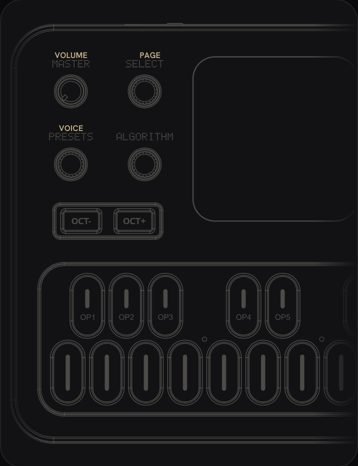 What every FM-1 control doesPick the firmware on yours, then tap any control to see what it does.
 How to add glide to one step0:38 · 3 STEPS
 How to play a random sequence0:28 · 2 STEPS
Les is independent and not affiliated with M-VAVE or the firmware authors. M-VAVE and FM-1 are trademarks of their owners.