How to use grooves in Ableton 12
A groove changes the timing and feel of a clip, and Global Amount scales how strongly every groove's Timing, Random and Velocity apply. In a new Set it starts at 0, so a swing groove dropped on a clip can seem to do nothing until you turn it up. Then the groove's own Timing sets how much of it you get.
Global Amount turns grooves up.
Start a new Live Set, with a MIDI drum clip playing (its notes on the grid) and the clip's Clip View open. On an audio clip a groove works only when Warp is on.
Four steps
Drag a groove from Grooves onto your clip. Nothing you hear changes yet.
0:07Raise Global Amount in the Control Bar. It appears once a groove is on.
0:14Click the arrow by the browser toggle. Then Groove Pool. The beat plays on.
0:21Lower Timing to soften the groove. Each groove has its own Timing.
0:27
Drop it in. Turn it up.
Good to know
Global Amount works on every groove in the Set at once, and goes up to 130%. To write the groove into the clip itself, press Commit by the clip's Groove chooser: on a MIDI clip the notes move, and the chooser goes back to None.
Ask Les about your own setup
Say what you want to make and what else you use. Les gives you steps for your own gear, one at a time, and says why each one works.
To get an invite: leave your email, then join the Les Discord.
 How to use grooves in Ableton 120:42 · 4 STEPS
 How to use the arpeggiator0:37 · 4 STEPS
 How to make a deep bass0:38 · 4 STEPS
 How to make an evolving pad0:44 · 4 STEPS
 How the Mod Matrix works0:39 · 3 STEPS
 How to morph between two versions of a pad0:40 · 4 STEPS
 How the two wave knobs on a PolyBrute oscillator work0:42 · 4 STEPS
 How to add swing0:34 · 2 STEPS
 How to change the bells on the FM-1 AMB-10:36 · 3 STEPS · AMB-1
 How to turn the FM-1 AMB-1 into a drone0:37 · 3 STEPS · AMB-1
 How to steer the melody on the FM-1 AMB-10:36 · 3 STEPS · AMB-1
 How to use the arpeggiator0:41 · 4 STEPS · STOCK
 How to play a dominant 7th on the FM-1 with ChoralRoot0:33 · 3 STEPS · CHORALROOT
 How to play minor 9th chords with one finger on the FM-1 with ChoralRoot0:37 · 3 STEPS · CHORALROOT
 How to play a I-vi-IV-V on the FM-1 with ChoralRoot0:39 · 4 STEPS · CHORALROOT
 How to get the Casio CZ sound on the FM-1 with Melodee0:34 · 3 STEPS · MELODEE
 How to get a Prophet-5 sound on the FM-1 with Melodee0:40 · 4 STEPS · MELODEE
 How to record without quantize on the FM-1 with Melodee0:28 · 2 STEPS · MELODEE
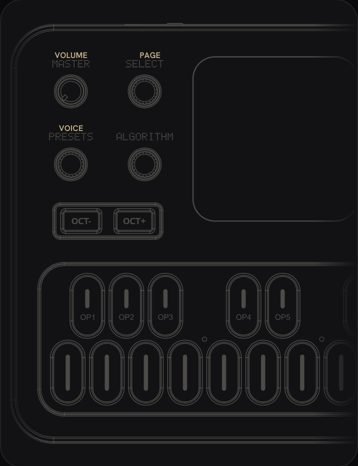 What every FM-1 control doesPick the firmware on yours, then tap any control to see what it does.
 How to add glide to one step0:38 · 3 STEPS
 How to play a random sequence0:28 · 2 STEPS